


Create Appealing Visual Survey Design Effortlessly!

Make your online surveys visually appealing and professional with SurveyCake!
Even if a survey is rich in content, if its visual appearance is bland and monotonous, it’s difficult to attract respondents. A clean and visually appealing design not only grabs attention at first glance but also provides respondents with a good experience, making it easier to collect answers successfully!
How to Make Your Surveys Visually Appealing and Professional
We’ll introduce how to make your surveys more eye-catching from two aspects:
- “Survey Appearance”: Good survey’s appearance gives respondents a comfortable answering experience visually and leaves a deep impression in their minds, helping you collect correct information and conduct brand re-marketing activities more effectively!
- “Content Layout”: Clear and tidy content layout can guide respondents to answer questions and reduce the threshold for answering.
-
Survey Appearance
(a) Welcome/Thank-You Banner: Leave a Deep Impression to Respondents
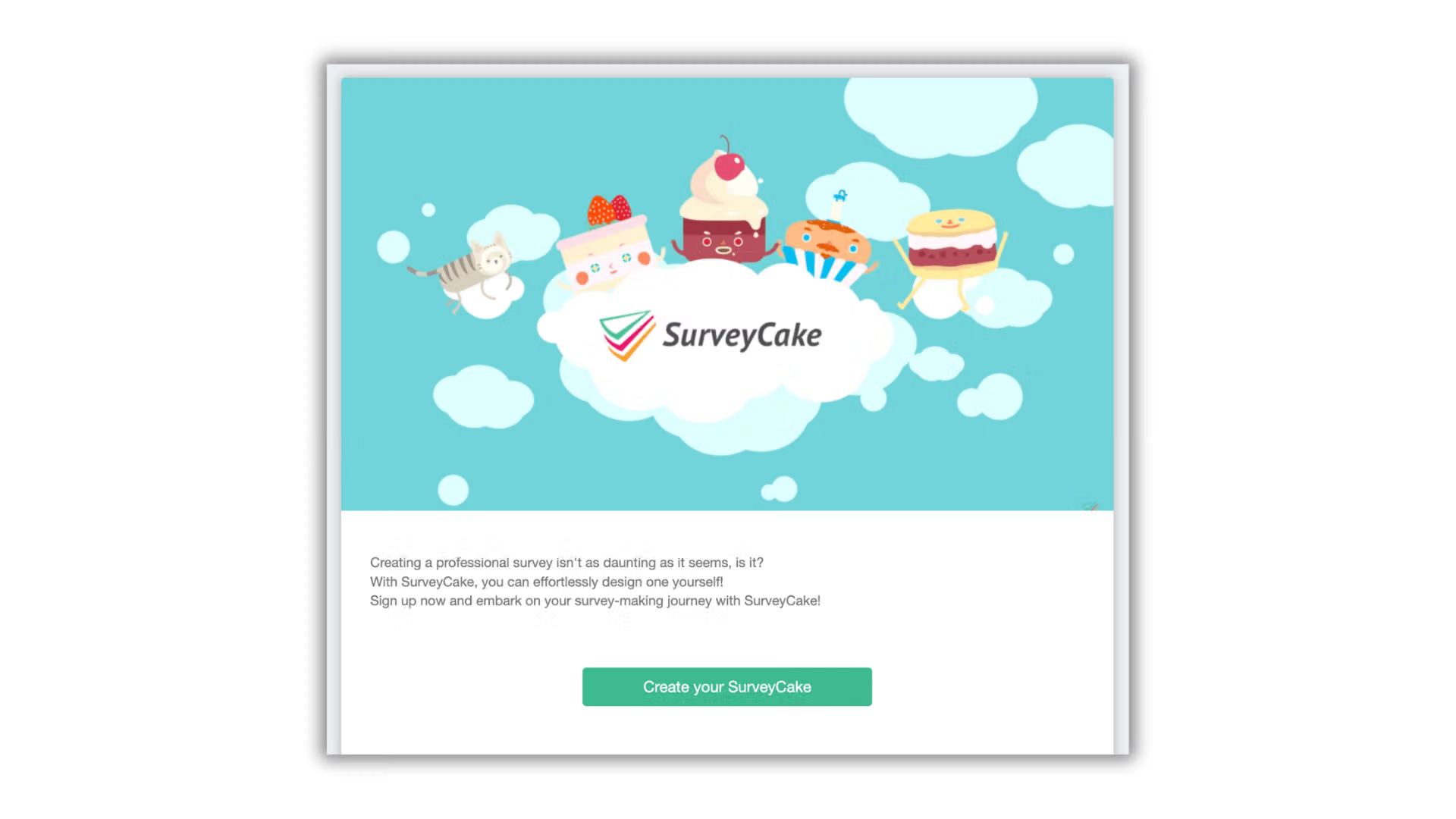
The beginning and end of a survey are crucial! When a respondent enters a survey, the first thing they see is not the content but the welcome banner at the top; after submitting the survey, the last thing they see is the thank-you banner. Placing suitable images in the banners can instantly attract attention to your survey and facilitate follow-up communication after the respondent submits the survey.
Take the “Thank-you Page Banner” as an example. After uploading beautiful images, does it make the survey feel livelier and communicate information more clearly?
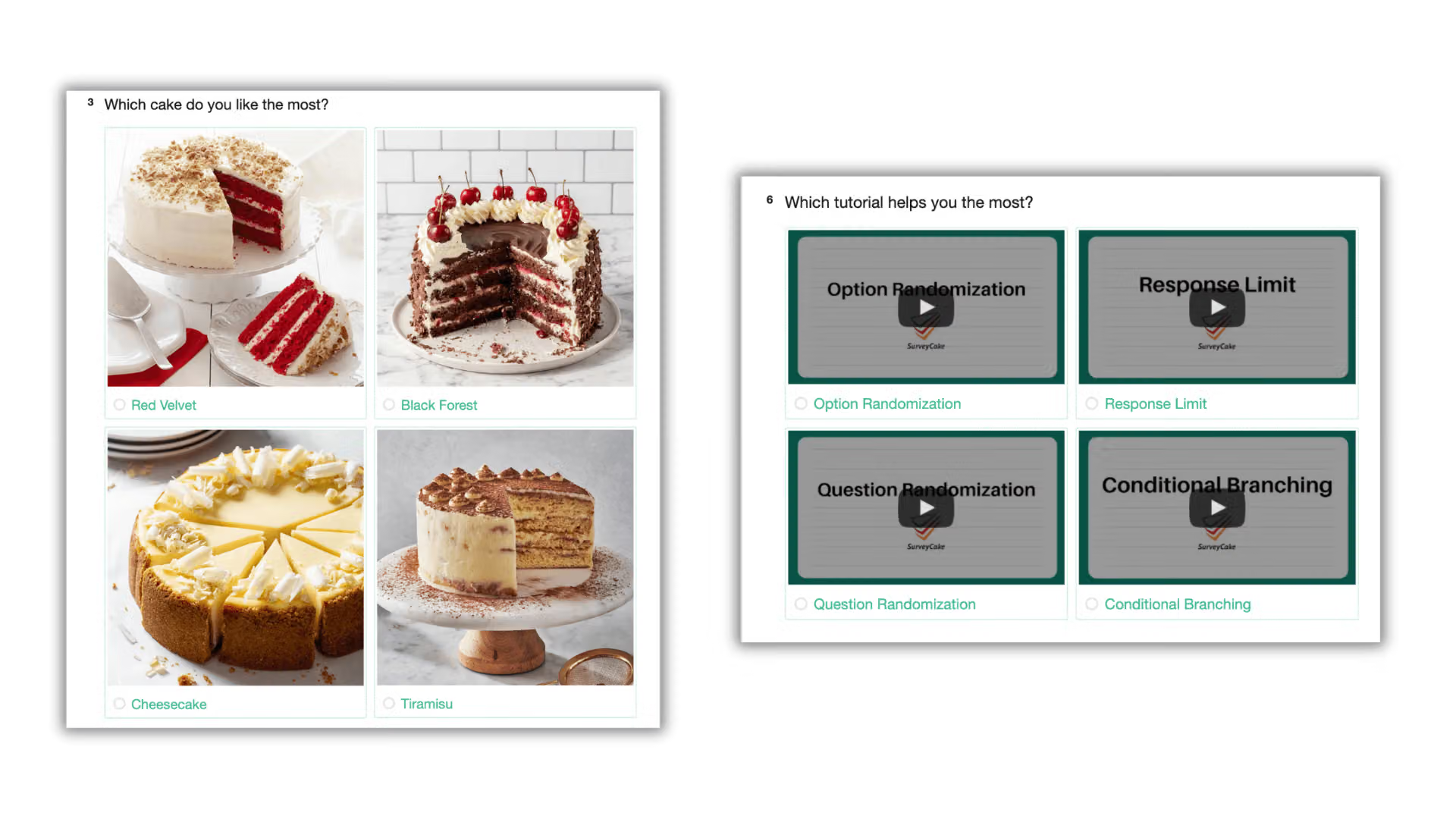
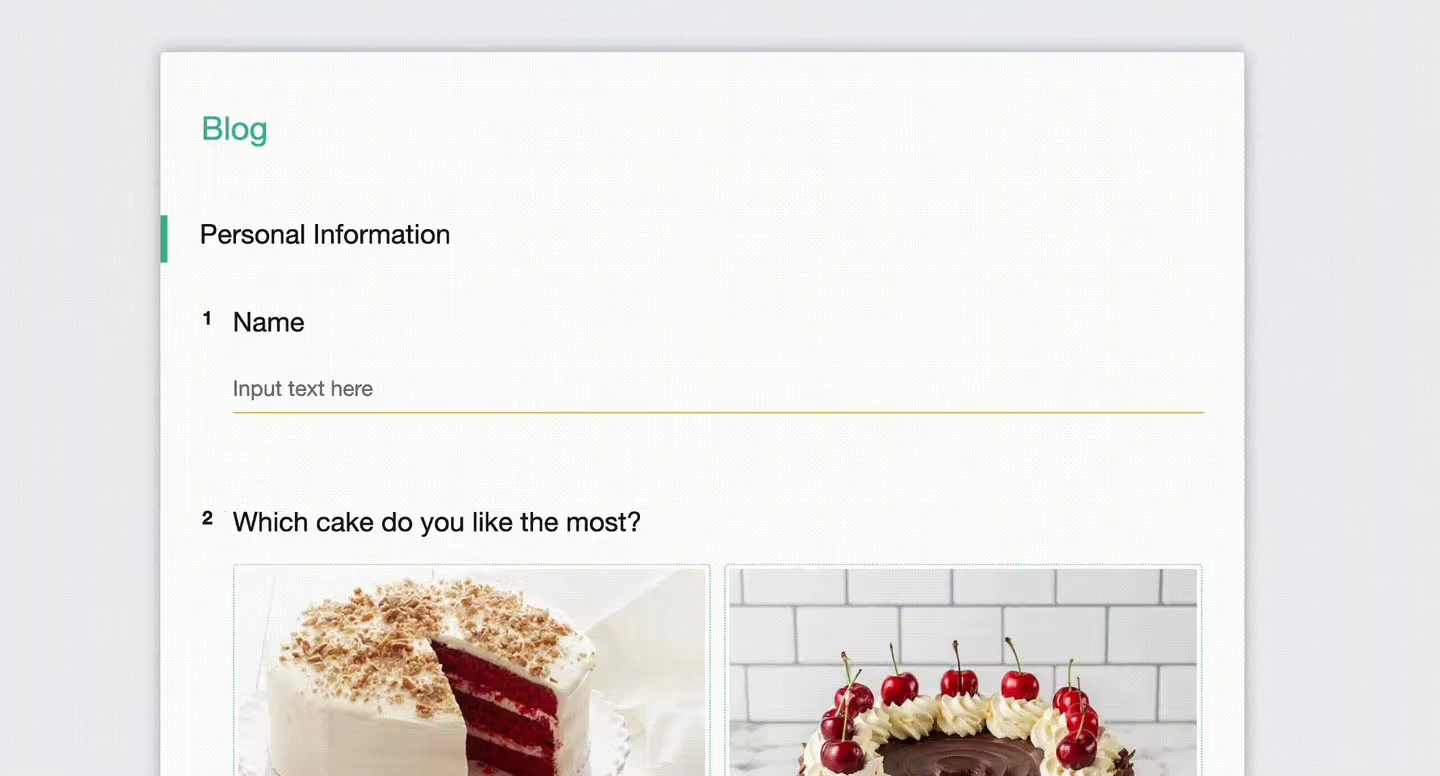
(b) Insert Image(s)/Video(s) in Options: Clearly Understand Option Content
Inserting “Images/Videos” in options not only makes options more vivid but also helps respondents quickly understand the content of options, eliminating the confusion of unclear communication through plain text!
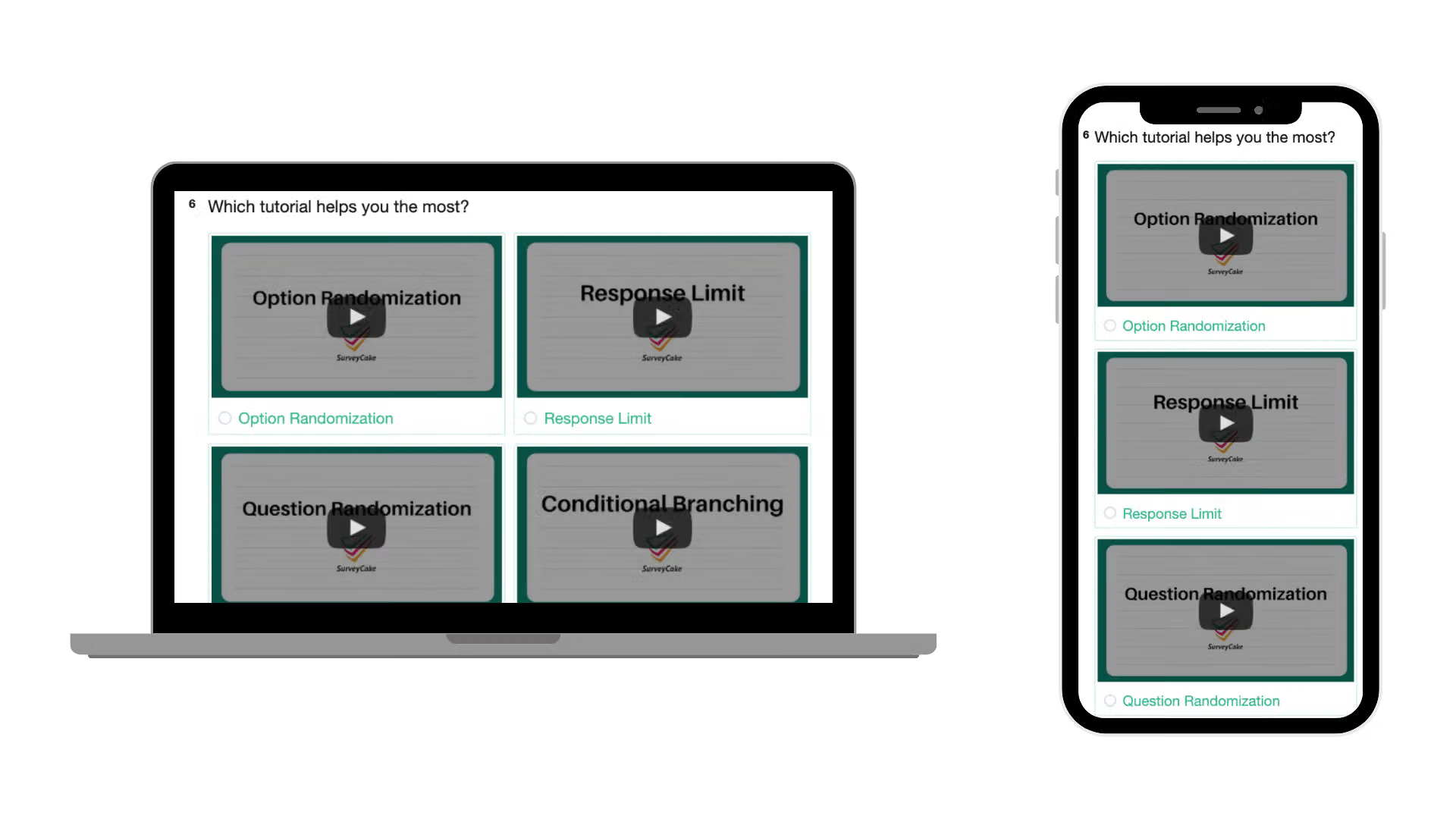
(c) Options Display: Adjust Option Presentation Freely
Because the layout sizes of desktop and mobile devices are different, if several options are crammed into one row, respondents filling out the survey on a mobile device may have difficulty seeing each option clearly, causing difficulties in answering.
You can adjust the display of options separately for desktop and mobile devices through “Options Display”. For example, setting two options per row on desktop and one option per row on mobile, allowing respondents on different devices to have the best answering experience.
(d) Rating: Make Quantitative Scoring More Interesting
When rating a question, you can choose your favorite rating icon based on the question. Besides making answering questions more enjoyable, it can also provide precise feedback on feelings through quantification!

(e) Insert Dynamic Fields: Increase Interaction with Respondents
Through “Dynamic Fields”, you can accurately insert answers previously chosen by respondents into question descriptions or introductions. Besides increasing interaction with respondents, it also enables precise follow-up questions or prompts!
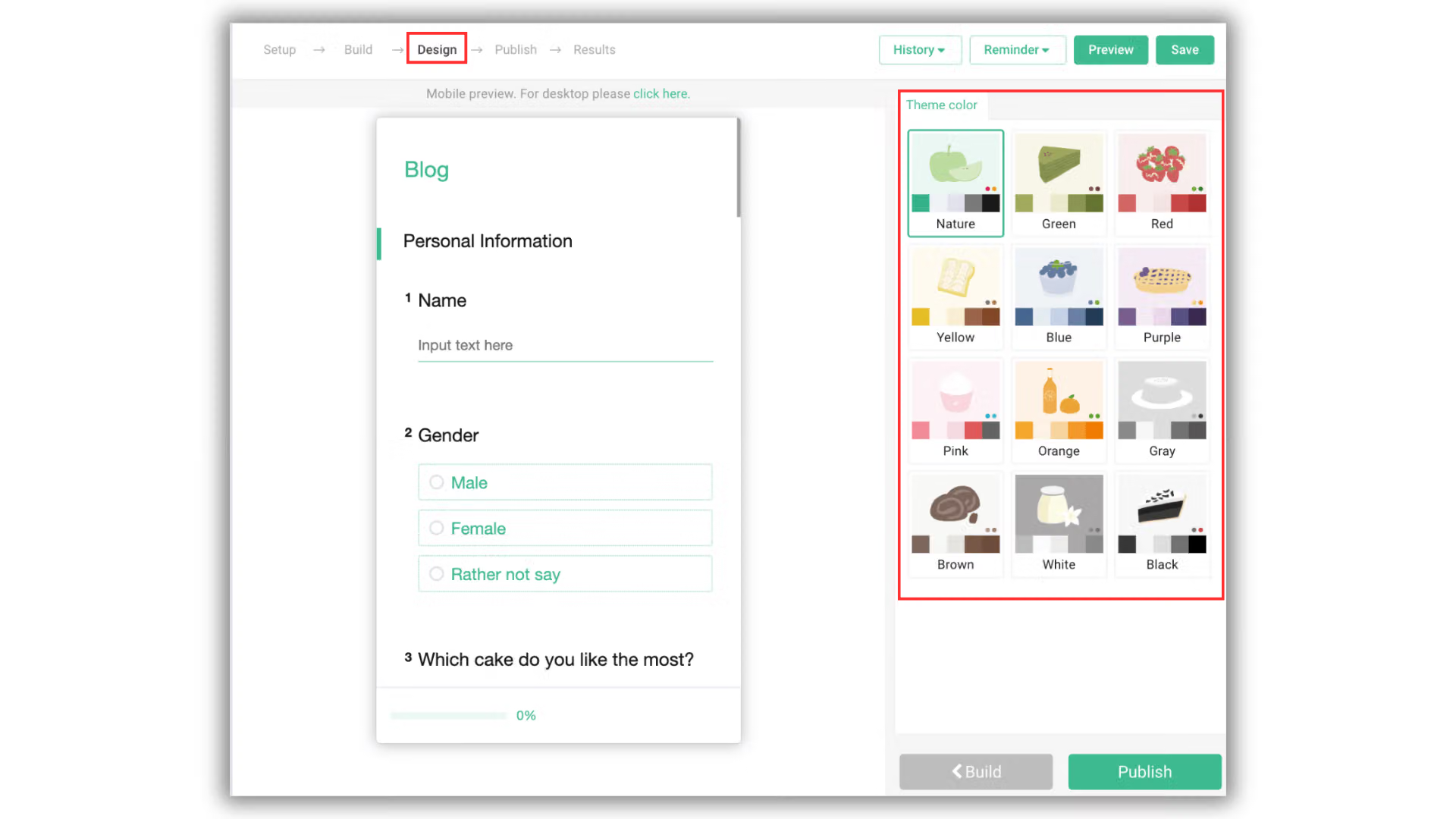
(f) 12 Theme Colors: Overall Visual Comfort
SurveyCake provides 12 different theme colors, which can be applied to survey titles and content together. You can choose colors similar to banners or content. For example, for relaxed and lively content, brighter color schemes can be selected.
-
Content Layout
(a) Section Title: Group Similar Type Questions
If all questions are mixed together without clear categorization, respondents may easily not understand the relationship between each question.
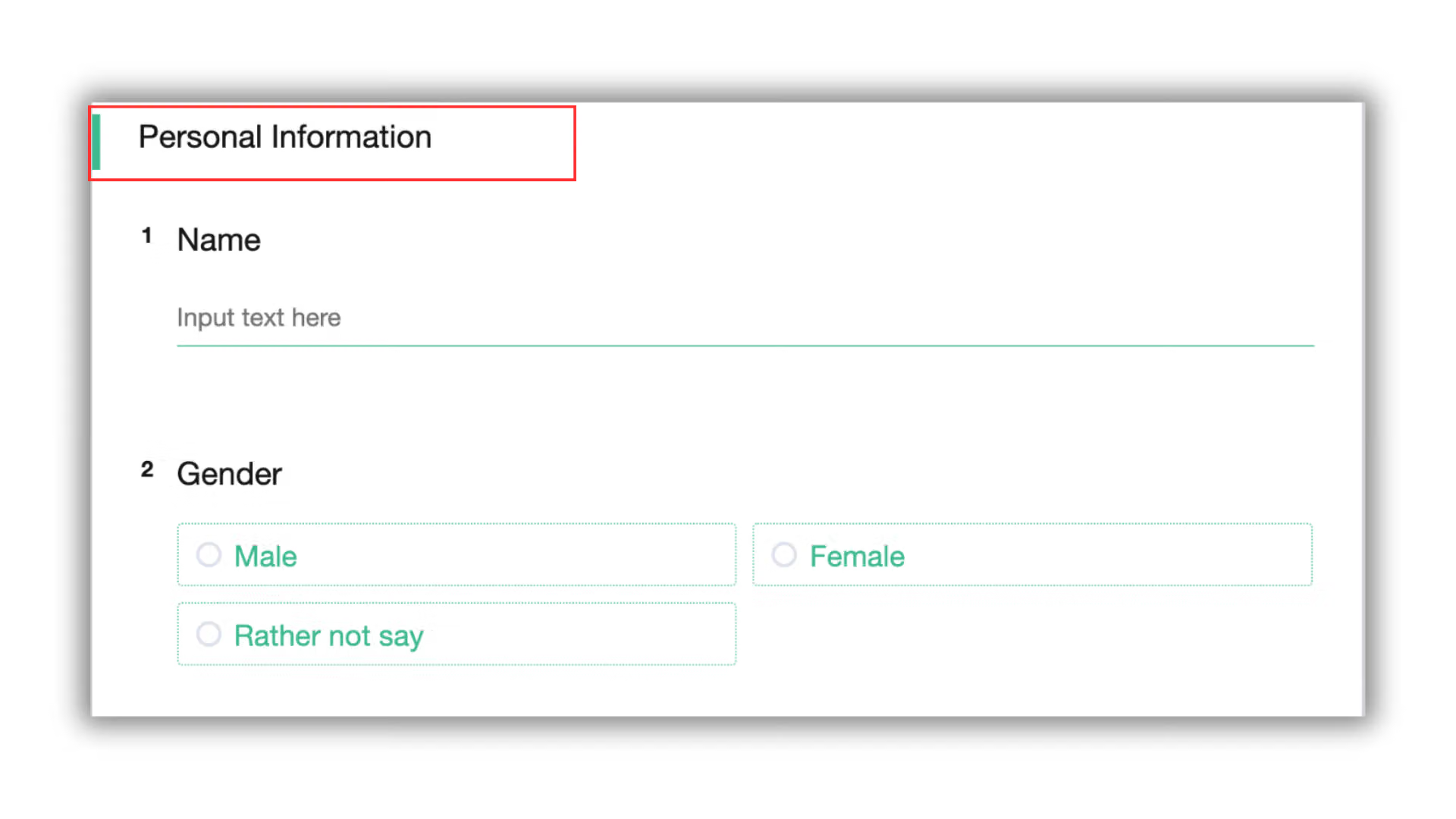
“Section Title” can make your survey more tidy, allowing respondents to understand at a glance when entering the survey. For example, categorizing under “Personal Information,” grouping together questions like name, gender, birthday, and phone number of the same type. After appropriate categorization, the entire survey becomes clear and can smoothly guide respondents to answer.
(b) Rich text: Logical Question Design
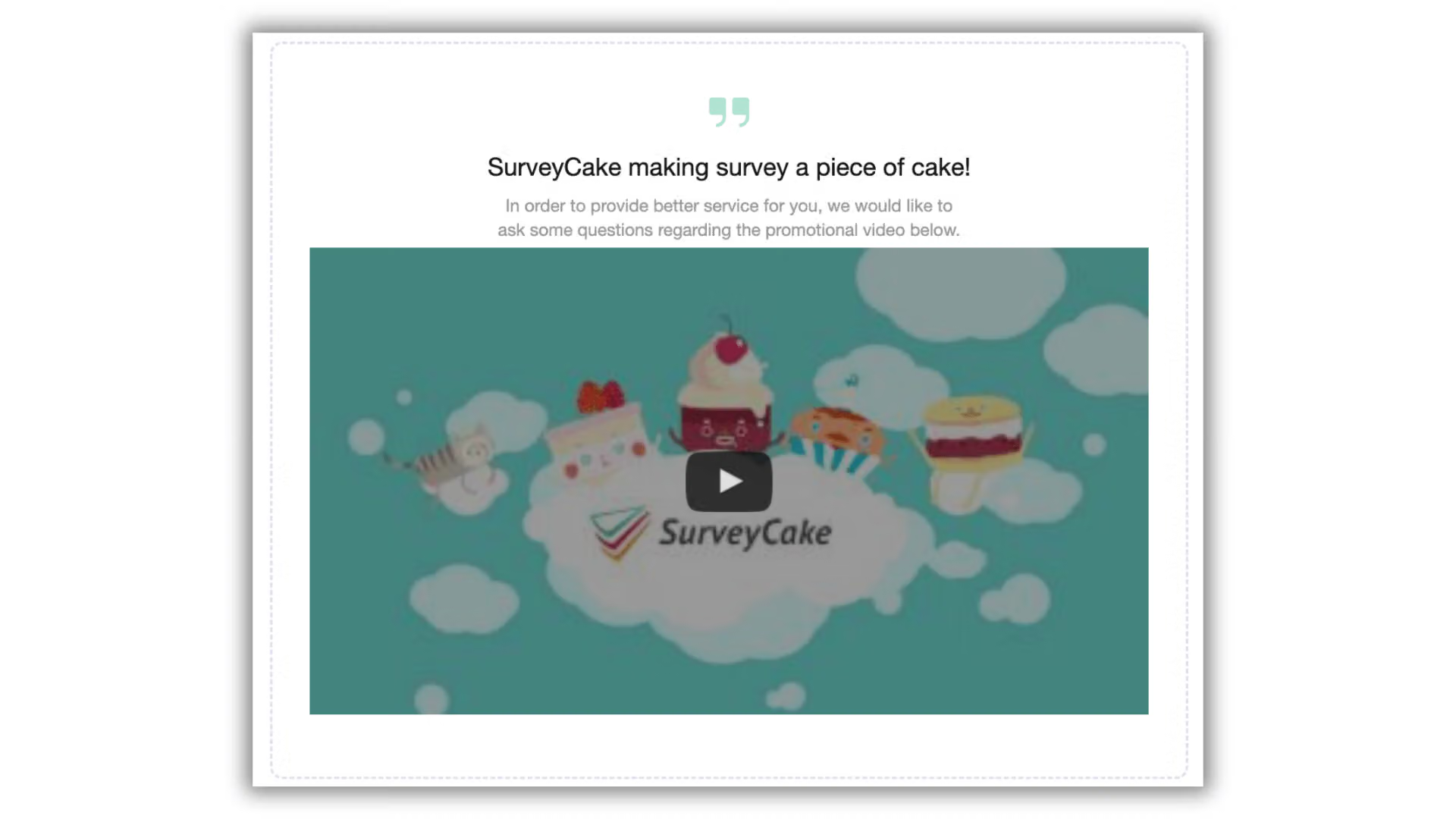
When respondents are faced with too many questions at once or questions involving privacy, they often hesitate to answer truthfully. “Rich text” can inform respondents of the background reasons before questioning. For example, before asking for personal information, you can inform them of the reasons for the inquiry and its subsequent use, reducing answering hesitations.
Rich text can also be used for information communication before question groups. For example, inserting the promotional poster information of speakers or venue layout diagrams before conducting a lecture, or asking respondents to watch a video segment first, making subsequent feedback more relevant to the survey topic.
Use SurveyCake to create your surveys now!
After learning about these useful features, it’s time to put them into action. Click here to register for free and you can immediately apply many practical features! Make your surveys professional and visually appealing with SurveyCake!
For further inquiries, feel free to contact us anytime at [email protected].


