


Refine Survey with Logical Skipping and Branching!

Filling out a lengthy questionnaire sometimes feels like navigating through a maze. In order to gather more data, questionnaires often include various types of questions. For instance, to better understand your spending habits, there might be a series of questions for you to select different options based on your experiences, sometimes even with hints like “If this is your first meal, please skip directly to question 9”.
However, as these questions pile up, the entire questionnaire starts to become a bit chaotic. Even with efforts to categorize, respondents still face a plenty of seemingly unrelated questions. Such a filling experience isn’t very user-friendly and could lead to impatience, resulting in a decrease in survey response rates.
In this article, I want to share a secret to making survey filling experience smoother with logical skipping or branching of questions. Through clever survey skipping logic design, not only can respondents feel more comfortable, but it can also increase survey response rates, making your research more valuable. Let’s explore how to cleverly use skipping logic in survey design!
Enhancing the Survey Filling Experience by Automatically Guiding Respondents to Answer Specific Questions
Skip Logic / Conditional Branching allows respondents to answer questions relevant to them.
But what’s the difference between these two features?
The difference lies in whether the respondent can “view” the unrelated questions.
Skip Logic: Unrelated questions are visible
As the name suggests, skip logic means that when a respondent selects a specific answer, the system will “automatically skip” to the designated question. However, as long as the respondent has not selected an answer yet, all questions remain visible on the screen.
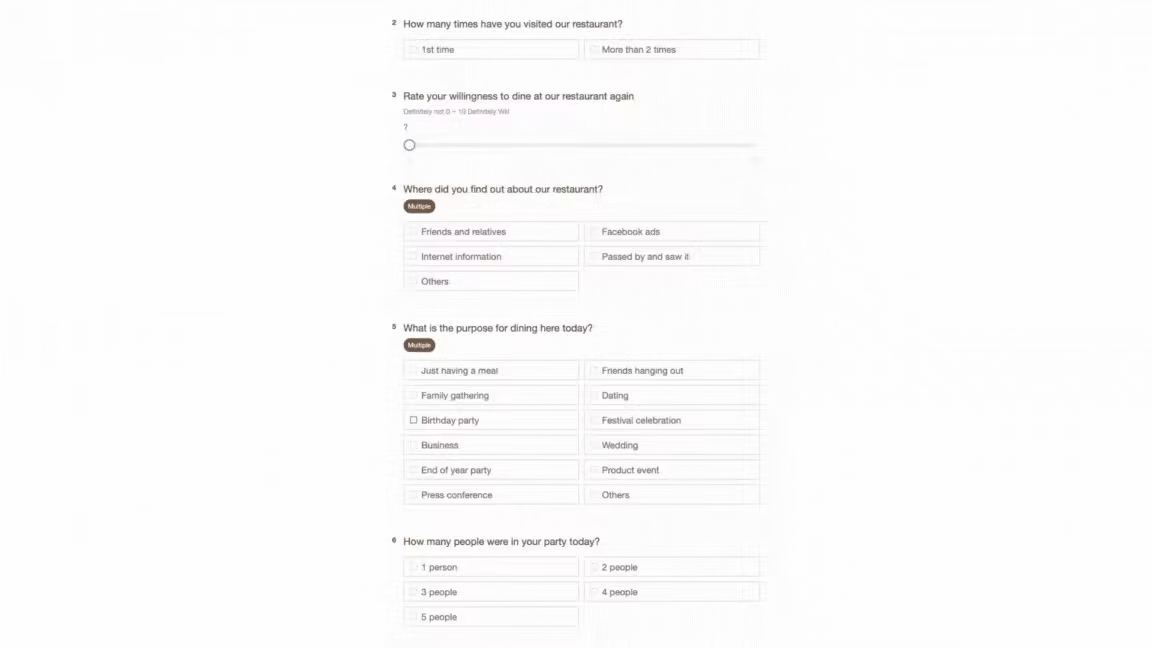
As shown in the video above, when a respondent has not selected any options, we can see all the questions. But when the respondent selects the option “More than 2 times”, the system automatically skips to question 5, skipping questions 3 and 4, making it easier for the respondent to skip irrelevant questions.
Conditional Branching: Unrelated questions are not visible
When a respondent selects a specific answer, the system will “automatically display” the designated question, while unrelated questions will be hidden. Therefore, even if the respondent has not selected any answers, all questions will not be displayed on the screen.
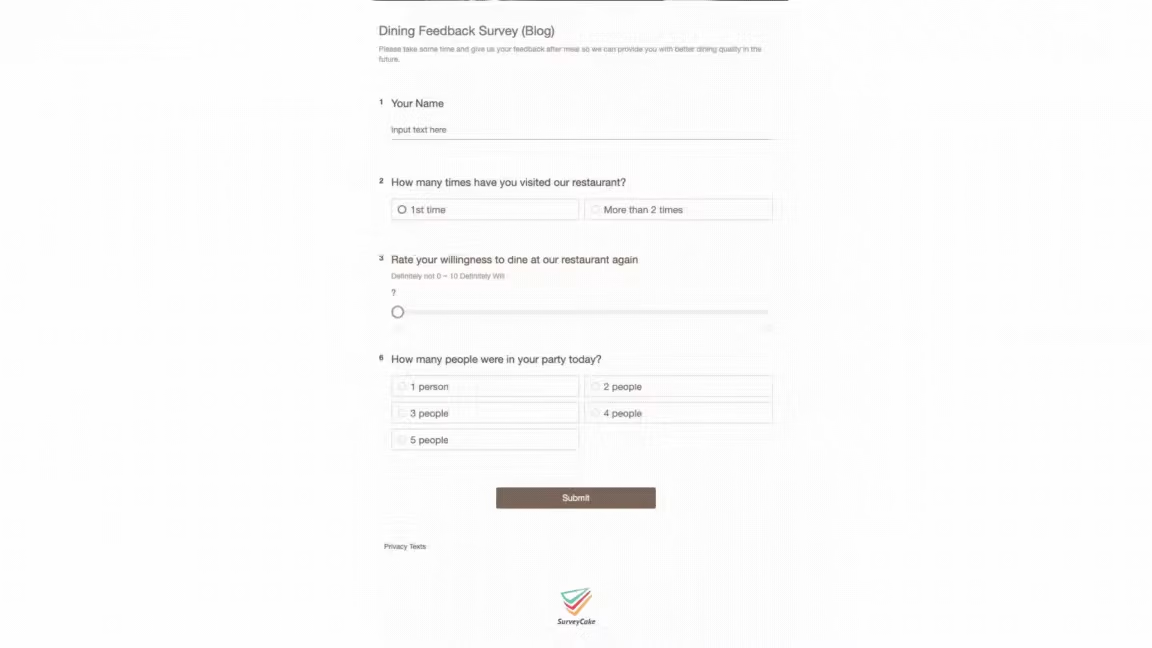
As shown in the video above, when a respondent has not selected any options, we can only see questions 1, 2, 3, and 6. But when the respondent selects the option “First time”, question 4 will automatically appear; when the respondent selects “More than 2 times”, question 5 will also automatically appear.
In other words, unless the respondent selects a specific answer, they will never see the hidden questions. Conditional branching not only makes the response process more intuitive and logical but also helps keep the survey layout concise.
How to Set Up?
Now that we understand the difference between skip logic and conditional branching, let’s see how to set up these two professional features.
1.Go to the Survey Build Page
After logging into the SurveyCake backend, add multiple-choice or checkboxes questions in the edit the questions
[NB: These two features are only available on SurveyCake PRO]
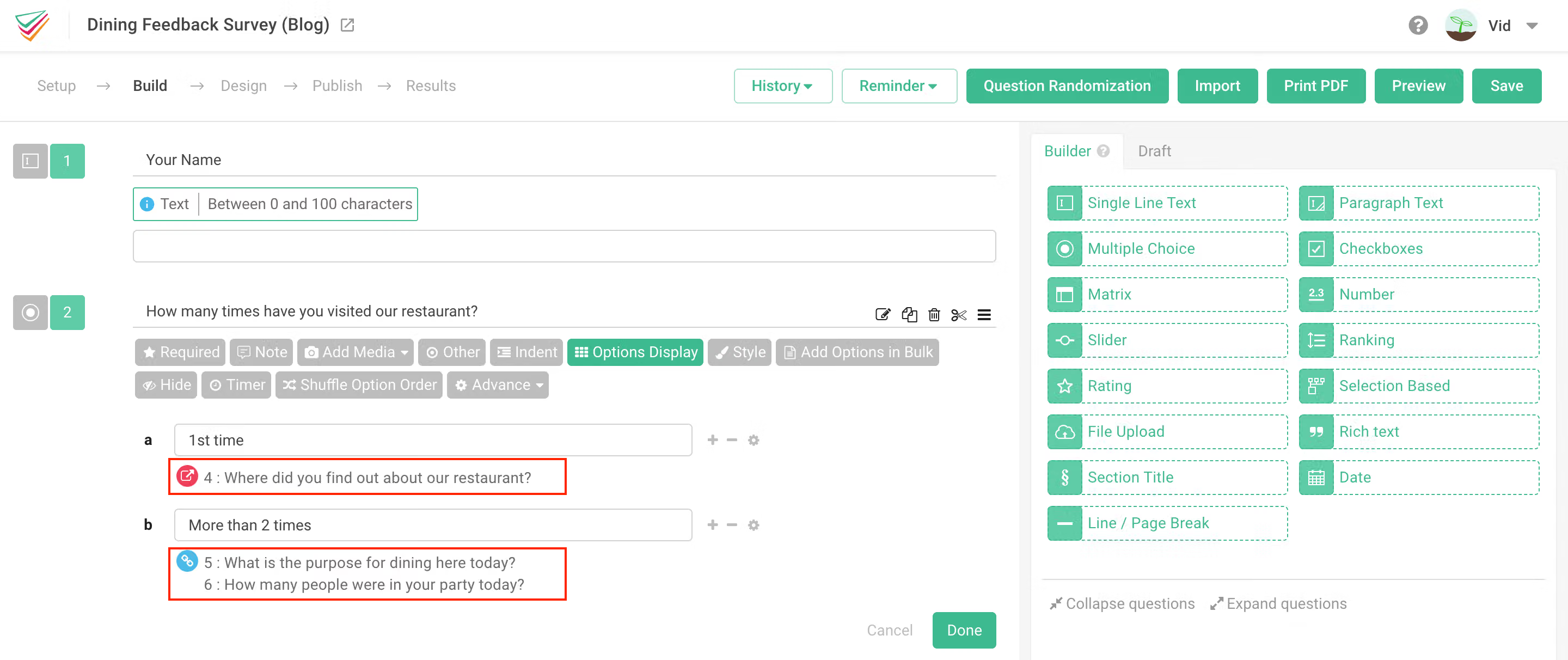
The skip option will be displayed in a red icon, while the branched option will be displayed in a blue icon.
2.Enable “Skip Logic” or “Conditional Branching”
Click the gear icon next to the options to see the “Skip Logic” or “Conditional Branching” features options.
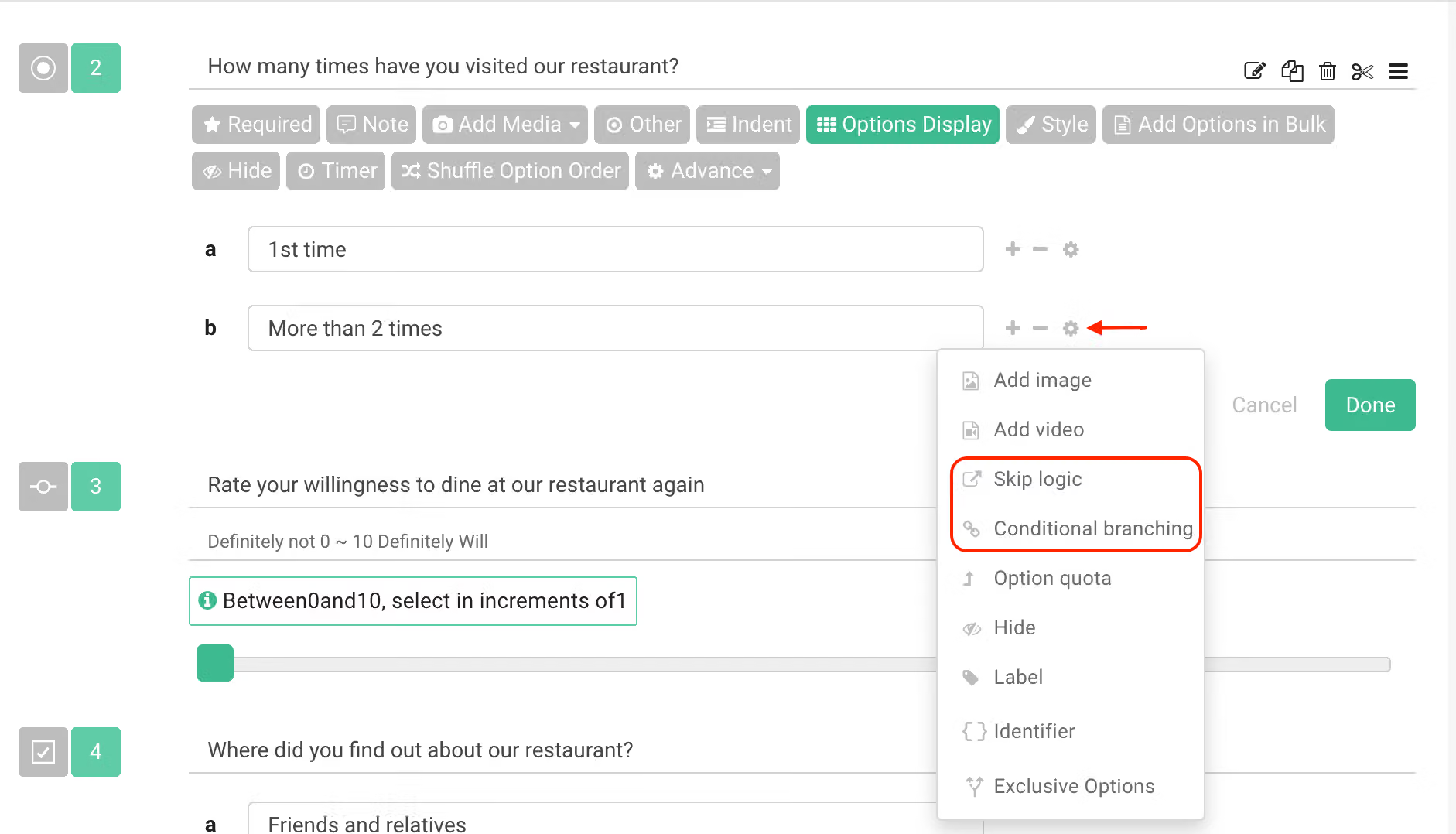
You can choose to skip or branch any questions according to your needs.
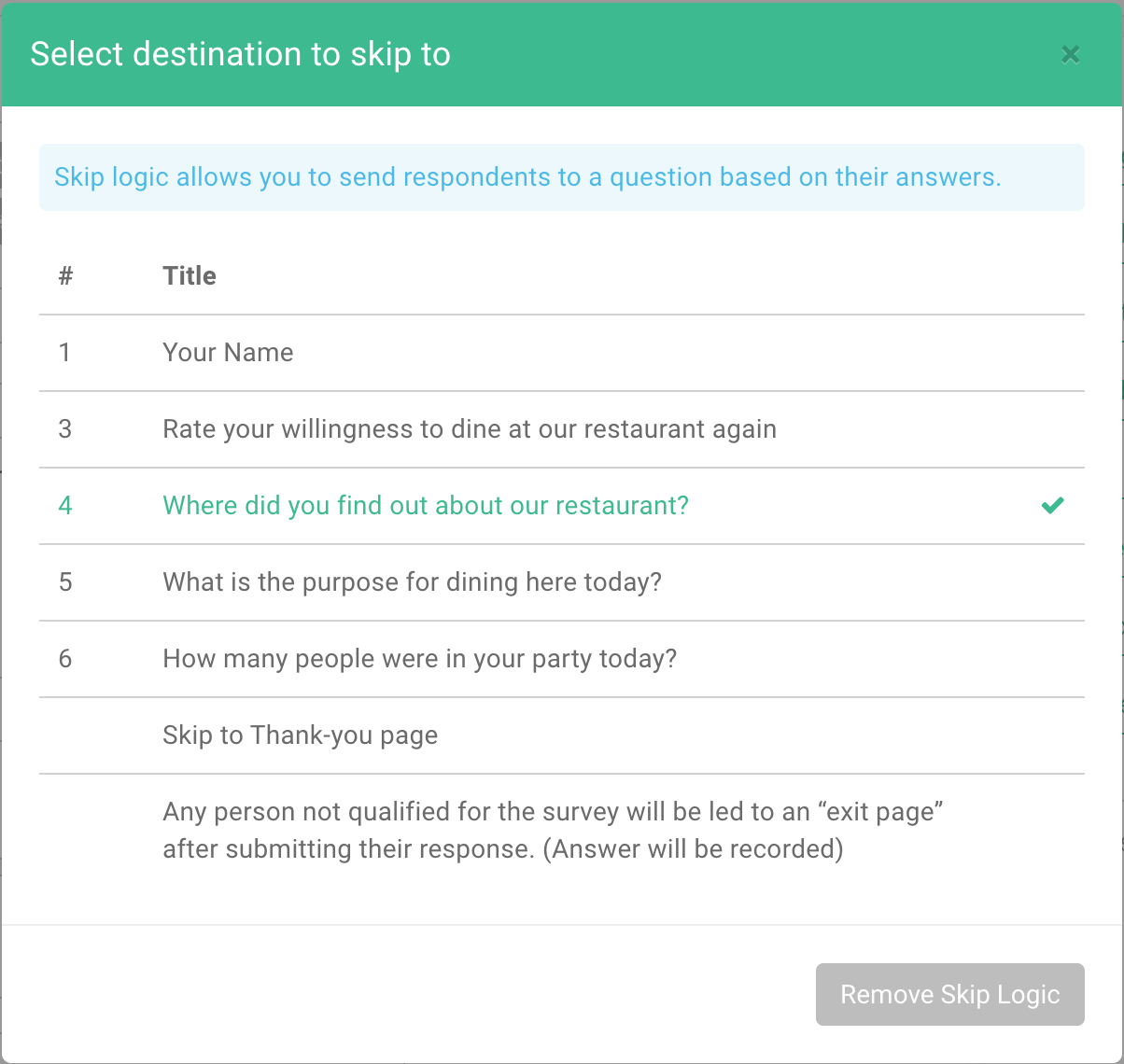
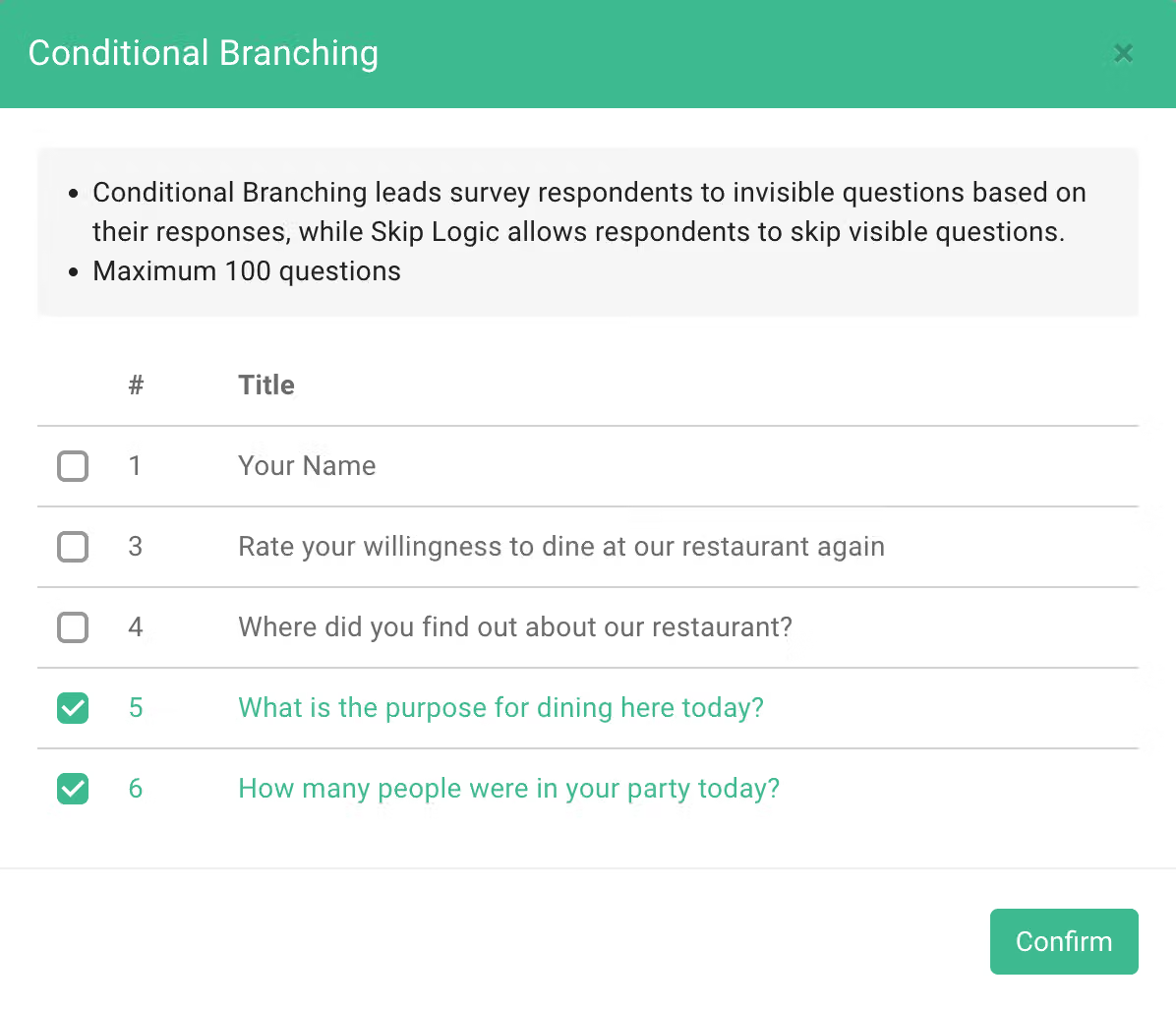
3.Set the question that you want to automatically skip (Skip Logic) or display (Conditional Branching)
Skip Logic only allows you to choose one question to skip to. Whereas, Conditional Branching allows you to choose multiple follow-up questions.
Final Step: Hide the Survey Progress Bar
When you enable “Skip Logic” or “Conditional Branching”, the default progress bar may not correctly display the progress of the filling progress. To ensure the filling experience and prevent confusion among respondents, you can go to “Survey Setup > General” and “Turn off the Survey Progress Bar” to hide the survey progress bar.

Intuitive Survey Filling Experience!
Optimizing your survey filling experience not only makes your questionnaire look more professional but also effectively increases the submission rate. No one has the patience to see too much irrelevant survey content.
Click here to register for FREE and make your survey filling experience smoother!


