Streamline Scoring with SurveyCake Calculation Mode

Automatically complete test scoring and financial calculations within the survey with real-time results!
SurveyCake’s calculation mode makes survey statistics more convenient.
More and more people are accustomed to using online surveys for tests and group purchases, and in these scenarios, there is often a need for calculations. From the most common test result calculations, group purchase transactions among friends and family, to customer value management, and even participation in seminars and event registrations, the calculation mode feature can be applied, making surveys easier to manage statistically.
In scenarios like class tests / exams and group purchase transactions, there is a need for “real-time” calculations. If scores can be calculated immediately and results presented for respondents to confirm instantly, it will effectively enhance the test takers or customers’ survey experience. Moreover, this feature also reduces the manual calculation time for survey designers.
Next, we will introduce how to use SurveyCake’s “Calculation Mode” feature in various survey scenarios, allowing you to assign different meanings to the calculated scores and enable respondents to obtain corresponding survey scores immediately.
Scoring Statistics
The “Calculation Mode” is often used in various scenarios involving statistical scoring. For example, in “post-test surveys,” it automatically adds up the test scores of each student; in “psychological tests” and “adaptive tests,” it immediately provides scores and analysis results; or when conducting “satisfaction surveys,” it eliminates the need for additional time to manually calculate customer value scores and allows for direct customer segmentation in the survey backend system.
Classroom Tests/Psychological Tests
With the popularization of remote teaching or e-learning, using surveys for classroom tests has become more common. SurveyCake currently offers the “Calculation Mode” feature, which saves teachers the extra time needed for grading papers and recording grades. Students can review their errors immediately after completing the test, making the testing mechanism more efficient and smooth.
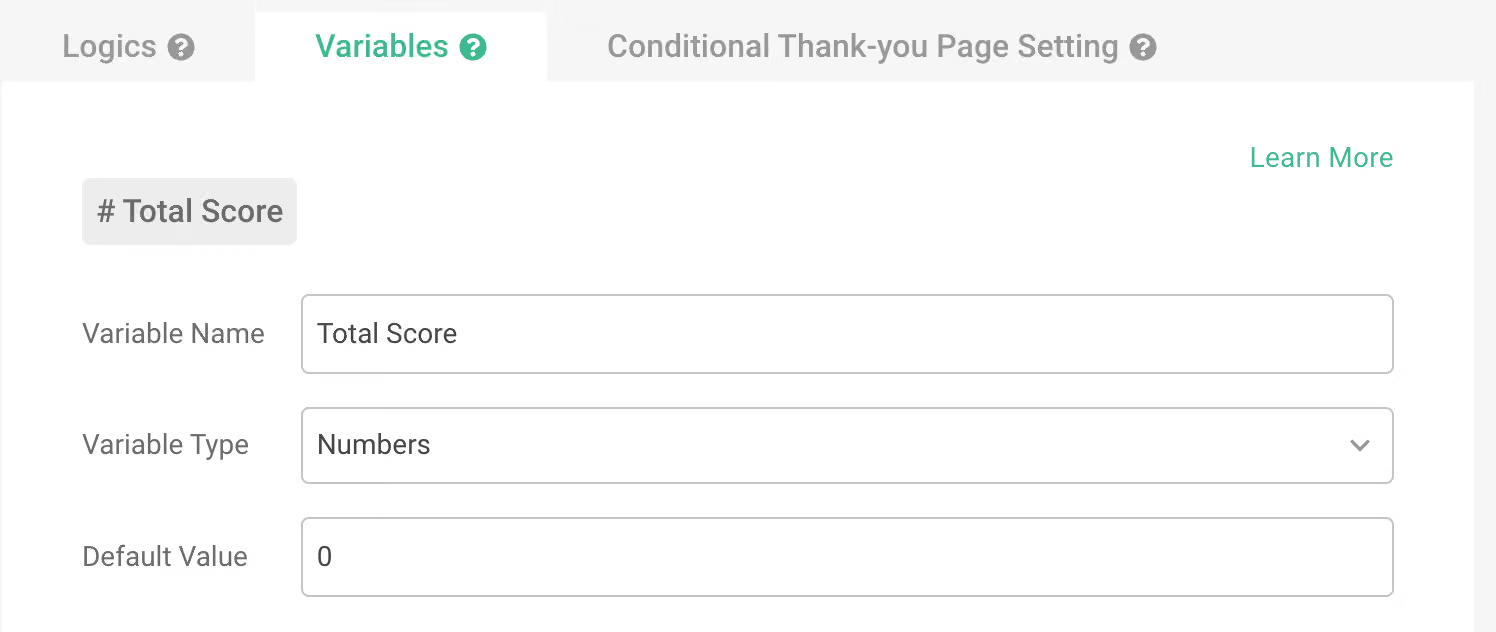
Variable settings: Set the variable name as “Total Score,” and the “Default Value” can be set to zero, starting the score calculation from zero.
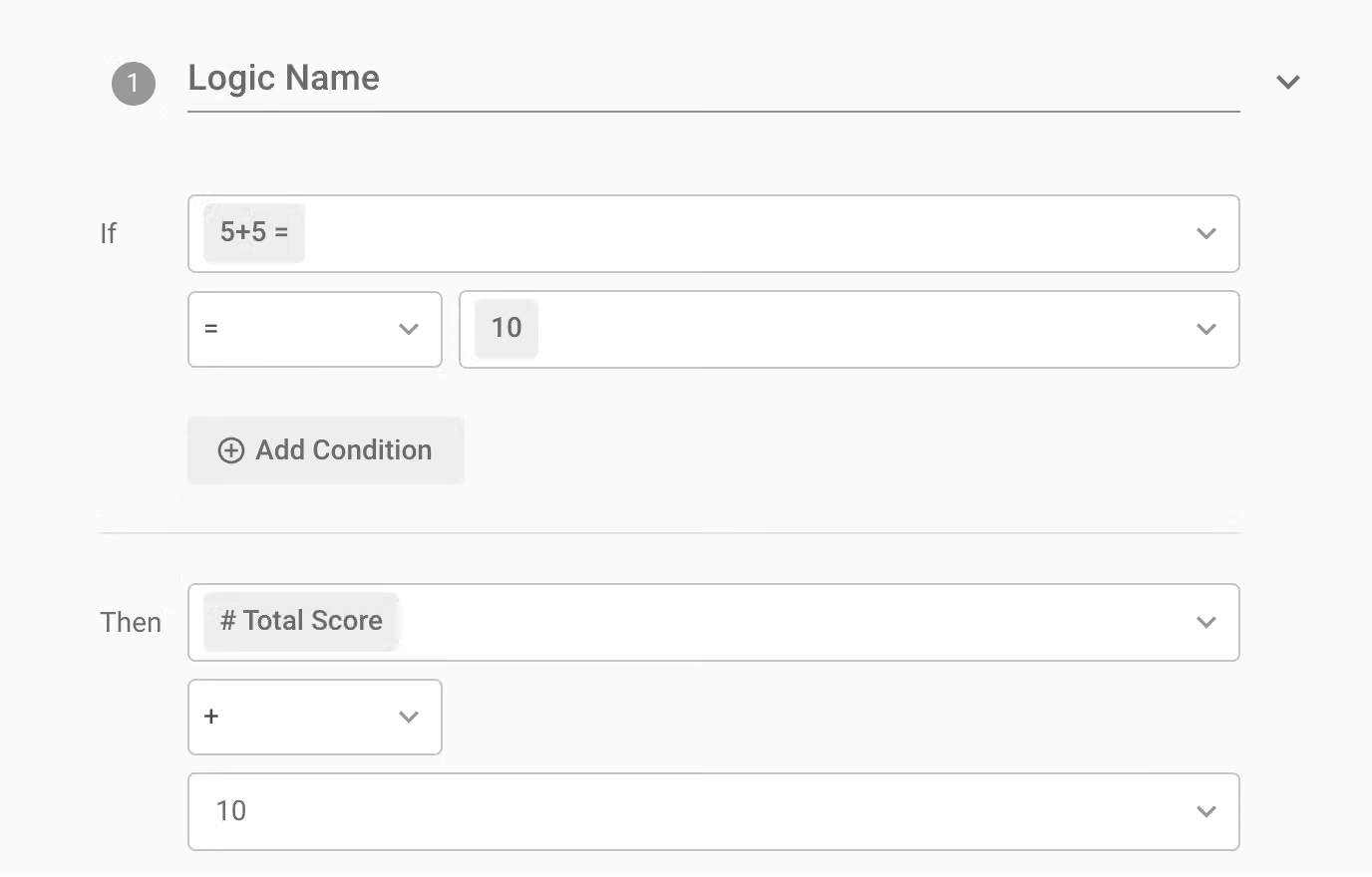
Logic settings: Select the correct answers to questions, then choose how many points to add for each correct answer.
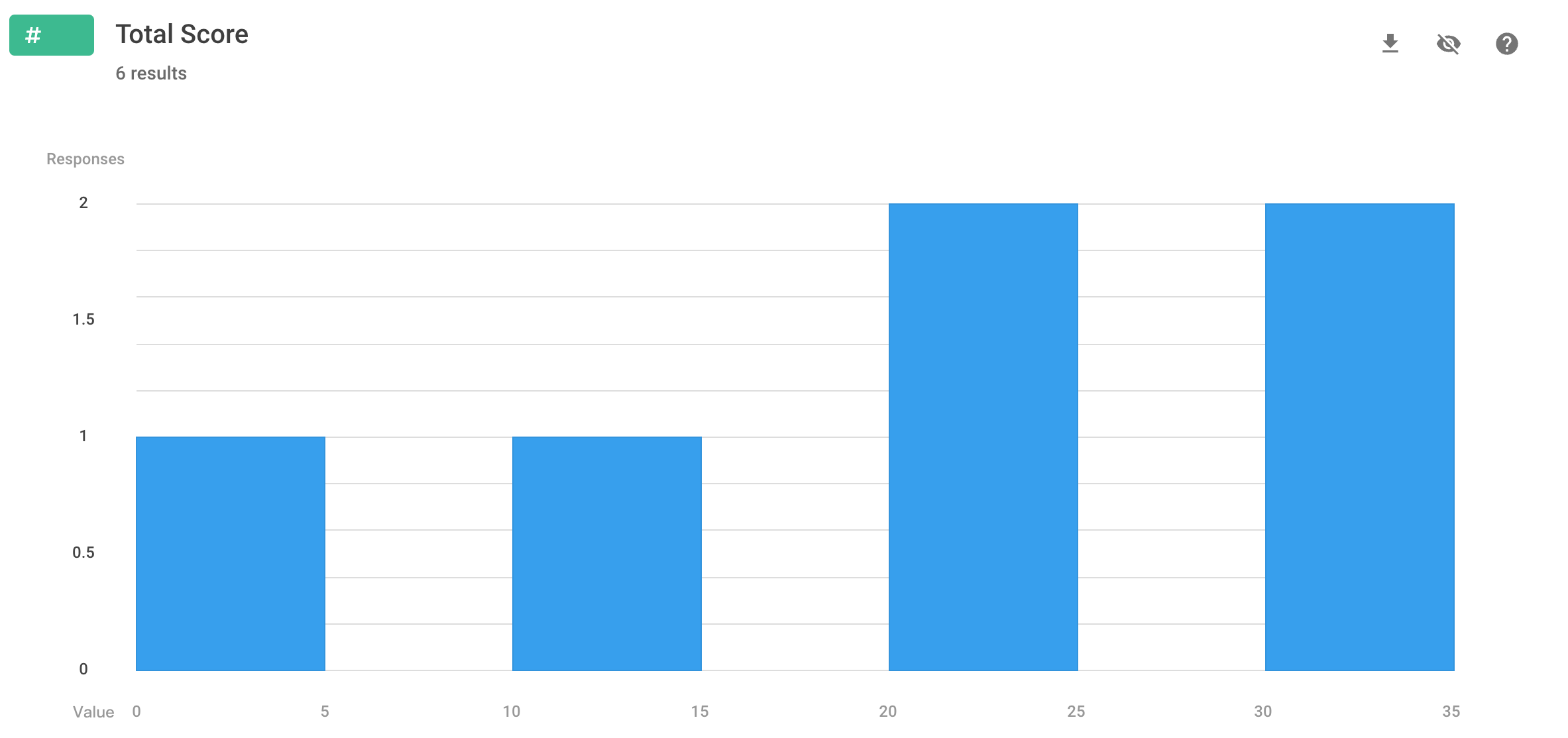
After the test, teachers can directly view the score distribution, average score, highest score, and lowest score in the “Chart Report,” and obtain more detailed test results from the detailed export to quickly understand students’ understanding of the course content as a reference for future teaching content.

You don’t need to build a website for psychological tests!

In addition to formal classroom tests, popular “psychological tests” and “aptitude tests” used for evaluating job abilities can also be created using SurveyCake. By using the “Calculation Mode” to accumulate scores and using the “Introduction” or “Thank You Page” function after the questions, different personality traits descriptions corresponding to different scores can be provided in a simple way, facilitating interaction with the test takers.
Through the “Rich Text,” announce the score and describe the personality traits associated with different scores.
Customer value segmentation
In the customer-oriented era, attracting customer interest has become the biggest challenge across industries.
Through SurveyCake surveys, the total scores of customer satisfaction, loyalty, usage habits, etc., can be summed up to grasp the complete customer profile. This allows for the formulation of different strategies and the provision of differentiated services for each segmentation group, not only enabling more accurate push notifications but also increasing communication efficiency and conversion rates, thereby reducing marketing costs.
Taking dining satisfaction as an example, you can investigate dining satisfaction, dining frequency, and restaurant recommendation through “multiple choice questions” or “number questions” to achieve customer segmentation:
Variable setting: Set the variable name as “Customer Score,” and the “Default Value” as zero, so that the customer score starts accumulating from zero.
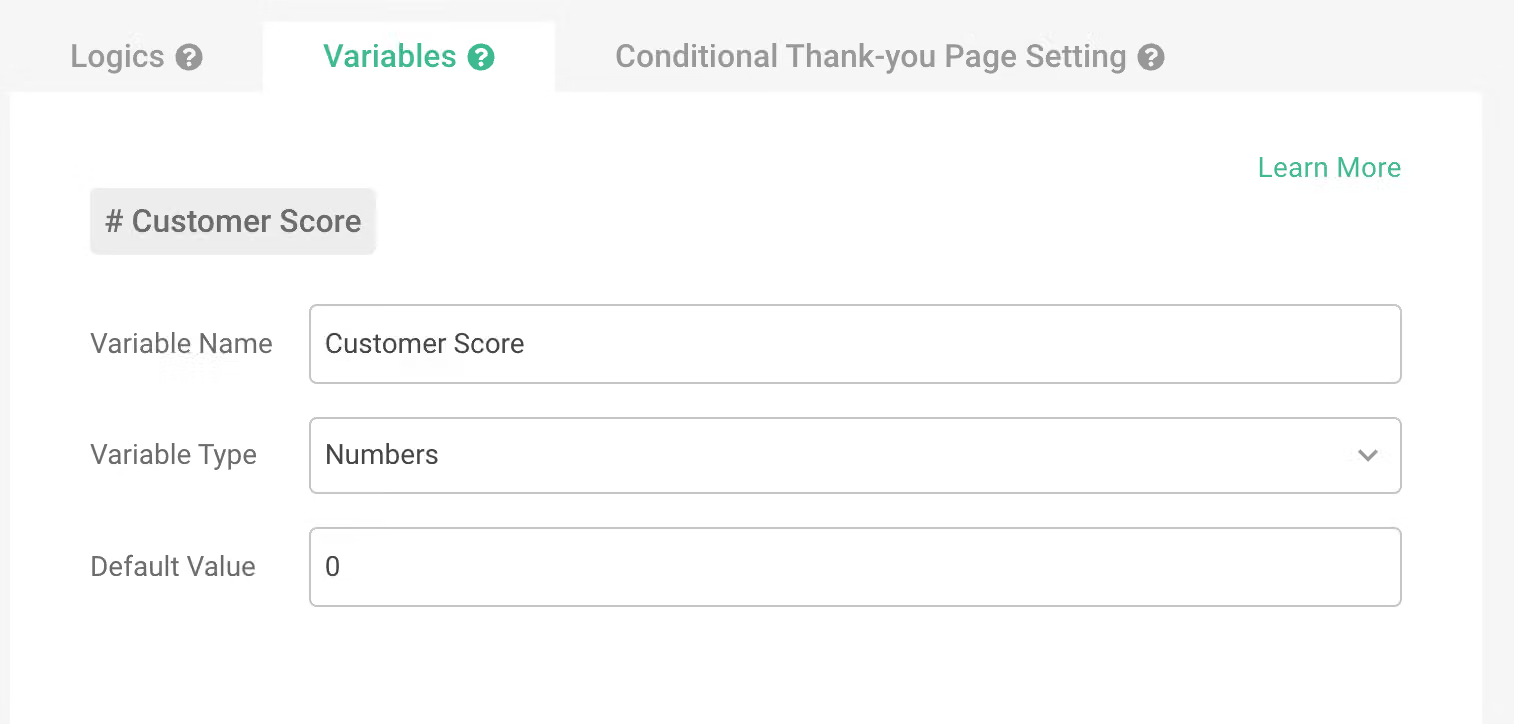
Logic setting: Set the scores for each option, and when an option is selected or the answer falls within the logic range, it automatically adds points.
- Multiple Choice Questions
Are you willing to dine at this restaurant again next time?
- Definitely not (+0)
- Not sure (+3)
- Definitely will (+5)

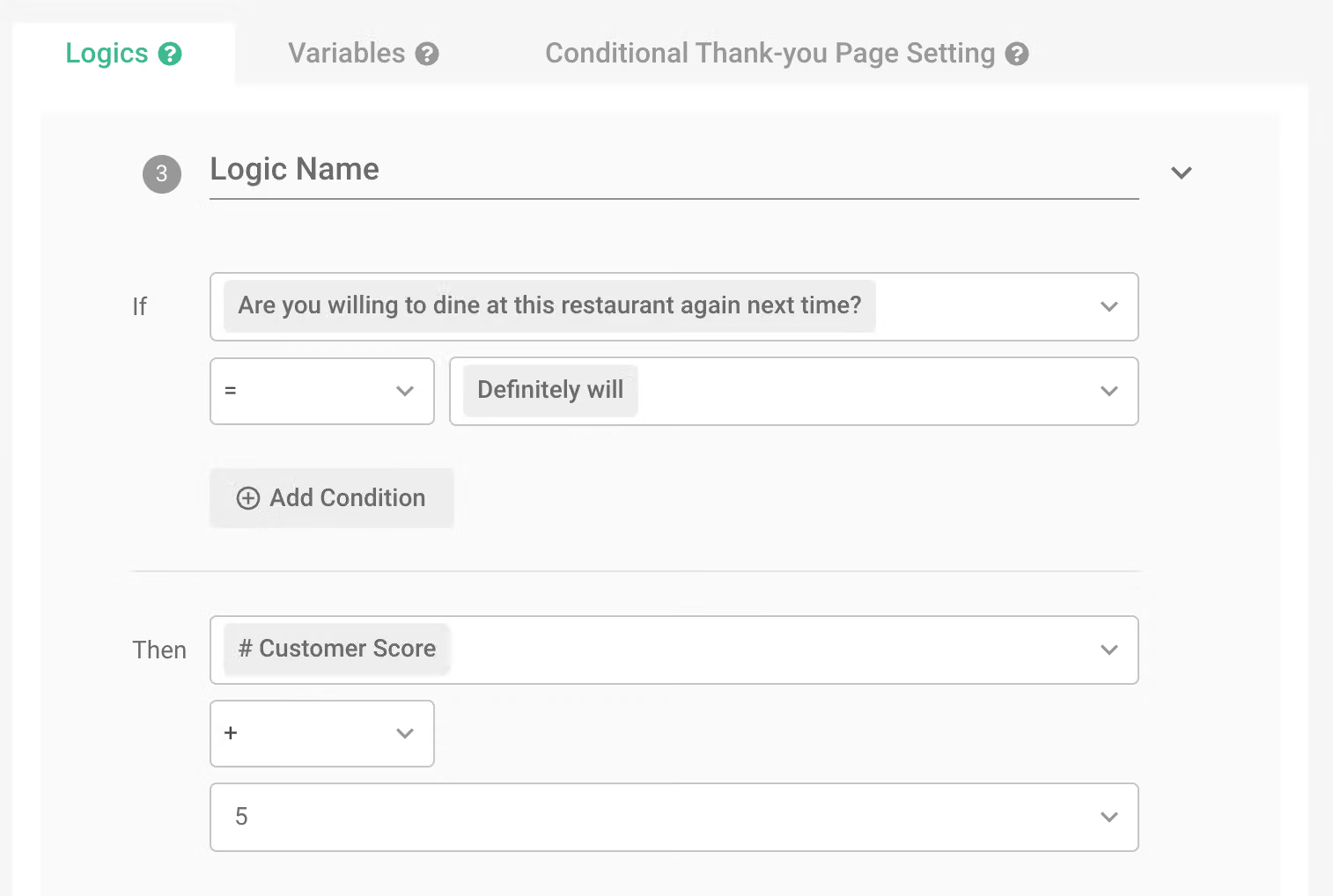
- Numeric questions
How many times have you dined at this restaurant?
- ≥ 3 times (+3)
- ≥ 5 times (+2)
- ≥ 10 times (+2)
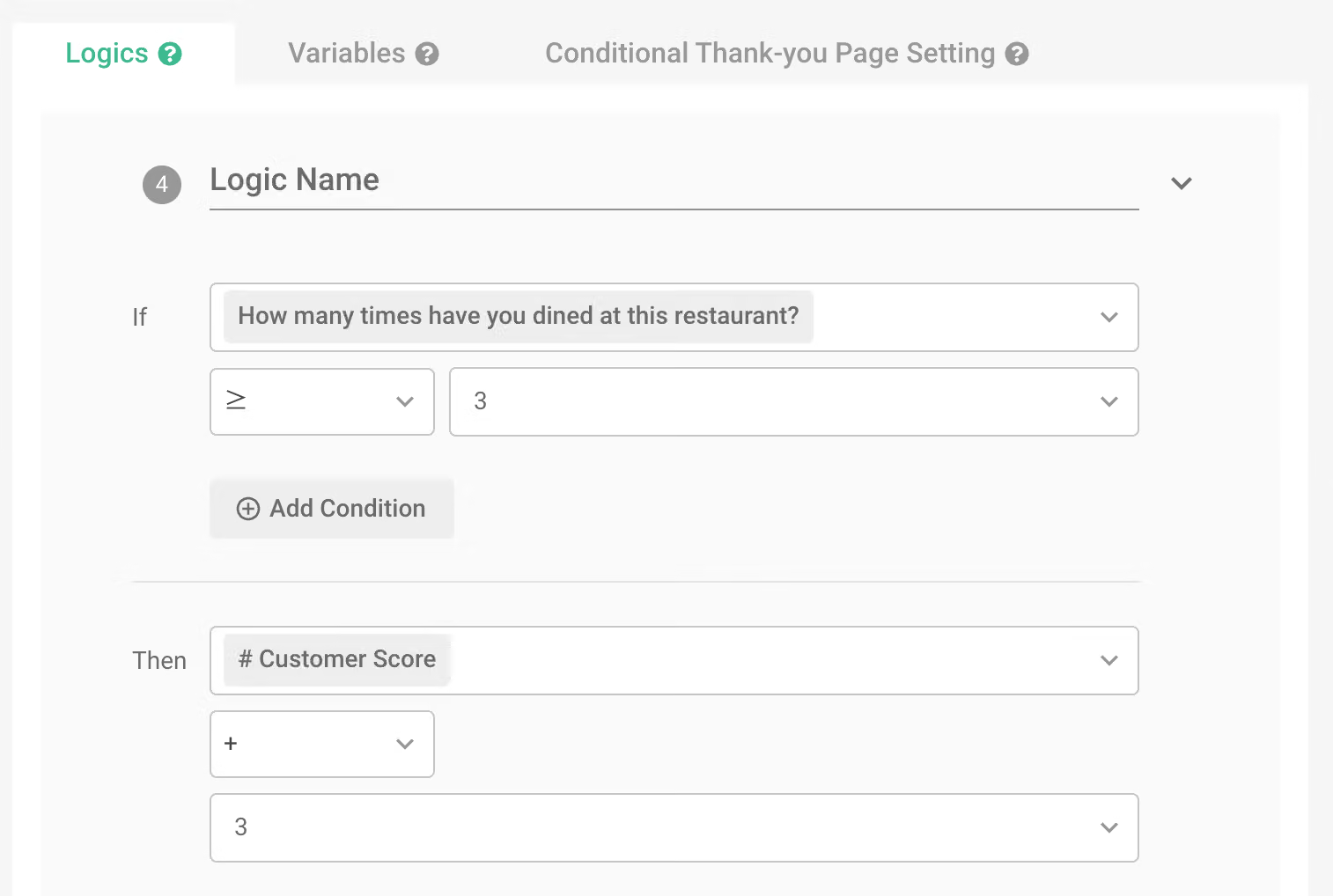
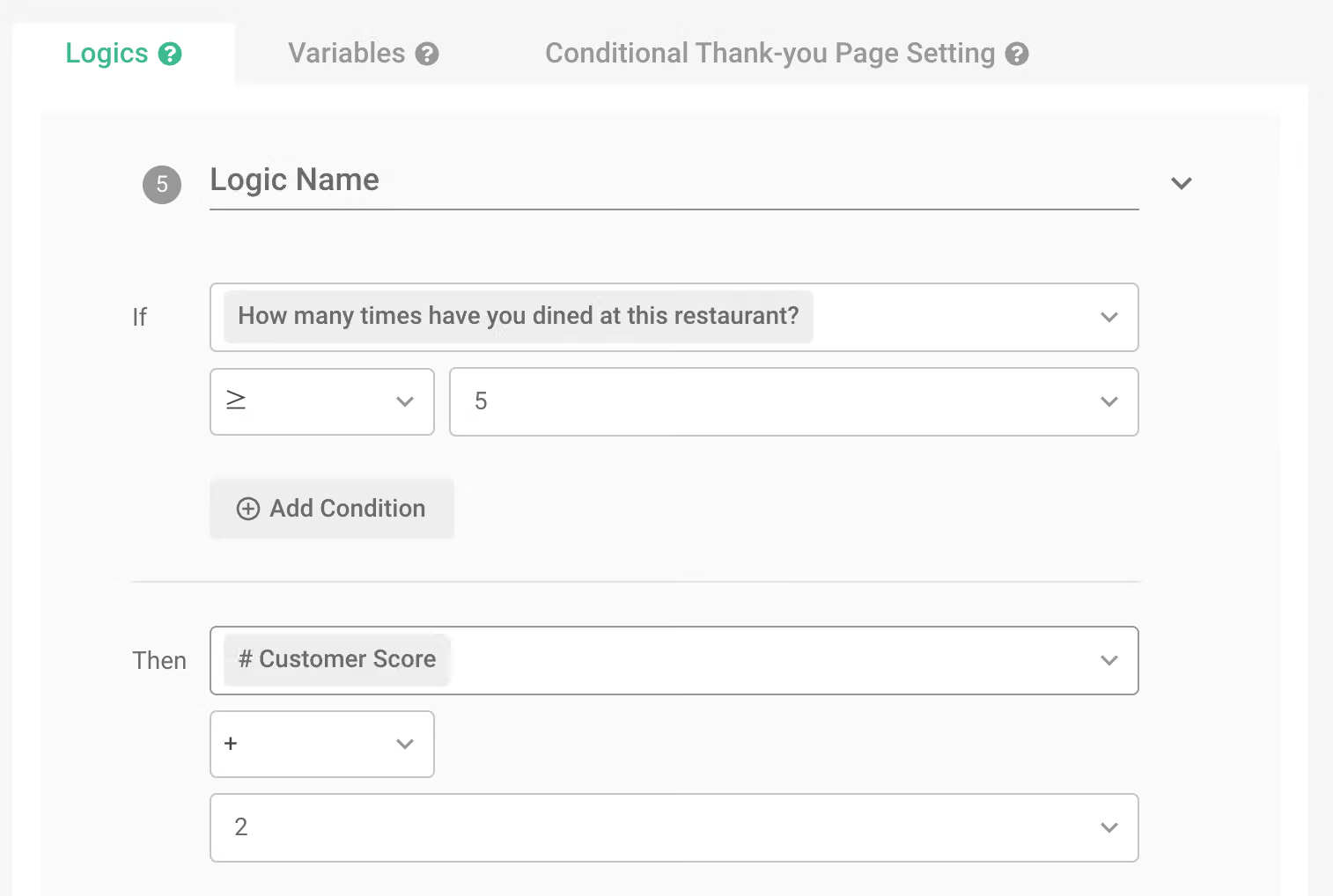
In numeric questions, you may have a requirement to set numerical intervals. In this case, the “Calculation Methods” adopts an accumulation mode. For example, if a customer has dined 6 times, they will receive 3+2=5 points; if they have dined 15 times, they will receive 3+2+2=7 points.
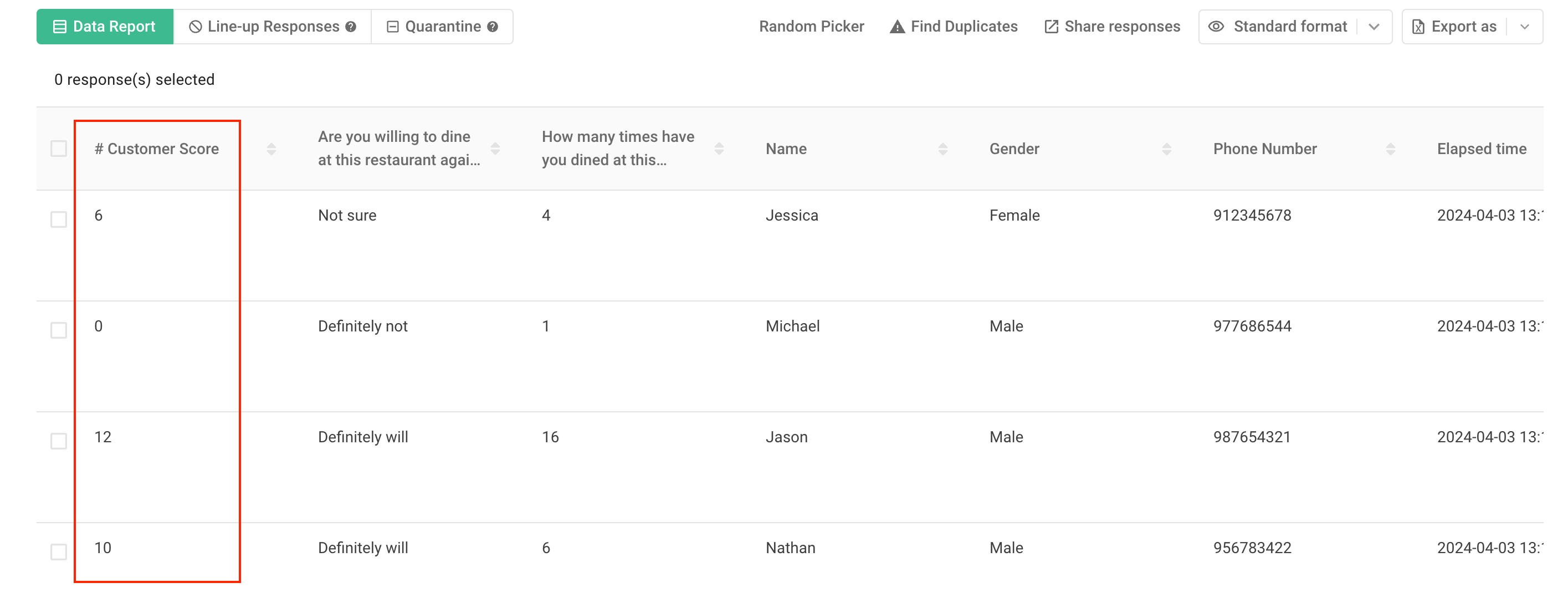
Finally, you can directly see the total scores of each customer in the “Data Report”. By accurately segmenting customers based on scores, you can follow up by asking deeper attitude questions for customers with lower scores, or provide regular discount activities for VIP customers with higher scores.
Financial Statistics
In addition to calculating the scores of students or consumers, adding calculation mode to group purchase surveys is also a common application. Besides assisting buyers in checking the order amount at any time during ordering, it also helps avoid unnecessary disputes due to incorrect calculations of the amount.
Group purchases/takeout order calculation
Buyers can easily set product prices and current discounts through the SurveyCake “Calculation Mode” feature. By setting discount principles through “logic” and “variables,” the quantity and payable amount of each survey can be automatically calculated, saving time for both buyers and sellers to manually calculate.
Variable setting: Set the variable name as “Total Amount,” and the “Default Value” as zero, so that the consumption amount starts calculating from zero. If you need to add shipping fees to the order, you can also enter a value in the “Default Value.”
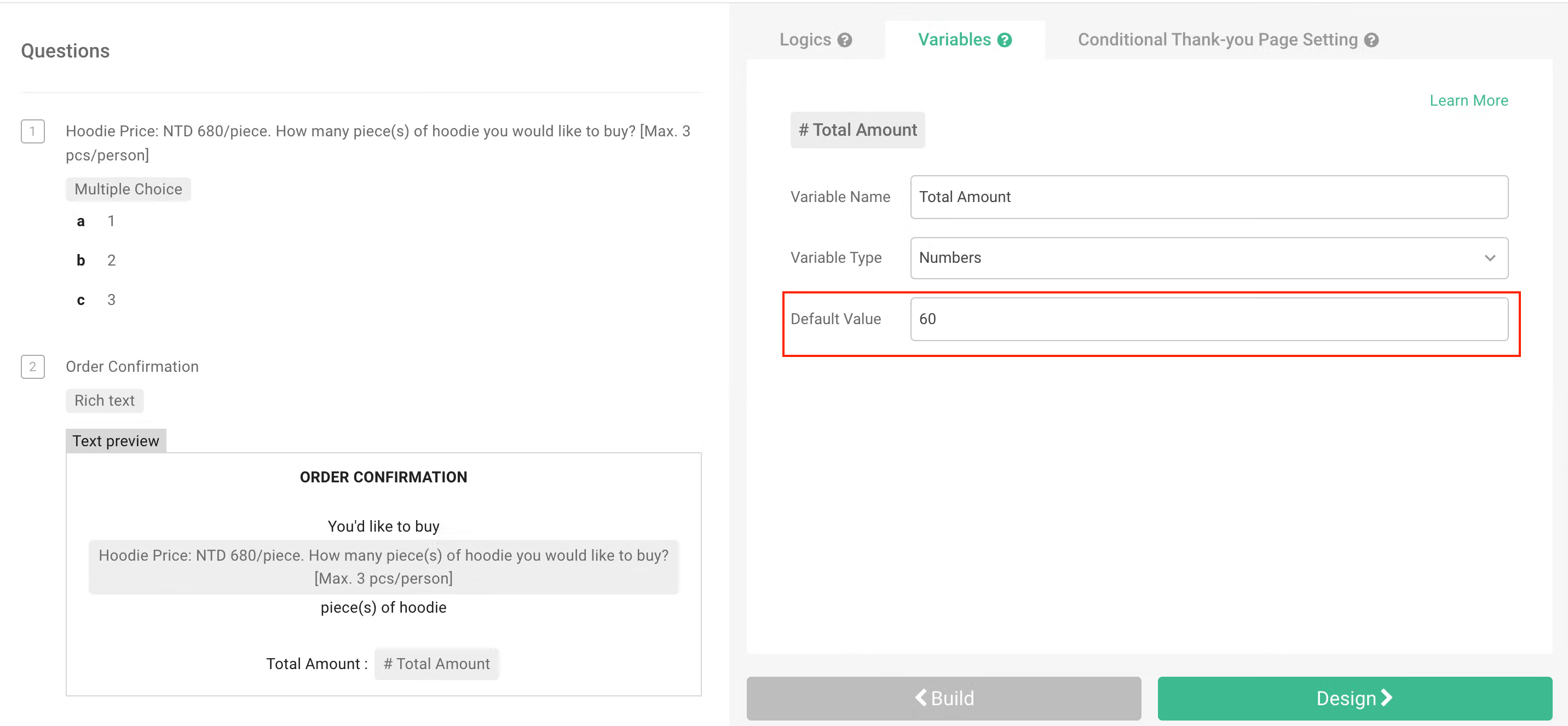
If the order needs a $60 shipping fee, you can enter a shipping fee of $60 in the default value.
After setting the variable name, you can insert the variable into the “Introduction” and write relevant shopping information in the “Rich Text” to help buyers view their shopping amount while placing orders.
Logic setting: Set the amount corresponding to the quantity of each item.
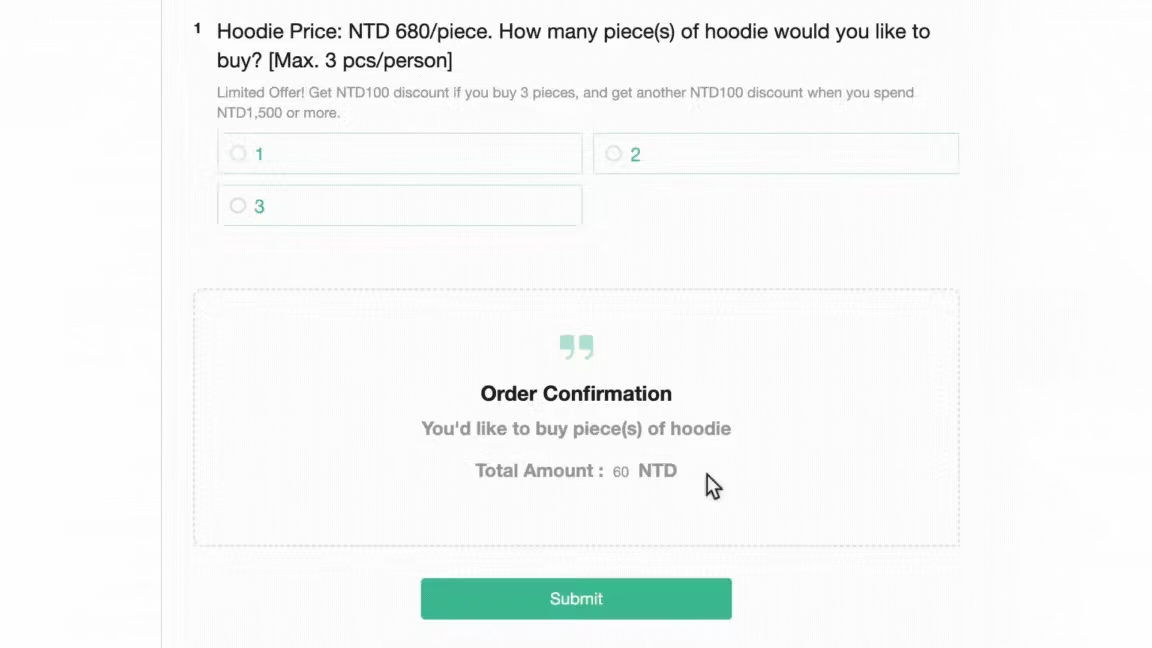
Assuming the price of a hoodie is $680, with a discount of $100 for every 3 items purchased and an additional $100 discount for purchases over $1500.
For example:
In the question “How many hoodie(s) would you like to buy?”
- If the answer is 1, the amount will automatically add $680
- If the answer is 3, the amount will automatically show the price of the product plus shipping, that is $60 + $680*3 – $100 – $100=$1900.
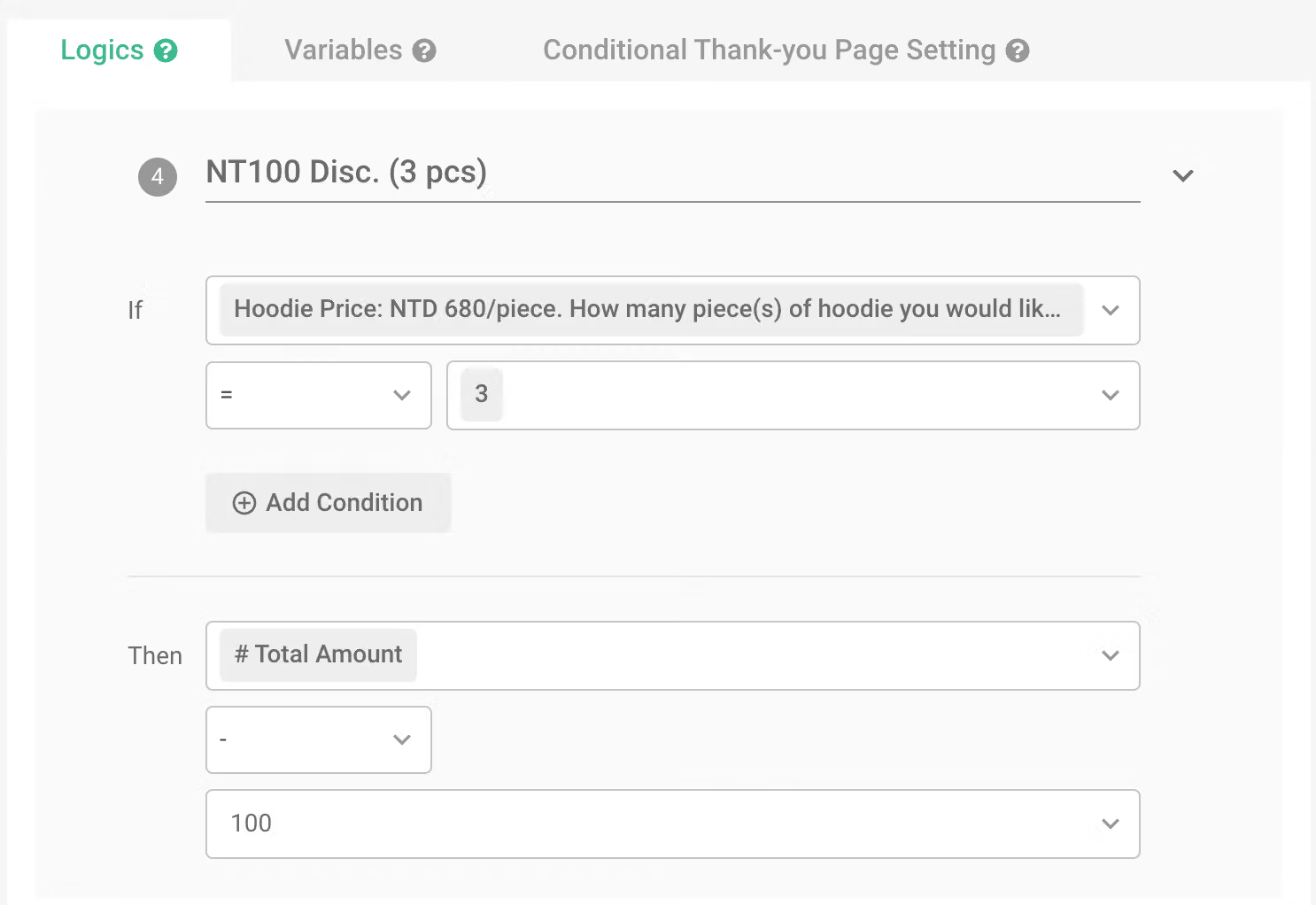
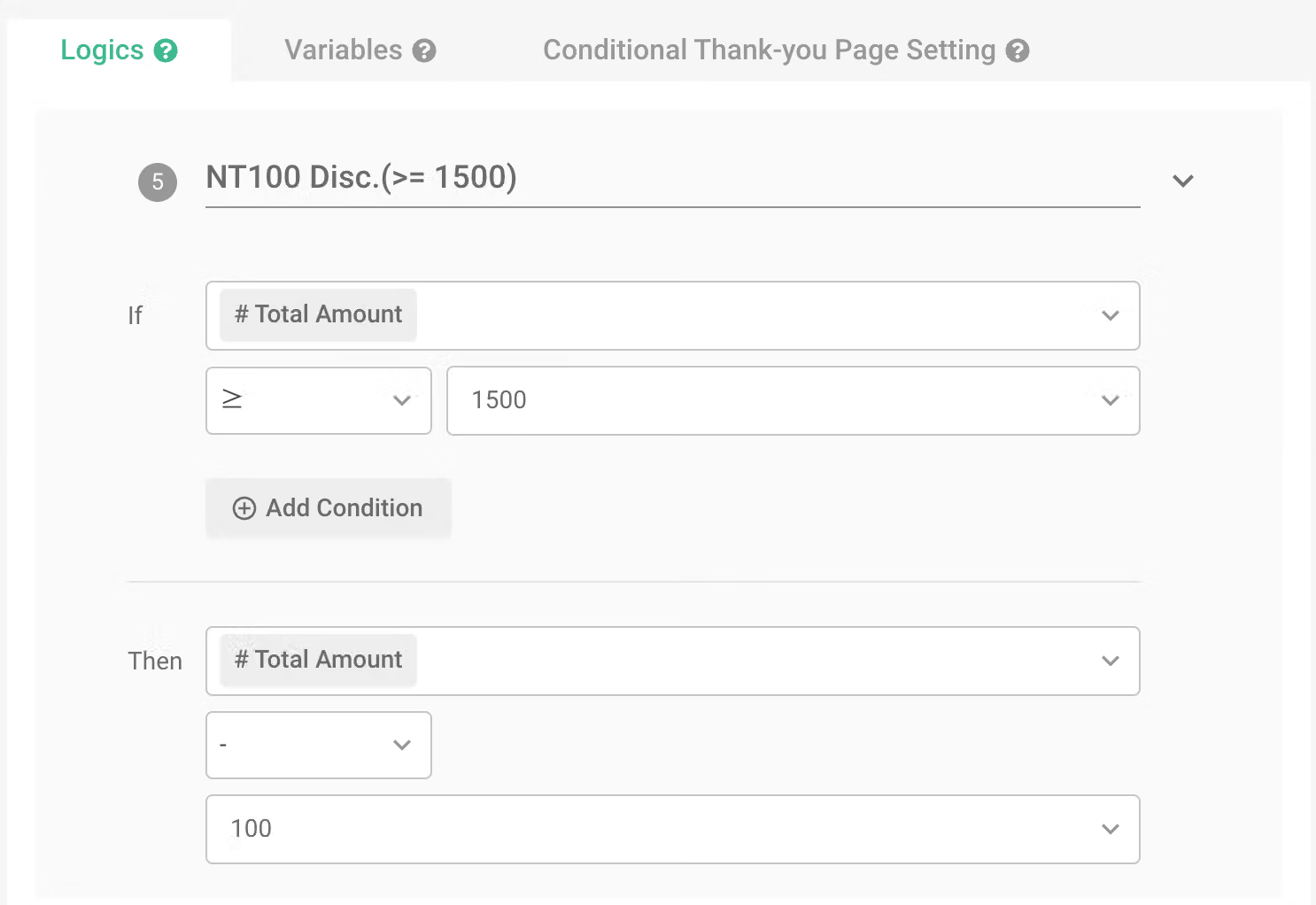
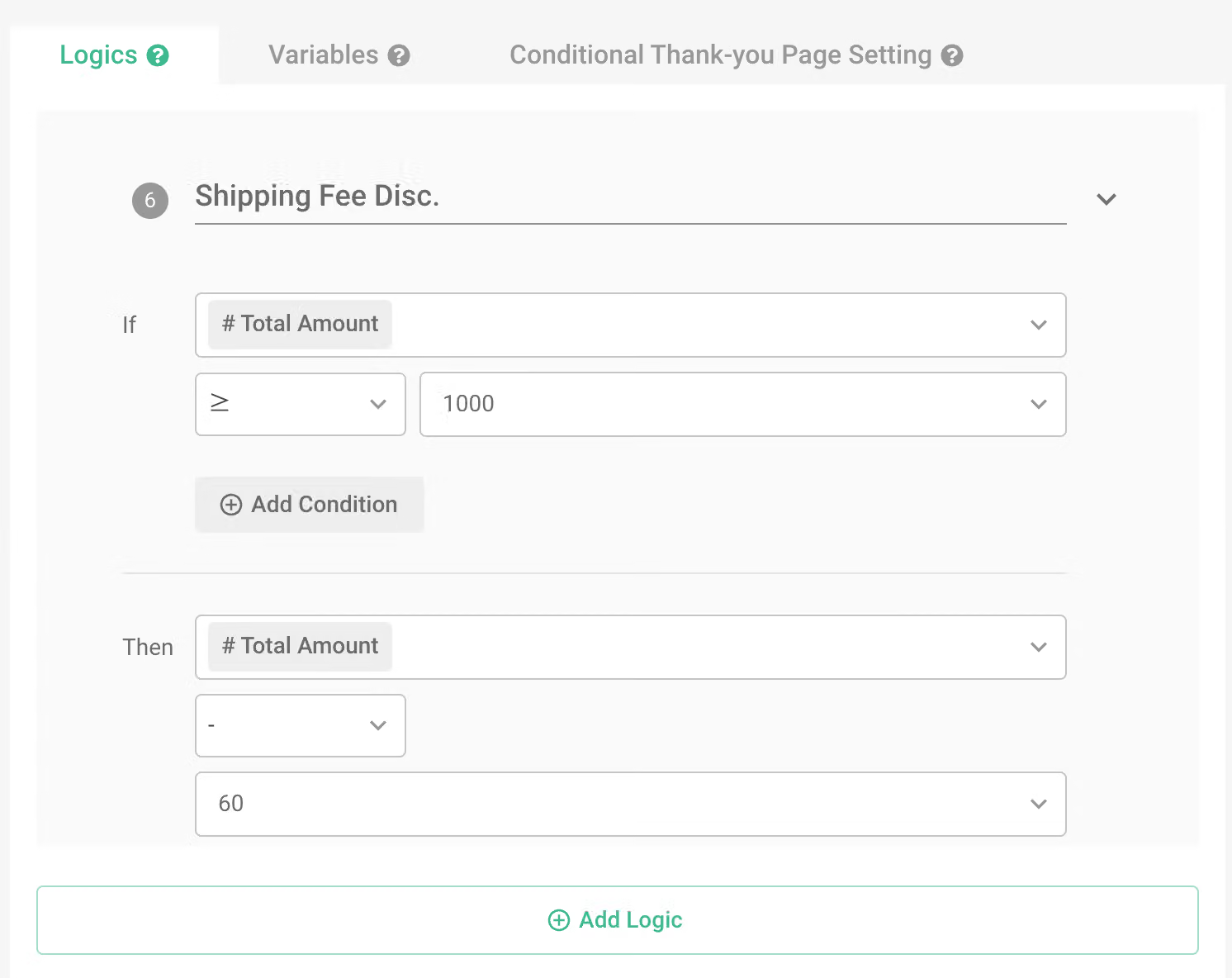
If the seller wishes to offer a free shipping promotion for purchases over a thousand, just add another logic. When the “total amount” reaches $1000, deduct $60.
The application of financial statistics can also be combined with population statistics.
By combining financial statistics with population statistics, you can not only see the total, average, mode, and other indicators through the chart report but also allow respondents to directly see the statistical amount or the discounted price on the survey frontend when filling out information.
Event registration statistics
When organizing paid activities such as seminars or camps, it is often necessary to monitor the number of registrations and the current revenue status to facilitate timely adjustments to the number of participants and discount plans.
In addition, to allow registrants to understand the registration situation more clearly, in addition to using “Preview Before Submission,” you can also use the “Calculation Mode” feature in the “Introduction” to calculate the registration fee in the survey and synchronize the final registration number and amount.
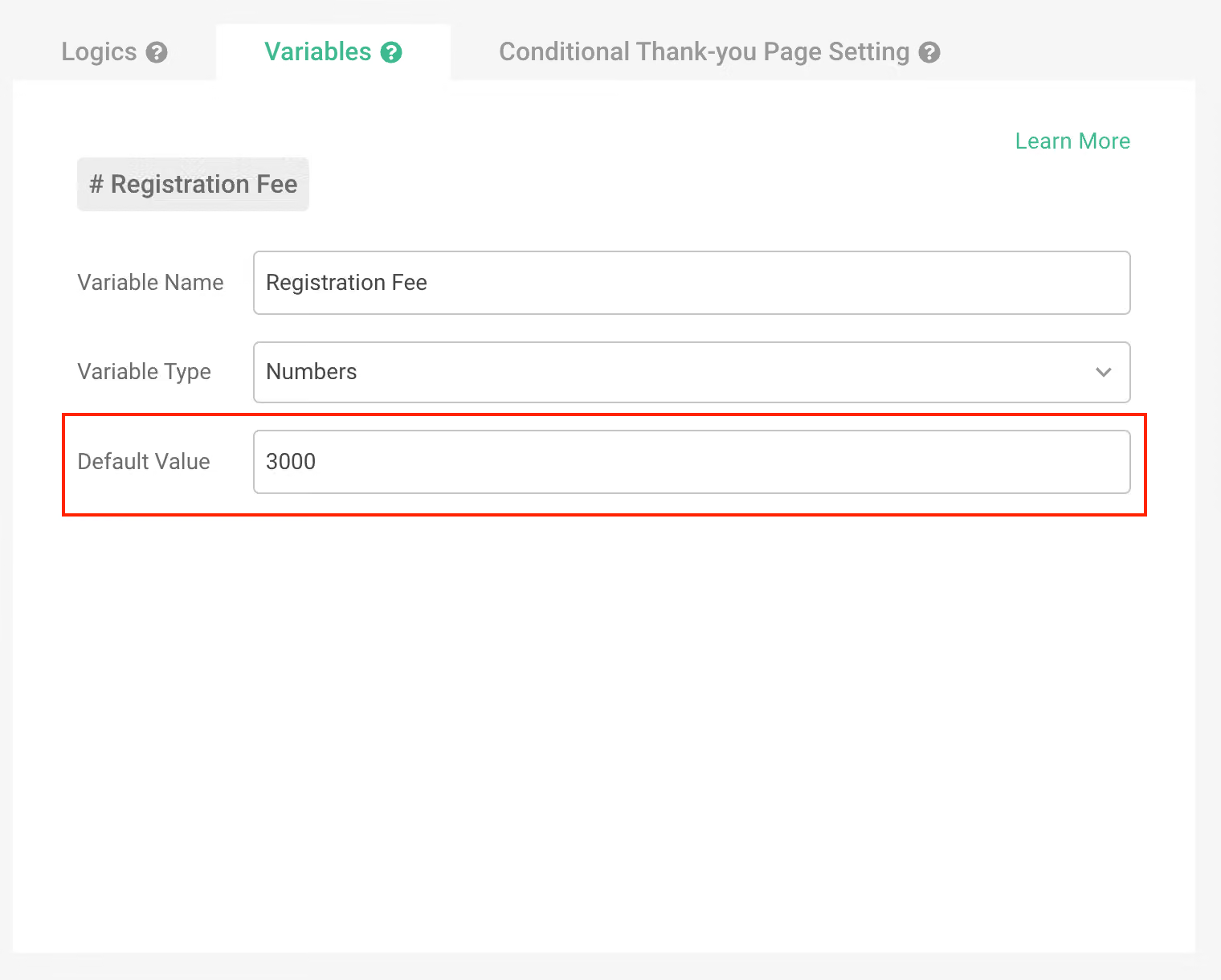
Variable setting: Set the variable name as “Registration Fee,” and the “Default Value” as the registration fee per person.
Ex: Set the default value as the registration fee per person ($3000/per person).
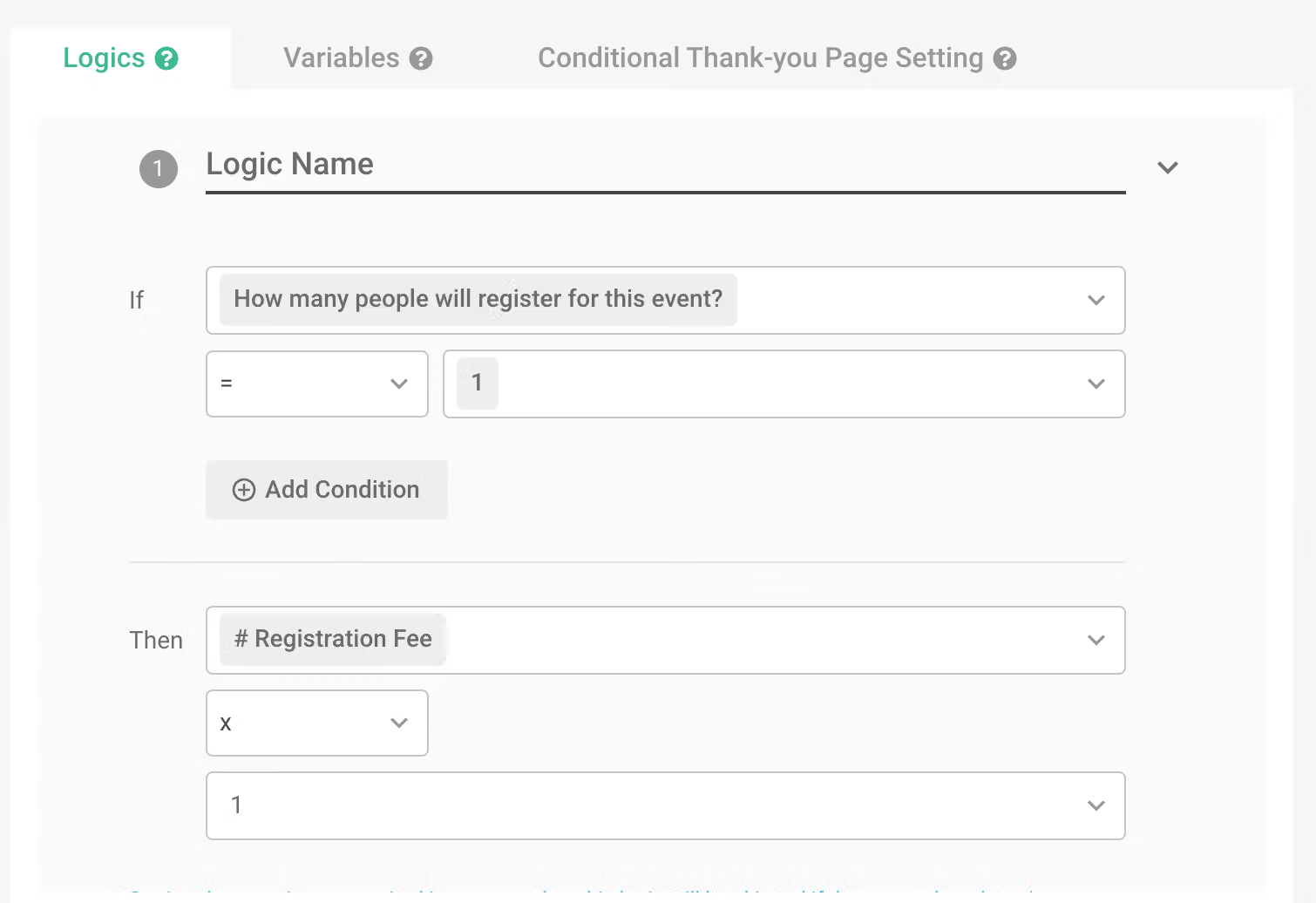
Logic setting: Set the calculation multiple corresponding to the number of registrants.
Ex : How many people will register for this event?
- 1 person (×1)
- 2 people (×2)
- 3 people (×3)
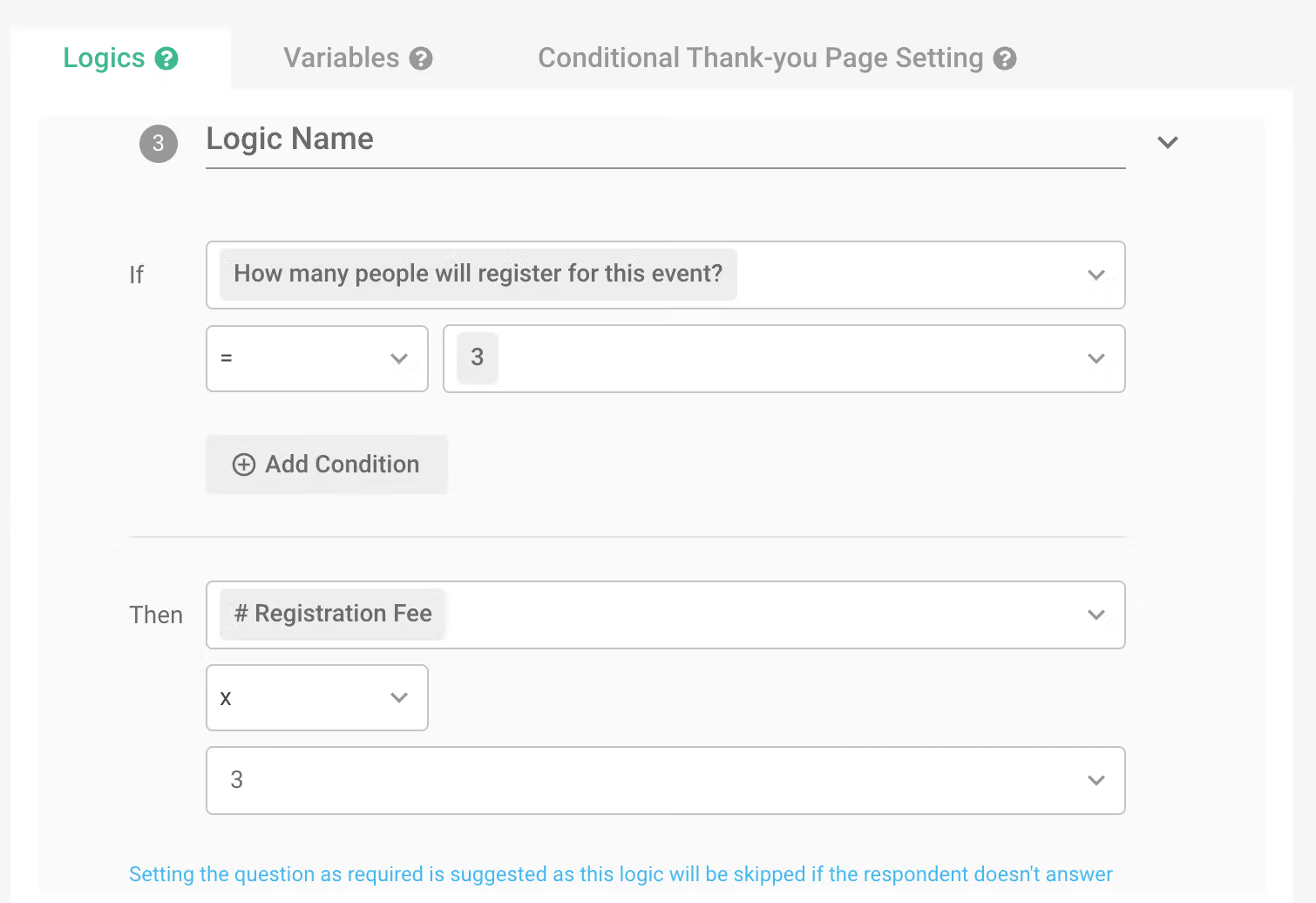
If the event offers a three-person group discount or launches an early bird promotion within a certain period, you can add logic to multiply the “Registration Fee” by the corresponding discount scheme.
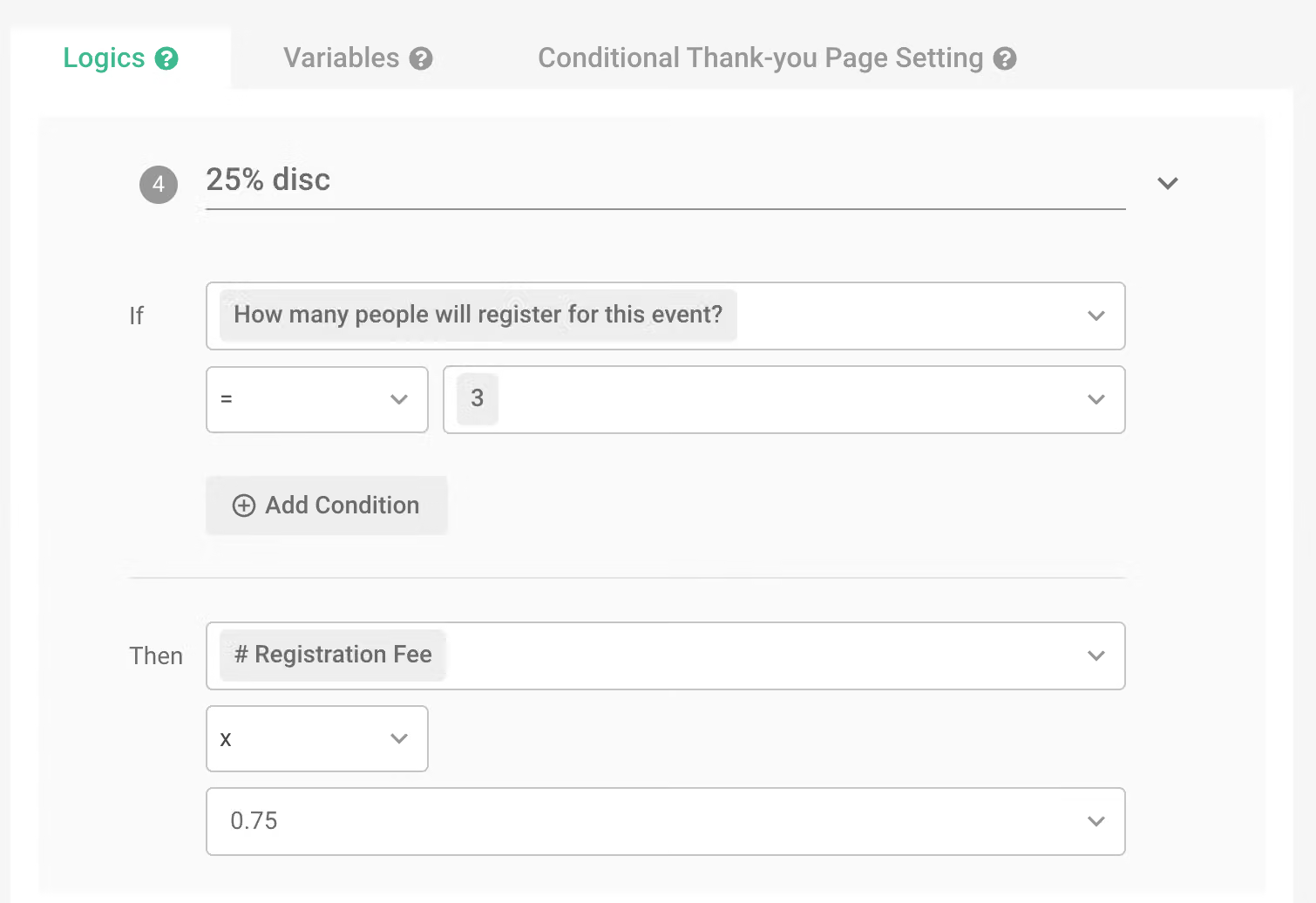
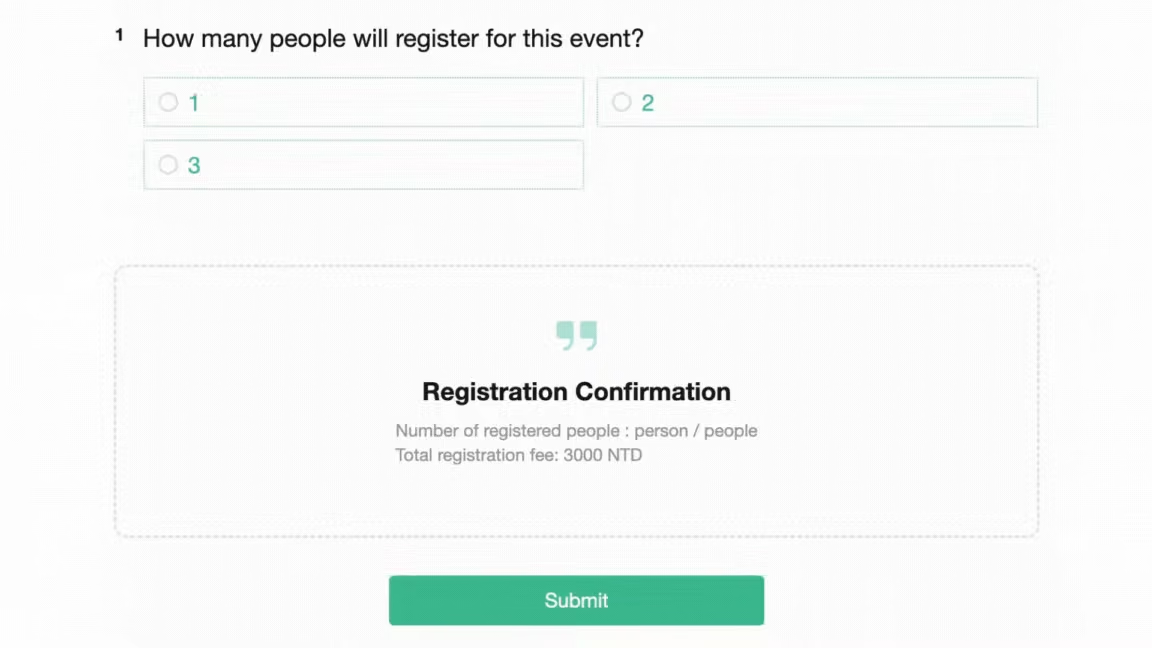
When the total number of participants is 3, the registration fee will be $3000*3*0.75 = $6750.
All in one survey service, meeting all your calculation and integration needs!
With SurveyCake’s calculation mode, complete all calculations directly on the survey, providing respondents with the most timely scoring results, as well as detailed analysis charts and details, helping you to conduct tests more smoothly and improve the efficiency of questionnaire statistics.