Share Survey Results to Keep Your Team Updated!

SurveyCake helps your team communicate more conveniently and boost team efficiency!
Looking for a way to keep your team updated with the latest Survey Results?
In the past, sharing survey results with your team members during events meant having to export as Excel or share survey passwords, which was not only inconvenient but also posed privacy concerns. Now, with SurveyCake, you can directly share the link of your survey results, enabling your team to stay updated with the latest content!
Next, we’ll guide you on how to share the survey responses details with your team using SurveyCake. This not only smoothens team communication but also allows you to promptly address potential questions, thereby enhancing team efficiency.
I. Share charts: Distribute survey statistical results
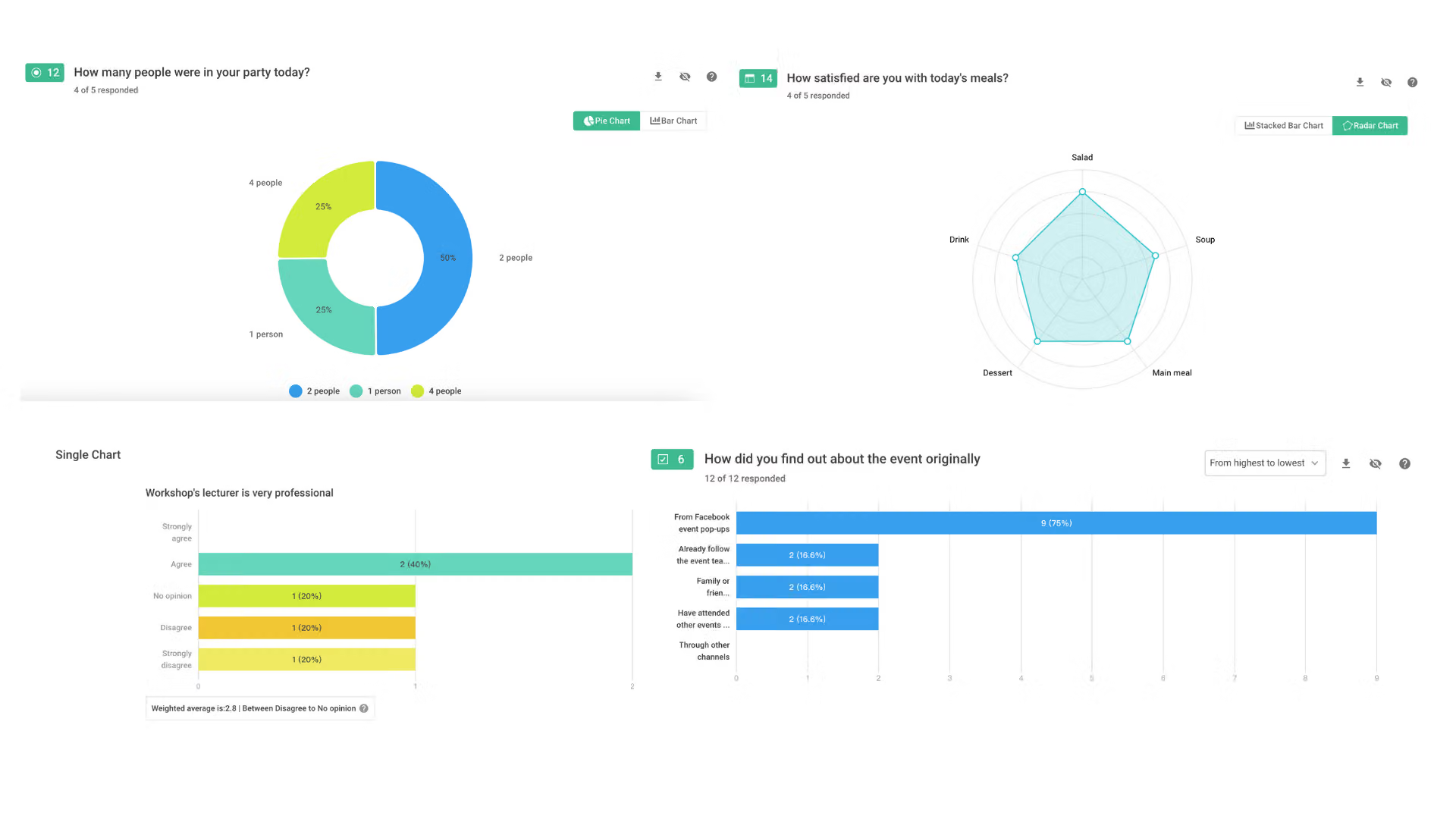
SurveyCake’s Dashboard automatically generates a Chart Report based on the responses collected from the survey, giving you an instant overview of the data distribution. By sharing the Chart Report Results, team members can gain a clear understanding of the real-time survey responses!
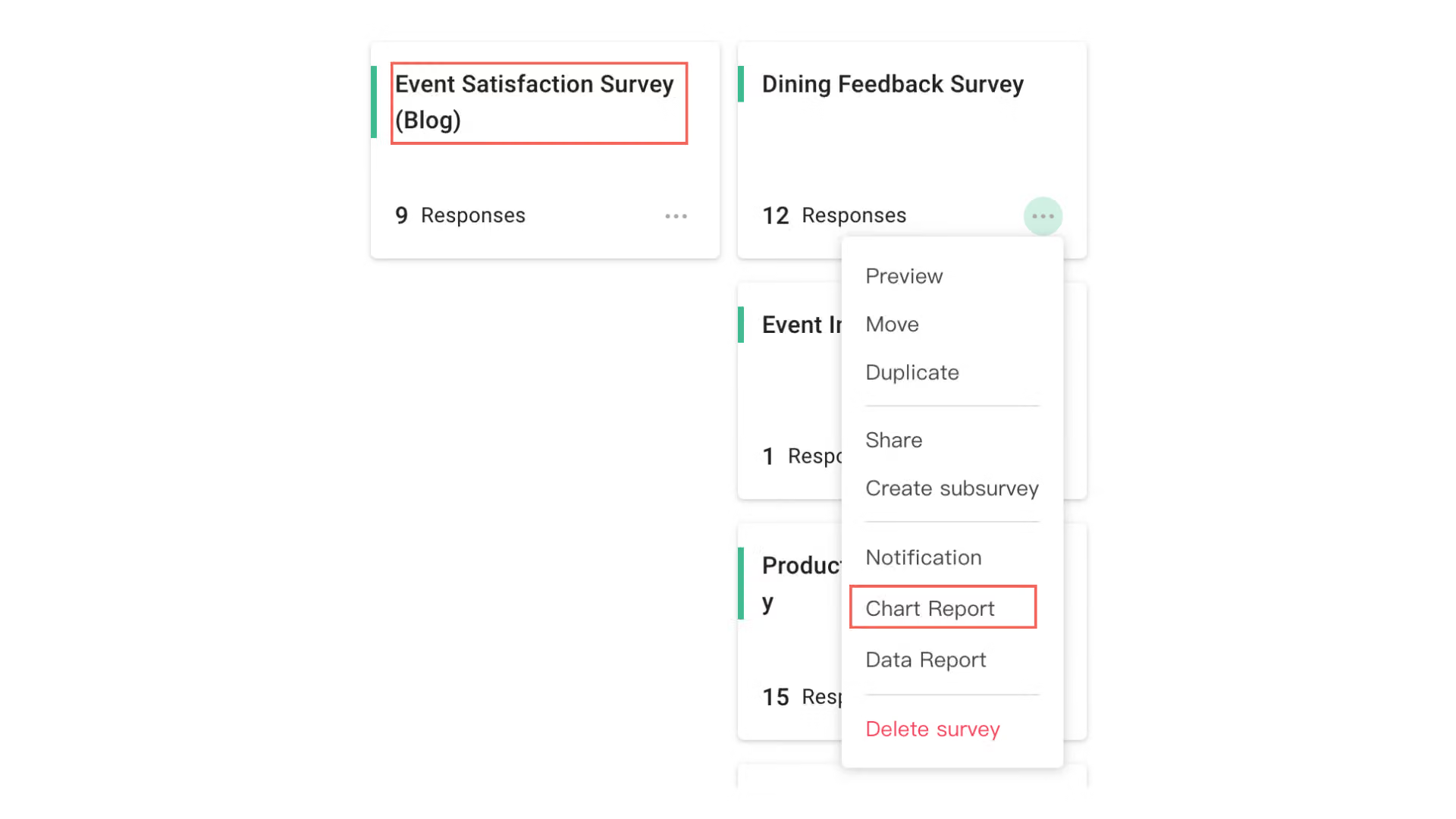
1. Click on the “Survey Title” or “Chart Report” shortcut button in the lower right corner of the survey card to jump to the Chart Report page.
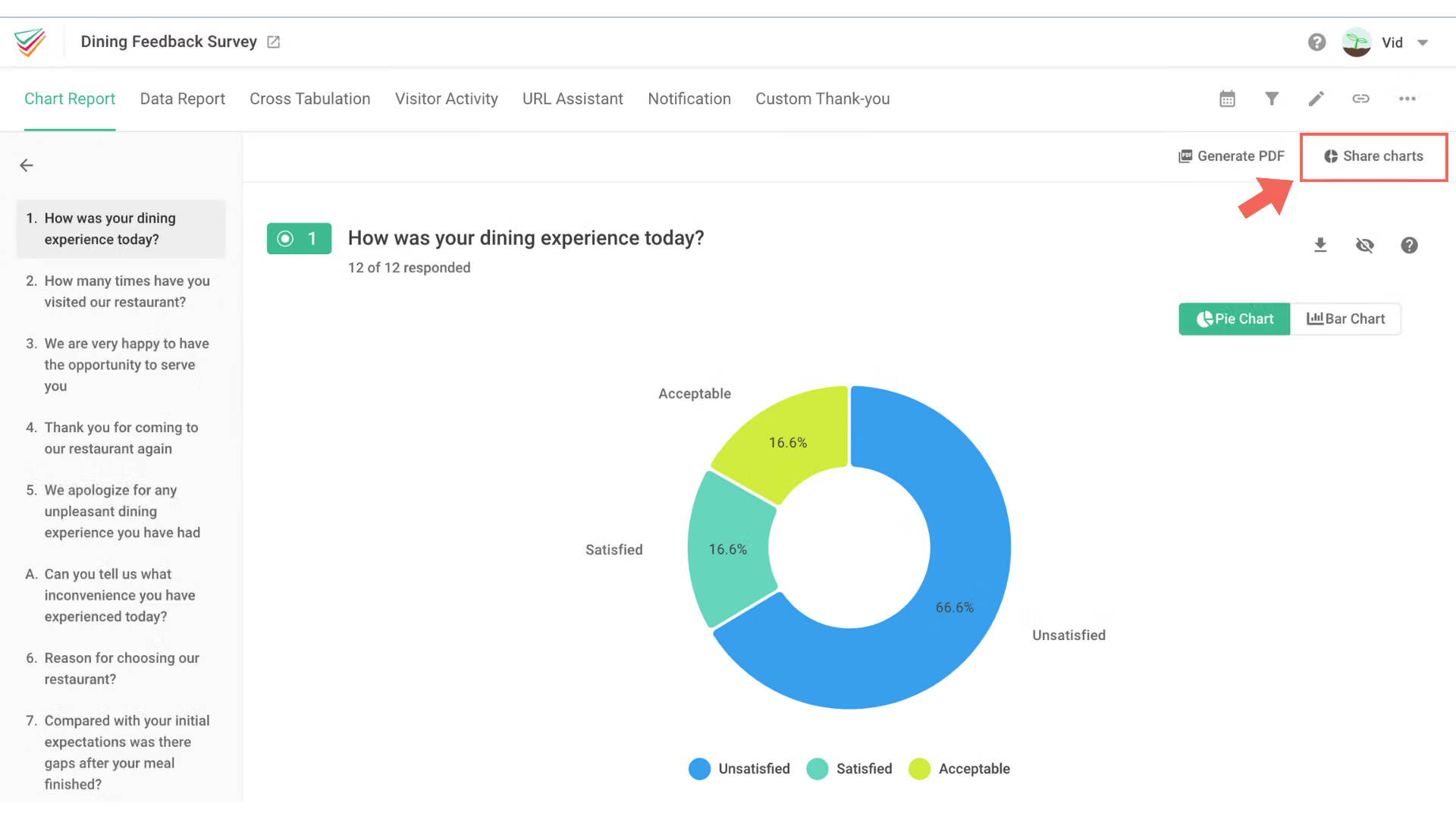
2. On the “Chart Report” page, click on the “Share Charts” button located at the top right corner of the page
3. Enable the “Share Charts” permission to obtain the “Chart Report” link
After enabling the “Share Charts” permission, you can select the presentation format of the Chart Report. Simply copy the link and share it with your team so they can stay updated with the latest statistical results of the surveys!
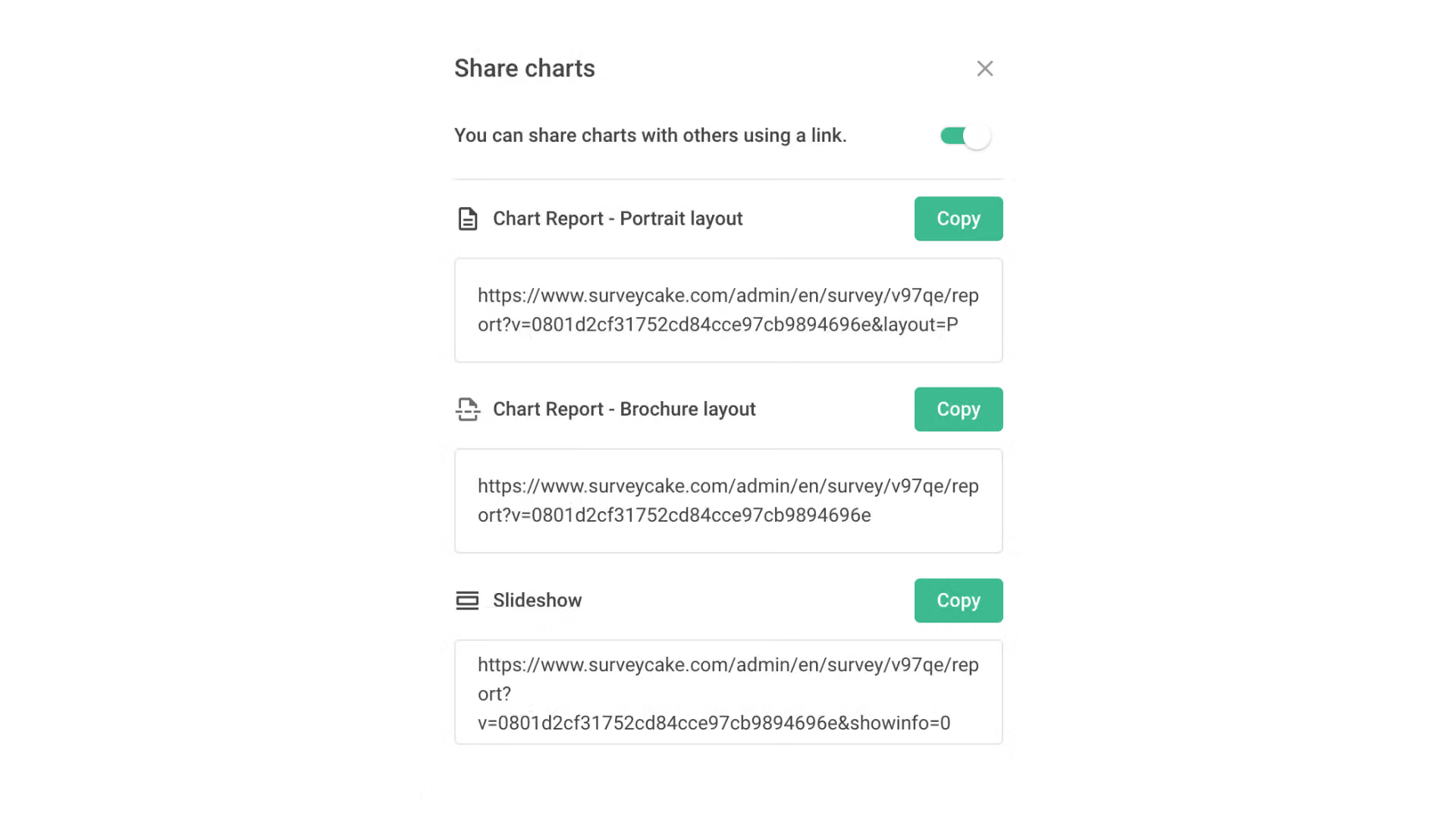
The Chart Report comes in three formats: “Portrait layout”, “Brochure layout”, and “Slideshow”
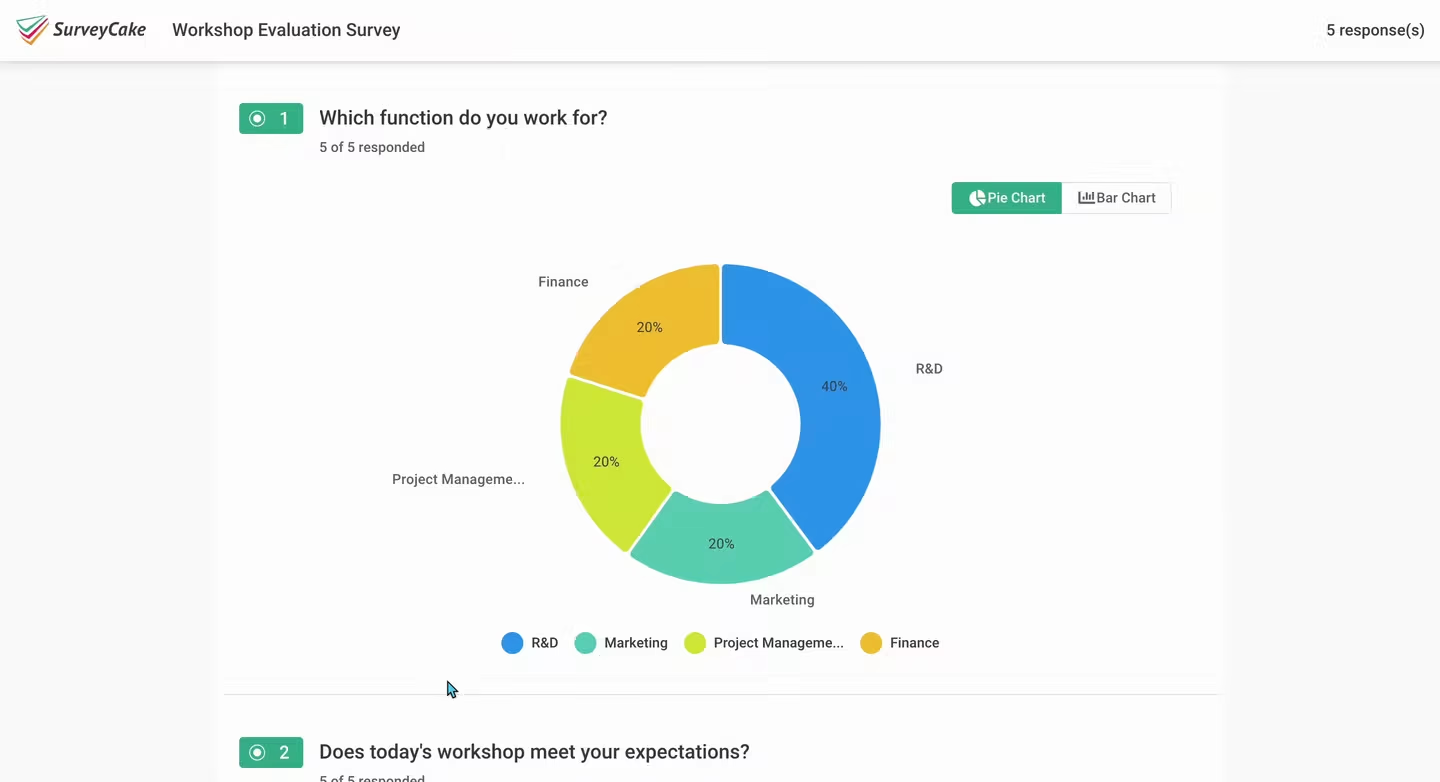
- If you select the “Portrait Layout” the statistical results of “all questions” will be displayed on one page.
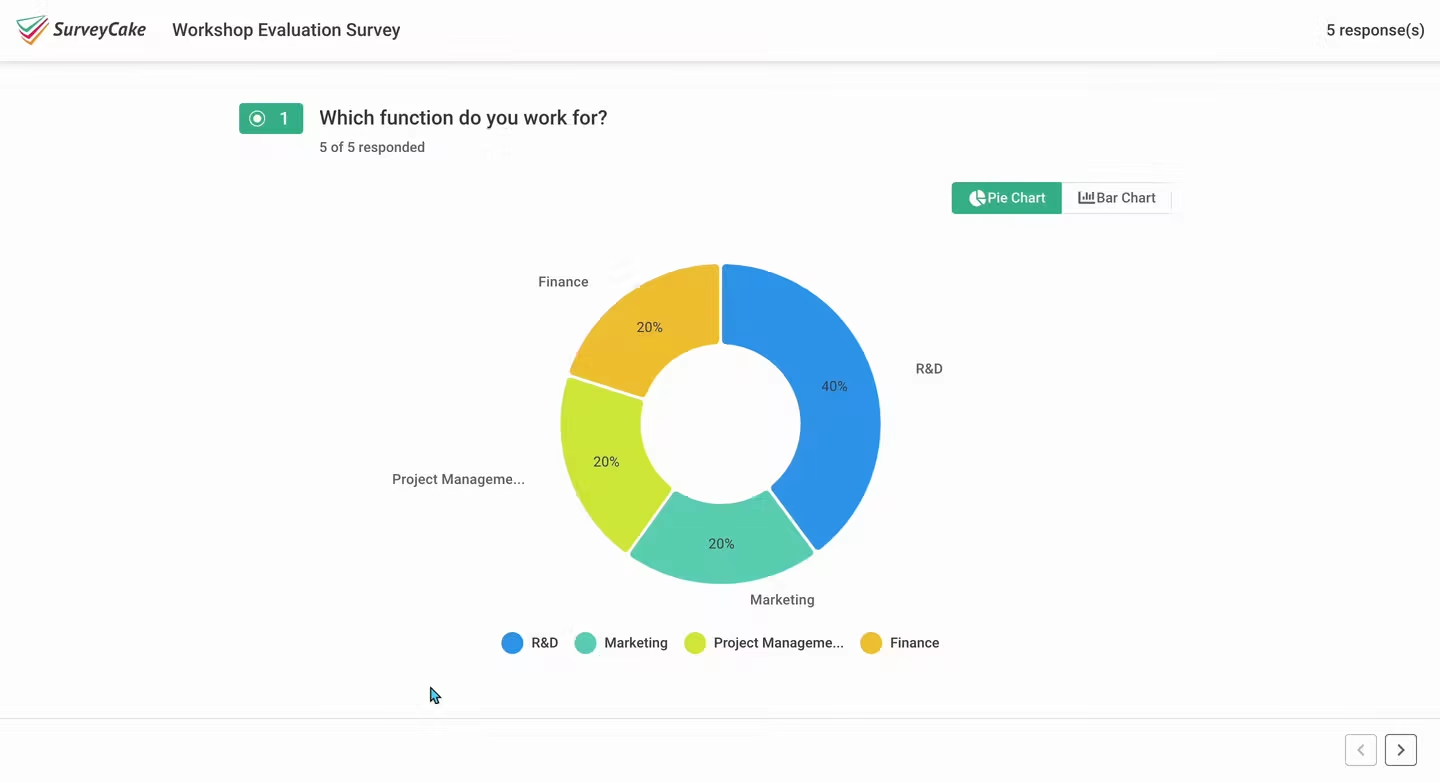
- If you select the “Brochure layout”, the statistical results of “one question” will be displayed on one page.
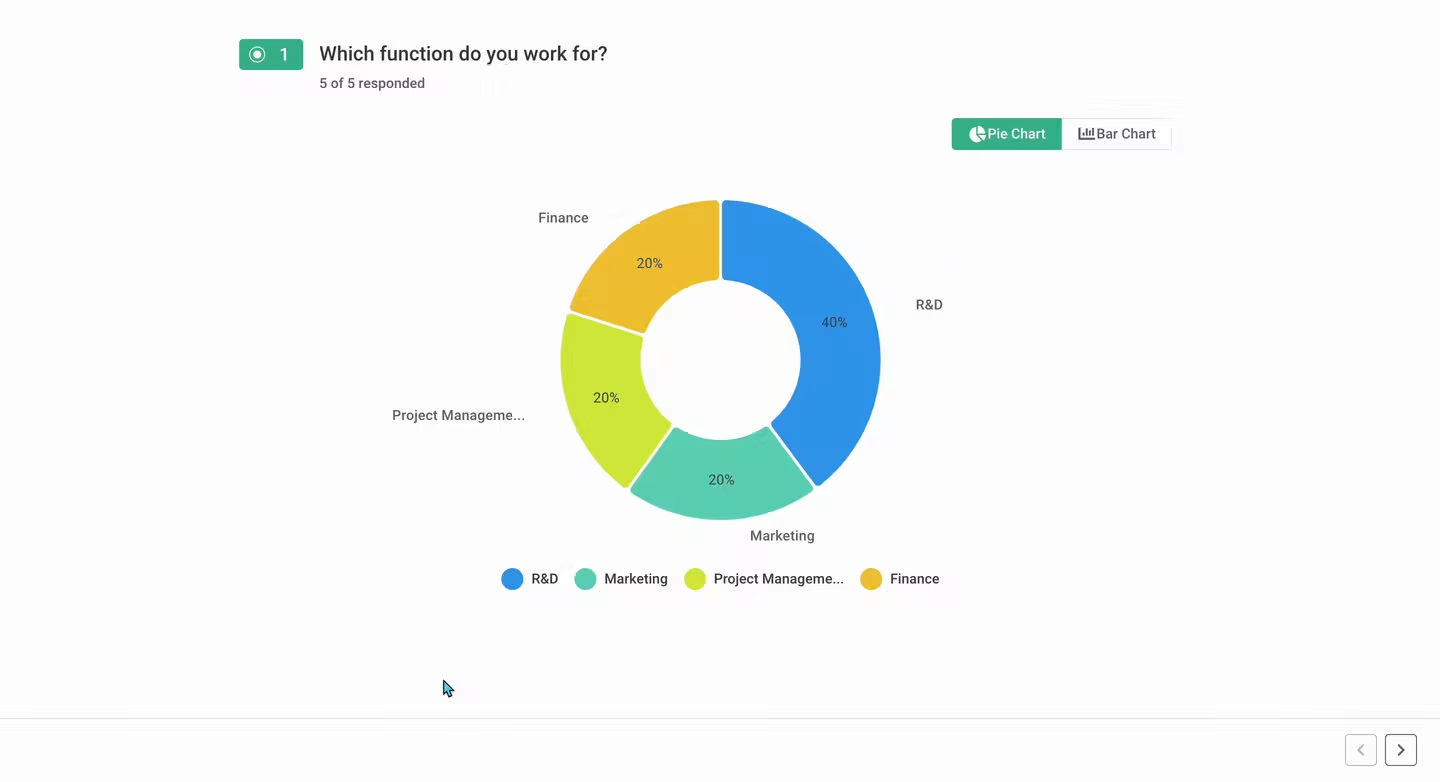
- If you select the “Slideshow”, the statistical results of “one question” will be displayed on a full screen page.
With just three simple steps, your team can stay updated with the latest survey statistics!
II. Share responses: Publish Survey Responses Details
SurveyCake’s PRO feature supports “Share Responses”, allowing you to directly share the original response of the respondents. This enables team members to have a clear understanding of the responses details.
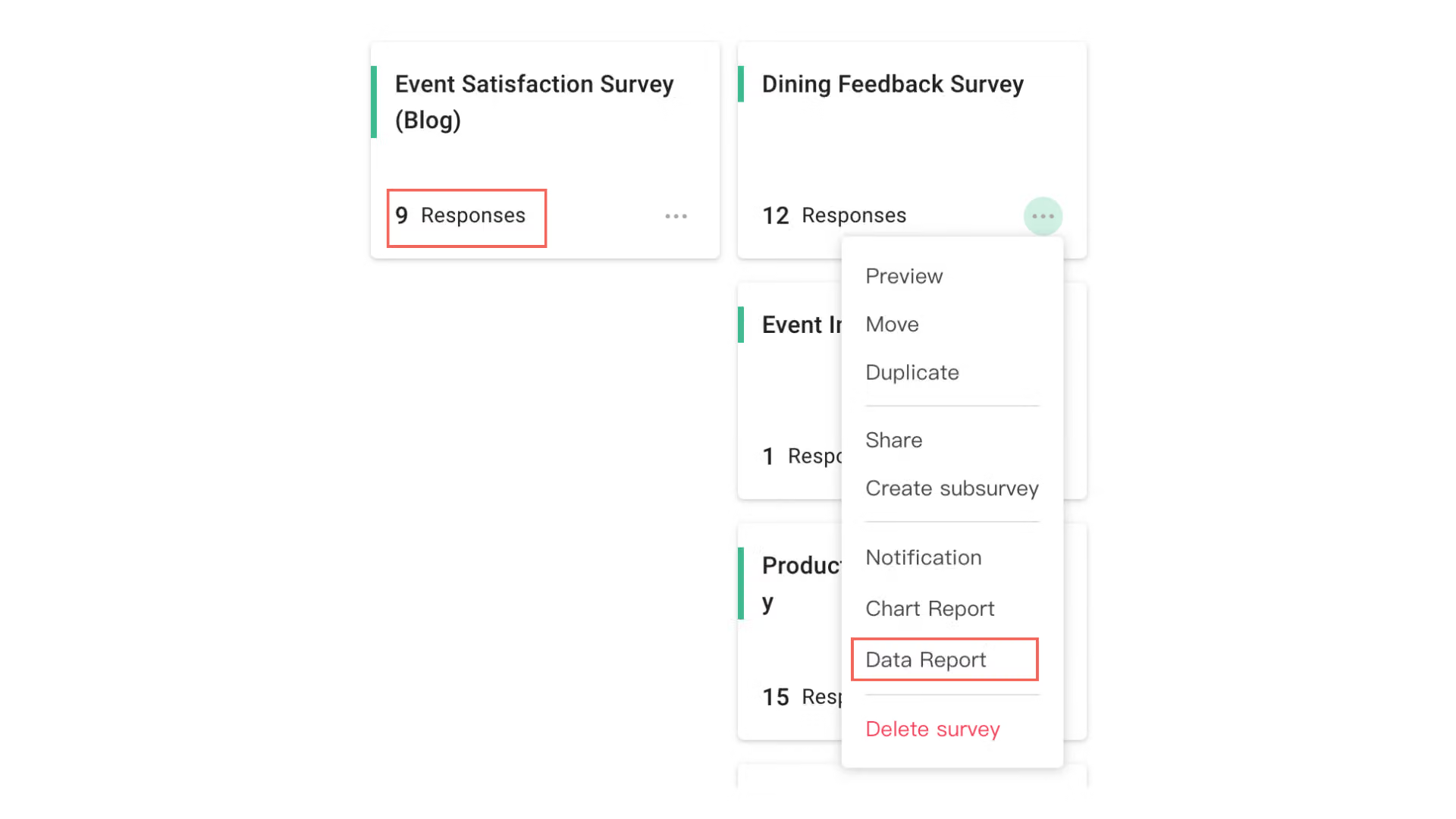
1. Click on the “Survey Responses Count” or “Data Report” shortcut button in the lower right corner of the survey card to jump to the Chart Report page.
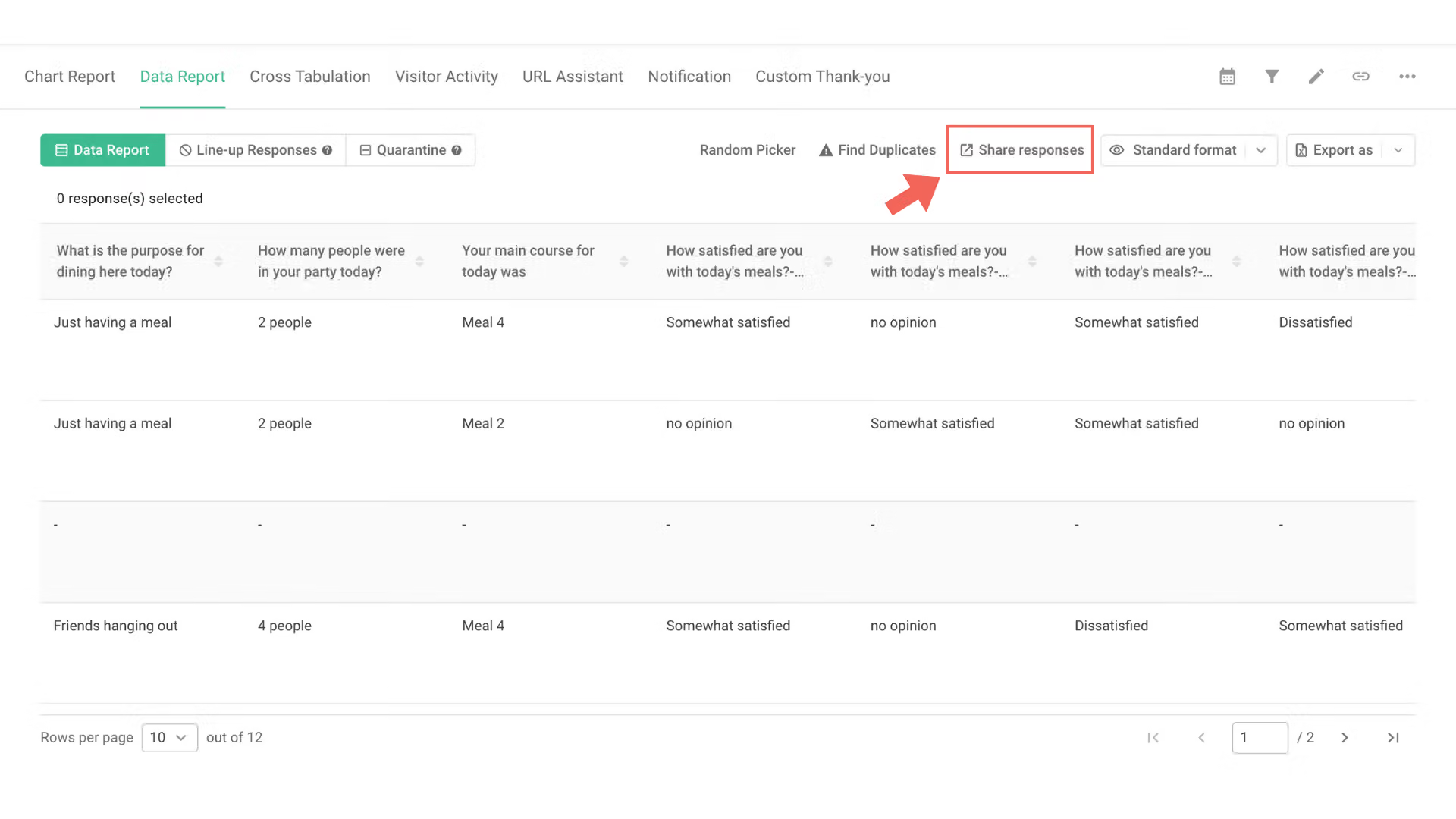
2. On the “Data Report” page, click on the “Share responses” button located at the top right corner
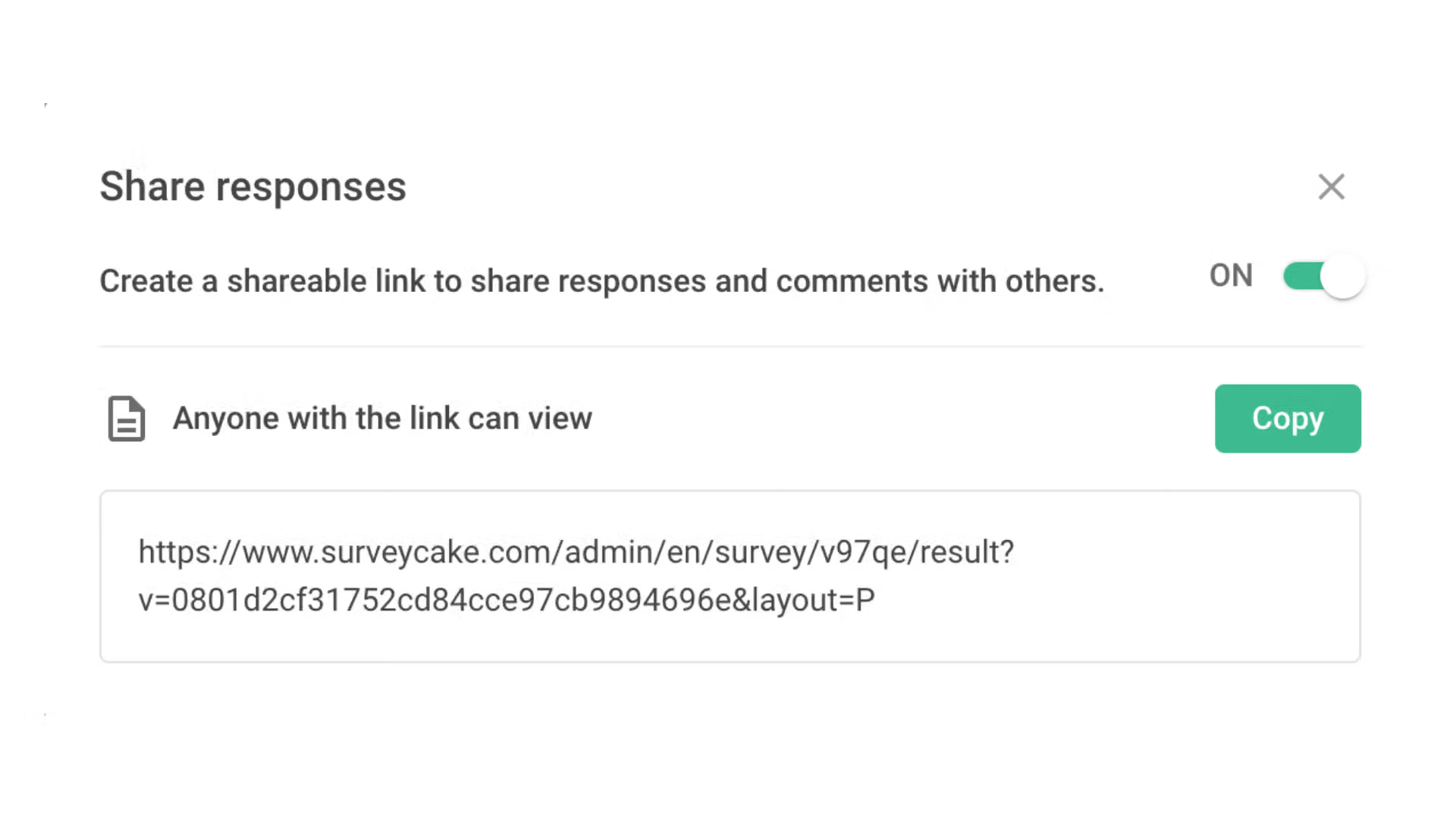
3. Enable the “Share Responses” permission to obtain the detailed survey responses link
After enabling the “Share Responses” permission and copying the link, you can publish Survey Result to your team!
SurveyCake’s Dashboard has undergone a complete upgrade!
SurveyCake has launched a brand new Survey Dashboard! In addition to “Share Charts” and “Share Responses” features, you also get to enjoy more new features.
Publish Survey Results, Keep Your Team Updated with Real-Time Survey Responses!
With the “Share Charts” and “Share Responses” features, you can easily share the link to the survey results with your team, enabling them to stay updated with the response information in real-time and effectively boost team efficiency!
Click here to sign up for FREE!
For further inquiries, you are very welcome to email us at [email protected].