The "AI Survey Generator" feature allows you to quickly generate a complete survey by simply describing your requirements in text or by uploading a PDF file. AI will automatically generate suitable questions and options based on your description or document, eliminating the need to design questions from scratch and significantly reducing survey design time.
Currently, SurveyCake offers two methods for generating surveys via AI:
Create with Prompt: Enter a description of your survey context in the input field, and AI will generate a survey based on the information you provide.
Create from PDF: Upload a PDF file along with a brief explanation, and AI will extract relevant content to generate a survey for you.
The following sections will guide you through both methods:
Create with Prompt
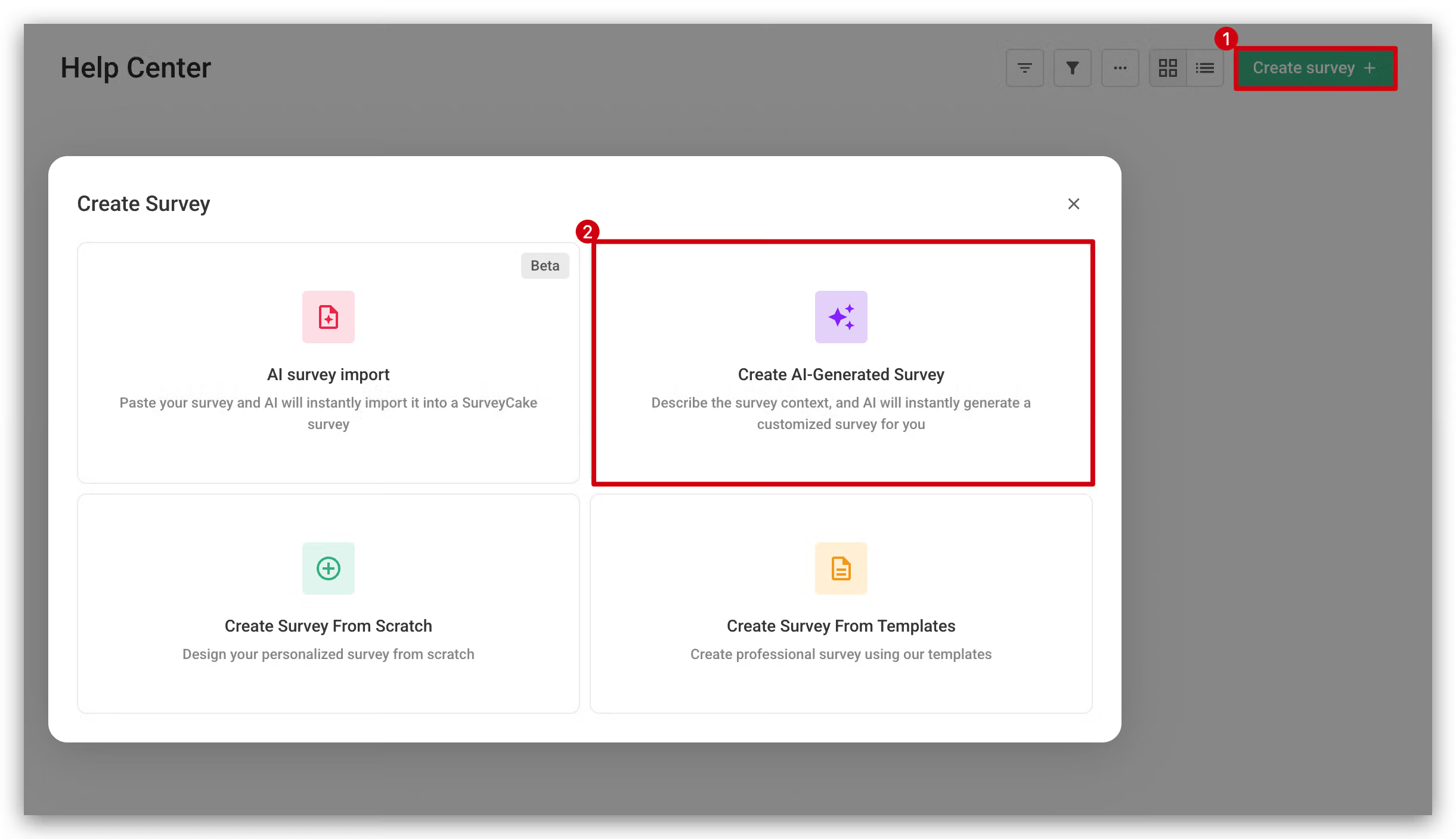
First, go to the survey overview page and click "Create New Survey"
Select the "Create AI-Generated Survey" option from the pop-up menu
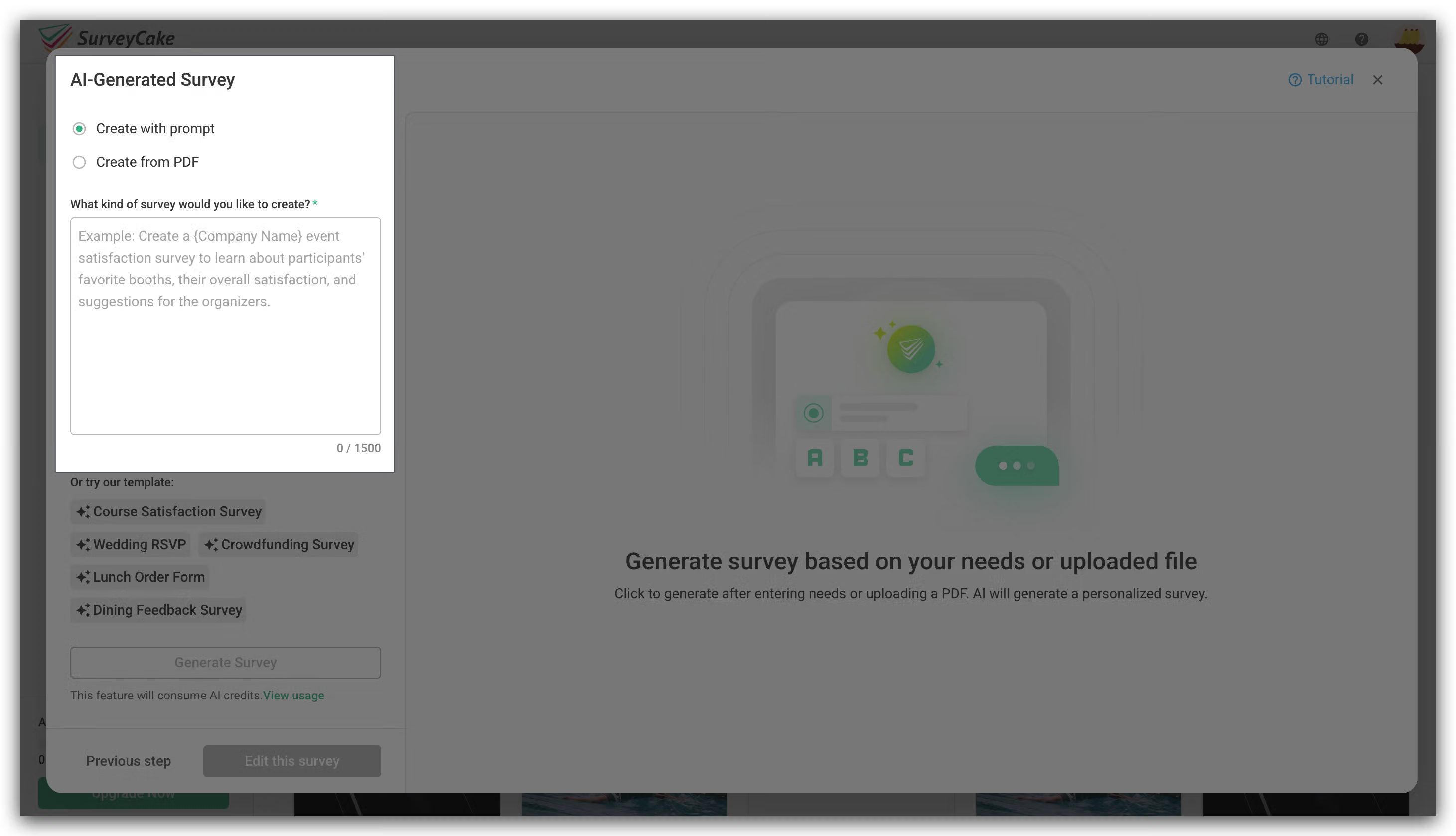
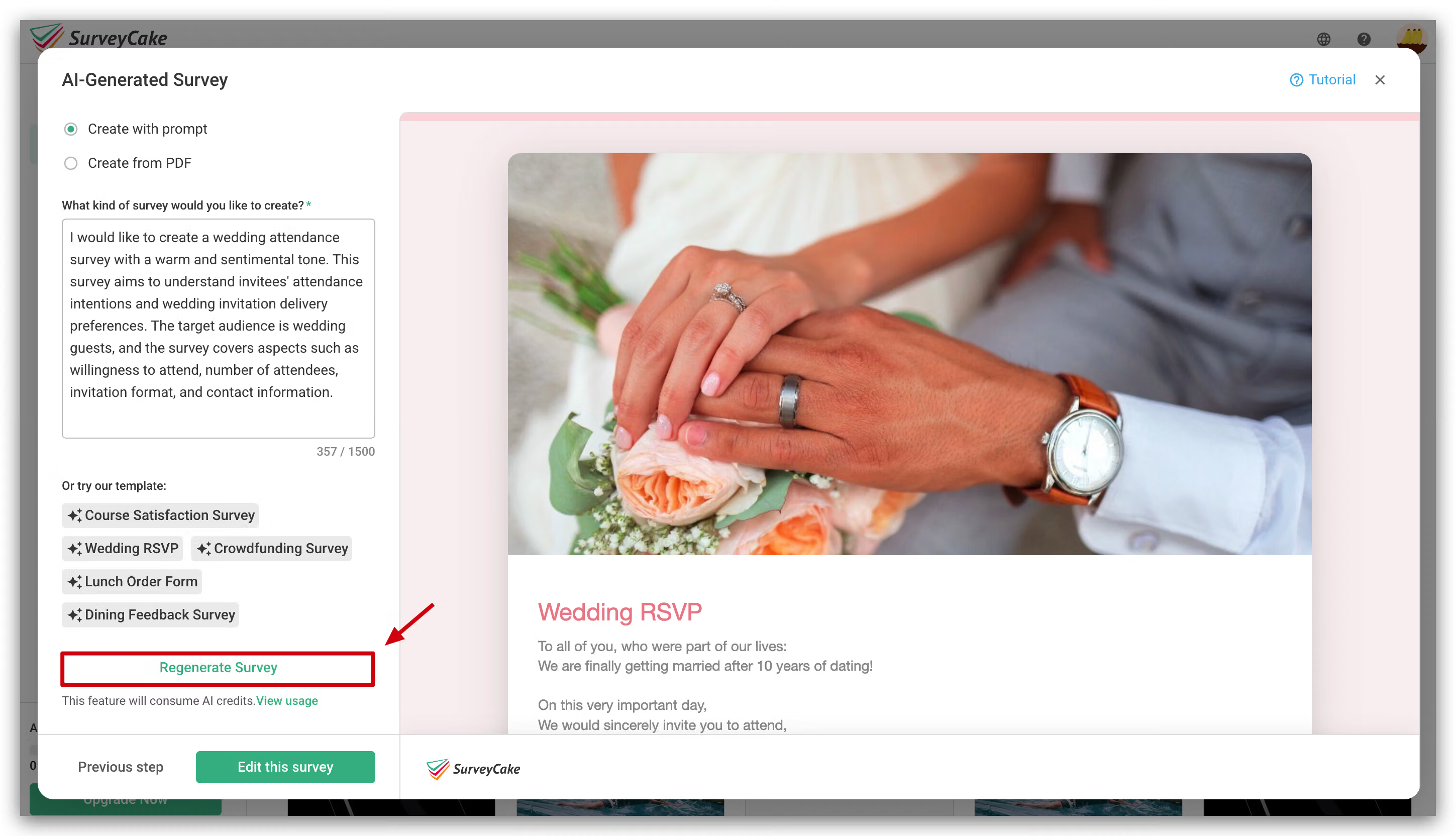
In the "What kind of survey do you want to create?" field, enter the survey scenario you wish to create
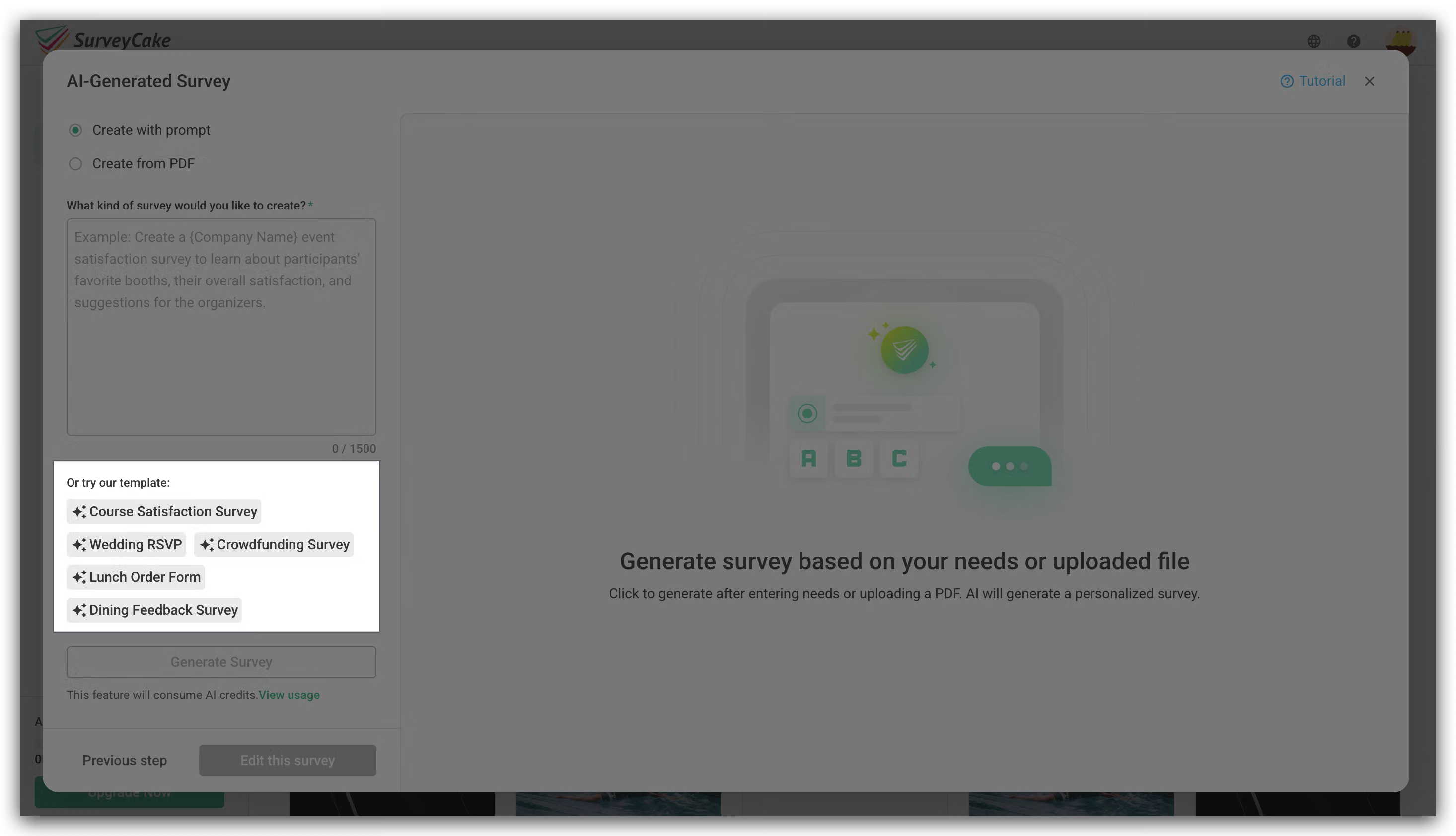
If you're unsure how to describe the scenario, try using our provided template instructions!
Click on any template tag under "Or try our template:" and the system will automatically populate the template content
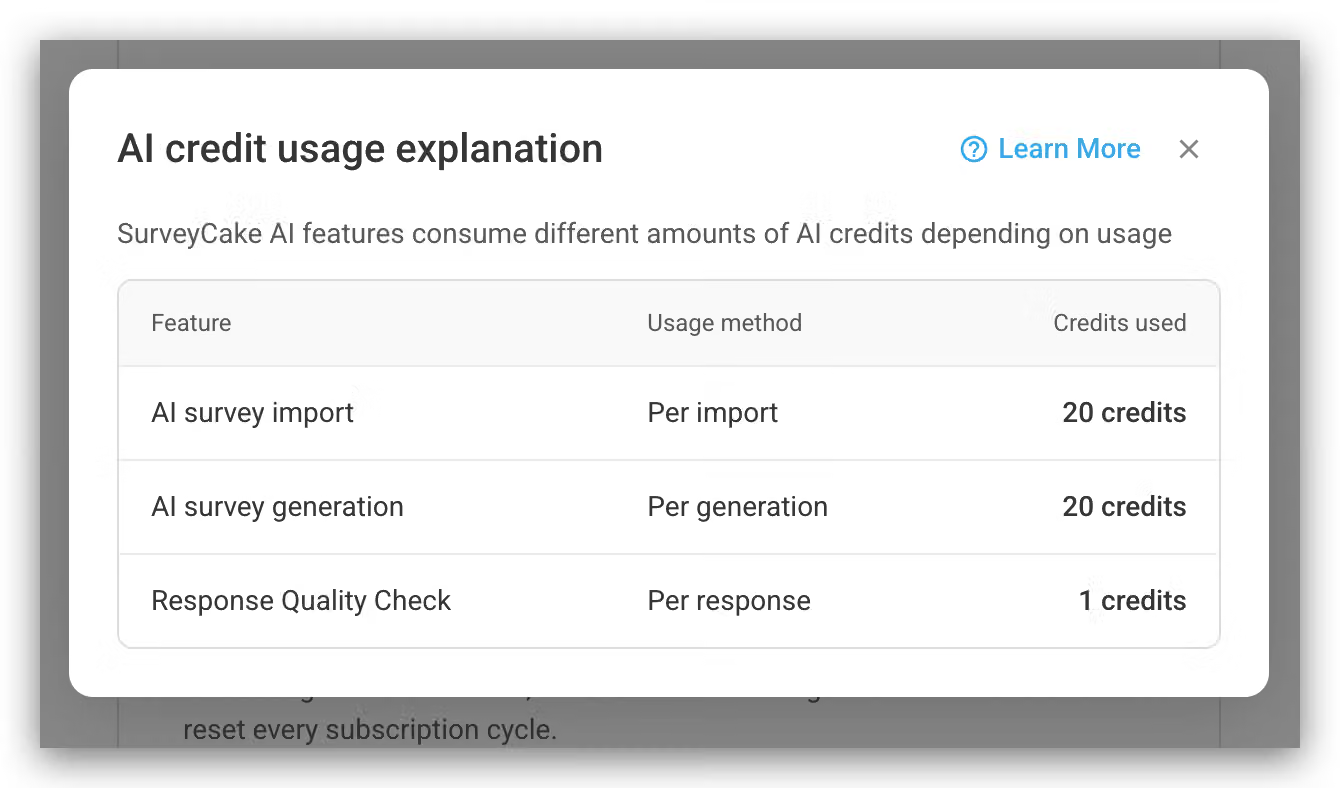
After completing your requirement description, click the "Generate Survey" button.The system will automatically generate survey content based on your description.
Note: SurveyCake currently offers two methods to auto-generate surveys. This feature will consume AI Credits. Clicking "Check Usage" will display the number of credits used.
You can preview the survey content on the right side. If you're satisfied with the content, click the "Edit This Survey" button to enter the editing mode. In the editing mode, you can further adjust questions, options, and advanced design!
Create from PDF
Select the "Create AI-Generated Survey" option from the pop-up menu
Select "Create from PDF", then upload your PDF file by either dragging it into the area or clicking to browse and upload.
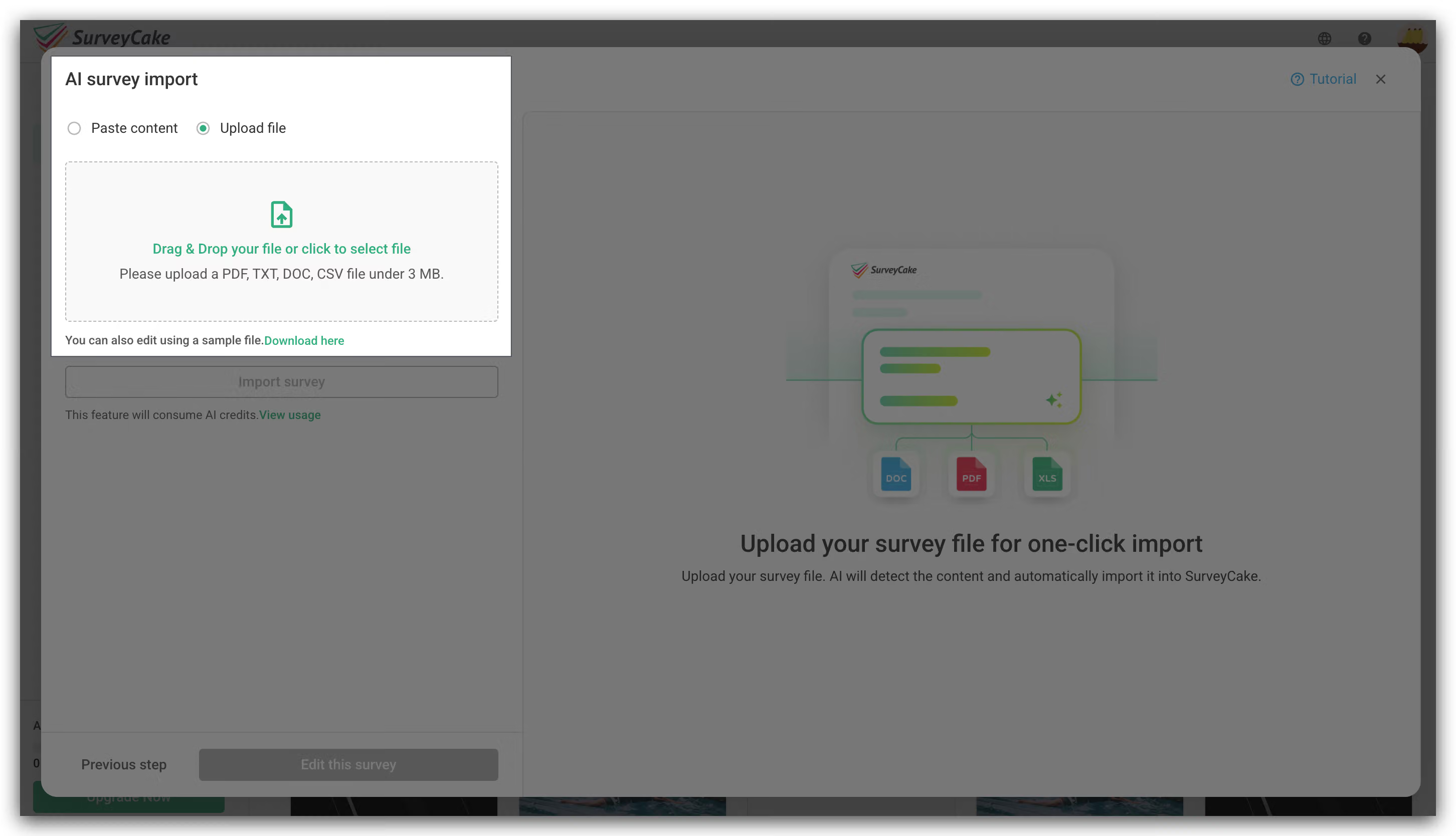
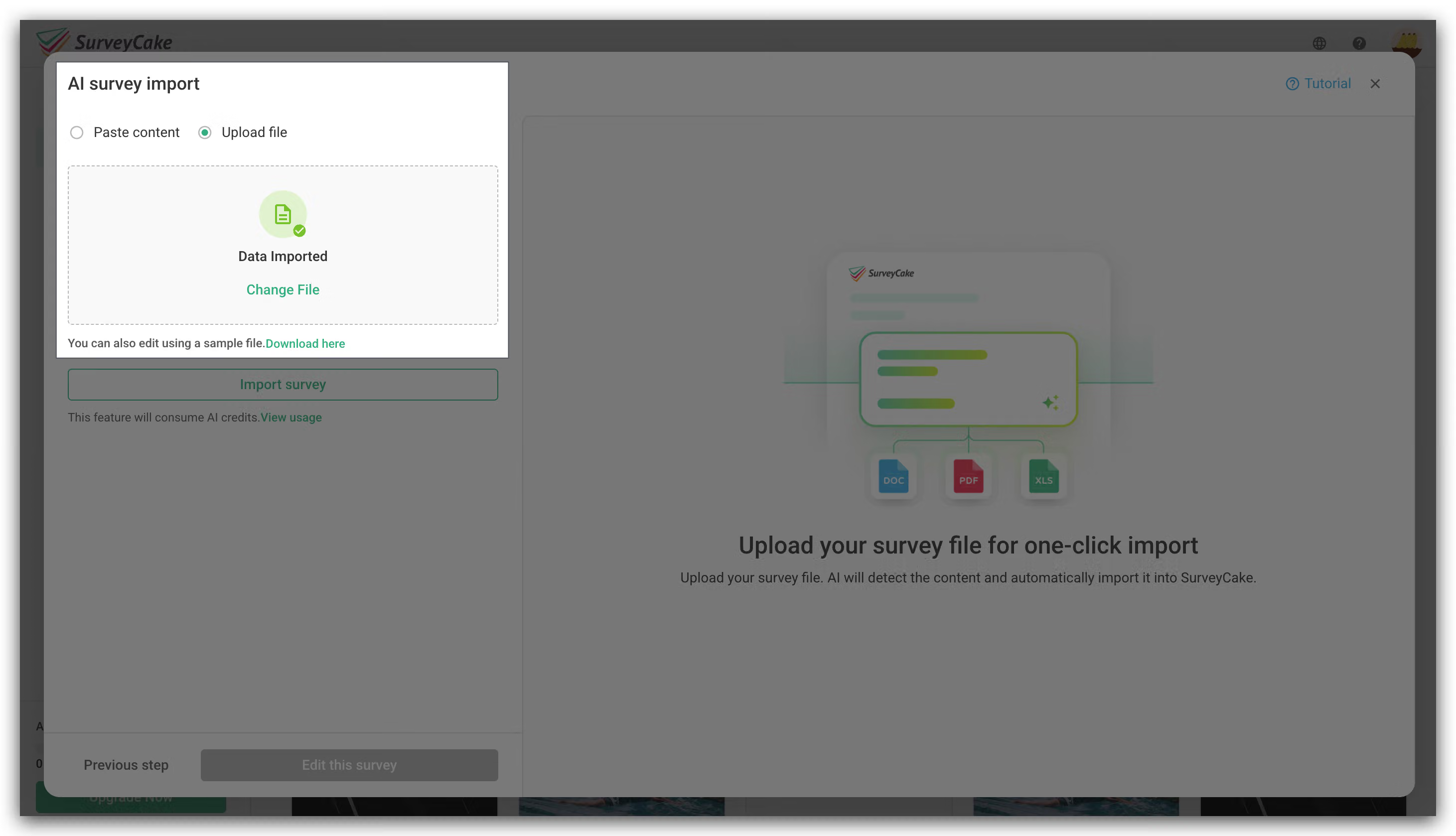
Once the file is successfully uploaded, you'll see a message saying "Data imported".
To upload a different file, click "Change File".
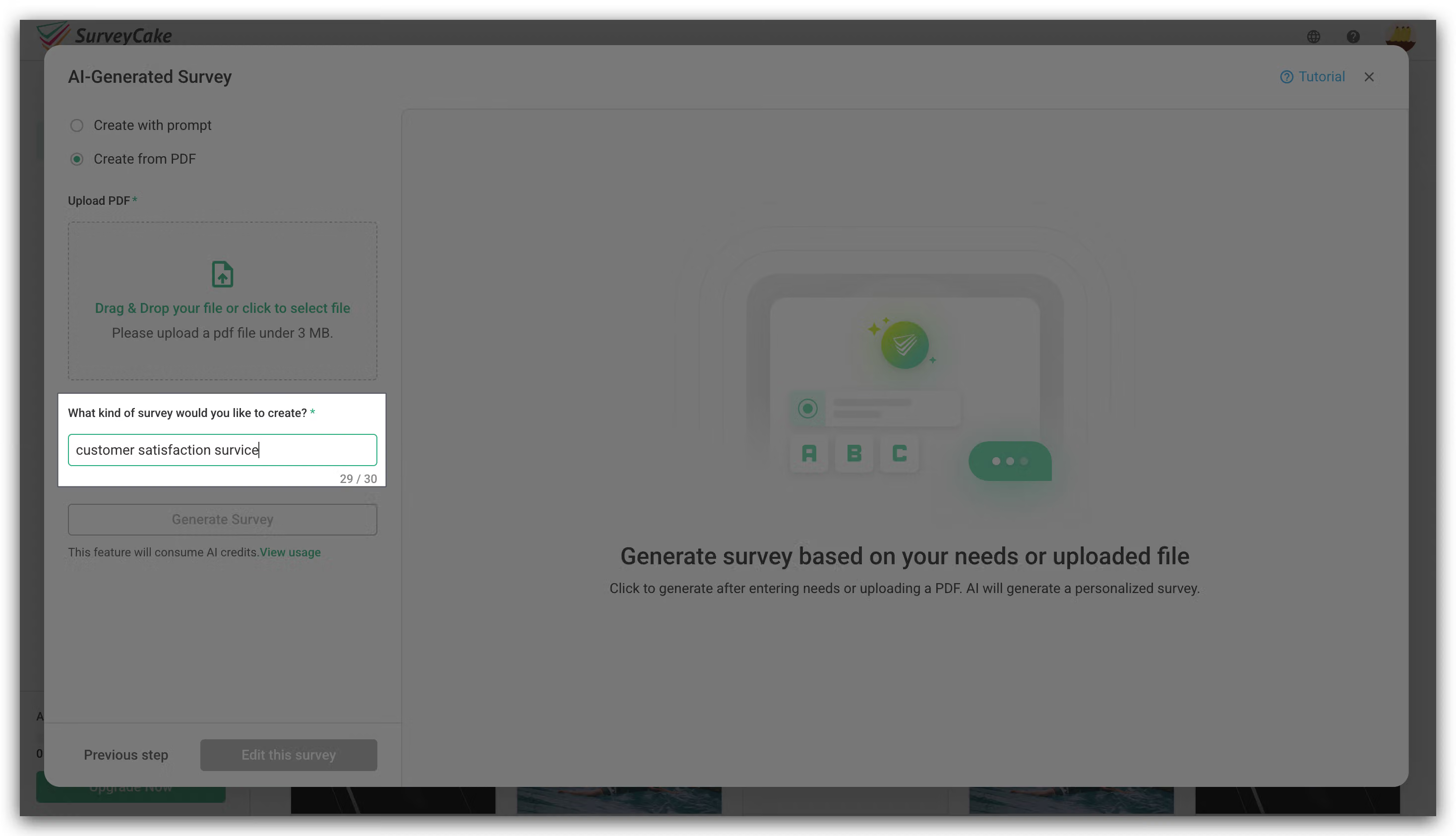
Next, in the "What kind of survey would you like to create?" field, enter a brief description of your survey requirements. For example: "customer satisfaction survice" After entering your description, click "Generate Survey". AI will generate a survey based on your uploaded file and your input!
PDF Generation Notes
-If the PDF contains fewer than 30 characters, the system will display: "PDF content too short. Generation failed."
-Multilingual recognition is supported: Traditional Chinese, Simplified Chinese, English, Japanese, and Thai. AI will automatically detect and generate the survey in the corresponding language based on your input.
Currently Supported Question Types and Features
Question Types:
Features:
FAQ
If the generated survey results do not meet your expectations:
With the AI Survey Generator feature, you can easily and quickly create surveys by either describing your needs or uploading existing documents—create surveys more easily and quickly!



