After publishing the survey, you can add notes for each response at any time.
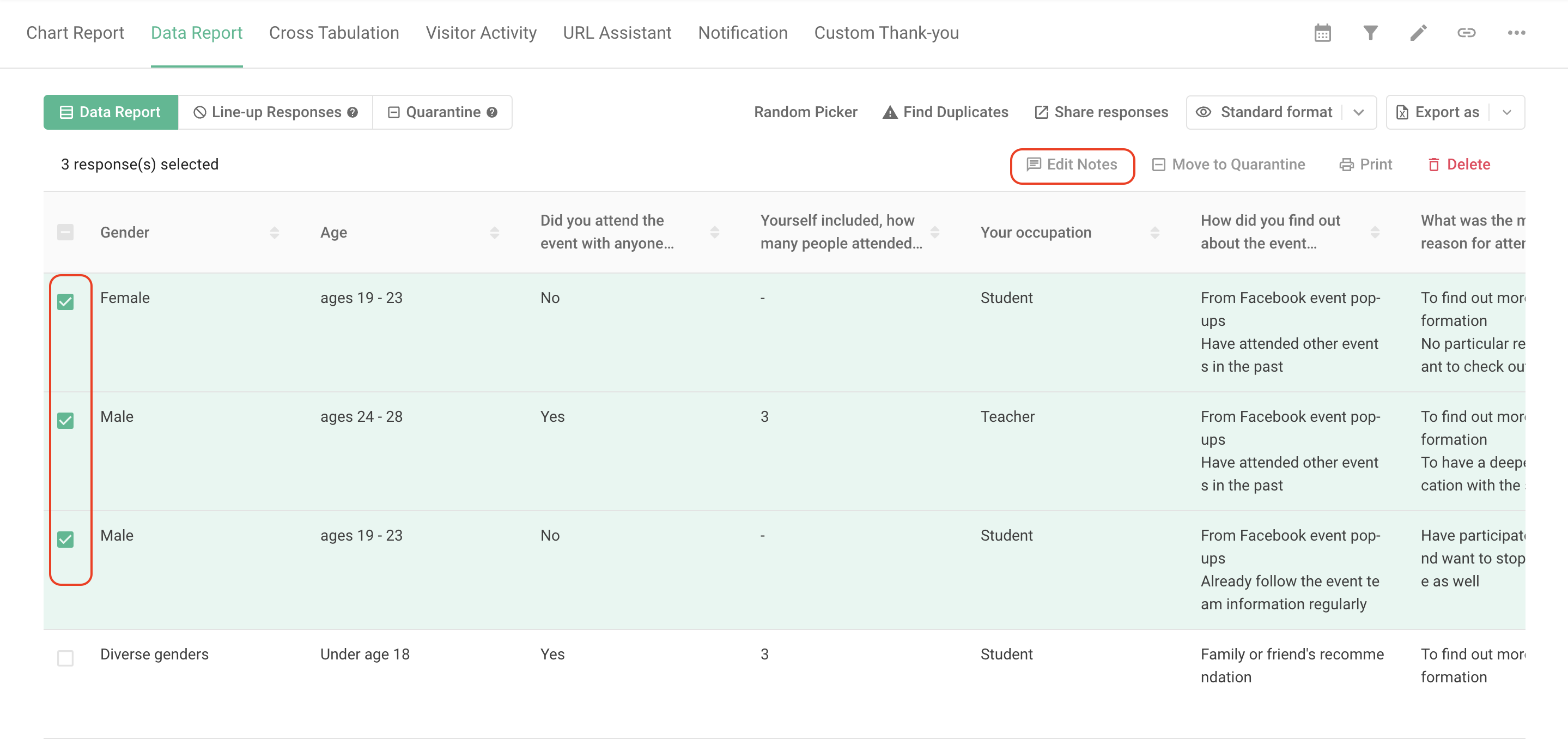
Edit Notes function is located in the upper right corner of the Data Report tab.
After entering the Data Report tab, you will see a list of survey responses.
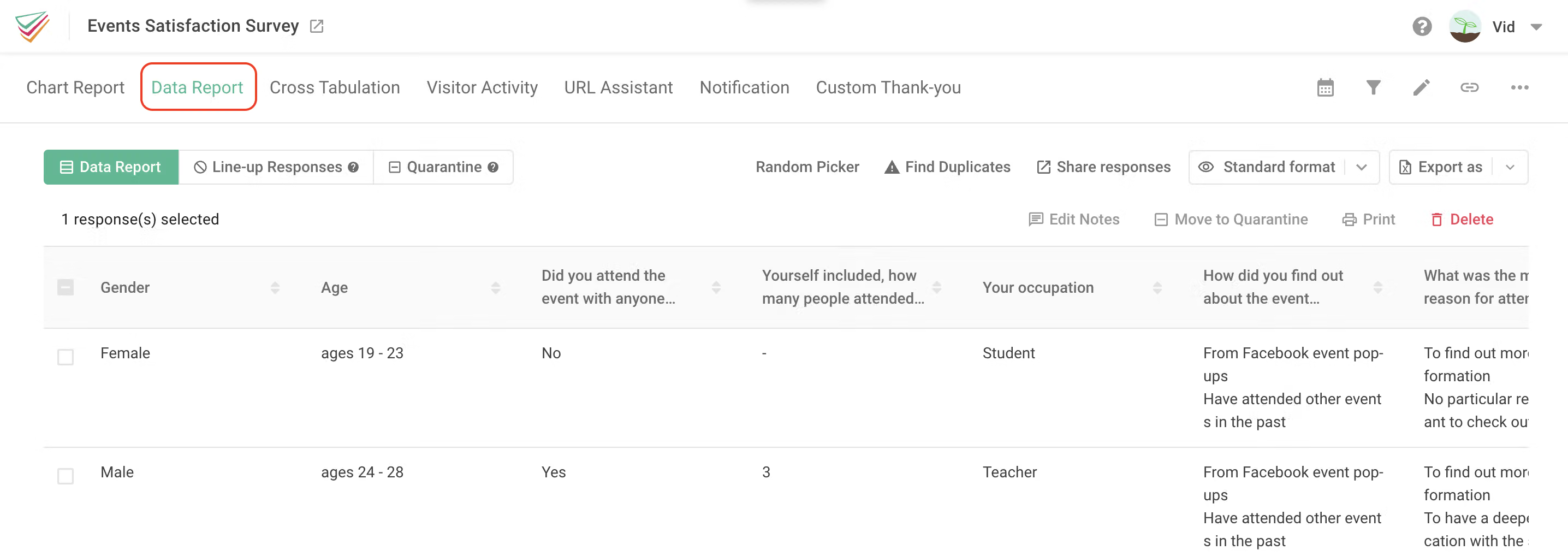
Then, you can select any specific responses and start adding notes.
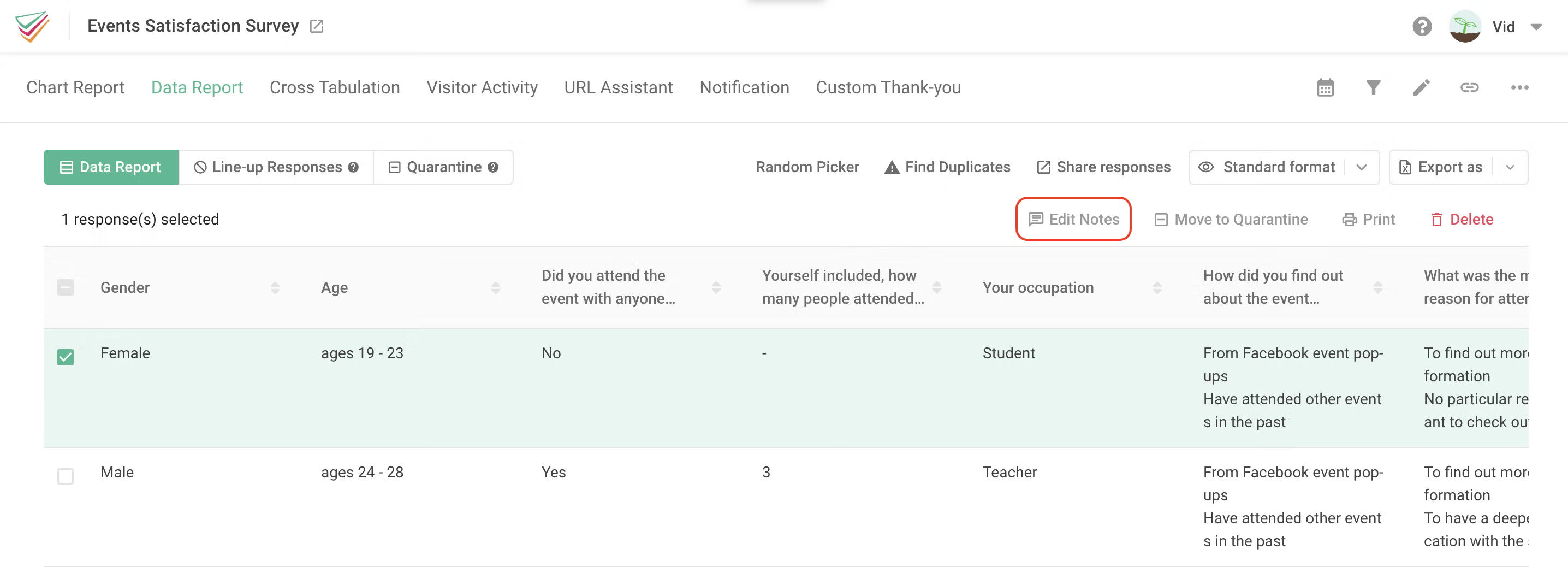
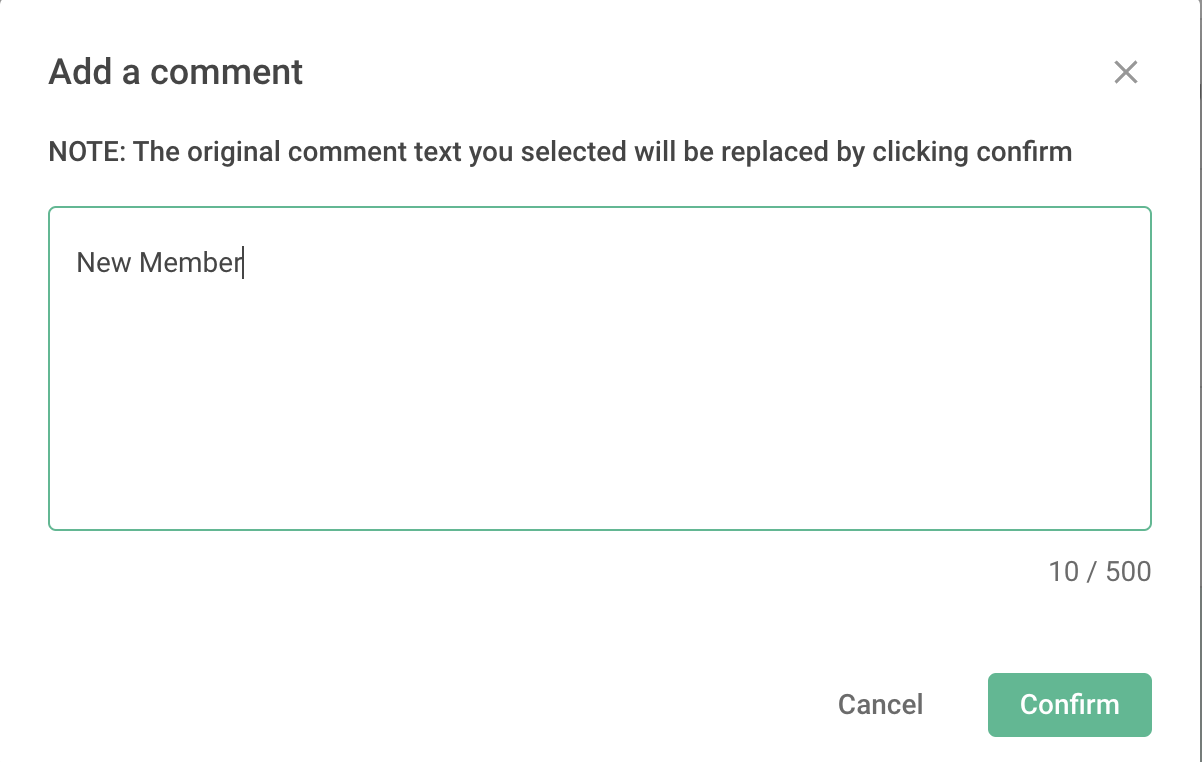
After selecting the Edit Notes features, you can add any comments/ notes for that specific response. Comments / notes can be written up to 500 words in both Chinese and English!
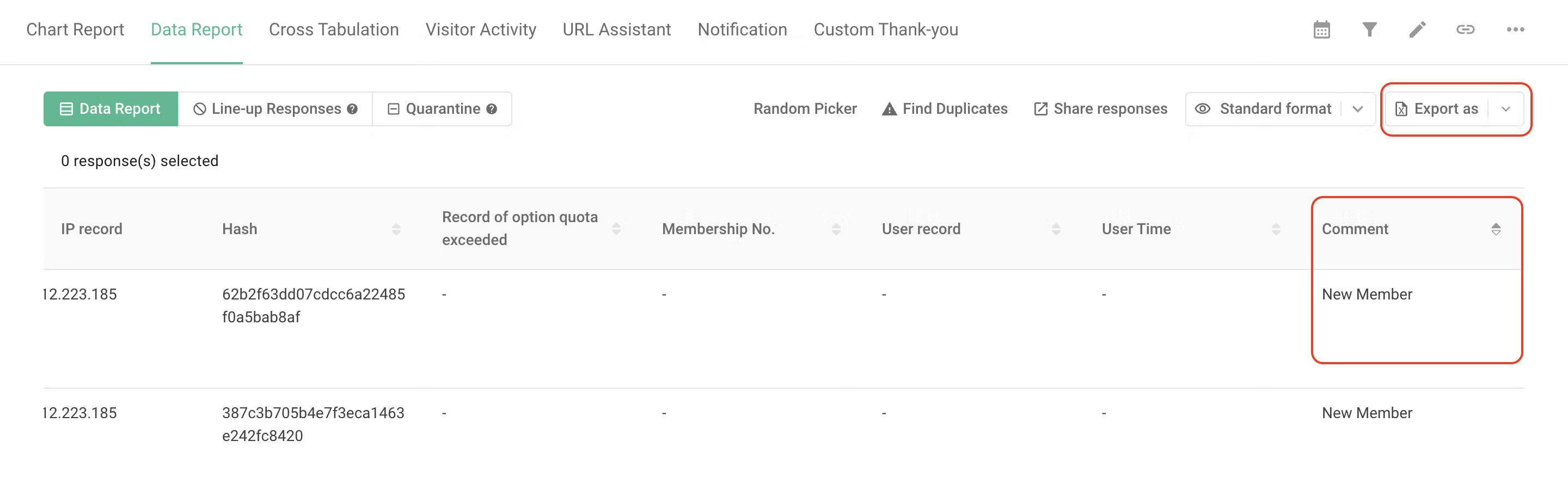
After clicking the confirm button, the new comments will be displayed in the last column of the response.
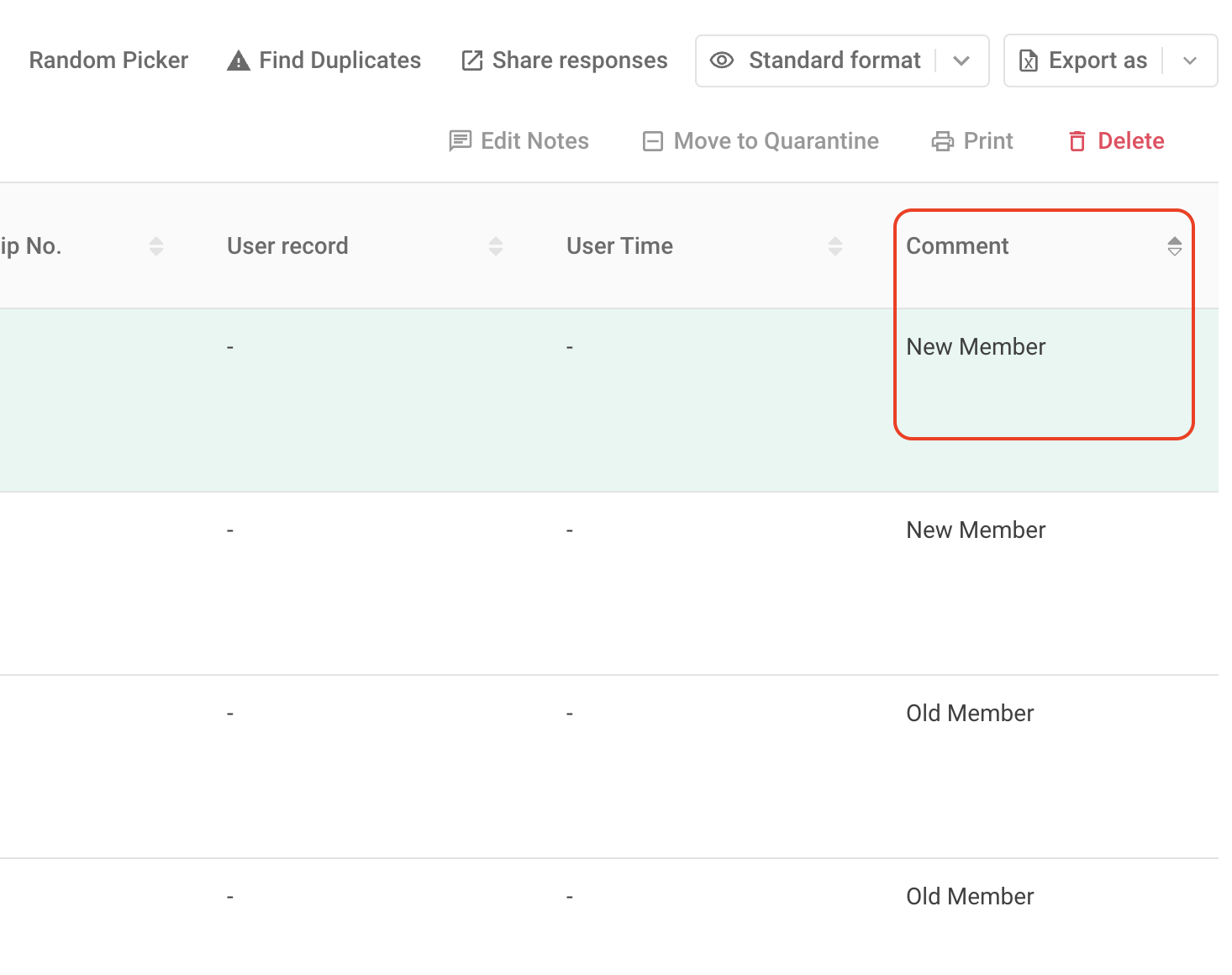
You can also edit multiple responses at the same time. Simply select the responses which you would like to add comments / notes. Then, again selecting the "Edit Notes" features to add the new remarks to the selected responses.
Note: Edit Notes to the selected replies at the same time means that all previous remarks will be replaced!
FAQs
-If I exported my responses data to an Excel file, will the remarks/notes be exported too?
Yes. If you select the export to Excel file button, any additional remarks/notes will also appear in the Excel file.

sum ~ Easily add notes/remarks to each responses with Edit Notes!



