Date allows respondents to quickly enter the year, month, and day on the calendar. It increases response efficiency and provides a clean layout.
A standard format is available after survey response collection for better readability and consistency.
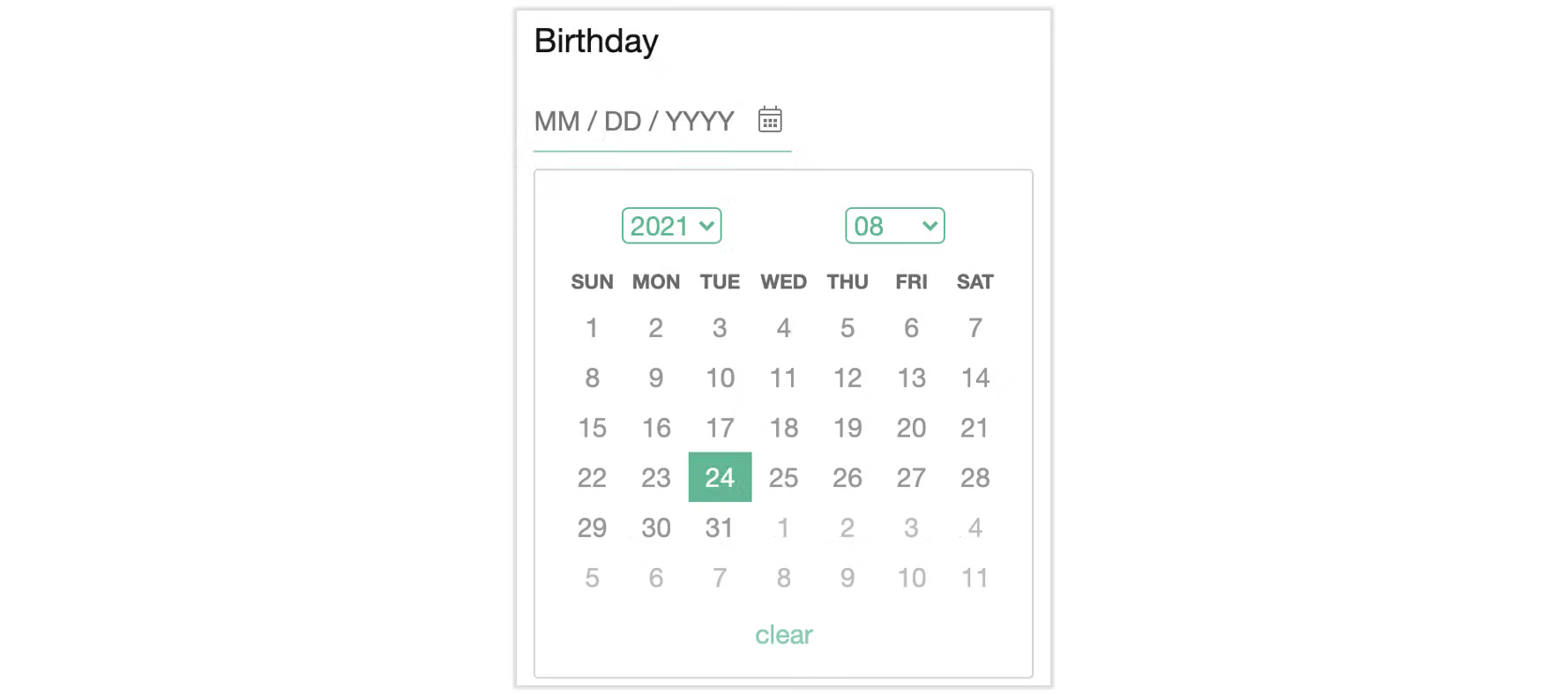
In the case of user birthdays, simply click on Date under question type, enter the title, and done!

Survey response page as seen by respondents:
In addition, the date setting allows for sampling at the specified time. During survey design, available time periods can be specified using Date.
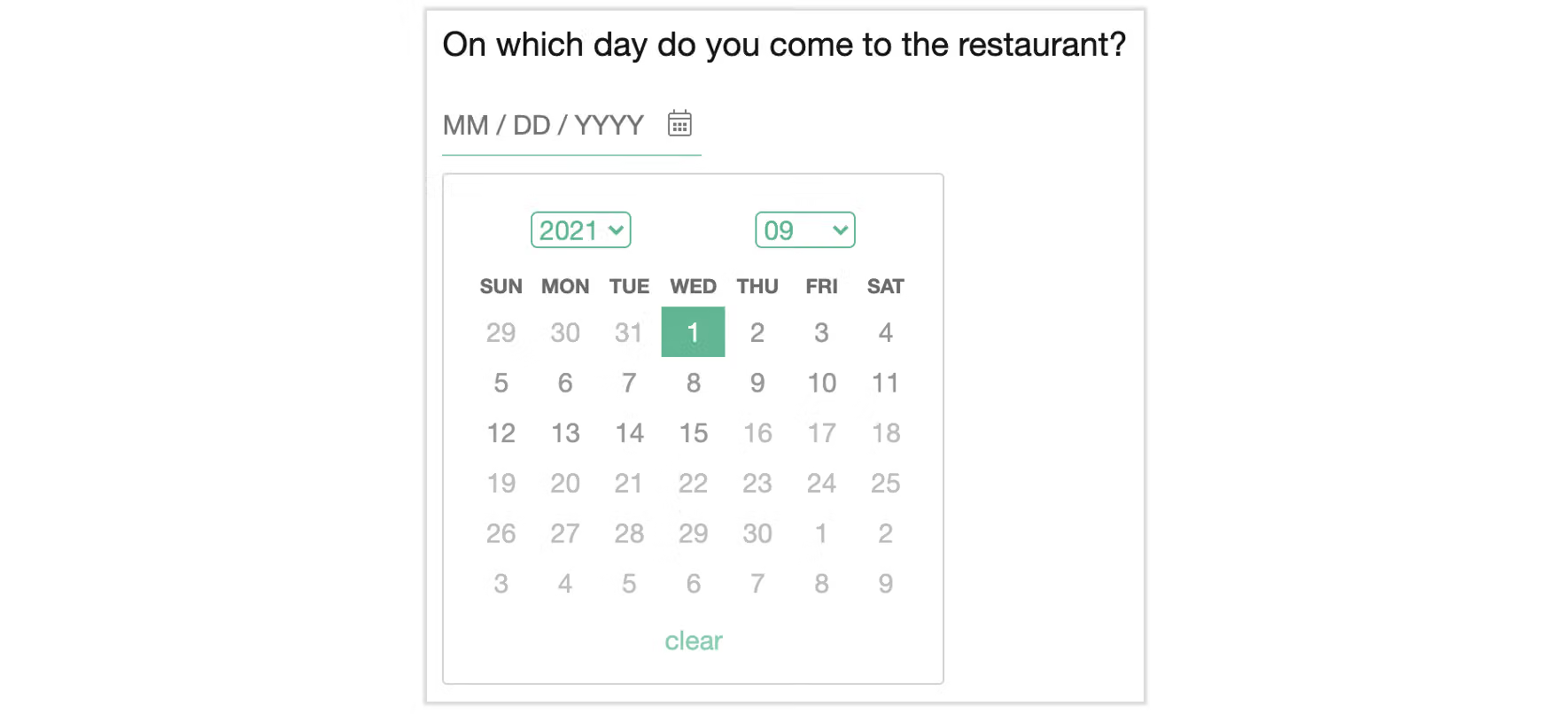
For example, which dates are consumers coming to the restaurant between 9/1 -9/15?
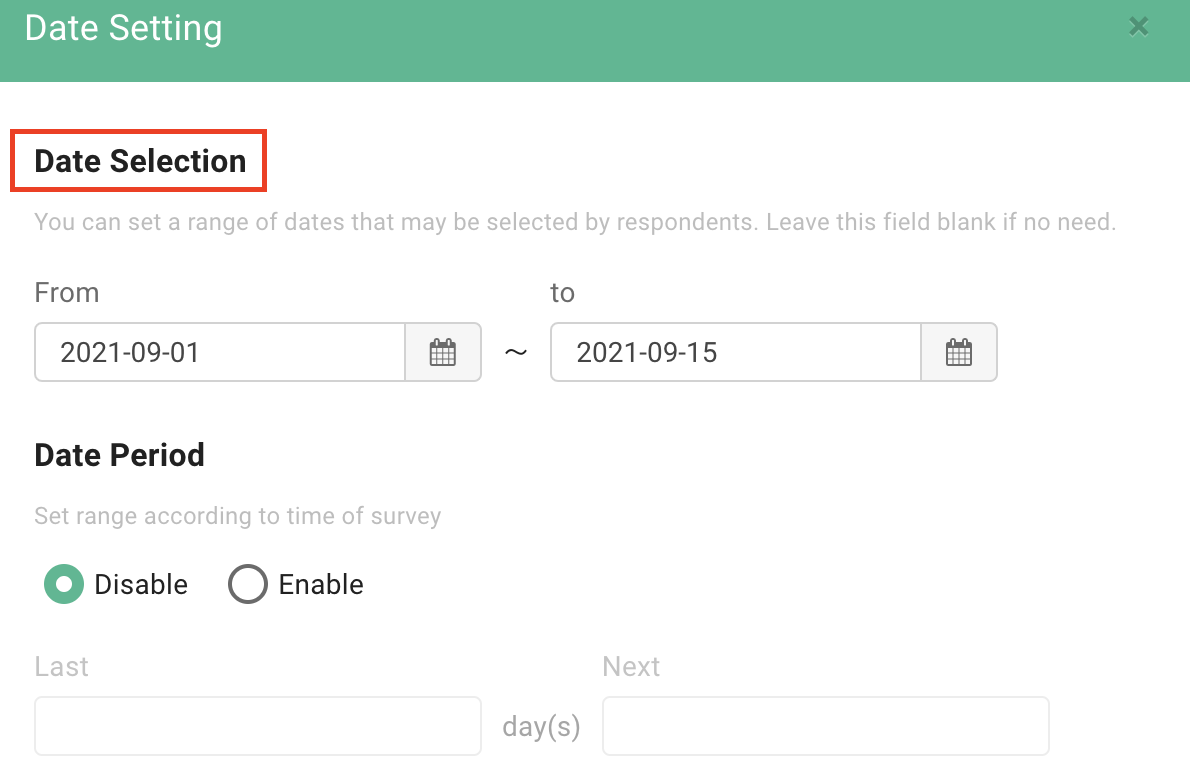
First, click on Date Setting in the function list.

Simply specify the dates in “Specific date”.
Survey response page with specified intervals as seen by respondents:
Here is more good news. To eliminate outdated responses, use Relative date and set the clickable dates for respondents before and after opening the survey.
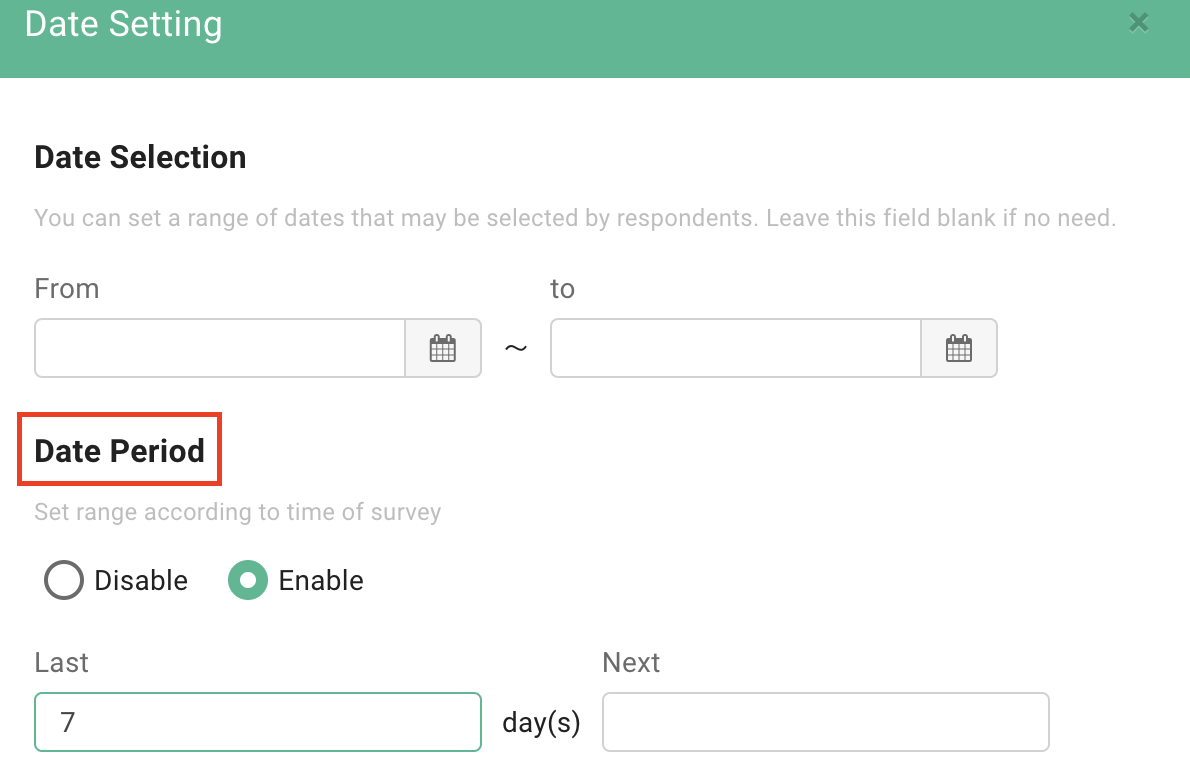
For example, if the respondent opens the survey on 8/24, the clickable dates are automatically set to 8/17 - 8/24.
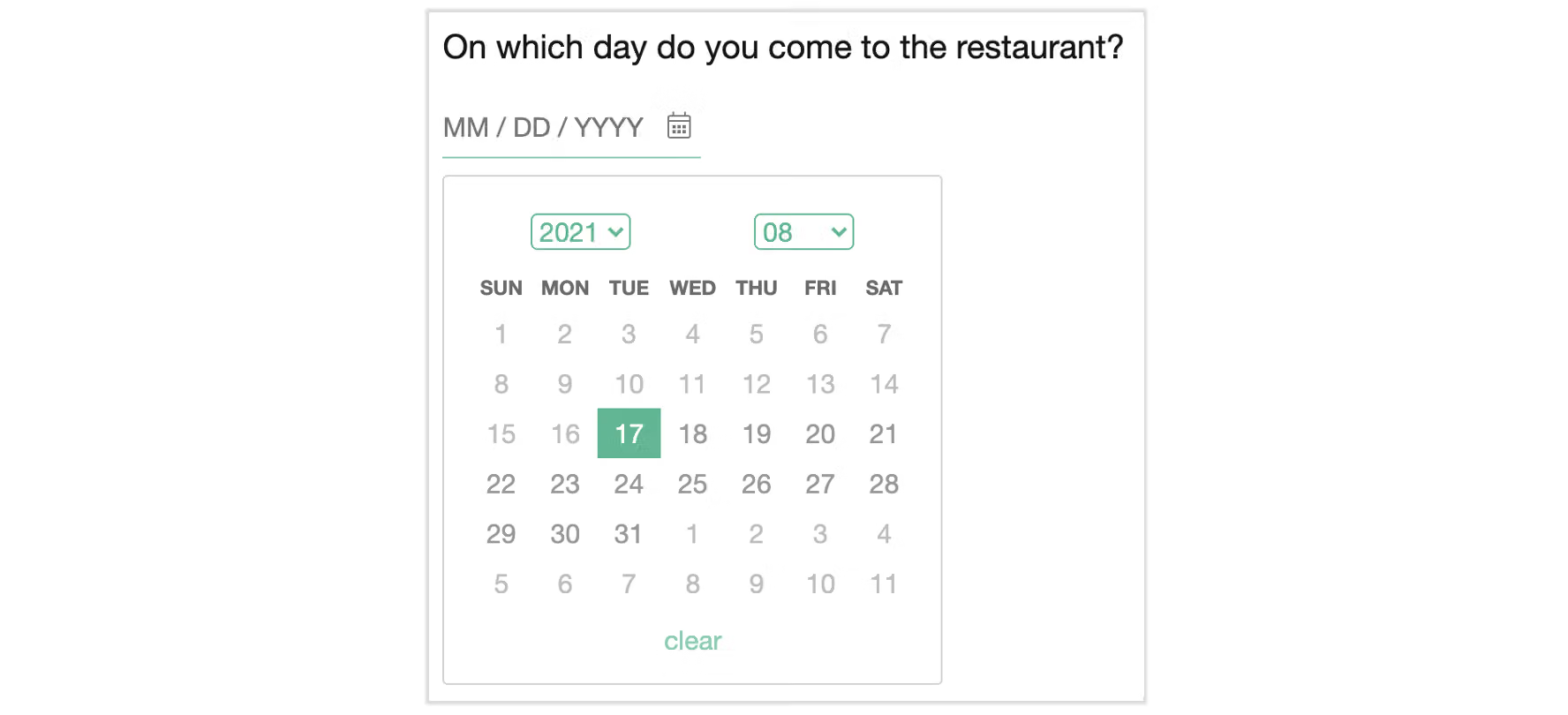
Date not only allows for response with accurate and relevant time information but also provides a clean layout. Data collection has never been this convenient! By setting the date, relevant responses are now possible and outdated information is eliminated!



