The respondent is unable to get into the survey in the following situations: the status of the survey is off, the response quota has been reached, or the survey has expired.
In order to make respondents understand clearly why they cannot get into the survey at the moment, you can set up the relevant prompt message.
The setting for "Edit Survey Closed Message" can be found under the "Build" page, in the left sidebar under "Survey Settings" → "Survey Access" field, within the fields: "Status ", "Response Limit", and "Survey Period".
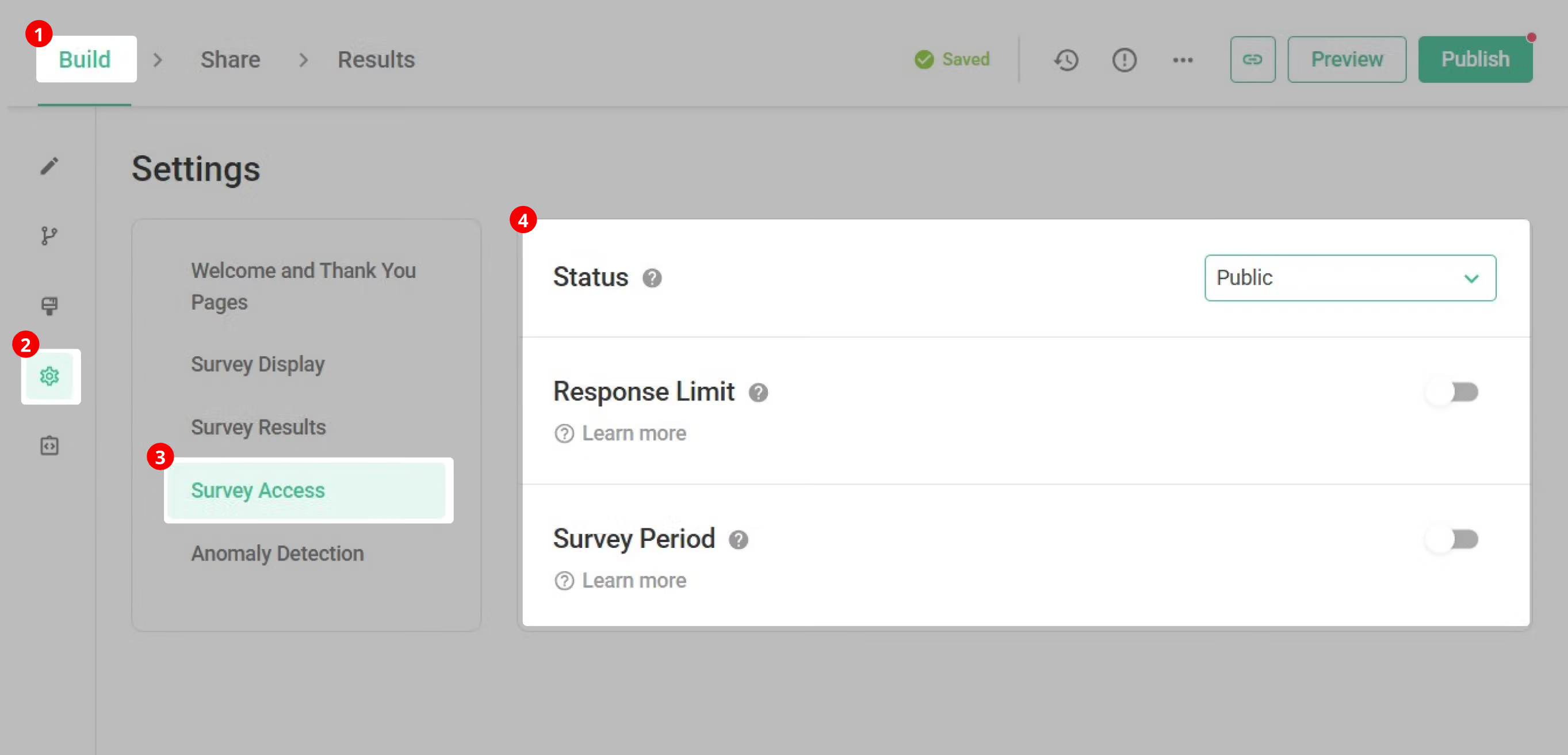
If you set the Status to closed, then you can set up the Survey Closed Message.
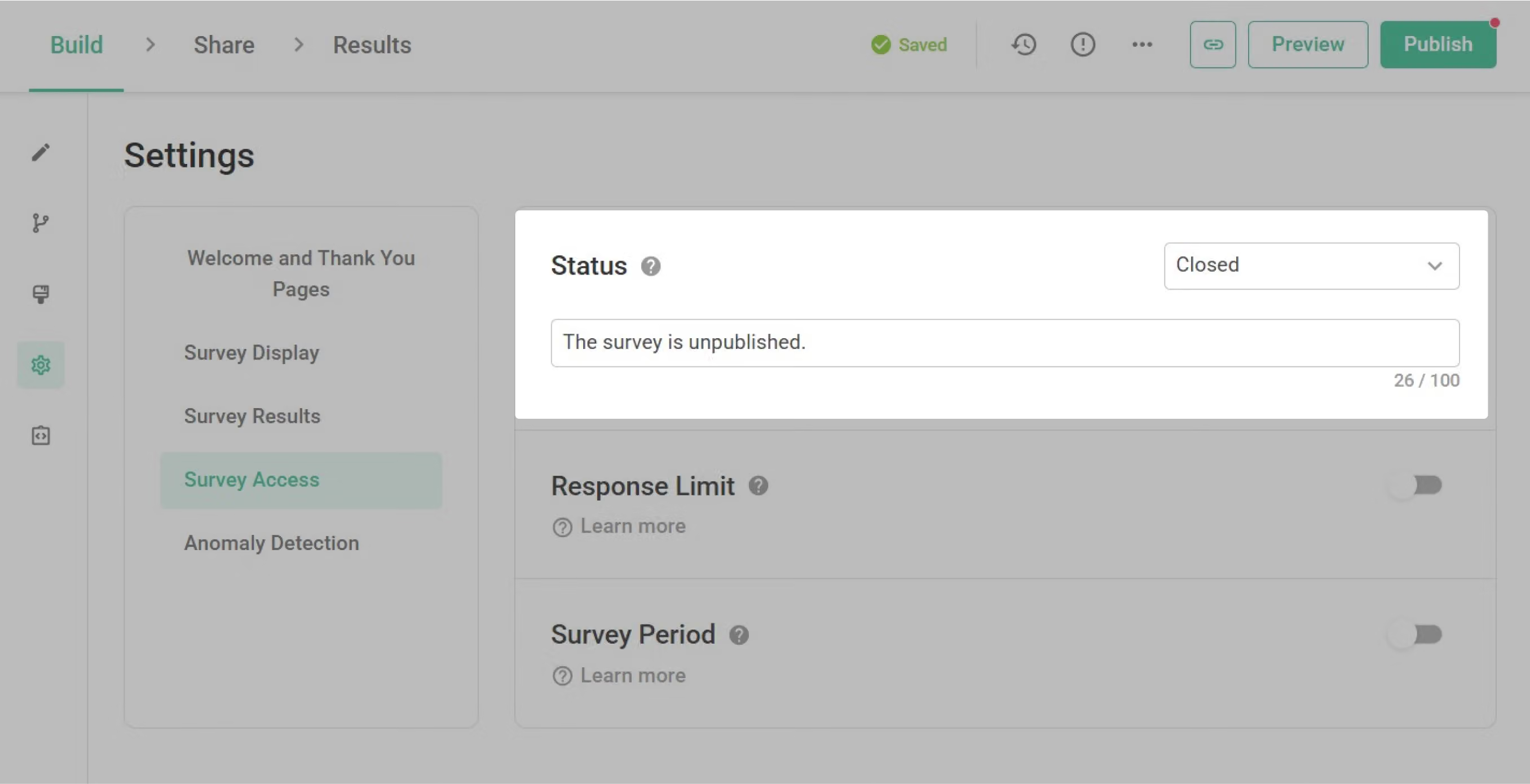
If you turn Response Limit and Survey Period on, you can also see the set-up columns of Edit Survey Closed Message.
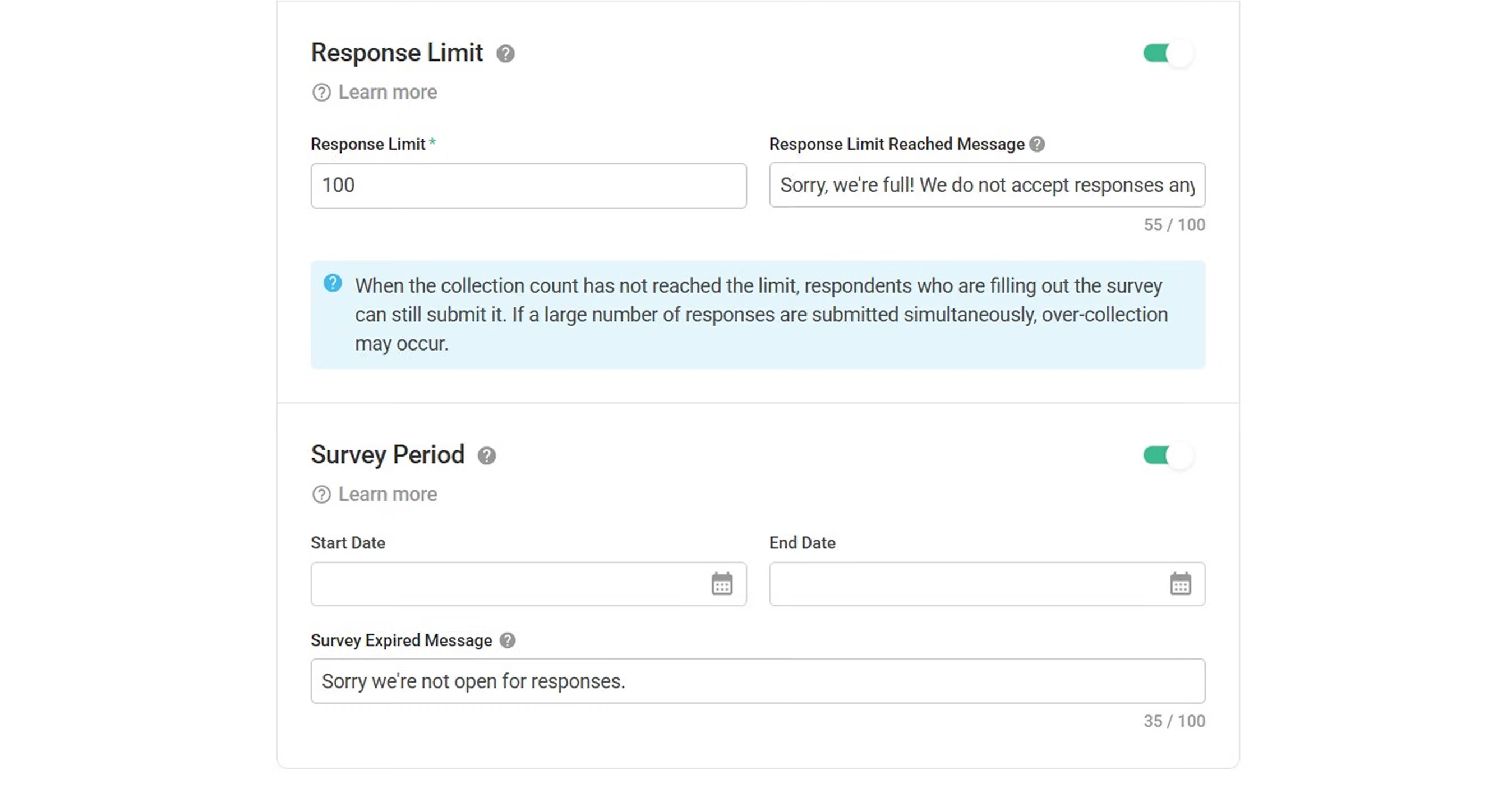
After setting up, respondents will see the relevant prompt message if they can't get into the survey in the different situations!

FAQs
-Can I change the default icon for the three different situations?
Of course! As long as you're using SurveyCake ENTERPRISE Plan, you can further customise the icons according to your needs. You'll be able to remove the default icons on the survey closed message! (as shown in the red boxes in the image below)
![You can change the icons above using ENTERPRISE Plan]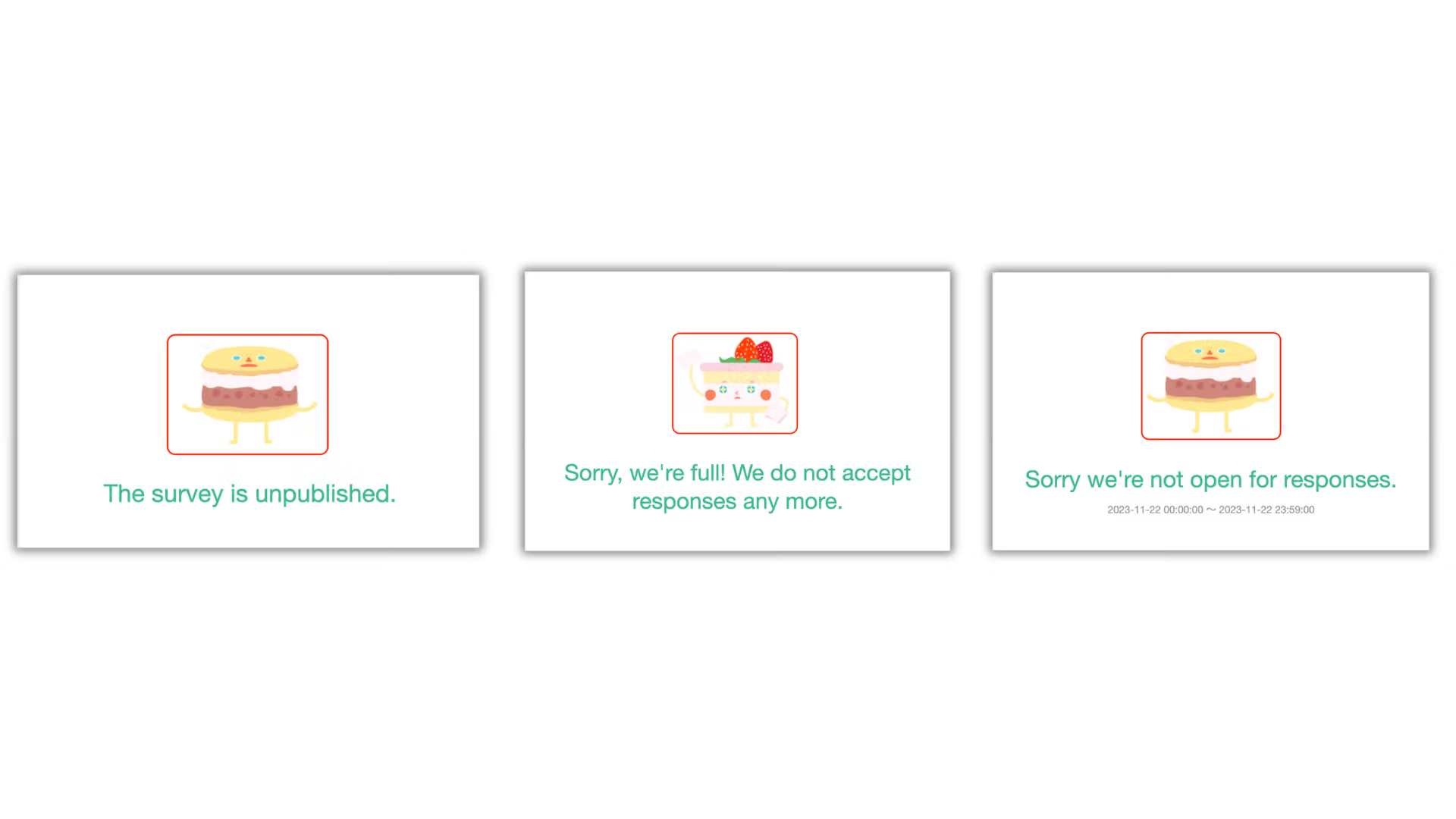
For further inquiries, you are very welcome to fill out this form . The SurveyCake team will contact you as soon as possible!
With Edit Survey Closed Message, you can set up the prompt message for closed survey!



