Through the Google Sheets Integration feature, you can instantly sync survey responses to Google Sheets spreadsheets, facilitating subsequent analysis and sharing, eliminating the hassle of manual export.
The Google Sheets Integration feature supports creating new files, and it will create a dedicated folder in your Google account for centralized management. Even if data is missing midway, it can be replenished through the re-sync function, ensuring complete and accurate records.
How to use Google Sheets Integration
Enter the "Build" page, click "Integration" in the left sidebar, and open the "Google Sheets" Integration field.
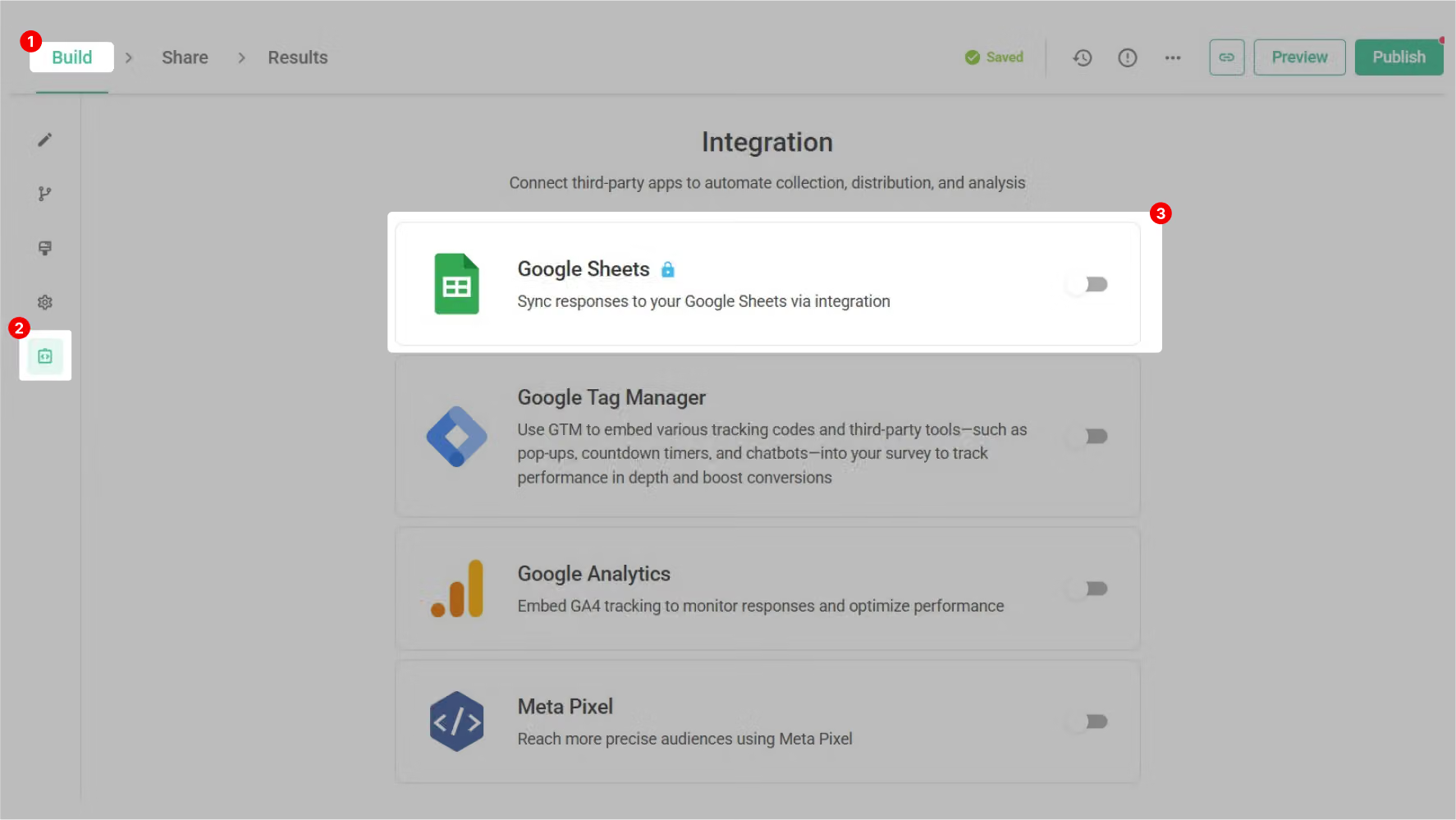
Click the enable button, then select the account you want to connect.
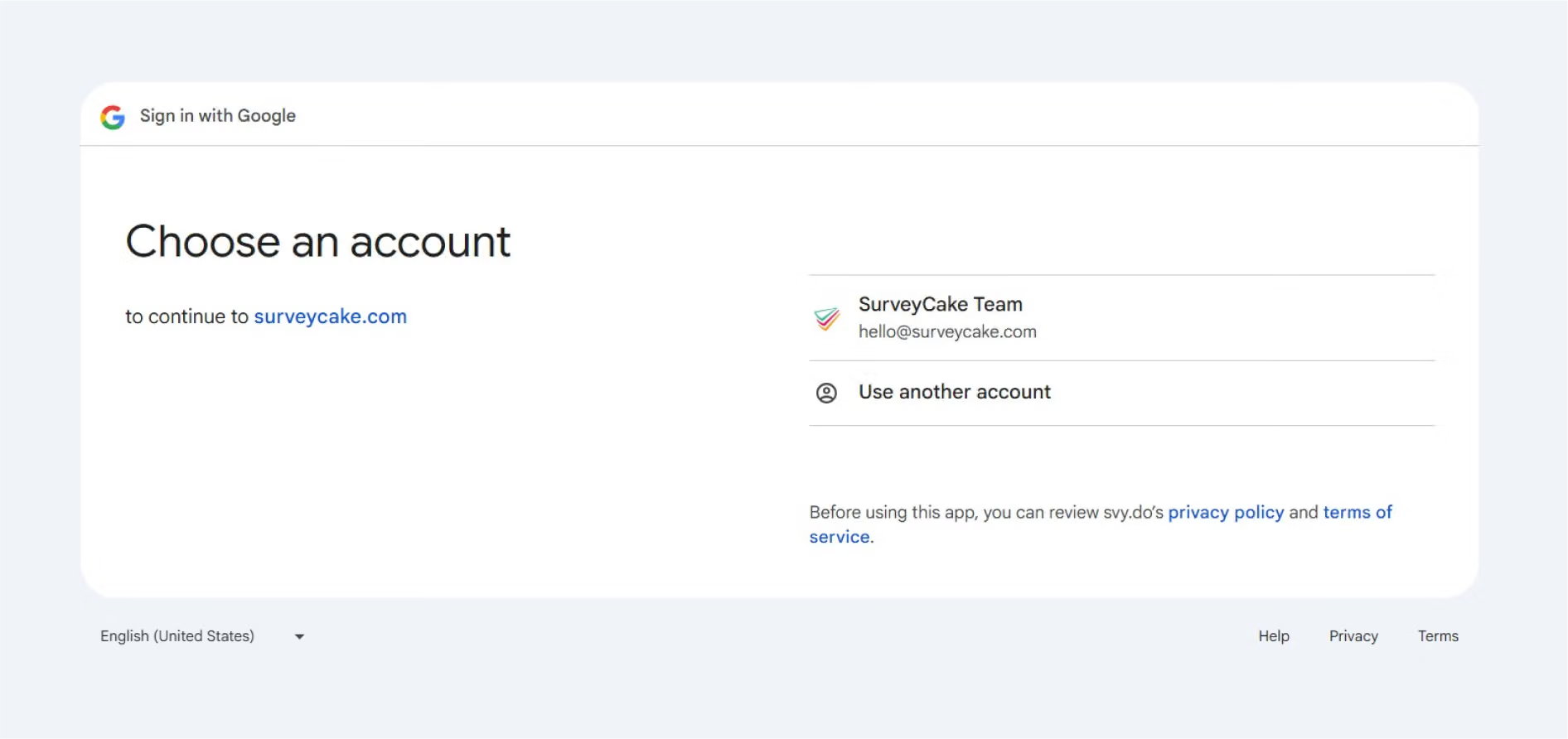
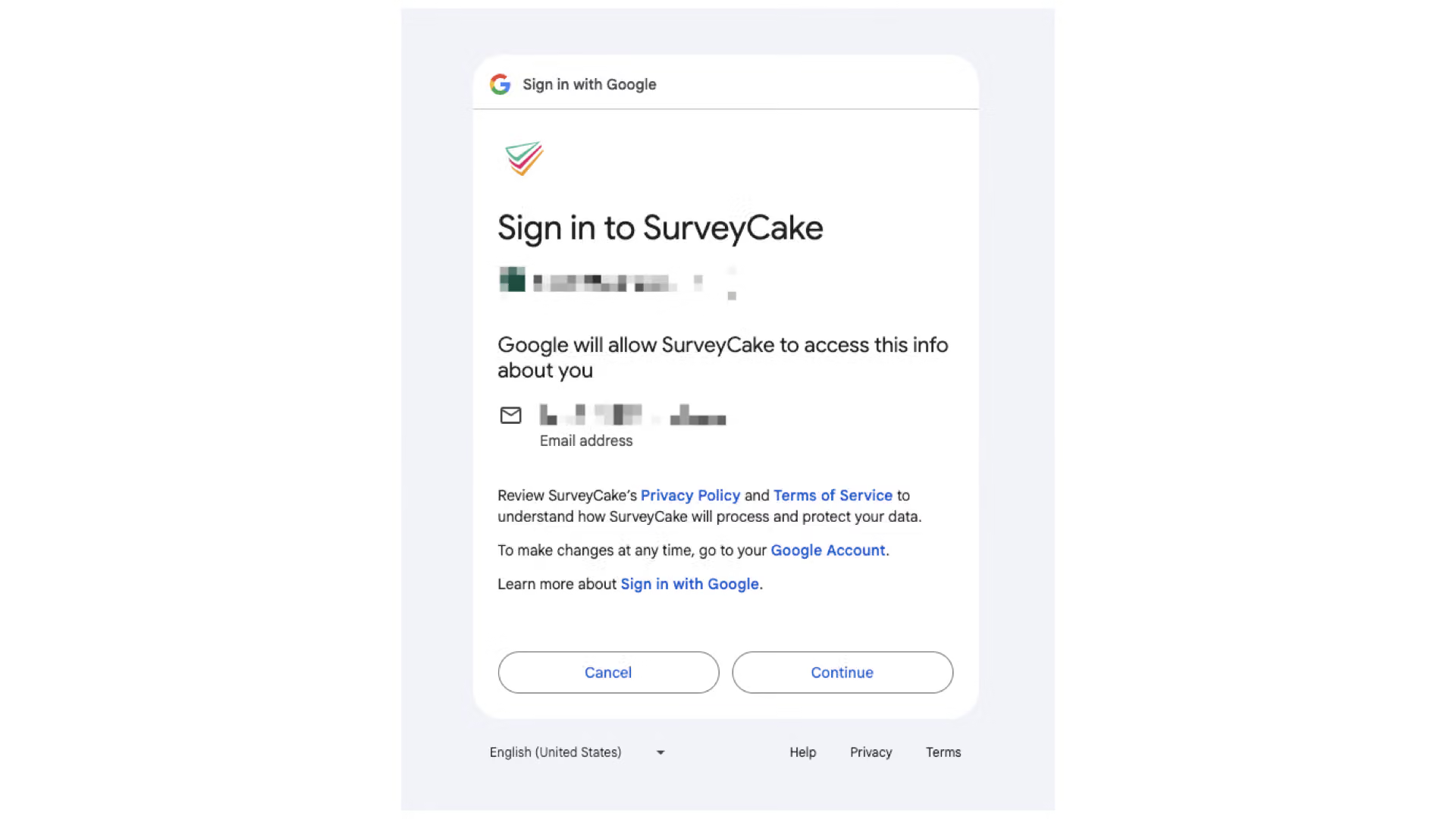
The system will guide you through Google authorization, please click "Continue".
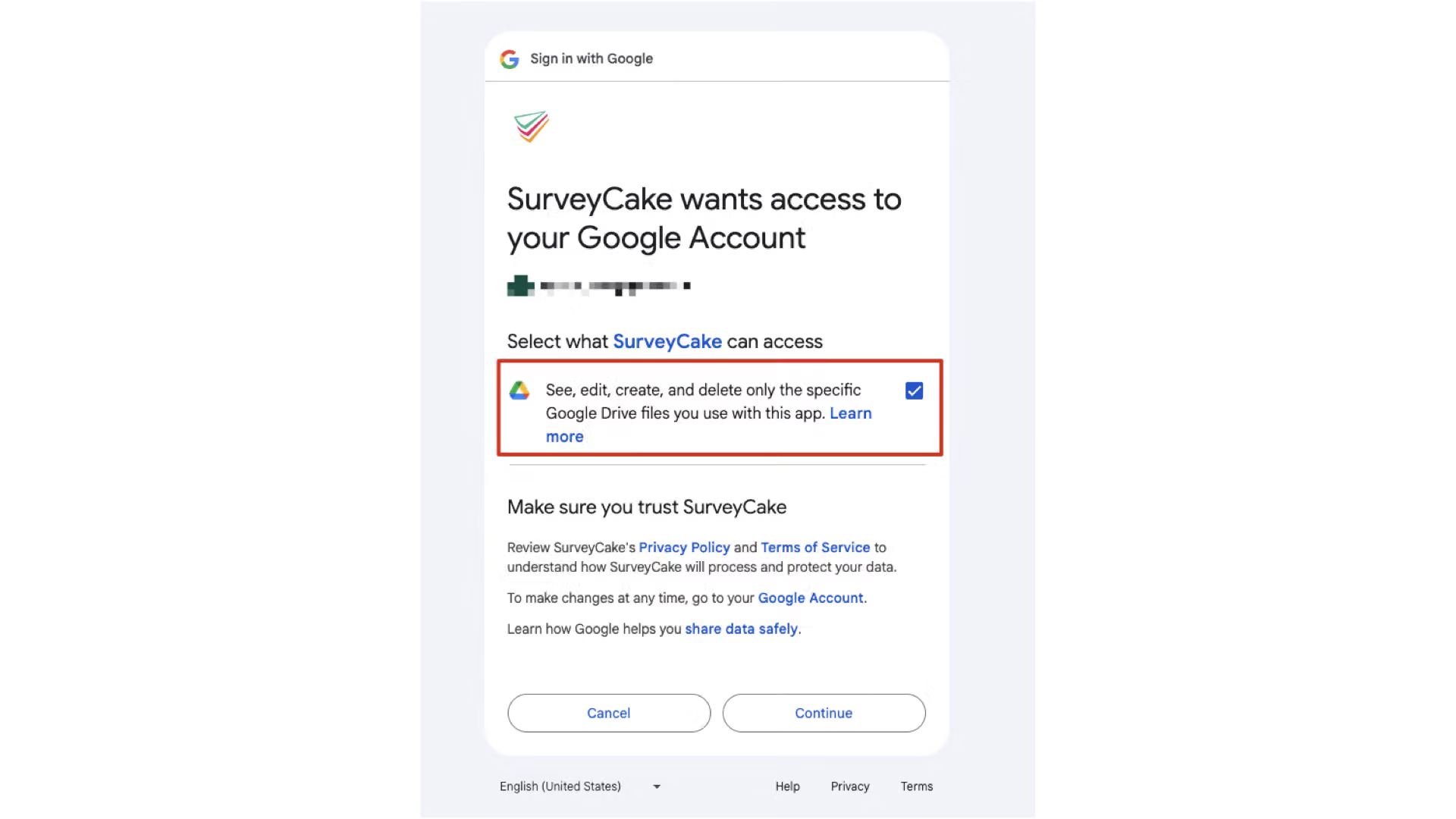
When binding your account for the first time, please remember to check the box to agree to the authorization scope and then click "Continue".
After successful authorization, the settings window will open. The system will create a new Google Sheet for you. The default file name is: {Survey ID}_{Survey Title}, or you can enter your own file name.
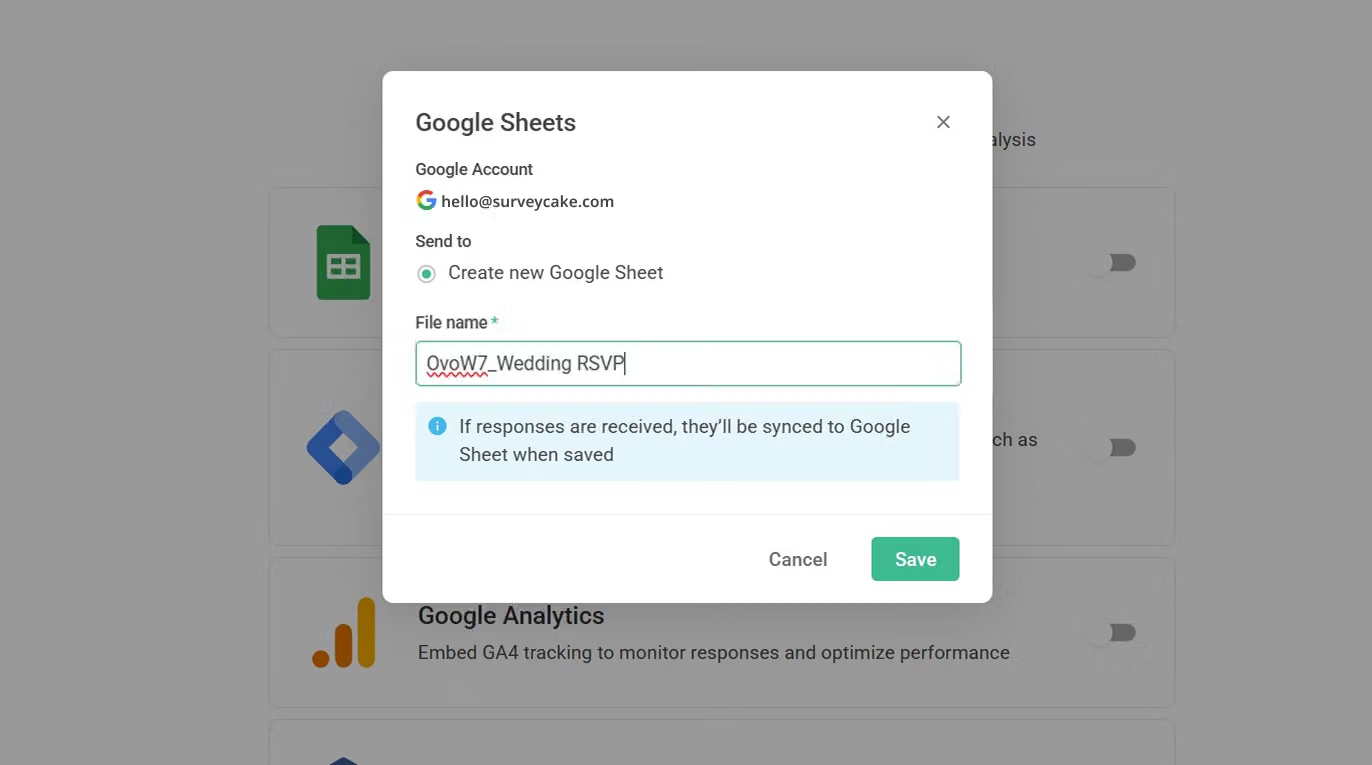
After clicking Save, the system will automatically:
Select an existing Google Sheet:
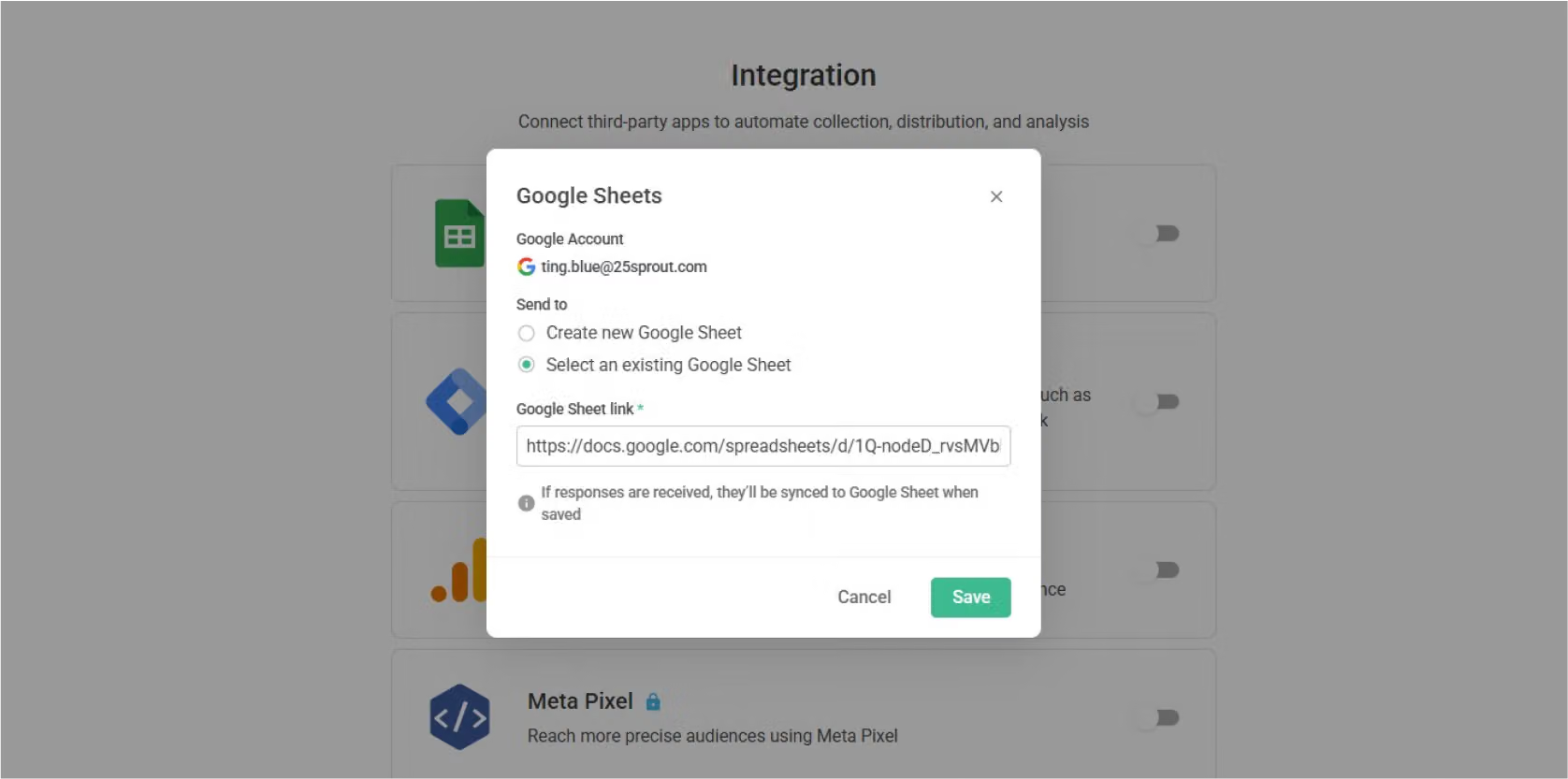
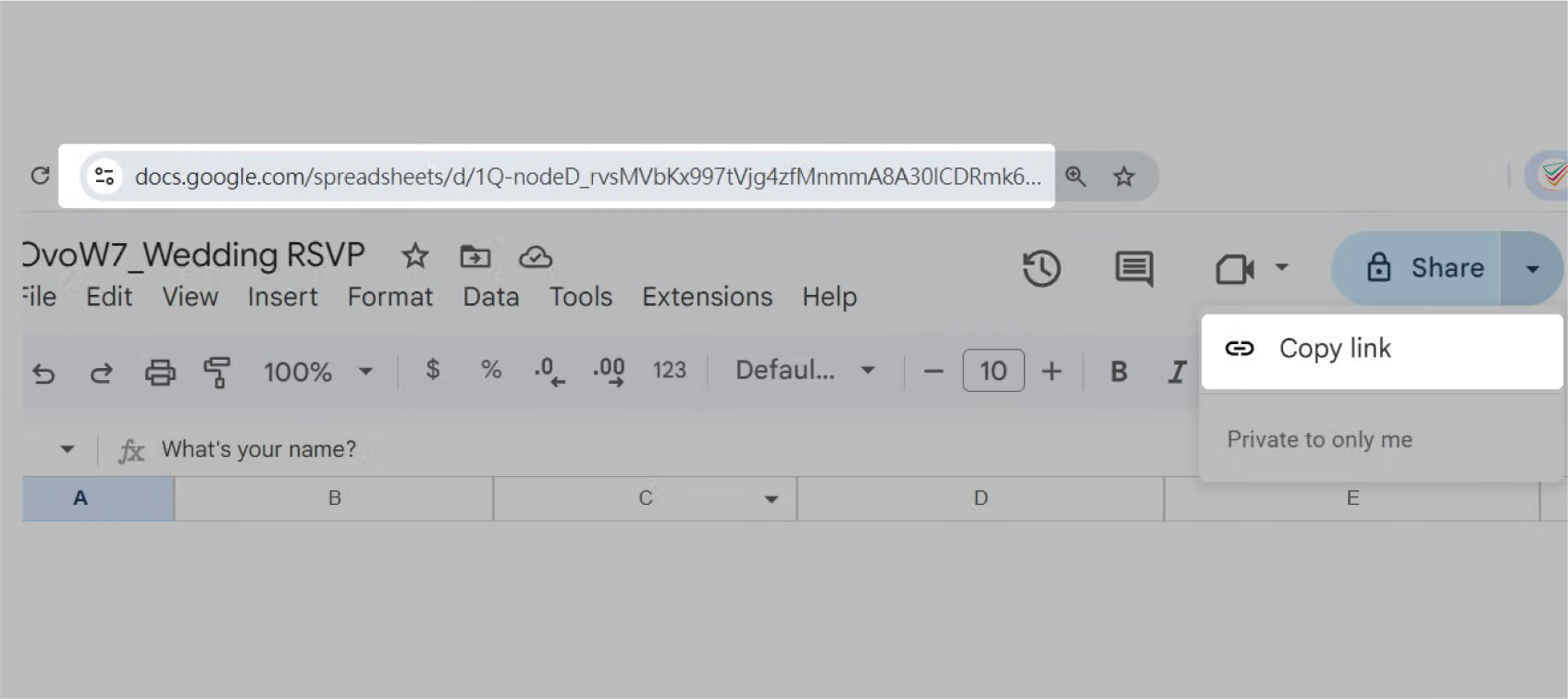
Please paste the Google Sheet link in the format https://docs.google.com/spreadsheets/d/{File ID}
For Google Sheets file links, you can directly copy the file URL, or go to the Google Sheets spreadsheet and copy the link from the "Share" dropdown menu in the upper right corner.
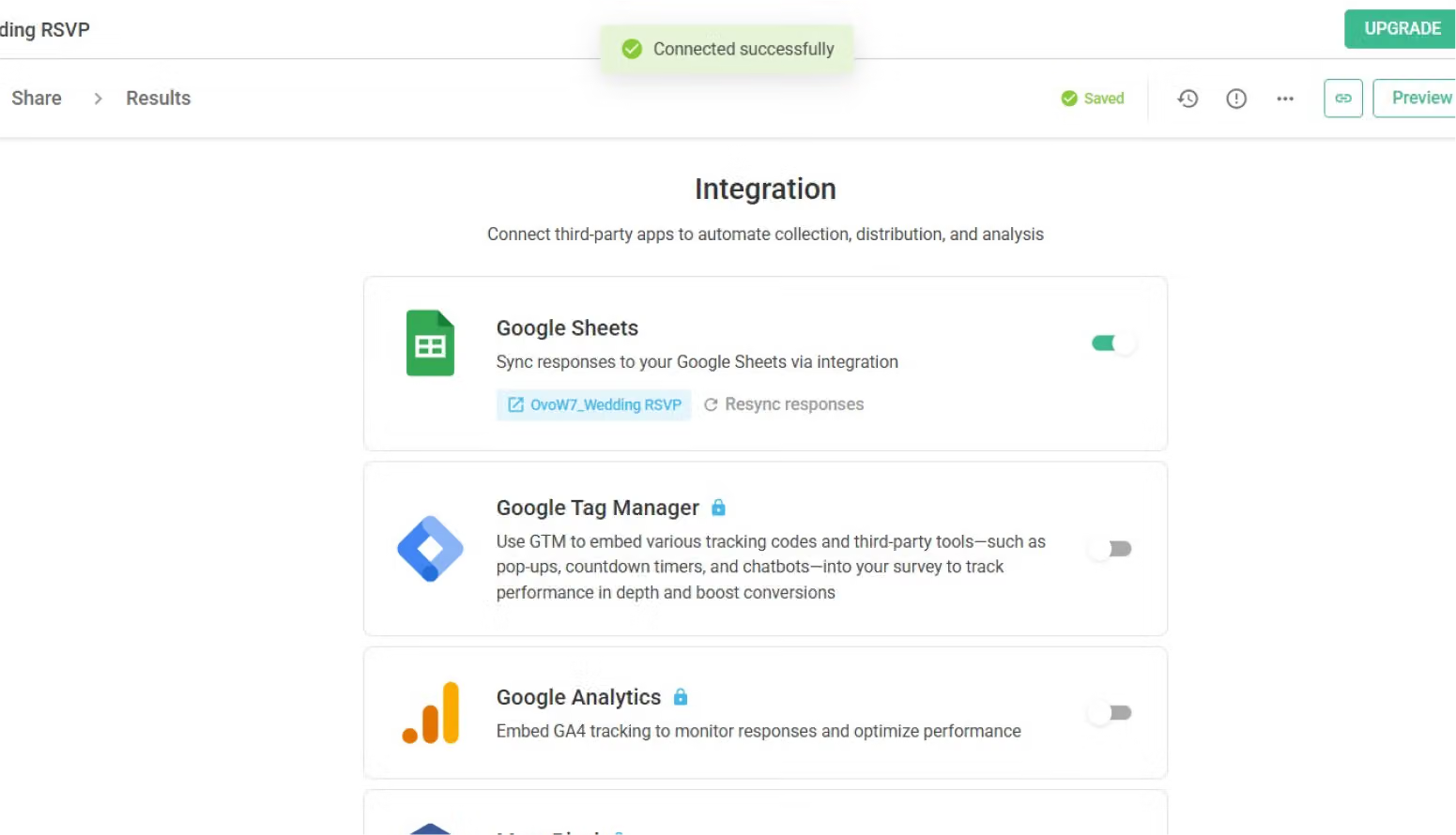
After completing the above settings, the Google Sheets Integration feature will show as enabled, which means the integration is complete!
Next, you can fill out the survey, and the responses will be automatically written to Google Sheets!
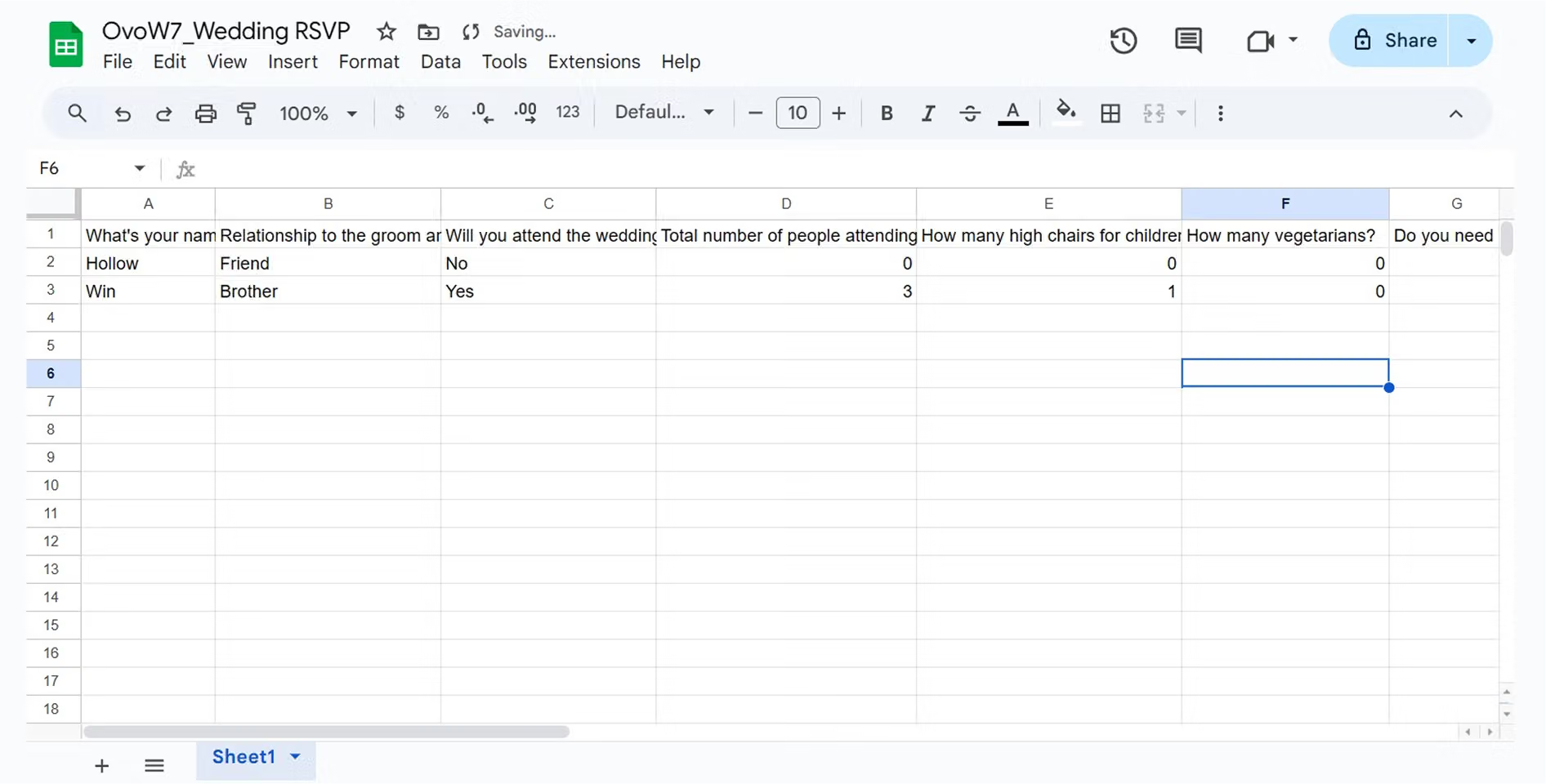
When survey responses are imported via webhook, the timezone is automatically adjusted to +0. Therefore, there will be a discrepancy between the response times displayed in Google Sheets and the SurveyCake backend.
SurveyCake backend displays the correct response time, but the response time in Google Sheets will be 8 hours less than Taiwan time. Therefore, you will need to manually adjust the timezone in Google Sheets using a formula to account for the time difference.
Notes on integrating existing Google Sheets
Common Questions
Due to Google Sheets API usage limits, SurveyCake needs to control the writing speed to ensure data stability. Google official documentation for details
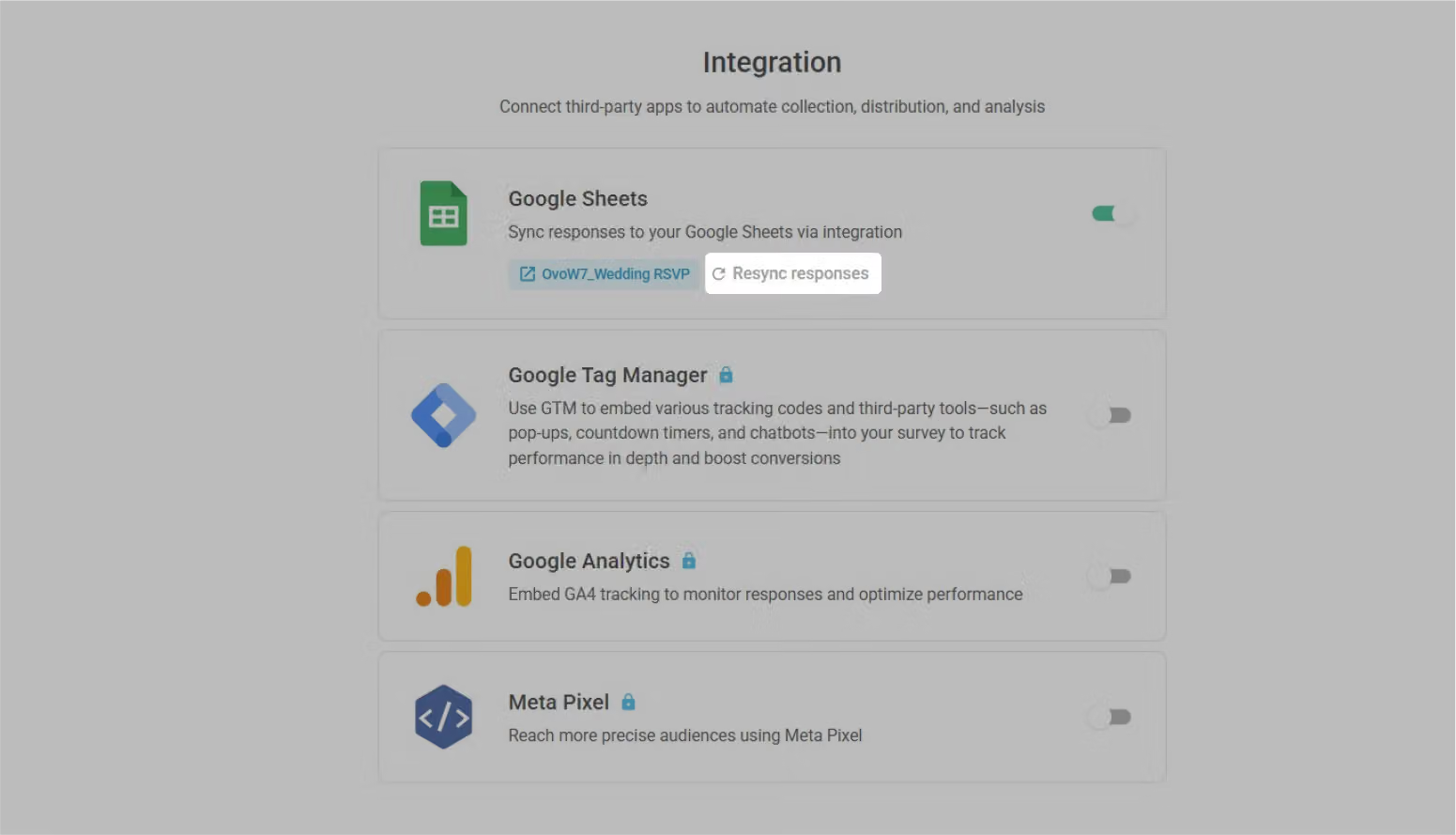
In extremely high traffic situations, individual responses may occasionally be missed. In this case, you can go to the "Integration" page, and under the Google Sheets function column, click "Resync responses". The system will re-import all responses (including those that may have been missed before).
A single Google Sheet file can have a maximum of 10 million cells or 18,278 columns. When the data volume exceeds this limit, the system will automatically create a new file in the original file path's folder.
File naming rule: {Original file name}_part{number}, where the number starts from 02 and increases sequentially.
File name examples:
Through Google Sheets Integration, your survey responses can be instantly synchronized to spreadsheets, facilitating centralized management and subsequent analysis.



