This question type is ideal for collecting handwritten content for "internal retention and record-keeping." The system automatically retains the handwritten PNG image, the respondent's IP address, and the submission time for future reference. It is not recommended for signature scenarios requiring formal legal validity.
Feature Introduction
The Handwriting Question provides an intuitive canvas interface on the survey front-end, allowing respondents to sketch or sign directly on the canvas using a mouse or touch inputs.
Applicable Scenarios
Suitable for informal documents and internal retention:
How to Add and Use
1. Back-end Creator: Adding a Handwriting Question
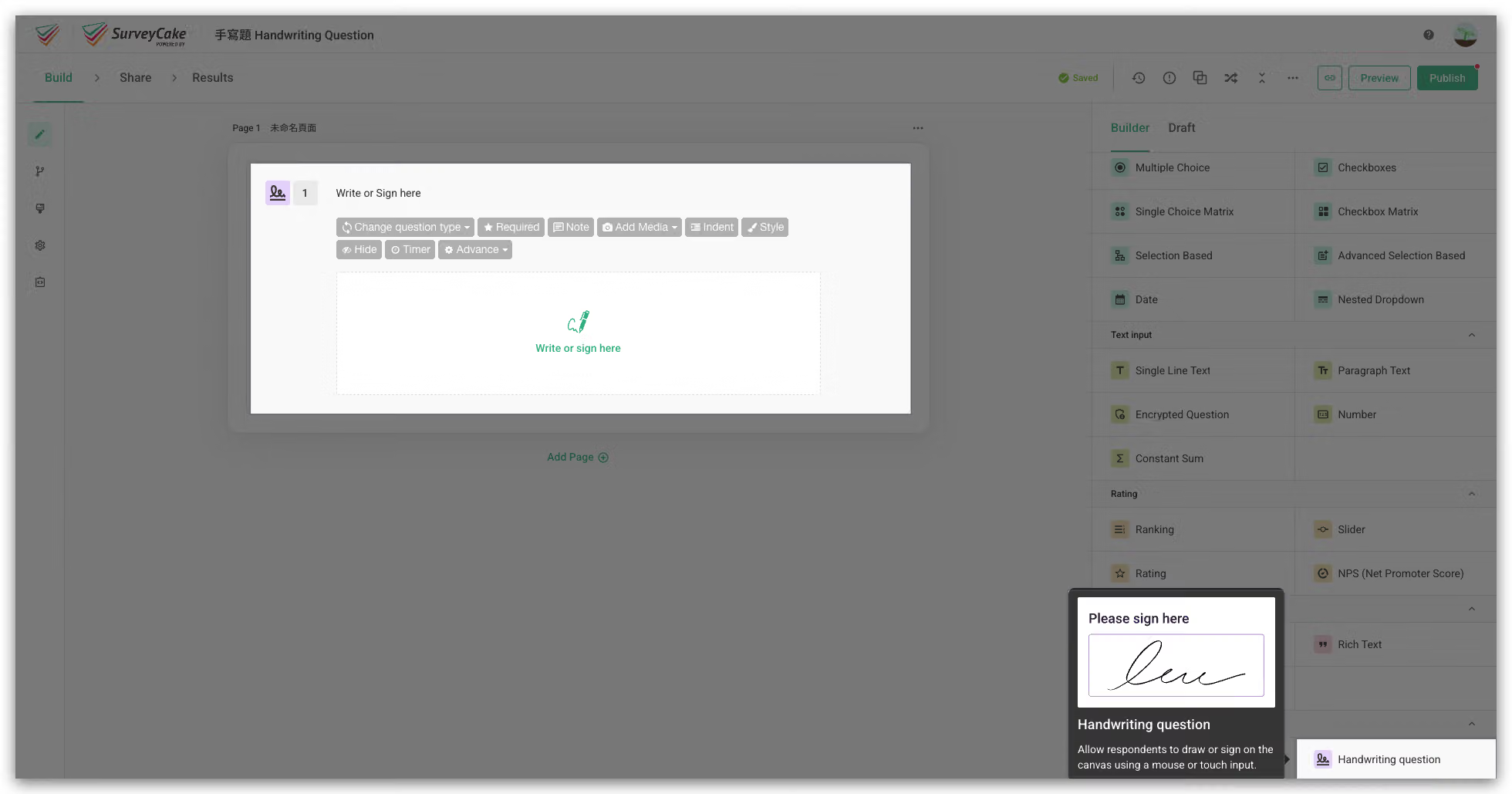
2. Front-end Respondent: Canvas Operation
Respondents can sketch smoothly depending on the device they use:
Clear & Rewrite: A Clear button is located at the bottom right of the canvas. Clicking it will clear the canvas content with one click, allowing the respondent to rewrite.
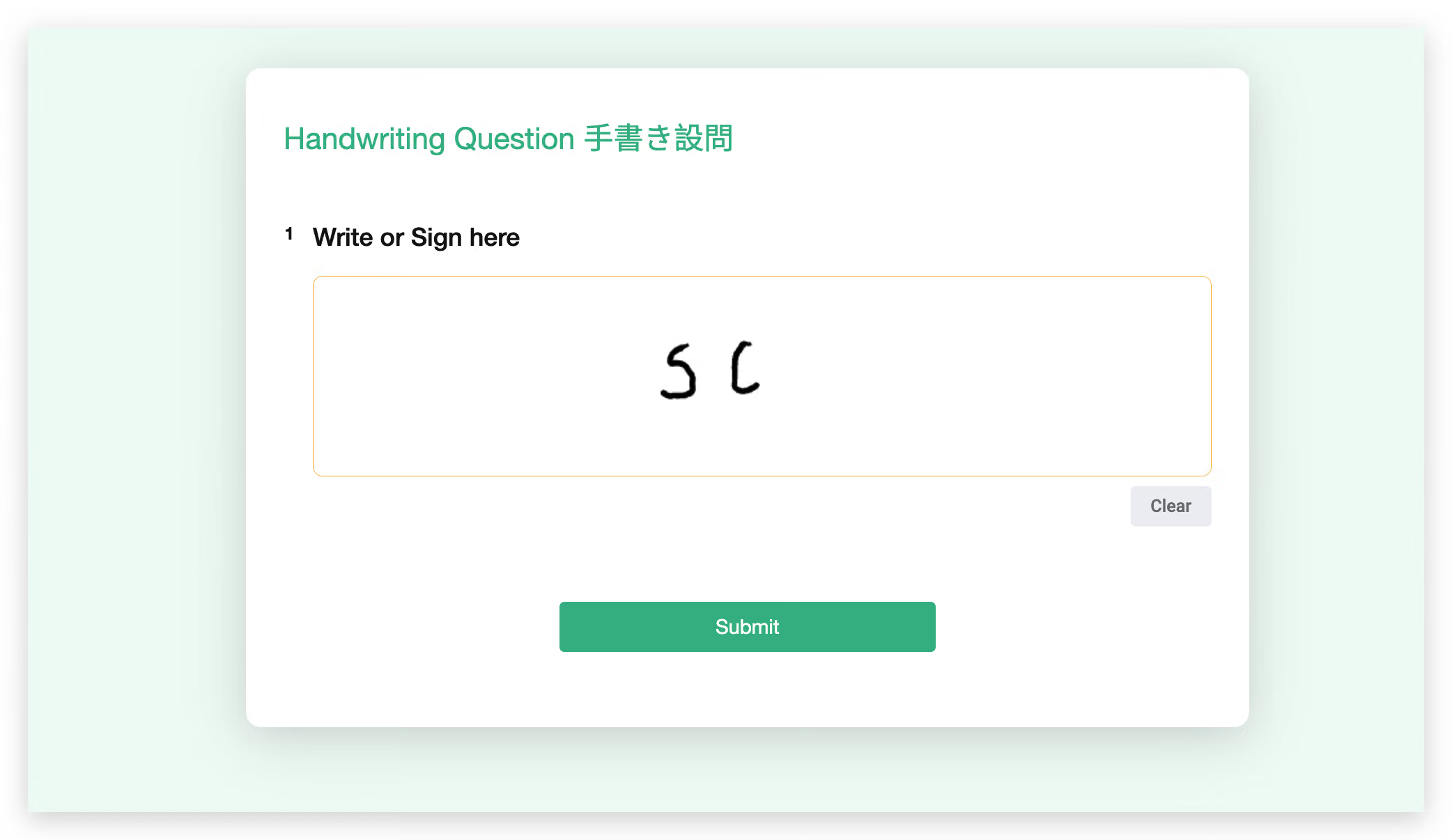
3. Advanced Settings: Required Field Behavior
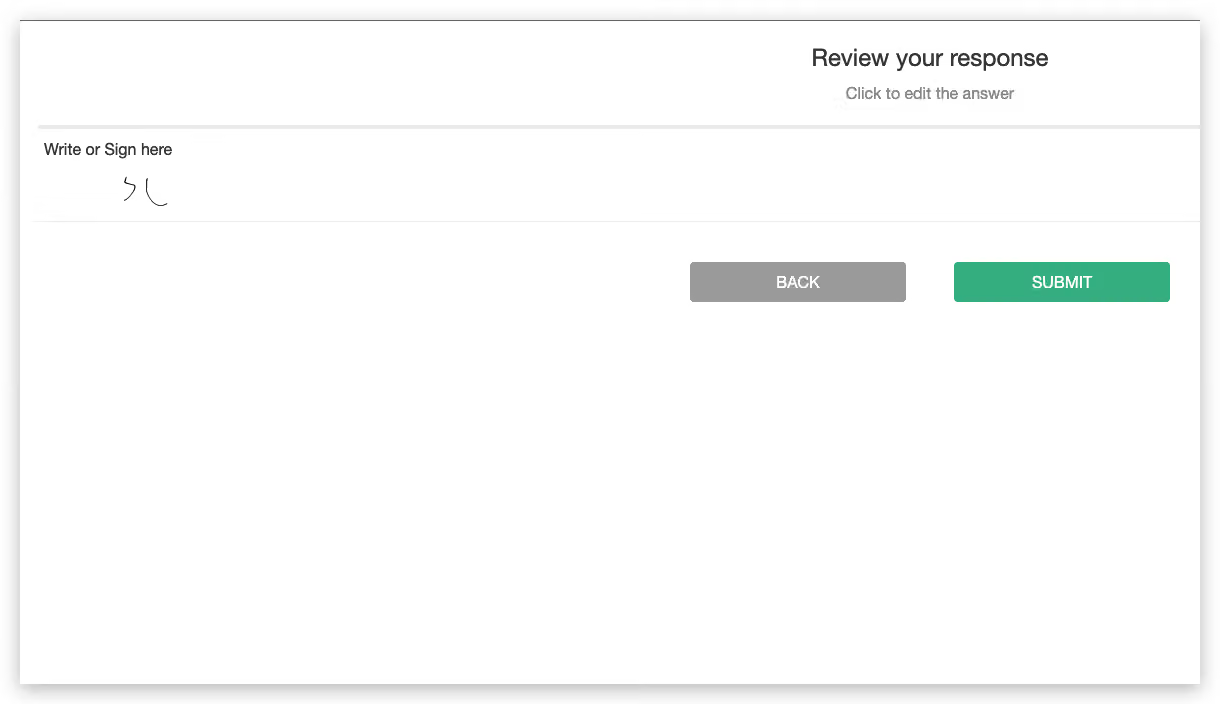
Respondent Feature: Preview Before Submission
If the survey has the "Preview Before Submission" feature enabled, when respondents finish the survey and click submit, the system's pop-up preview window will simultaneously display the content of the Handwriting Question for their final confirmation.
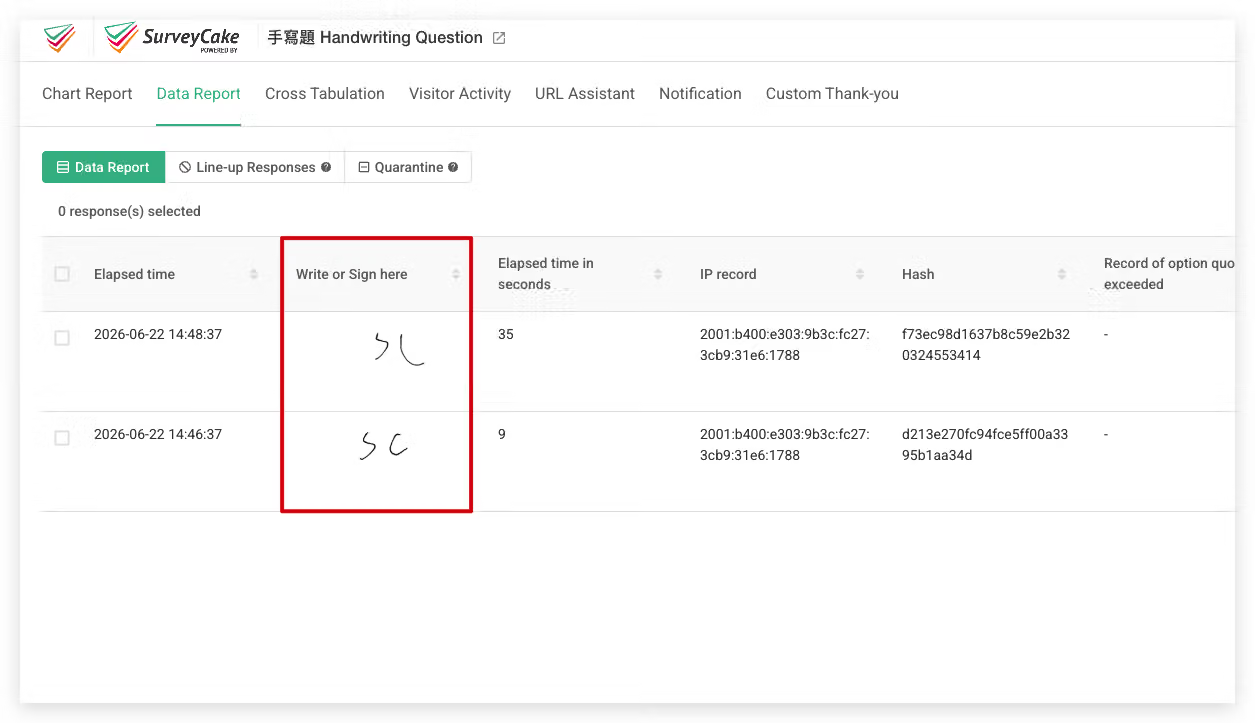
Back-end Details & Export
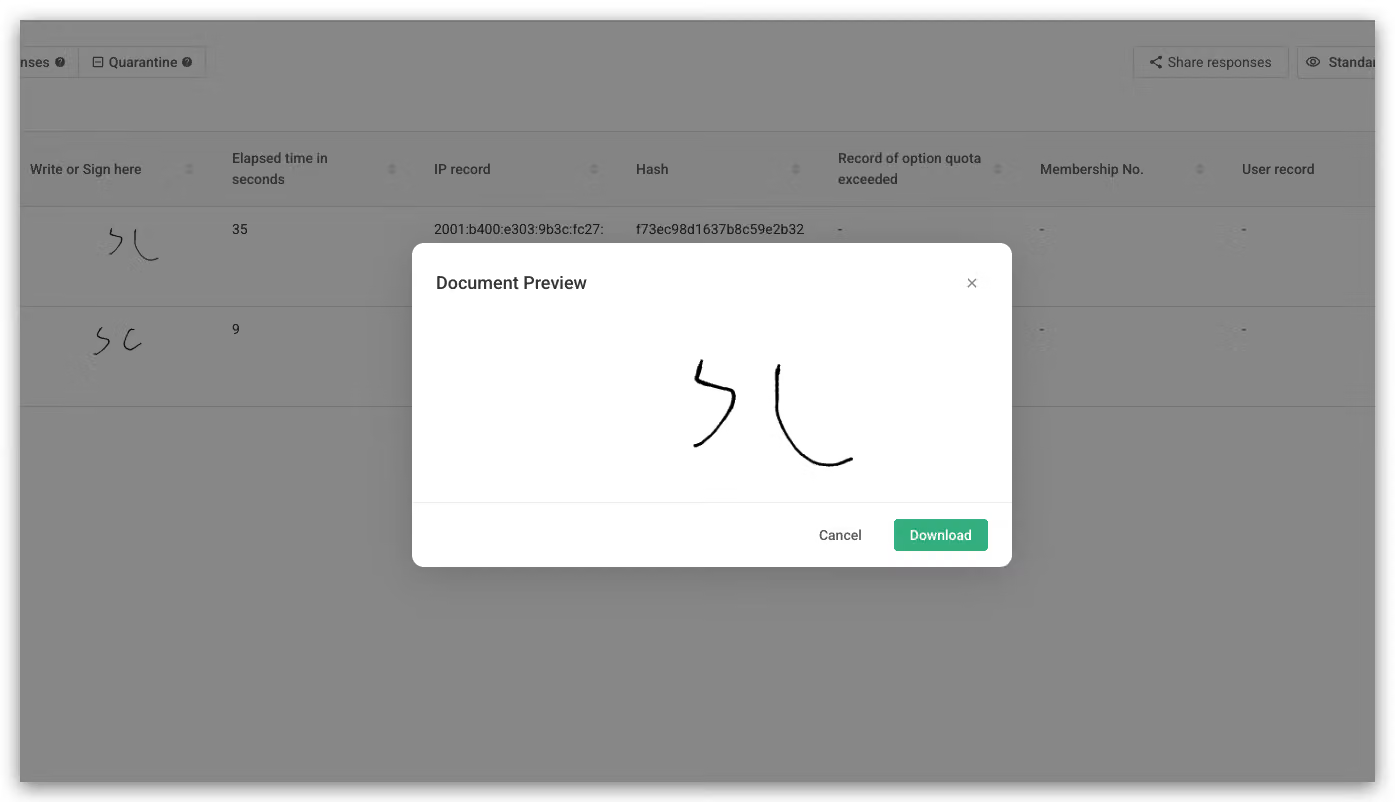
Once the survey begins collecting responses, creators can head to the "Export Data" page in the survey results back-end to view the data:
Important Notes
Before using the Handwriting Question feature, please be sure to note the following system mechanics and limitations:
The "Handwriting Question" feature described above is exclusively available for SurveyCake Enterprise. If you would like to learn more, feel free to fill out our Enterprise Consultation Form to contact us.
The "Handwriting Question" makes it easier for respondents to write down their answers, expanding survey use cases and question completeness while making your surveys more comprehensive and professional!



