The "Import Survey" feature offers a more flexible way for businesses to create surveys. When users collaborate with others in preparing a survey, they often use a text file as a draft to facilitate in-depth discussion and editing of the survey content, including the structure of questions, the wording, and the options provided.
With "Import Survey," once the initial discussions and revisions are complete, you can easily import the text file into SurveyCake. In the SurveyCake backend, you can further refine the logic settings and make final adjustments to the survey. This allows the team to discuss the survey more efficiently, saving time and effort that would otherwise be spent creating a survey from scratch.
See the following steps to import your survey from a txt file into SurveyCake:
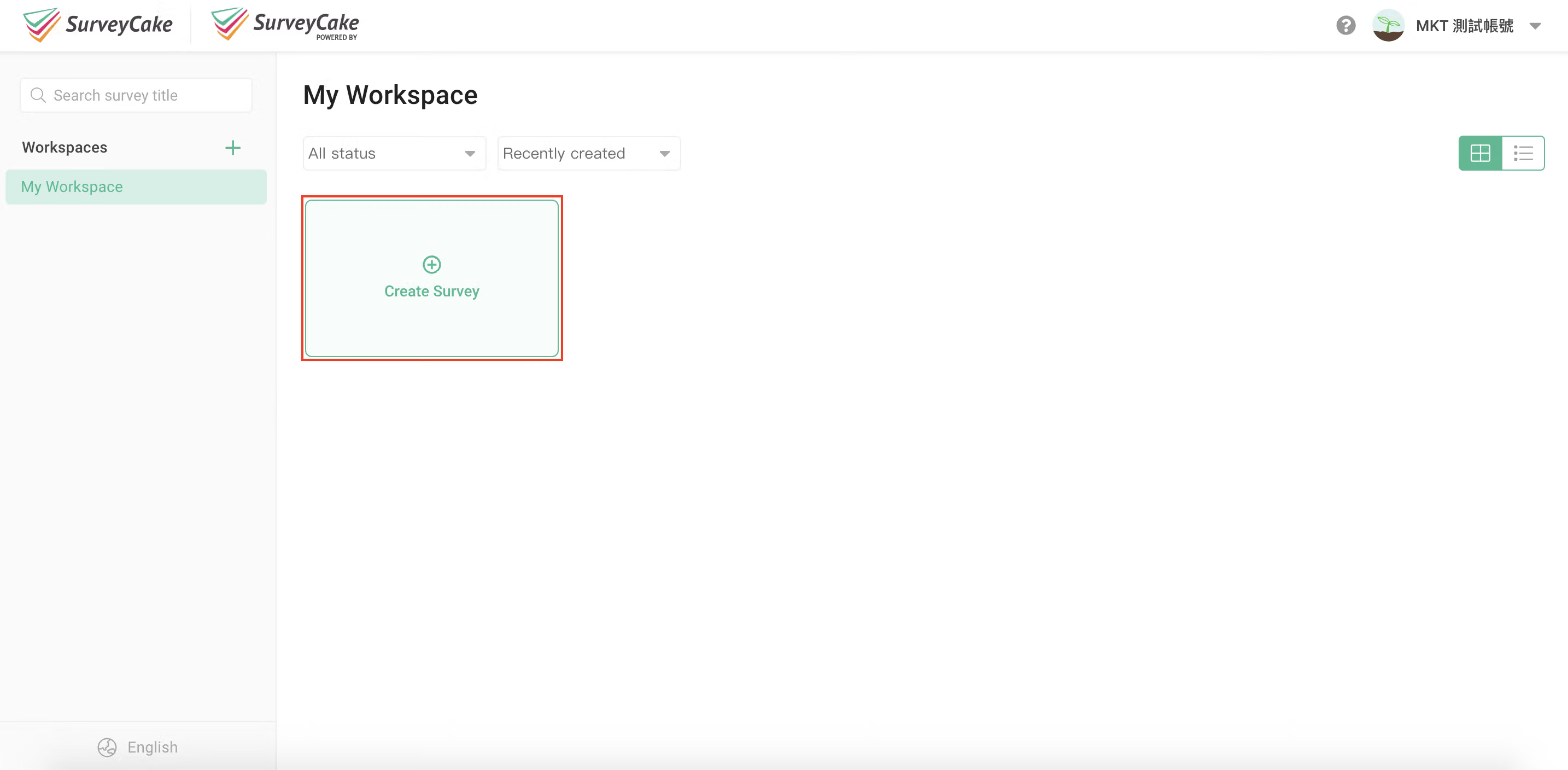
First, click "Create New Survey" and select "Import Survey."
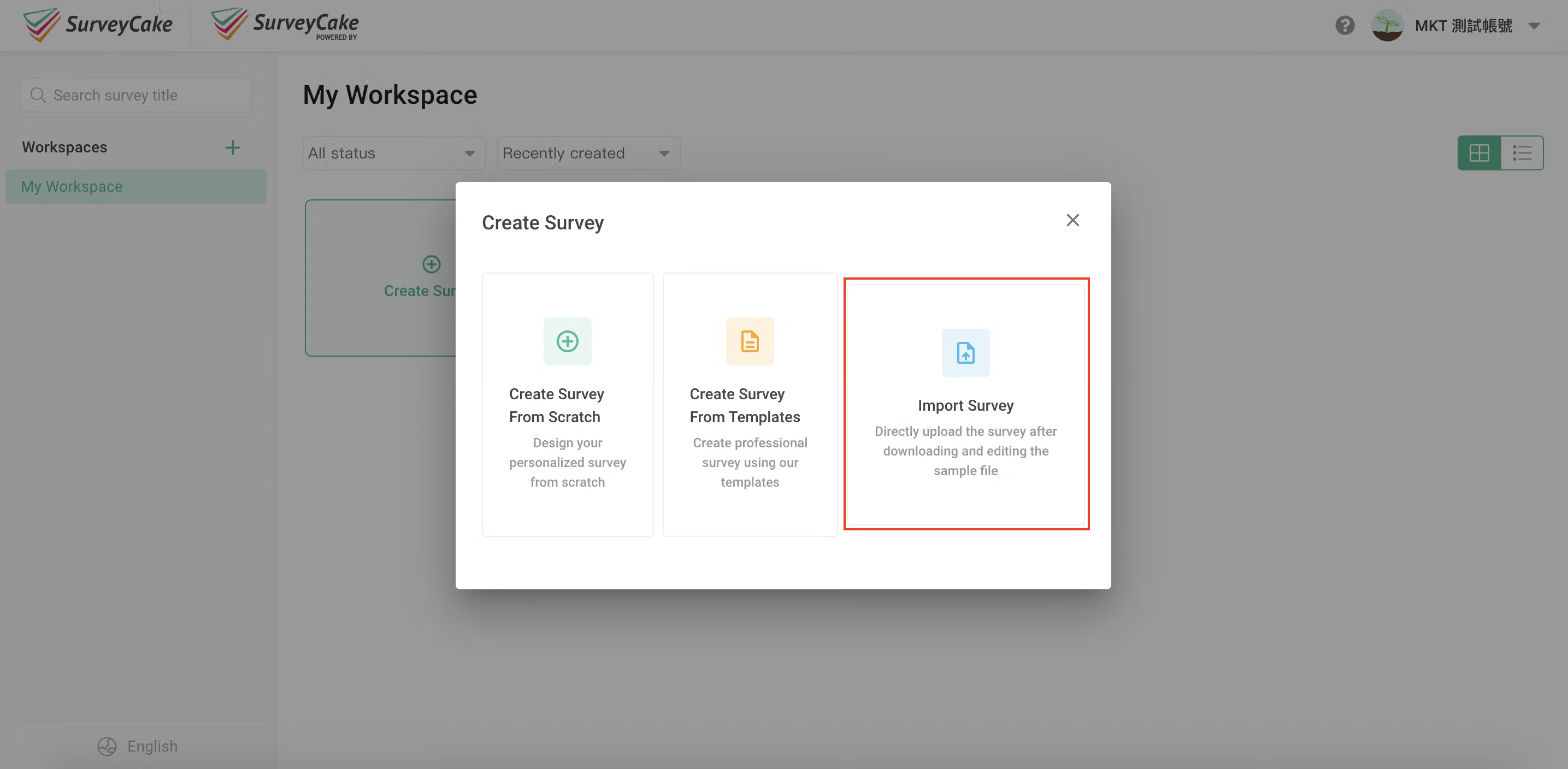
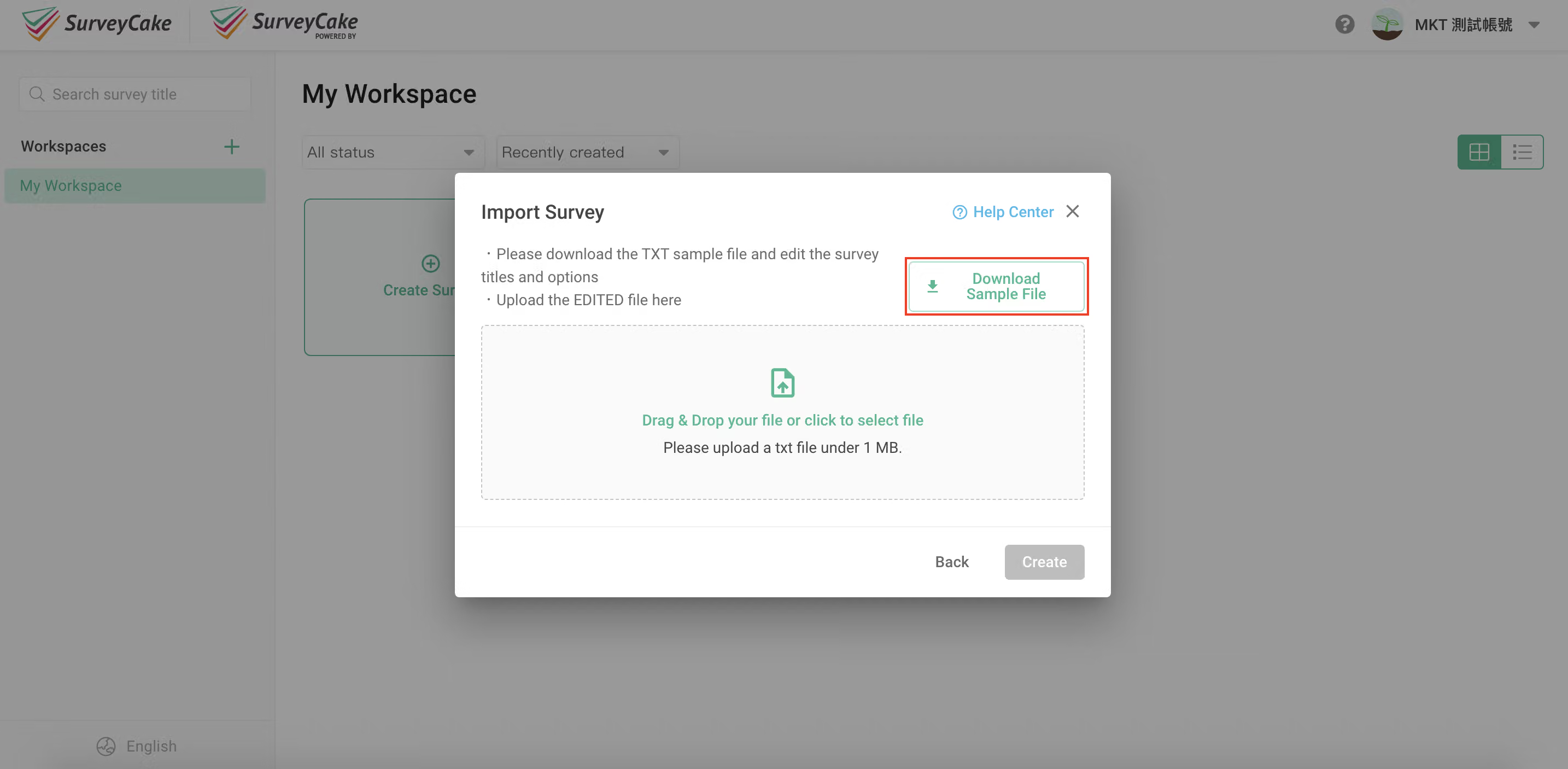
Next, click "Download Sample File," and use the txt sample file to edit your survey questions and options.
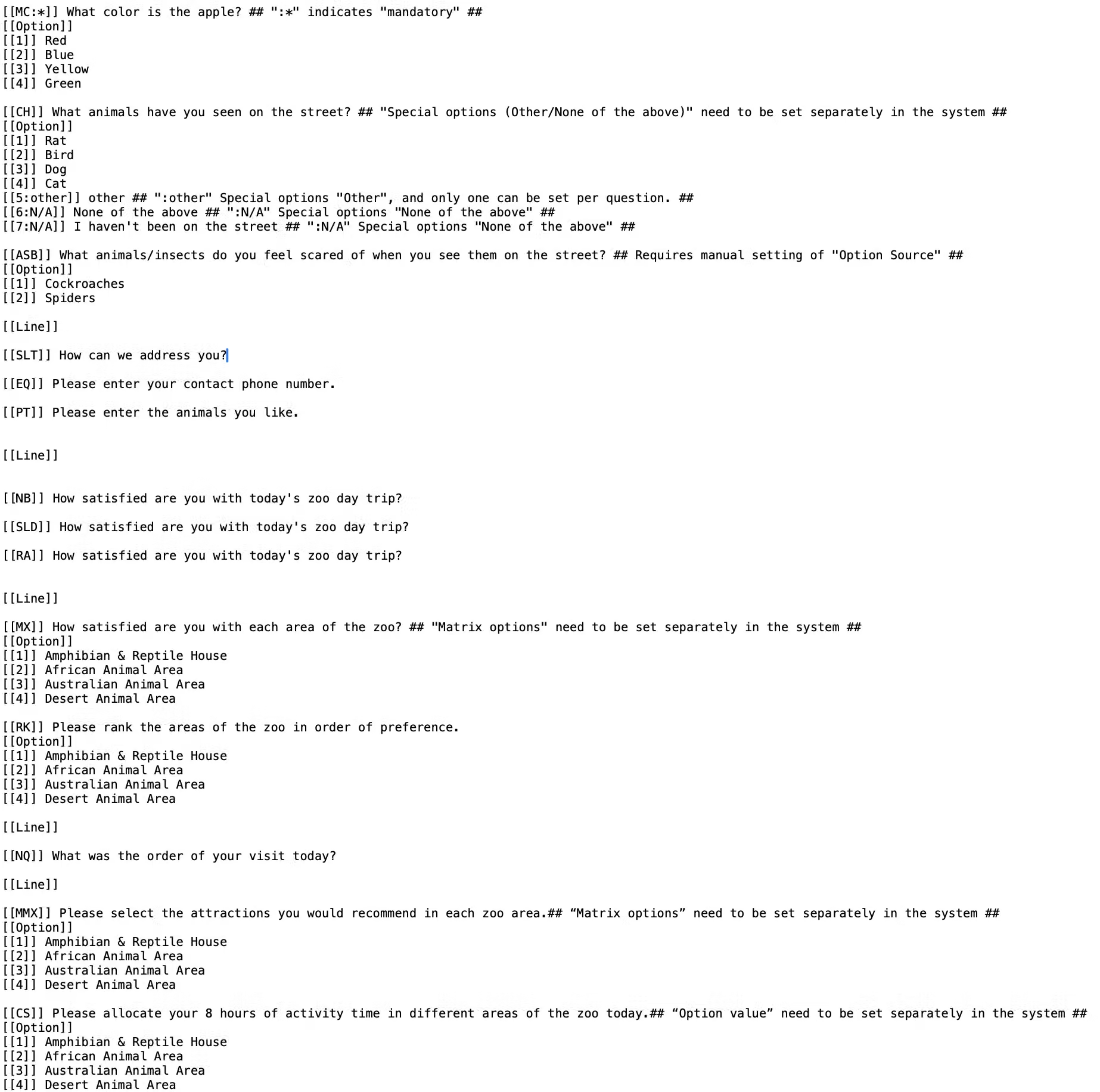
When editing the survey txt file, you can use the following tips to create it easily:
Each new question block should be separated by a blank line followed by [[, and questions should be created sequentially from top to bottom.
When editing options, start with [[Option]], and then continue on a new line immediately after the question type without any blank lines. Each option should be on a separate line, created sequentially from top to bottom. [[x]] is used to indicate the option number for identification purposes only; the system will not sort based on these numbers when importing.
To create an "Other" option, append :other to the option number. Example: [[1:other]]
To create a "N/A" option, append :N/A to the option number. Example: [[1:N/A]]
Use [[Line]] to indicate a separator line.
For supplementary explanations in the document, use ##...##. This content will not be read upon upload.
To set a question as mandatory, append : * to the question value. Example: [[Checkboxes:*]]
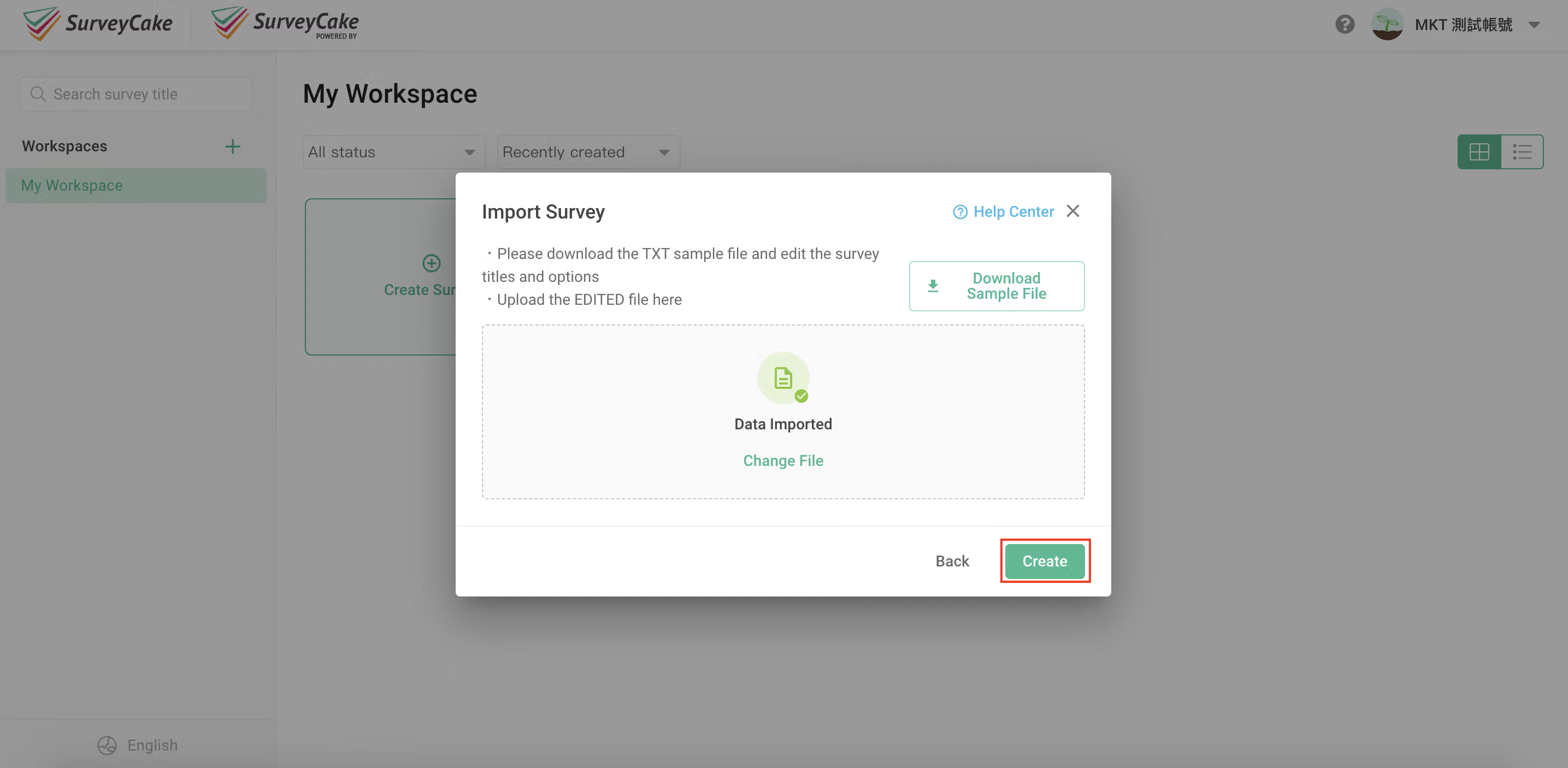
After editing, upload the file and click "Create" – and you're done!
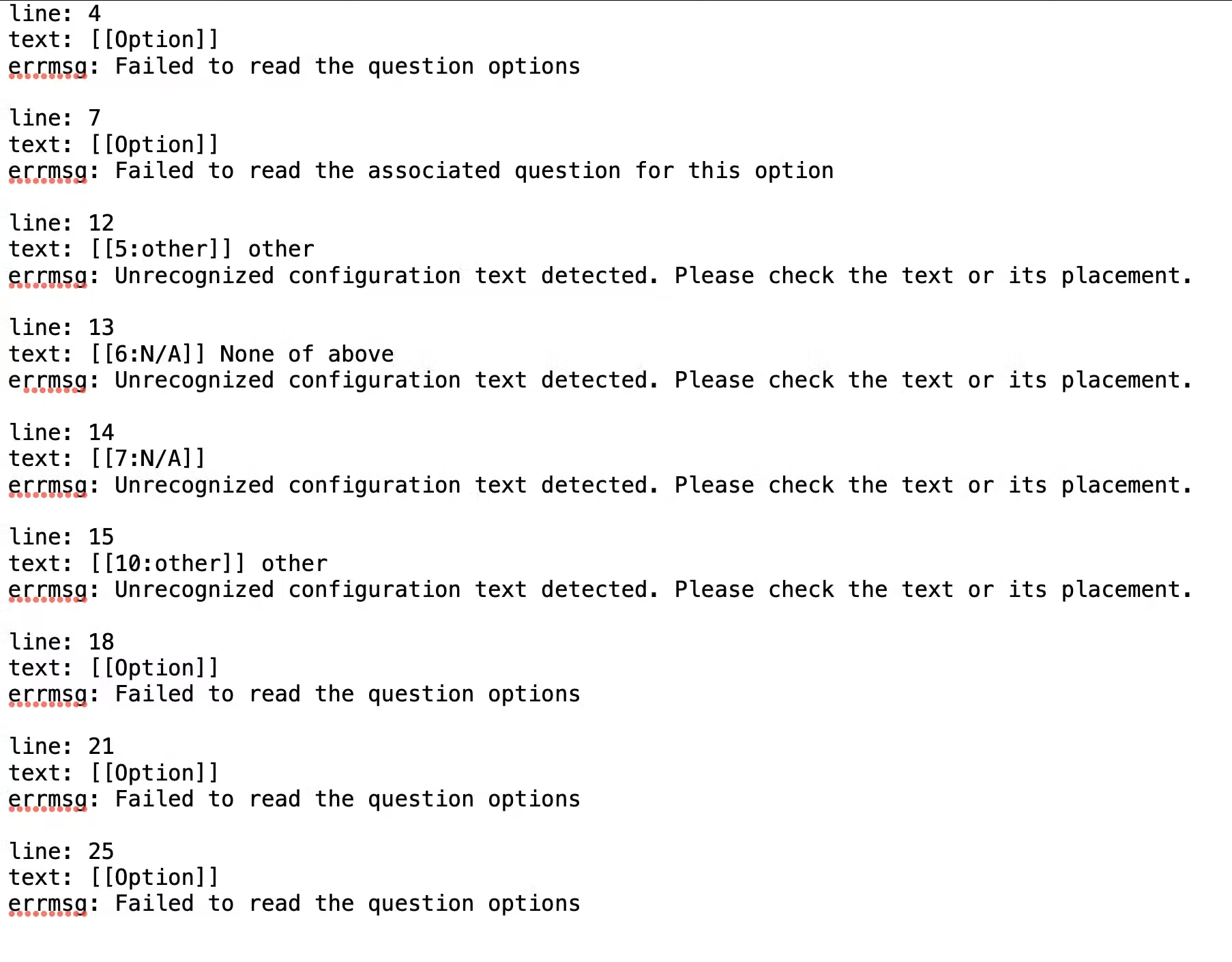
Import Failed
When the following situations occur, the system will automatically block the import, and an error report will be available for download:
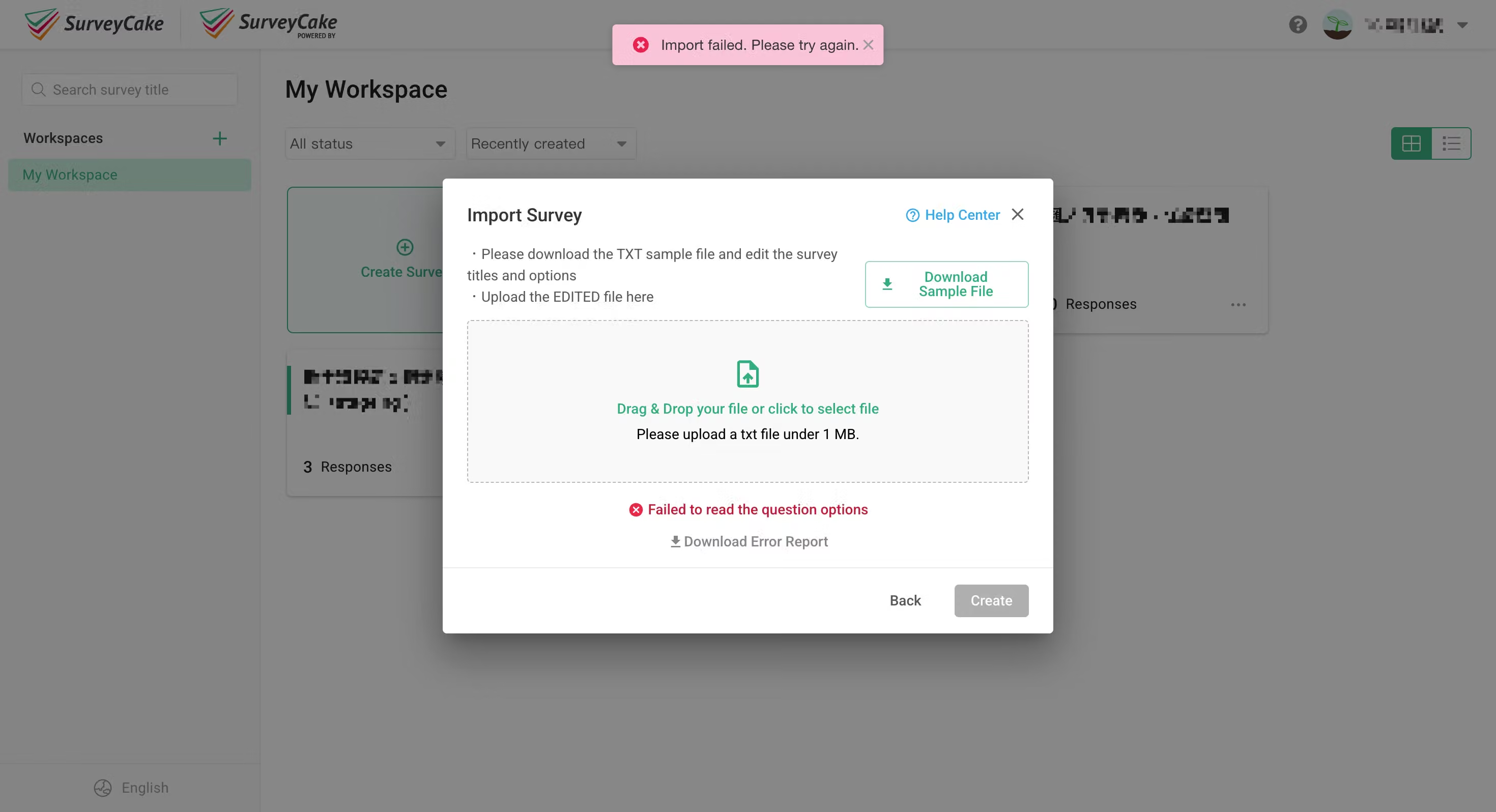
The question has no options (e.g. Multiple Choice, Checkboxes, Ranking, Advanced Selection Based, Single Choice Matrix, Checkbox Matrix).
There are options but no question text.
The question contains more than one "Other" option.
Error Report


Frequently Asked Questions
Why does the system keep saying the file upload failed?
There are three possible reasons for file upload failure. Please check if the file meets the upload specifications:
Incorrect file format: please upload a txt file.
File size exceeds the limit: please upload a file smaller than 1MB.
Incorrect text format or content: please edit according to the sample file.
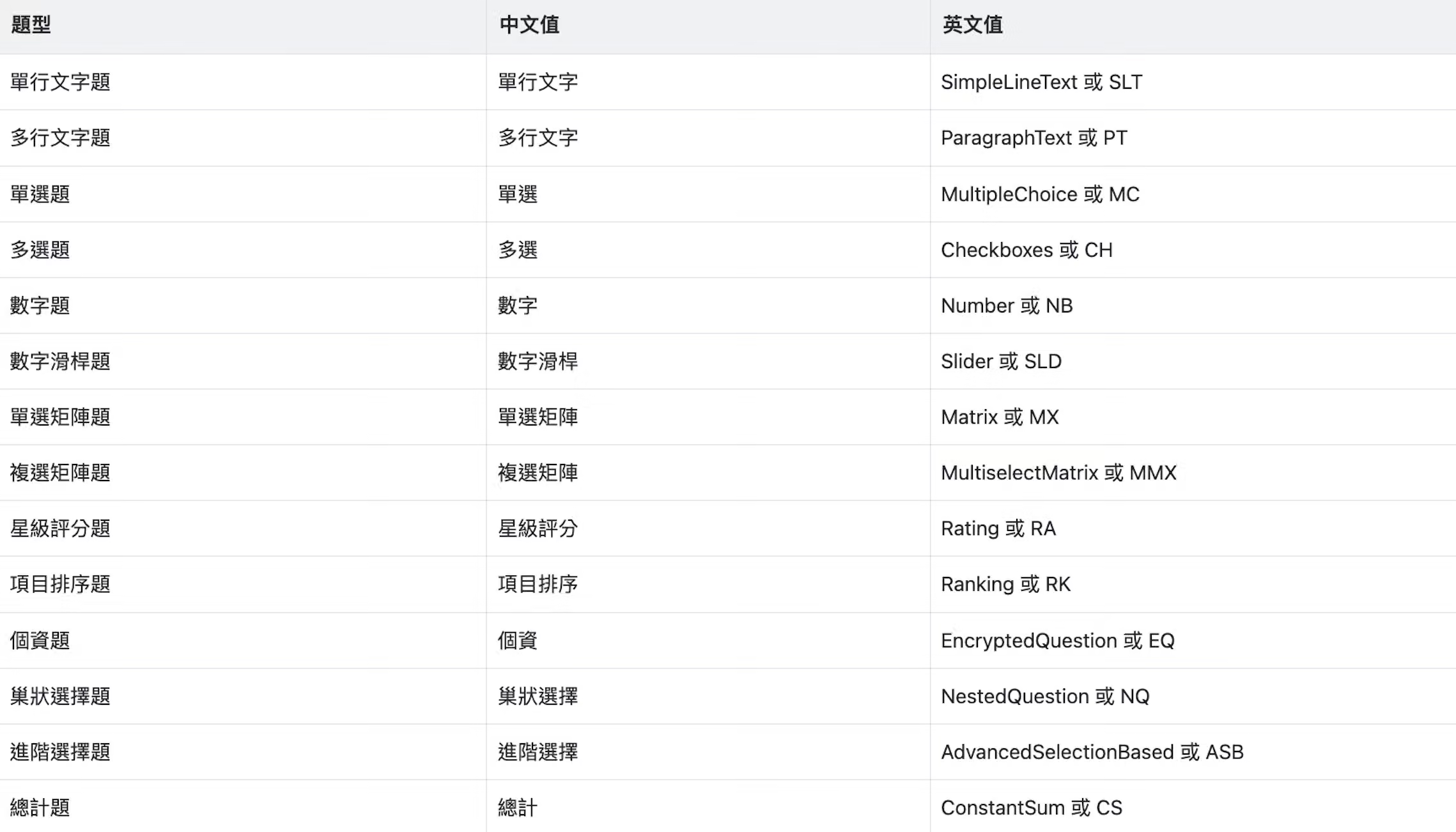
What are the corresponding values for different question types?

File upload questions, Selection Based questions and Date Picker questions cannot be applied.
If you are interested in this feature, please Contact Us for more information.
Summary
By using the Import Survey feature, collaboration and review of surveys become more convenient!