In some cases, adjustments may be made in progress based on options. For example: different menu options in different seasons for restaurant satisfaction surveys, different options in different periods of activity satisfaction surveys.
New options do not affect data that has already been collected, but deleting options will remove data in the backend system! With HideOption, specific items on the survey page become invisible without affecting data that has already been collected.
To hide specific options, simply click on the three-dot menu on the right side of each option!
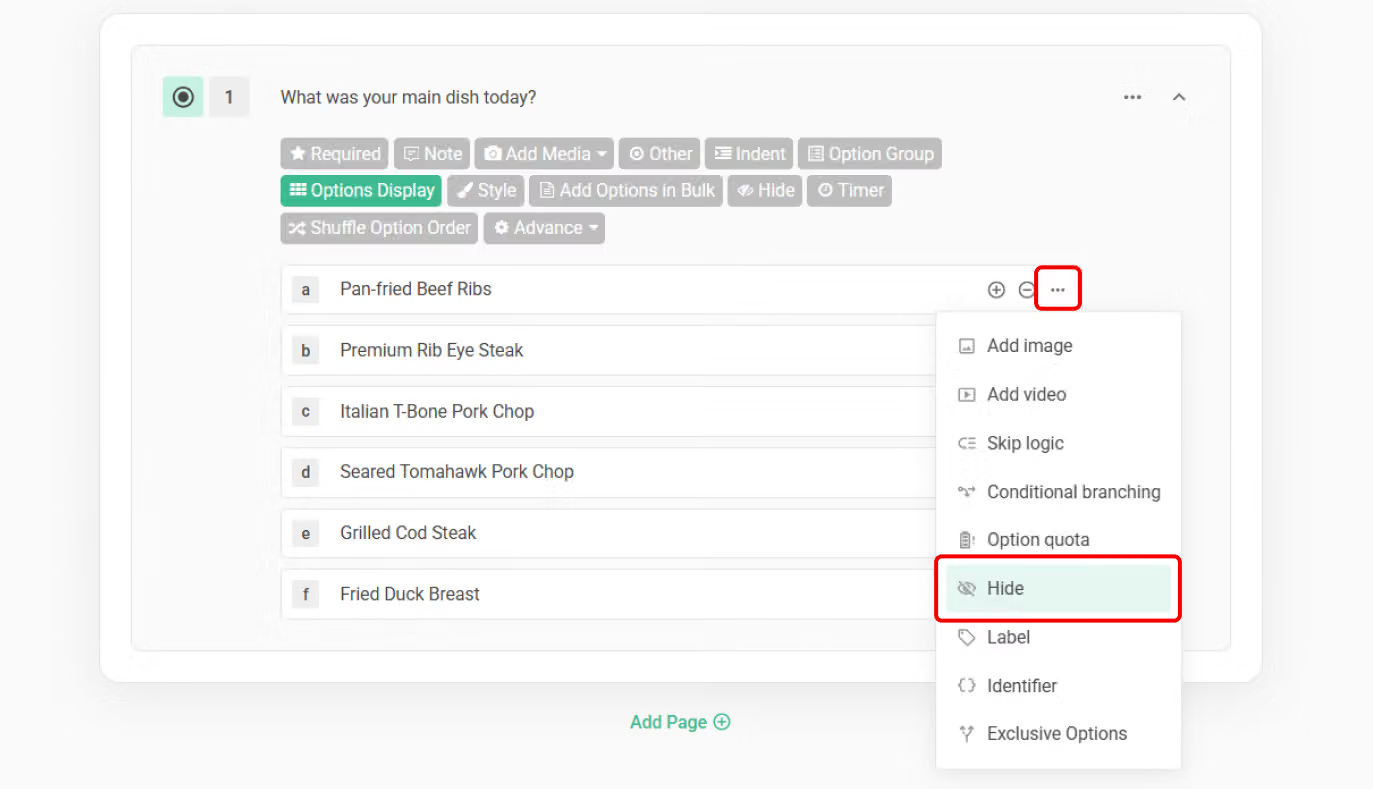
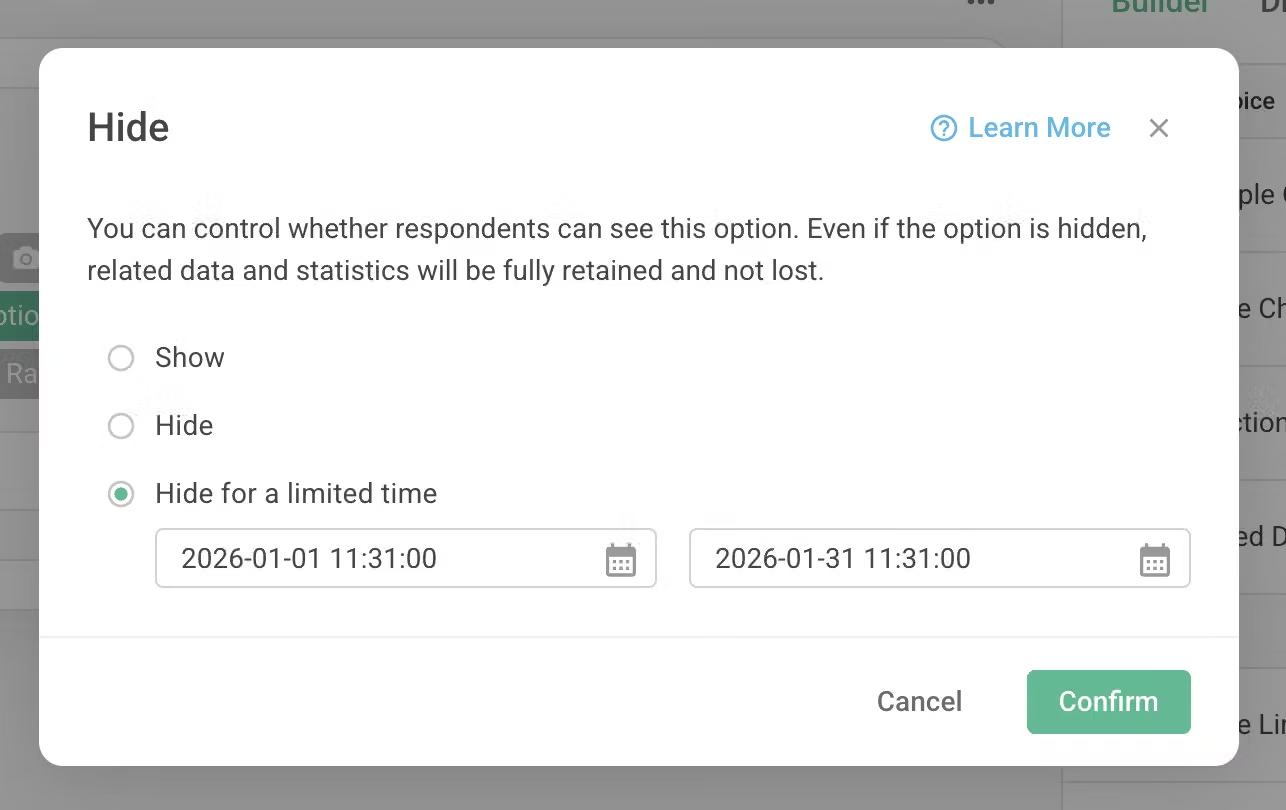
After clicking the Hide Option Settings, you can further set the hiding period for the options or permanently hide that option!
Even after setting an option to be hidden, you can still view the data and charts related to that option in the backend data system!
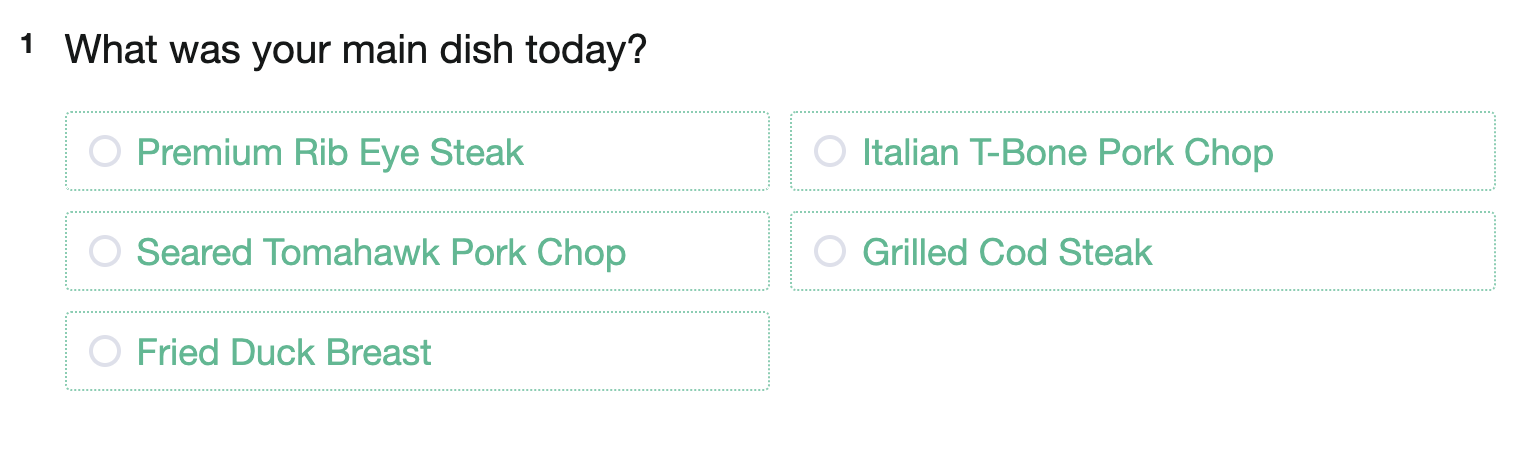
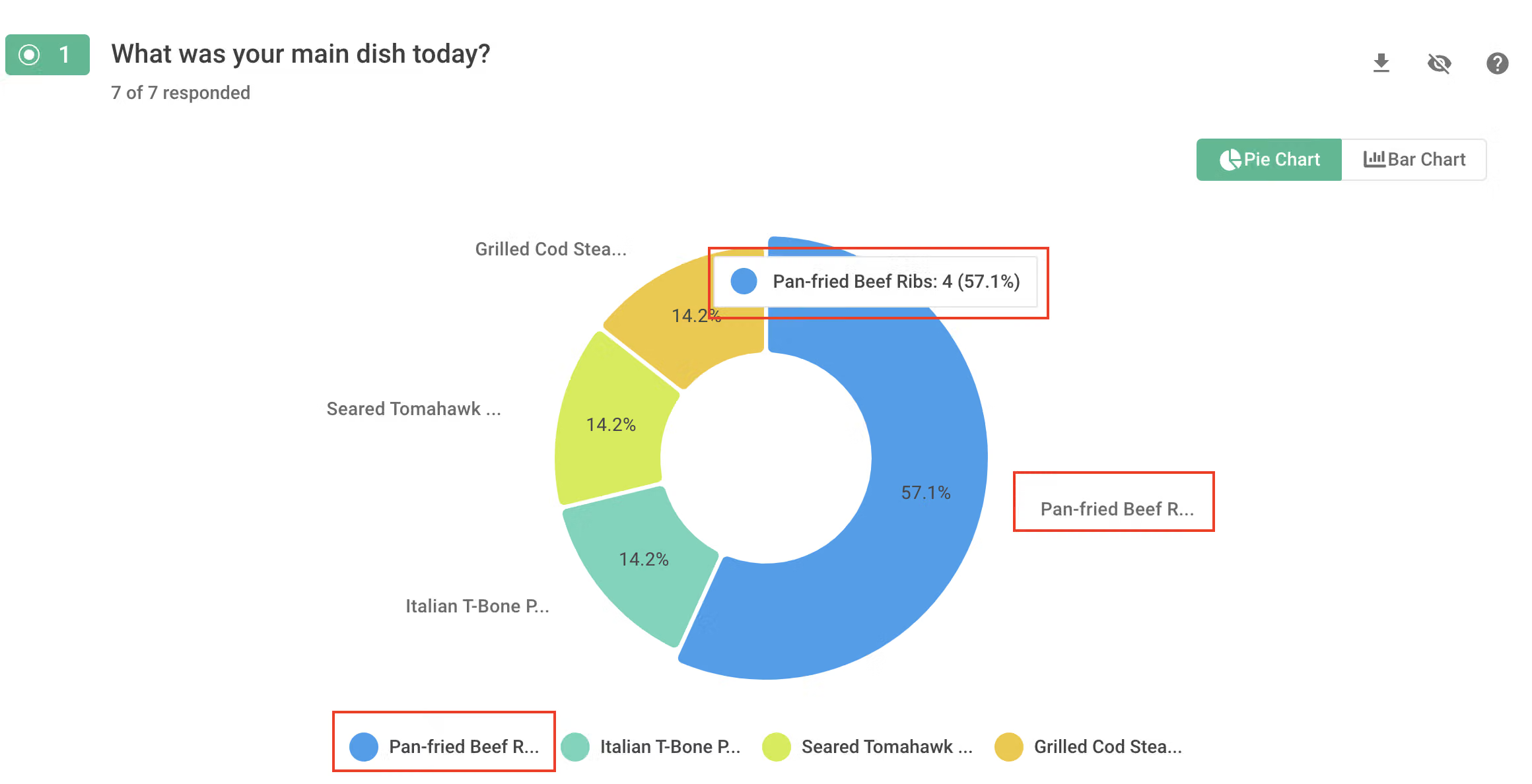
Hide Option is ideal for hiding options on the survey page and keeping data in the backend system at the same time!



