Preview

The Preview feature helps you confirm how your survey will appear before official release. Through the Preview, you can check the survey's appearance, question arrangement, Conditional Branching / Skip Logic and various ending page presentations.

Use the following two methods to enter the Preview interface
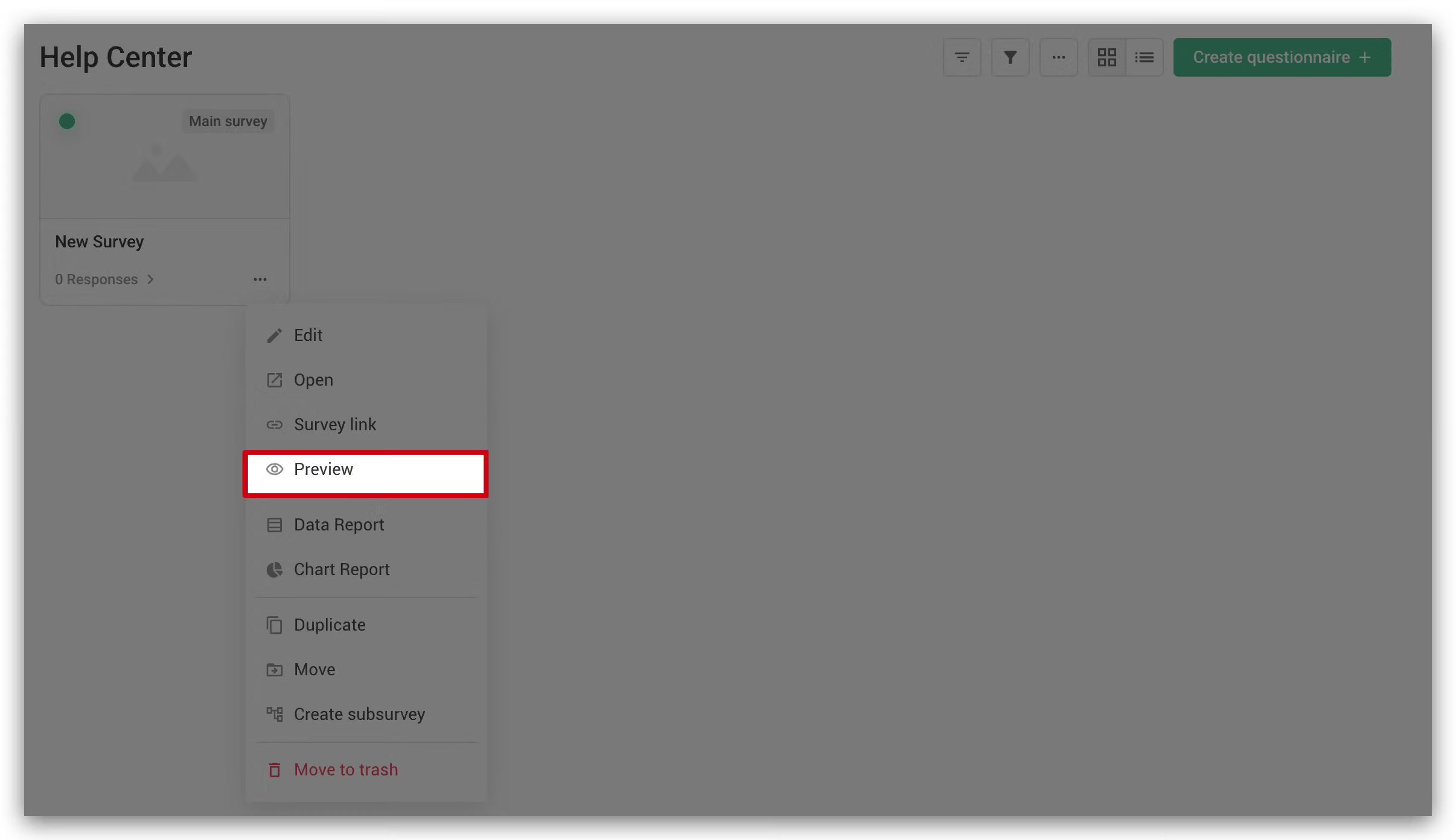
In the survey overview, click "Preview" in the "..." menu at the bottom right of the survey
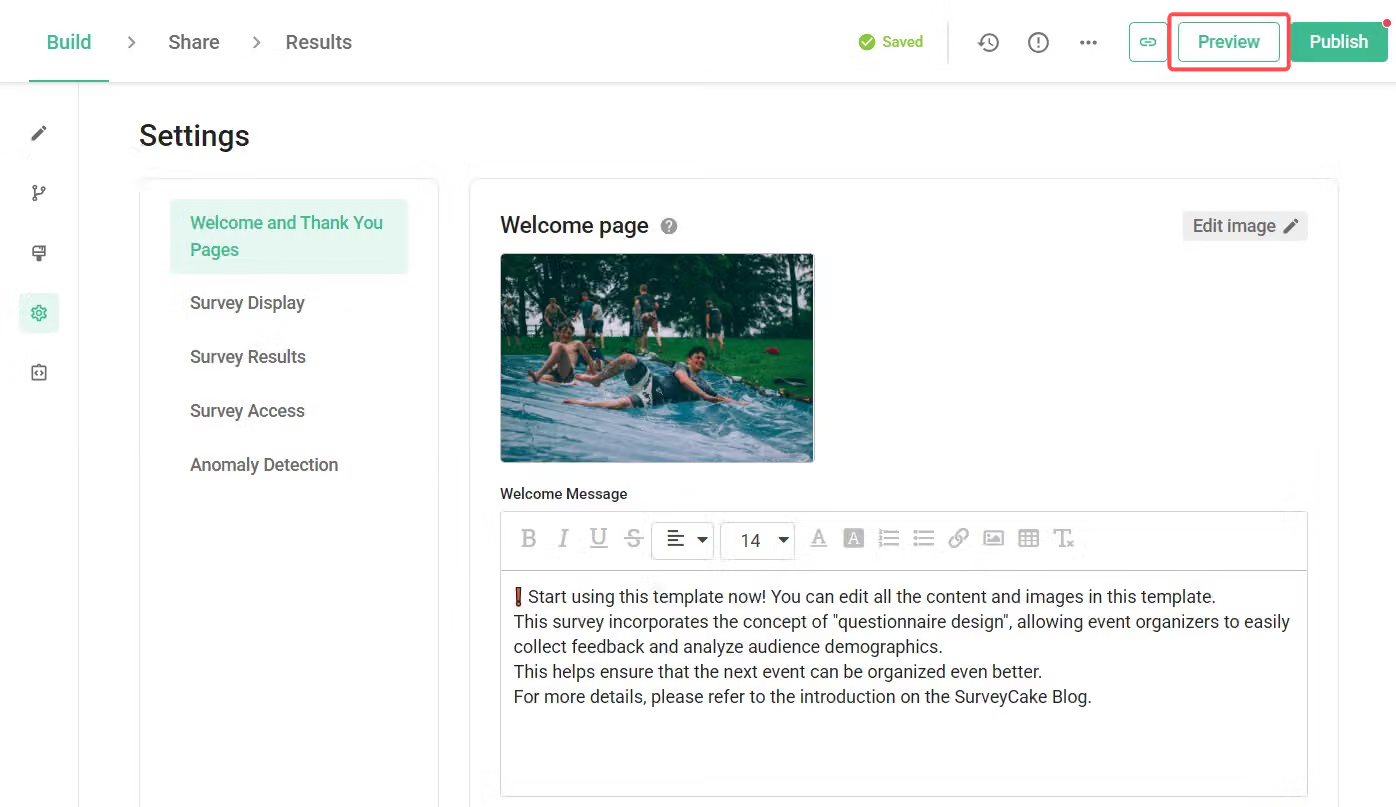
On the survey backend page, click "Preview" in the upper right corner

Preview Version Switching

After entering the preview interface, you can find the version-switch dropdown at the top-left corner of the preview panel, which allows you to switch between different versions of the survey you are previewing.

How to switch versions:

Click the version dropdown at the top-left corner
You can choose between the following two preview modes:
Preview Draft: Displays the latest saved draft from the survey editor
Preview Published survey: Displays the most recently published version of the survey

After switching, the preview panel on the right will be updated instantly to show the corresponding version of the survey, making it easy to compare and verify the content.
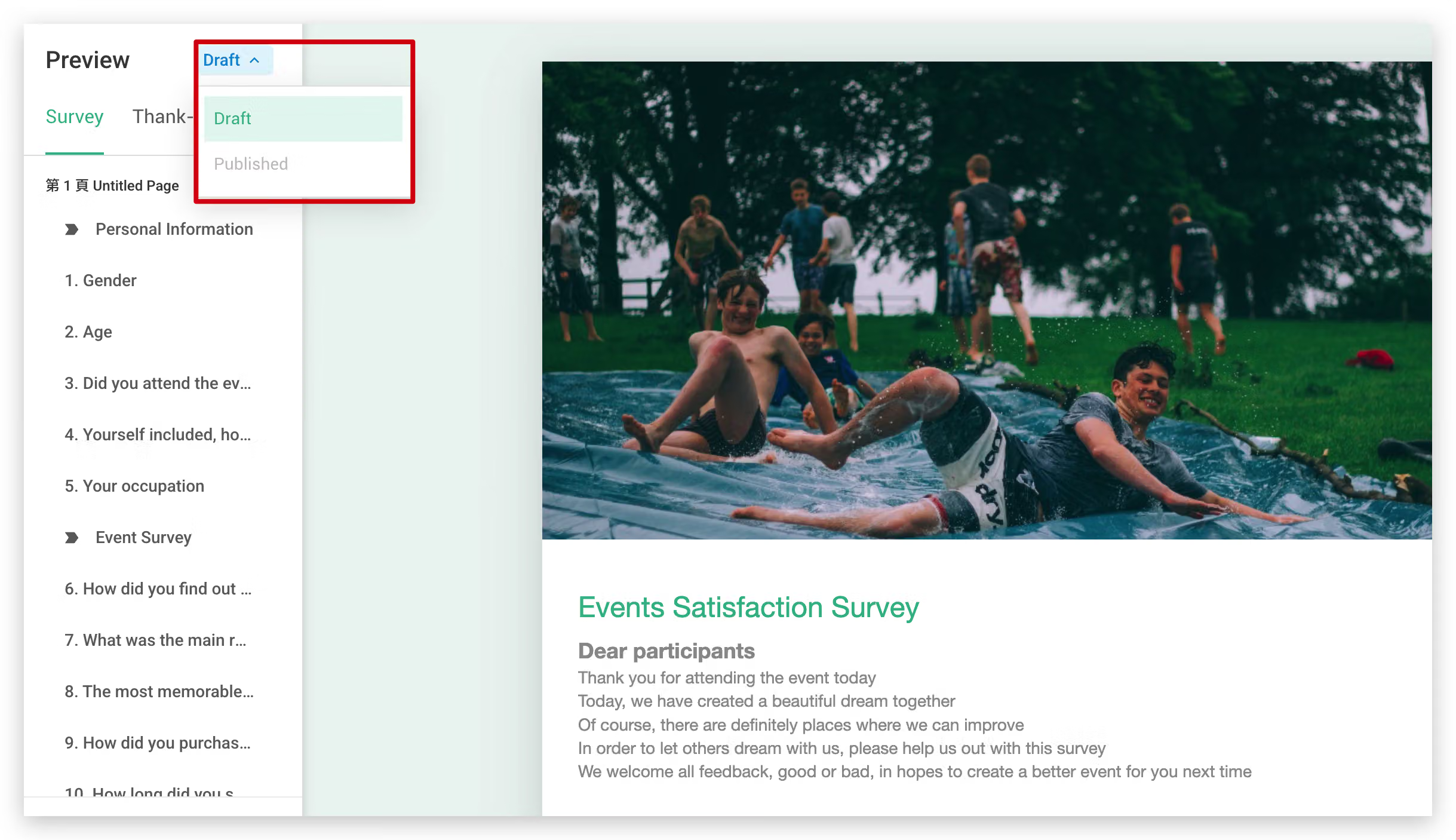
If you select "Preview published survey" but the survey has not been published yet, the system will not be able to preview it. Please publish your survey before previewing.

Preview Interface Description

The preview interface is divided into two tabs: "Survey" and "Thank -you Page," with "Device Switch" options at the bottom

Survey Tab
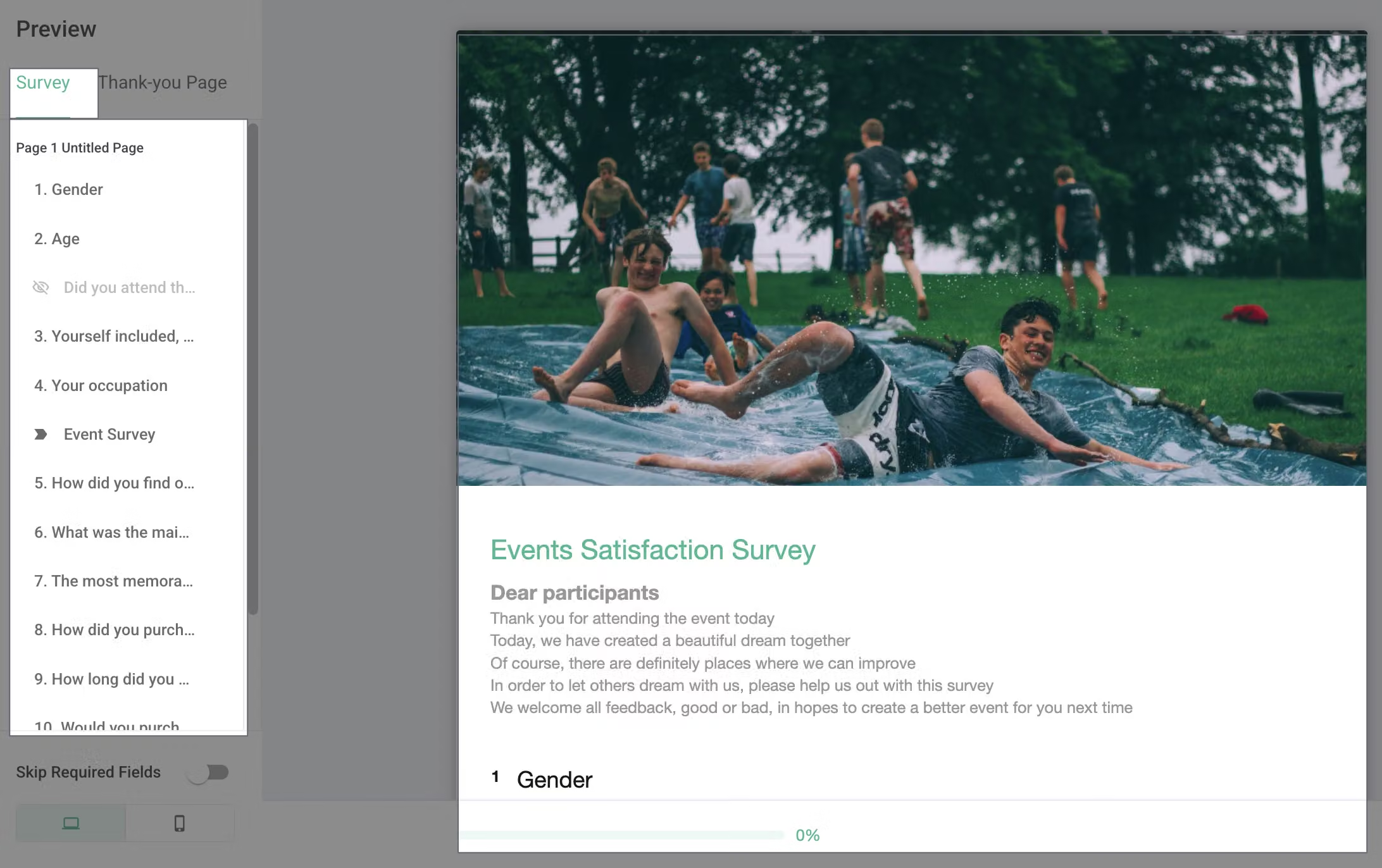
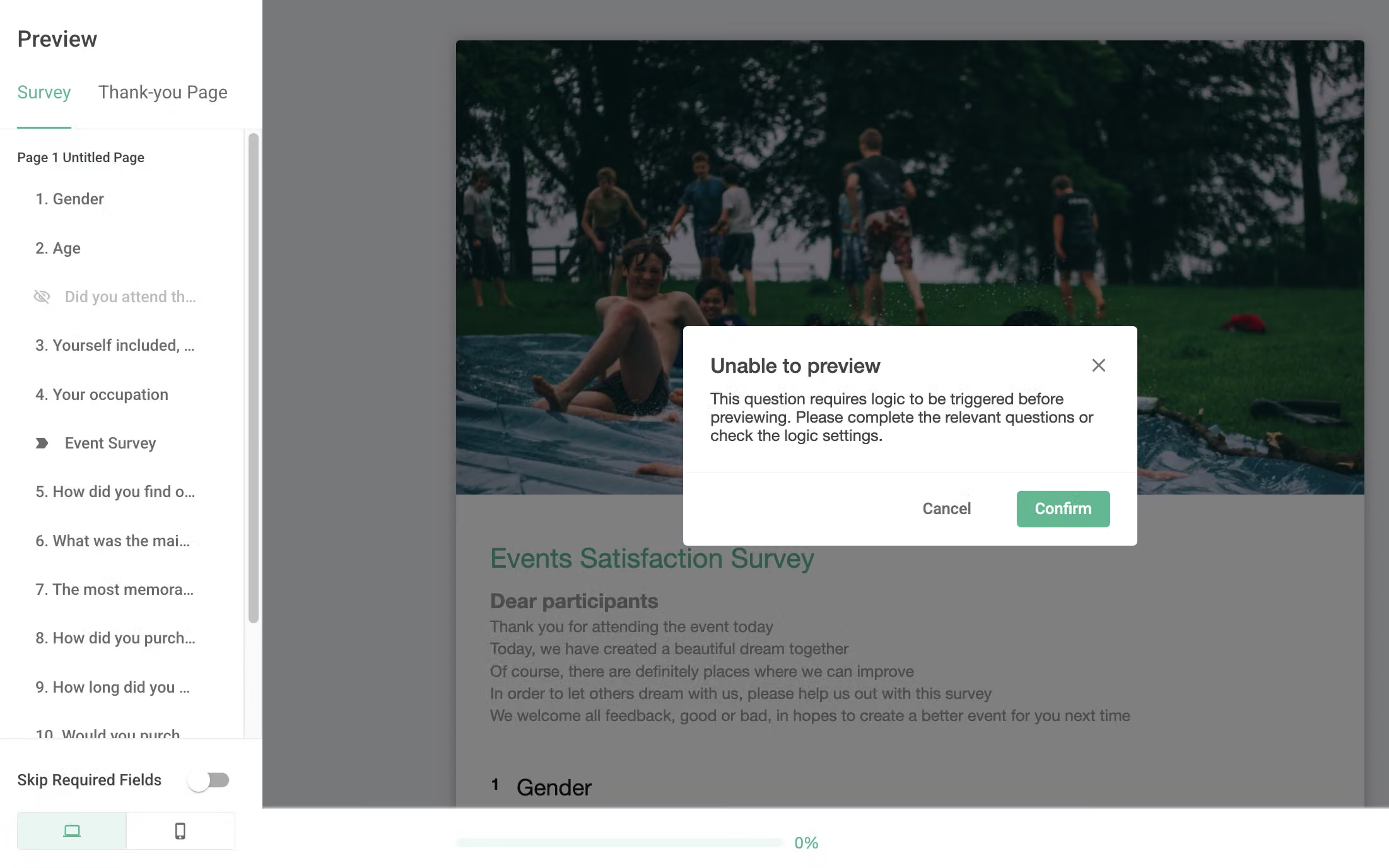
You can view the entire survey structure and questions. If you click a question in the sidebar, the preview panel on the right will display that question

If a question has the "Hide" function enabled, it will appear with an eye icon and grayed out in the sidebar.

If the survey contains Conditional Branching / Skip Logic, you must follow the configured logic triggers to display these questions in the preview. If you try to click directly, the preview screen will show a "Unable to preview" reminder: "This question requires logic to be triggered before preview. Please complete the relevant questions or check logic settings."

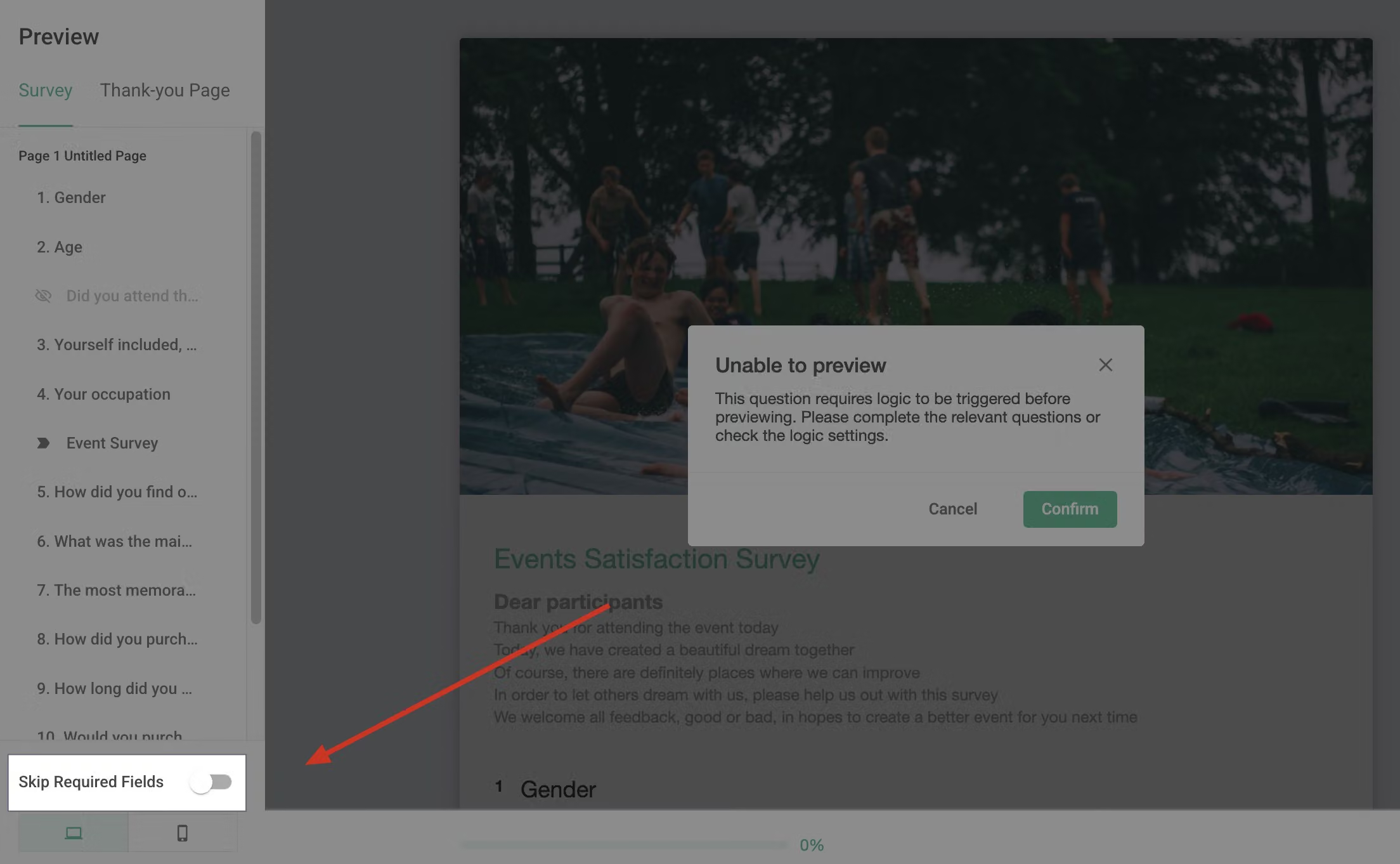
Skip Required Fields
Off: Maintains the survey's original required field settings, ideal for testing the actual survey completion experience.
On: All required questions become optional, allowing you to move between pages or submit the survey without filling in any content, suitable for testing individual question responses.

Thank-you Page Tab

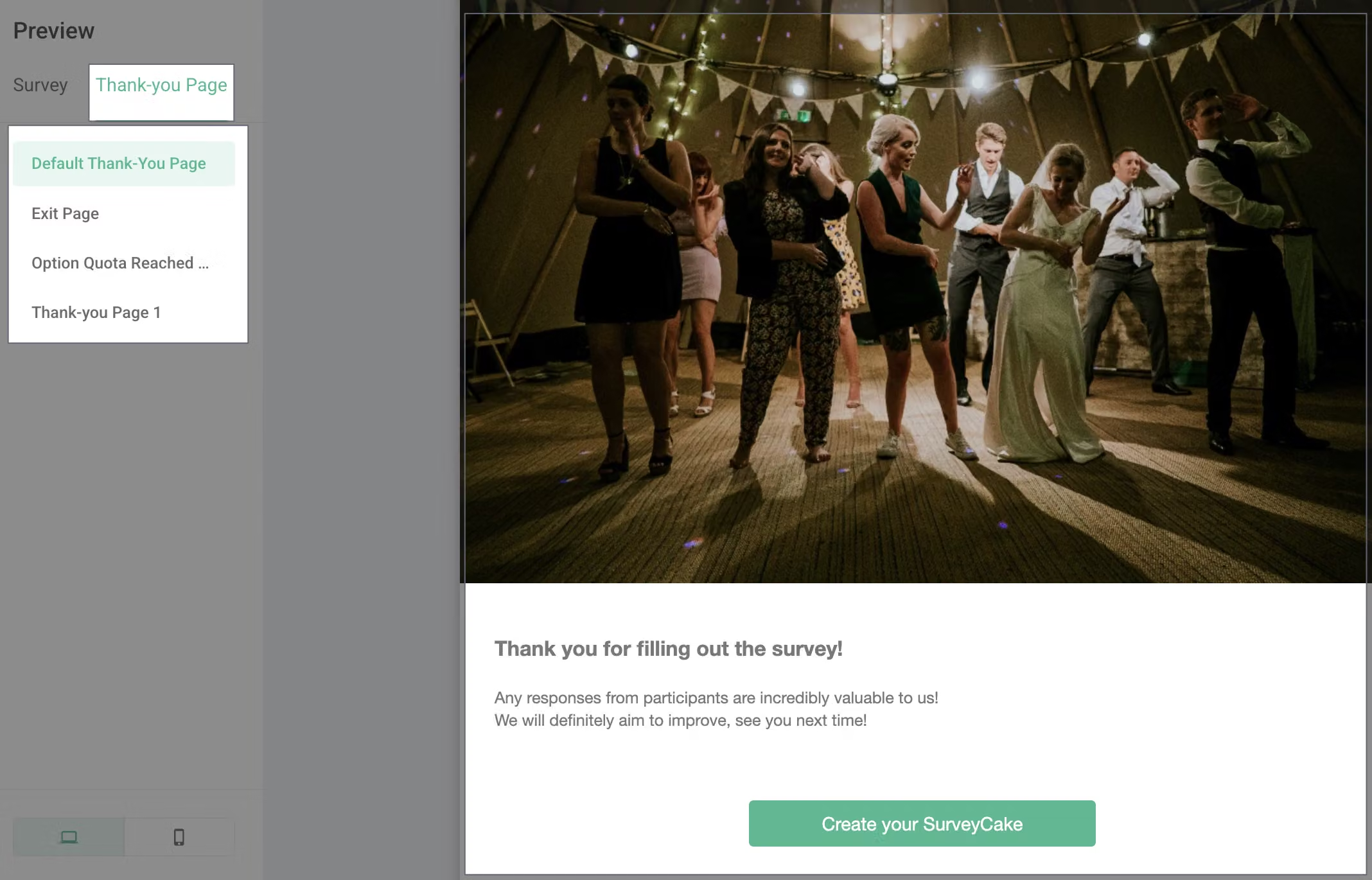
The "Thank-you Page" tab provides previews of various ending pages:

Thank-you Page
Exit Page
Option Quota Reached Page
Conditional Thank-you Page

You can switch between different types of thank you pages through the menu to directly preview various ending scenarios.

Device Switch Options
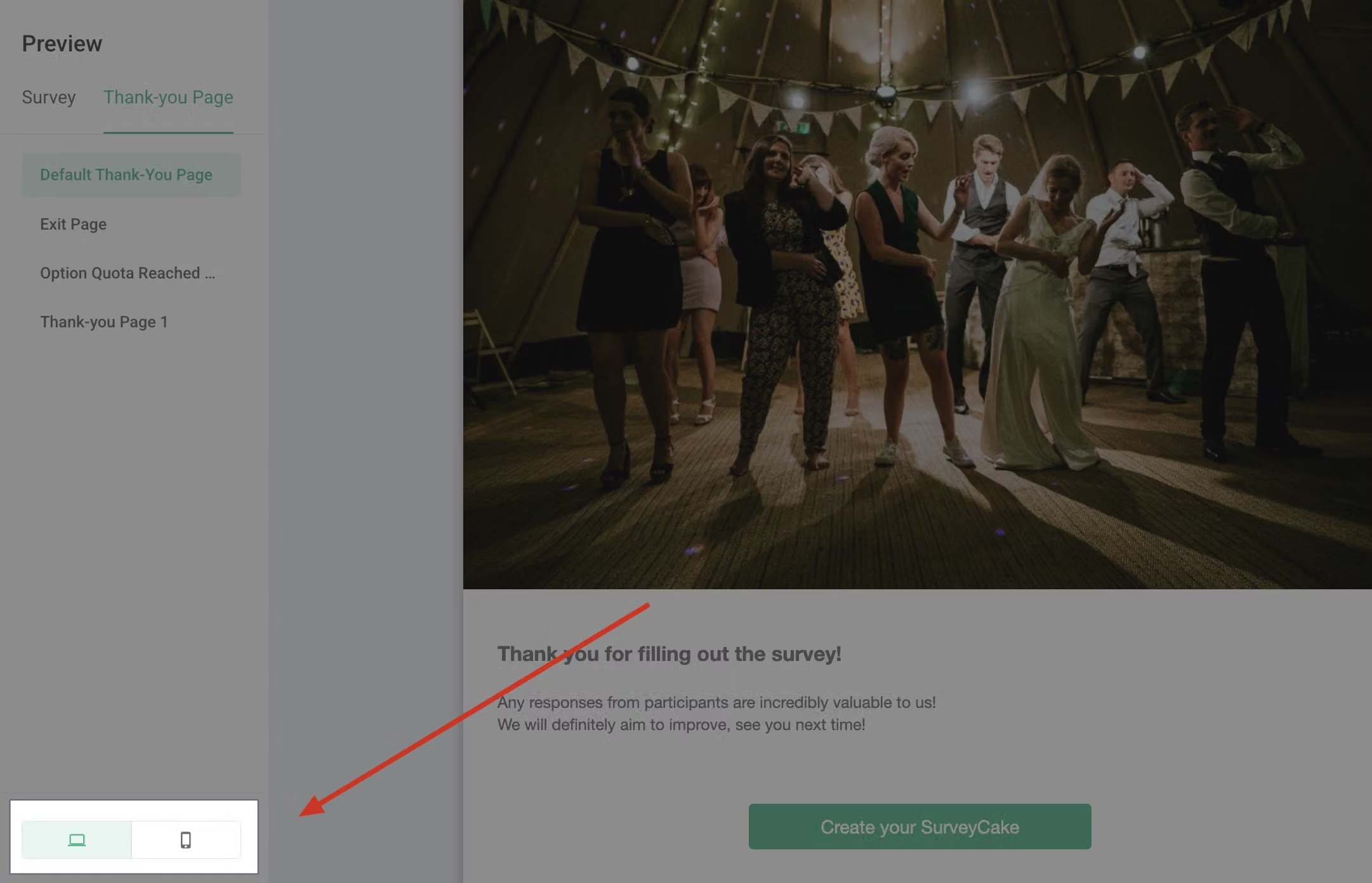
With the device switch function, you can toggle between "Desktop Version" and "Mobile Version" to verify the layout and presentation on different devices in advance, ensuring respondents get the best experience regardless of the device they use.

Operation Tips
The preview function is only visible to survey creators; actual respondents won't see the jump options and Skip Required Fields options
Enabling the "Skip Required Fields" function doesn't affect the required field settings in the official survey
Even in preview mode, the survey's logic settings will function normally
If a question cannot be clicked, check if it's controlled by logic settings

Summary
The Preview feature allows you to more precisely review and test your designed survey content. Through intuitive tab design, question navigation, and the Skip Required Fields option, it effectively improves the quality and efficiency of survey design, ensuring your survey presents optimally to respondents.


Master advanced
survey skills now!

Learn More
Can't find the answer you're looking for?