A page with a thank you message appears after the survey has been completed. It is possible to provide information on various products and events on this last page of interaction. Redirect Button adds more variety to surveys, and offers another marketing option to present websites that may appeal to respondents!
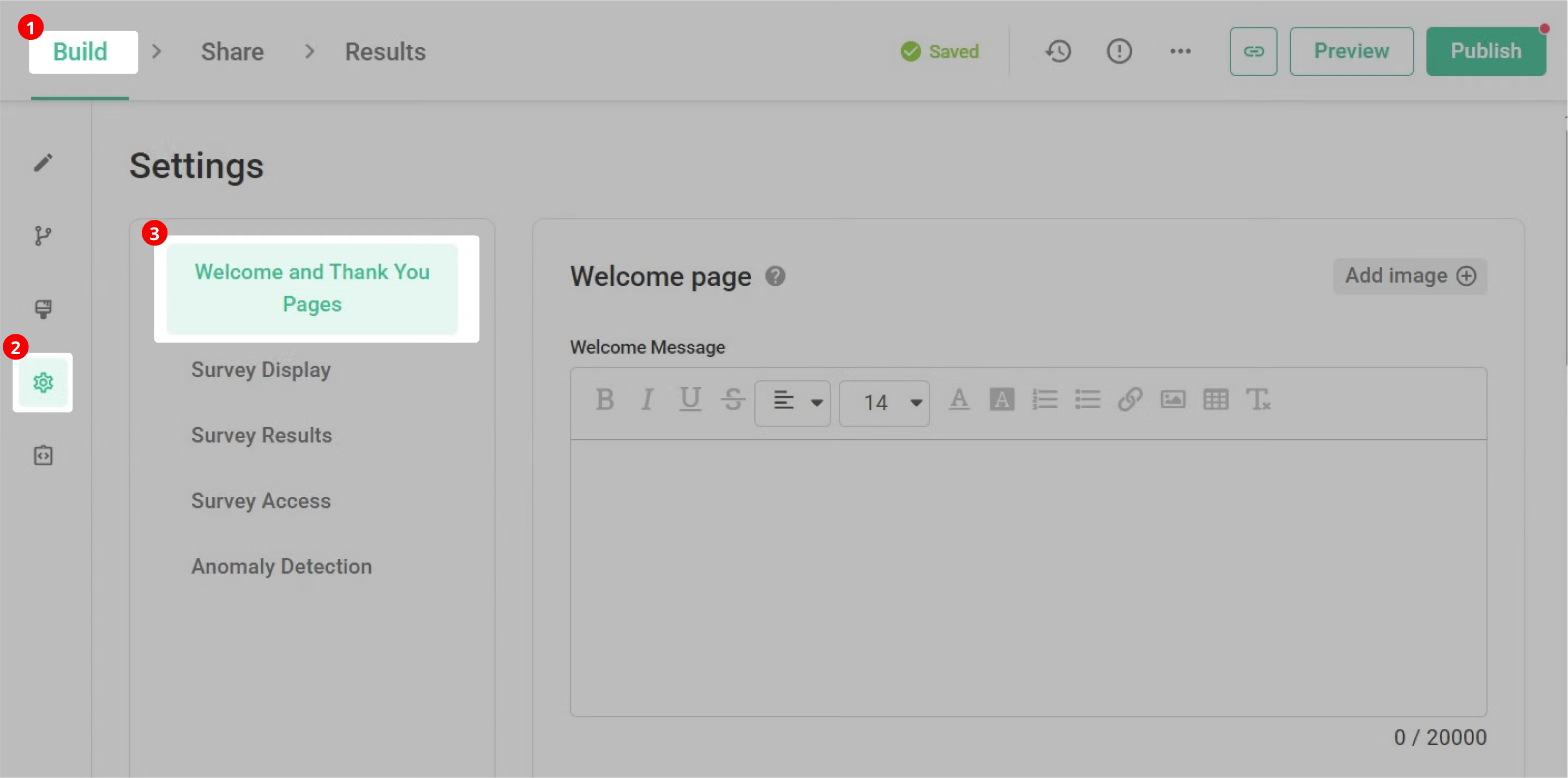
To set Redirect Button, click the "Setting" button in the sidebar of "Build" page, enter "Welcome & Thank You Pages"
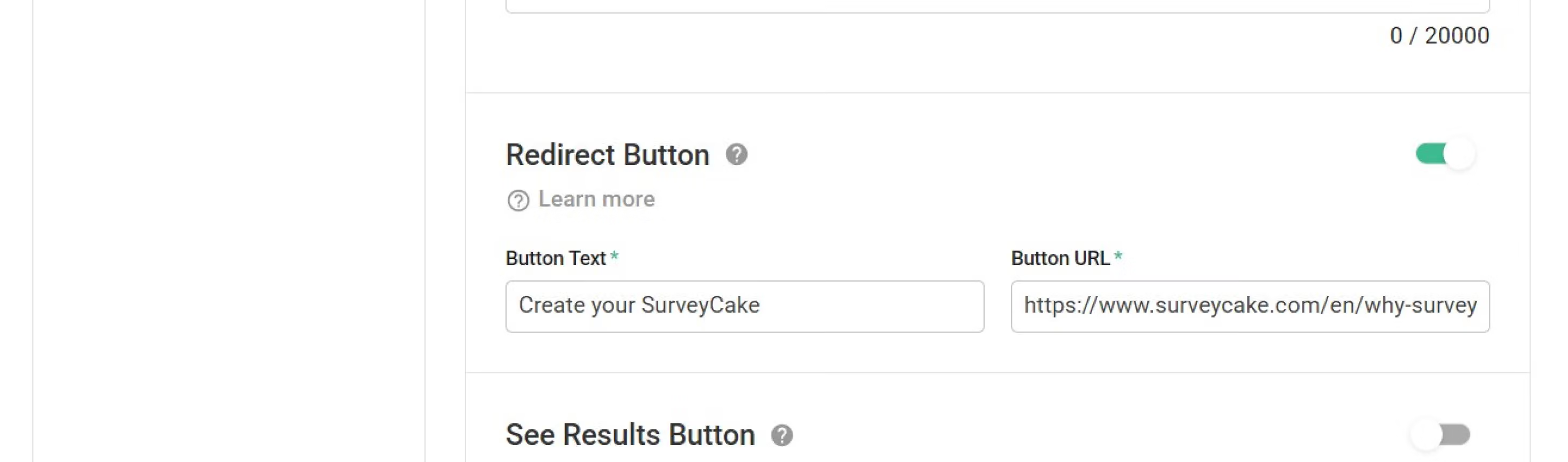
Then scroll down the page to find "Redirect Button" and turn it on! You can customize redirection messages and hyperlinks accessed via Redirection Setting in the survey setting.
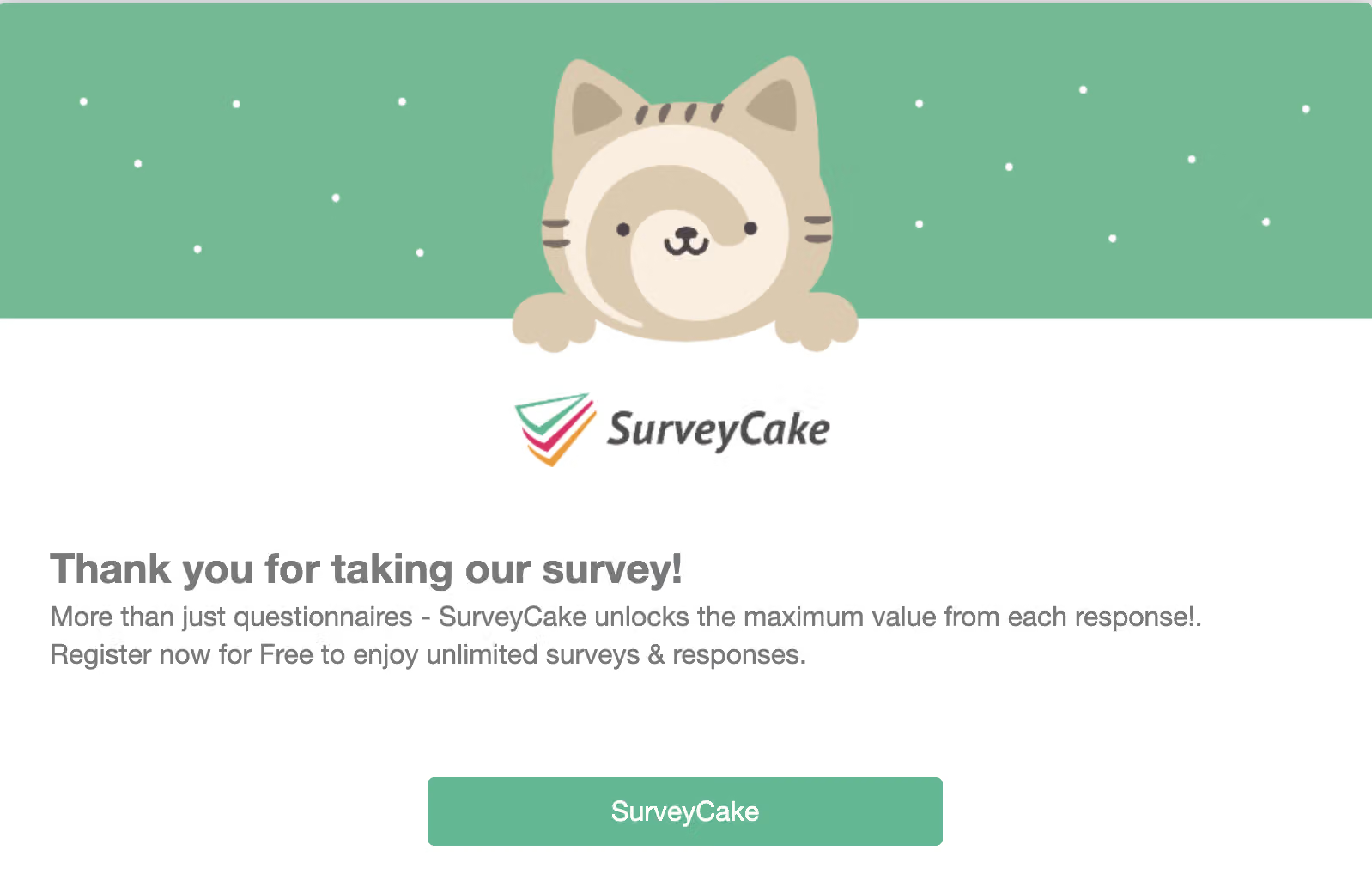
A Redirect Button is visible in the preview page!
It is easy to incorporate Thank-you Page and Thank You Messages for higher conversion rates and more stylish surveys!
FAQs
-What is the difference between Redirect Button and Custom Thank-you Page?
The main difference between these two features is as follows:
Redirect Button requires respondents to manually click a redirection button (that is redirected to a specific webpage) after submitting the survey. In addition, you can also customize the text displayed on the button.
Whereas Custom Thank-You Page redirects respondents to a specific web page immediately upon submitting the survey without clicking any buttons.
You can plan your post-survey journey based on the differences below.
For example, you can use Redirect Button if you want respondents to have the option to explore other relevant information after submitting the survey . On the other hand, if you have a promotional event that you want to expose to all survey respondents as much as possible, you can use Custom Thank-You Page to redirect them to the event's introduction page.
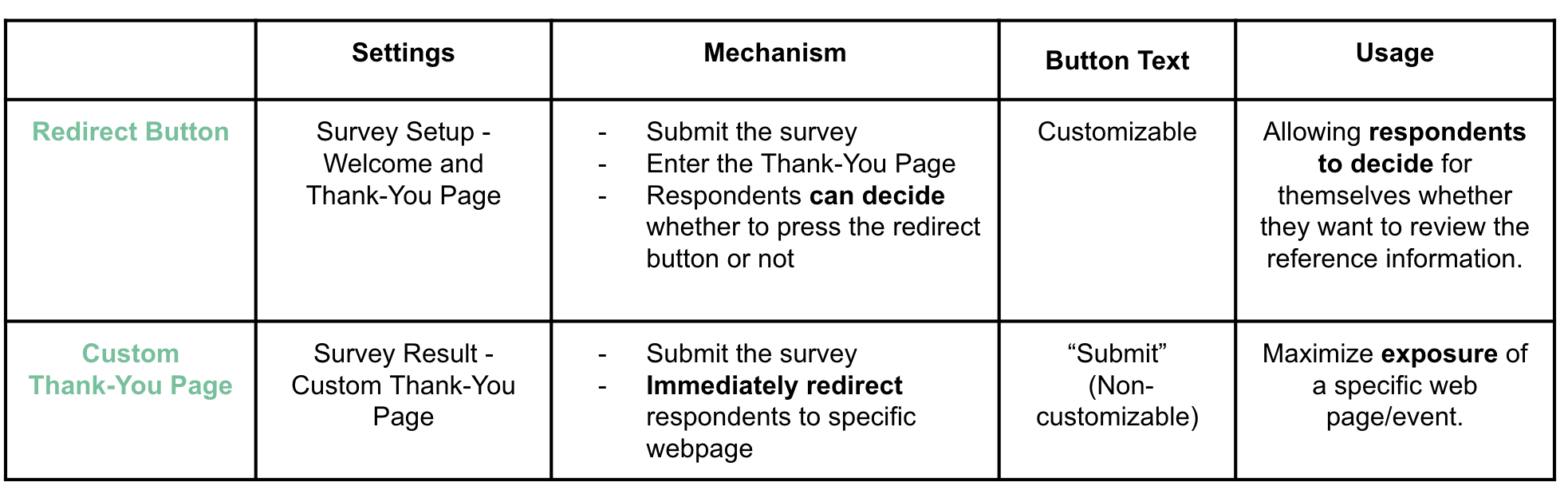
The table below shows the differences between the two features:
Redirect Button gives respondents the possibility of keeping up with other pages. Thank-you Page and Thank You Message also enhance page presentation!



