內文:
"Response Quality Check" can automatically analyze survey responses, helping you quickly identify low-quality answers and improve the accuracy and efficiency of your data analysis. The system classifies each response as "Valid responses" or "Suspicious responses", allowing you to easily understand the overall health and reliability of your data.
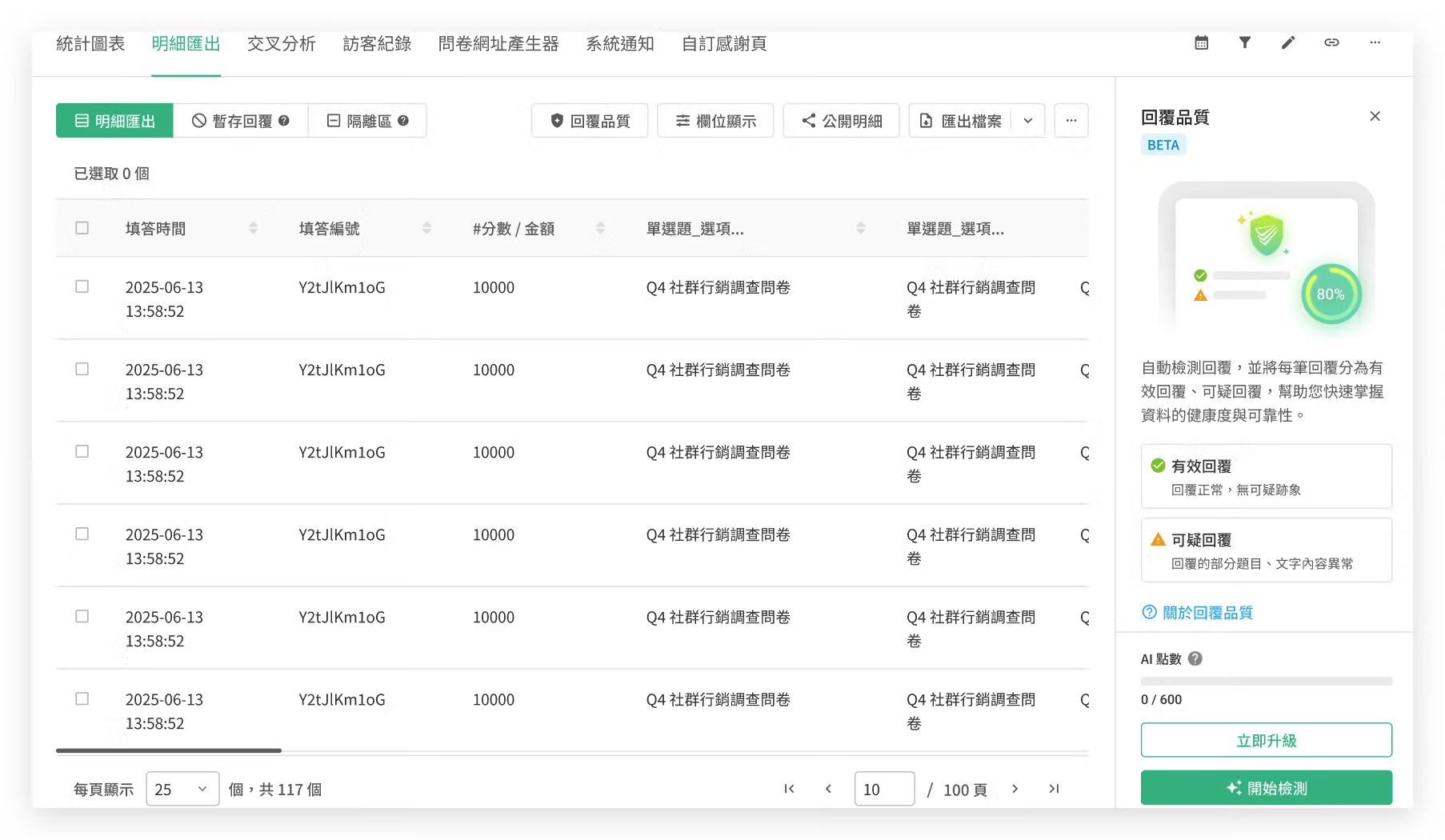
The "Response Quality Check" feature is available on the "Data Report" page of your survey results. Using AI technology, it automatically evaluates responses to text questions and classifies them into two categories based on the quality indicators you enable:
How does AI determine whether a response is suspicious?
The AI fully analyzes the content of each response and checks whether it meets each quality indicator (such as Offensive text, Overly short text, etc.). It then uses the indicators you have enabled to determine the quality classification:
Note: AI only checks "single-line text questions" and "multi-line text questions". It analyzes all responses containing text answers. It is not possible to select specific questions or specific responses for checking.
Start Response Quality Check
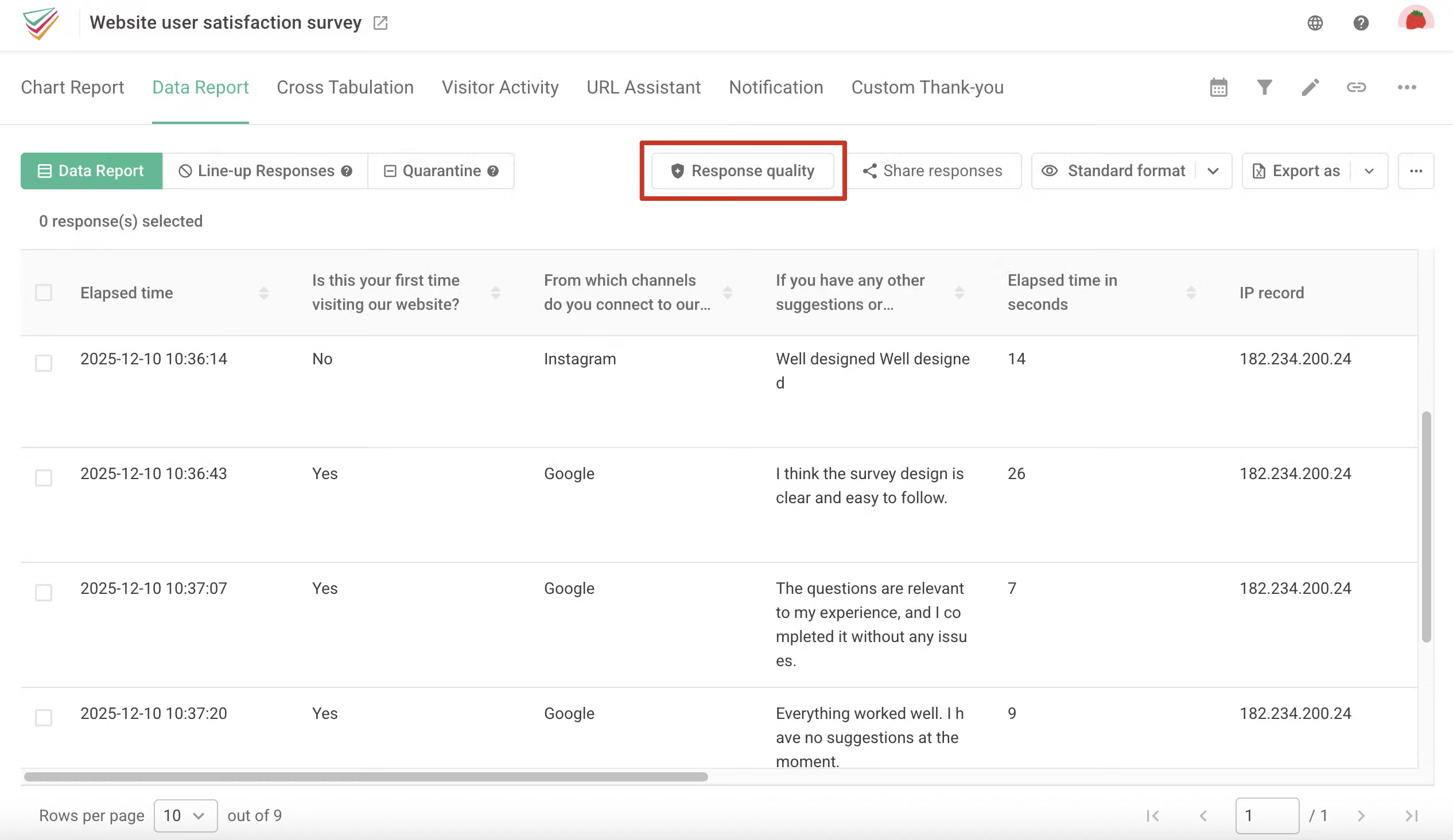
Go to the "Data Report" page of your survey results and click the "Response quality" button in the top-right corner.
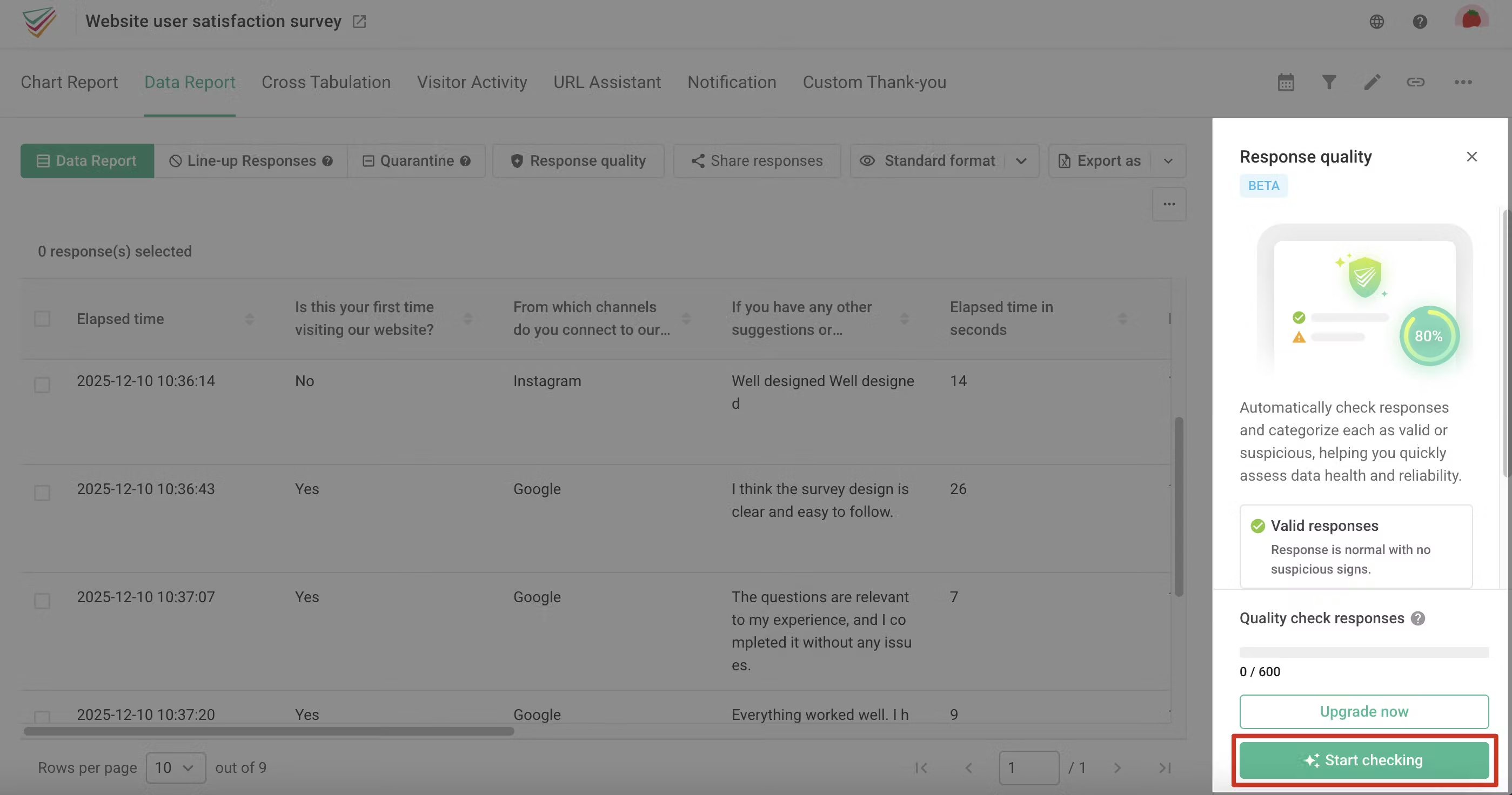
In the sidebar, click "Start checking" to enable Response Quality Check.
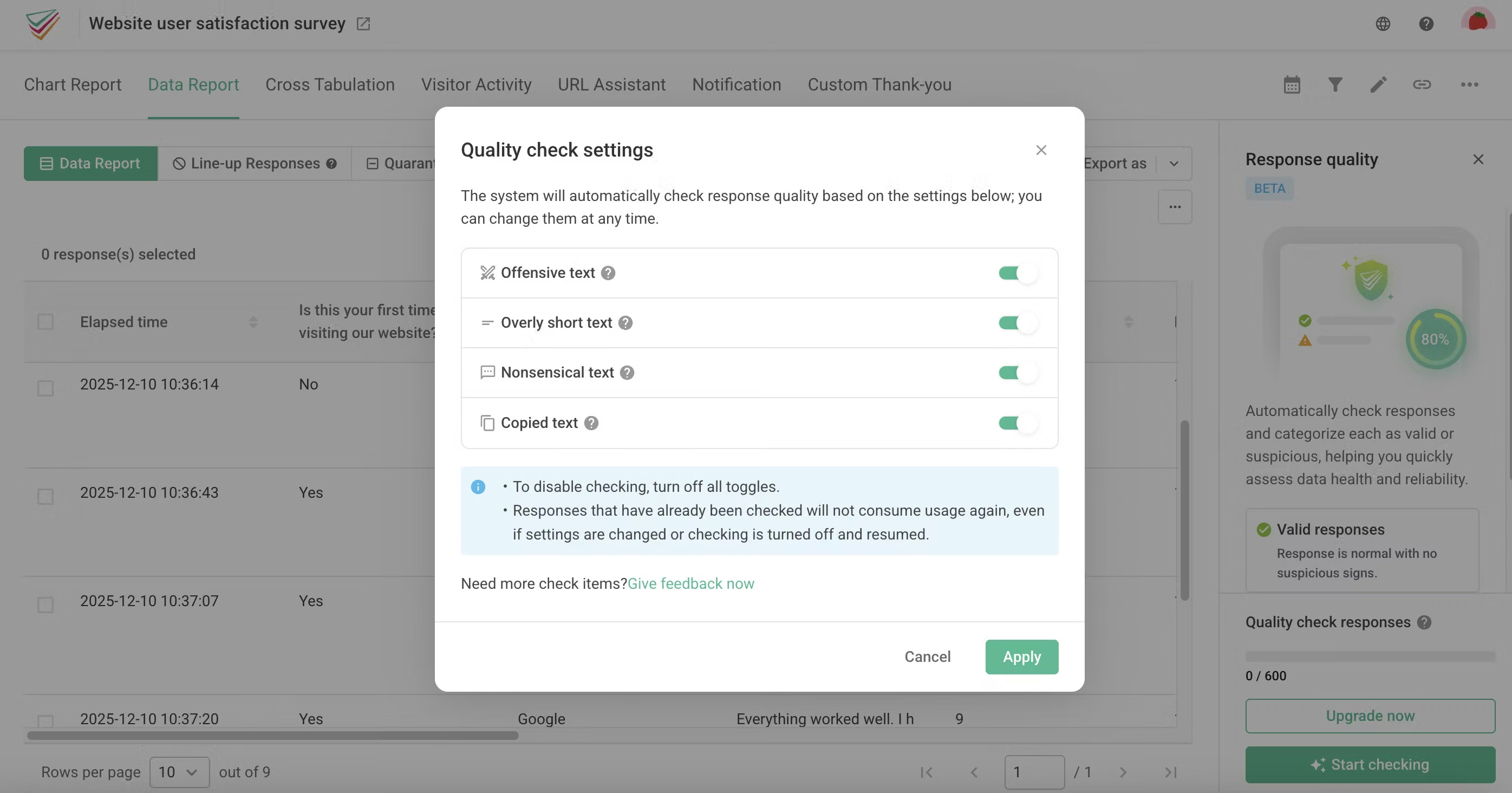
In the "Quality indicator settings" window, enable the suspicious-response indicators you want to check. There are currently four quality indicators: "Offensive text", "Overly short text", "Nonsensical text", and "Copied text". You may freely choose which indicators to enable.
After clicking "Apply", the system will begin analyzing survey responses based on the selected indicators. During analysis, the sidebar will show the status "Checking quality...", and the following actions will be disabled:
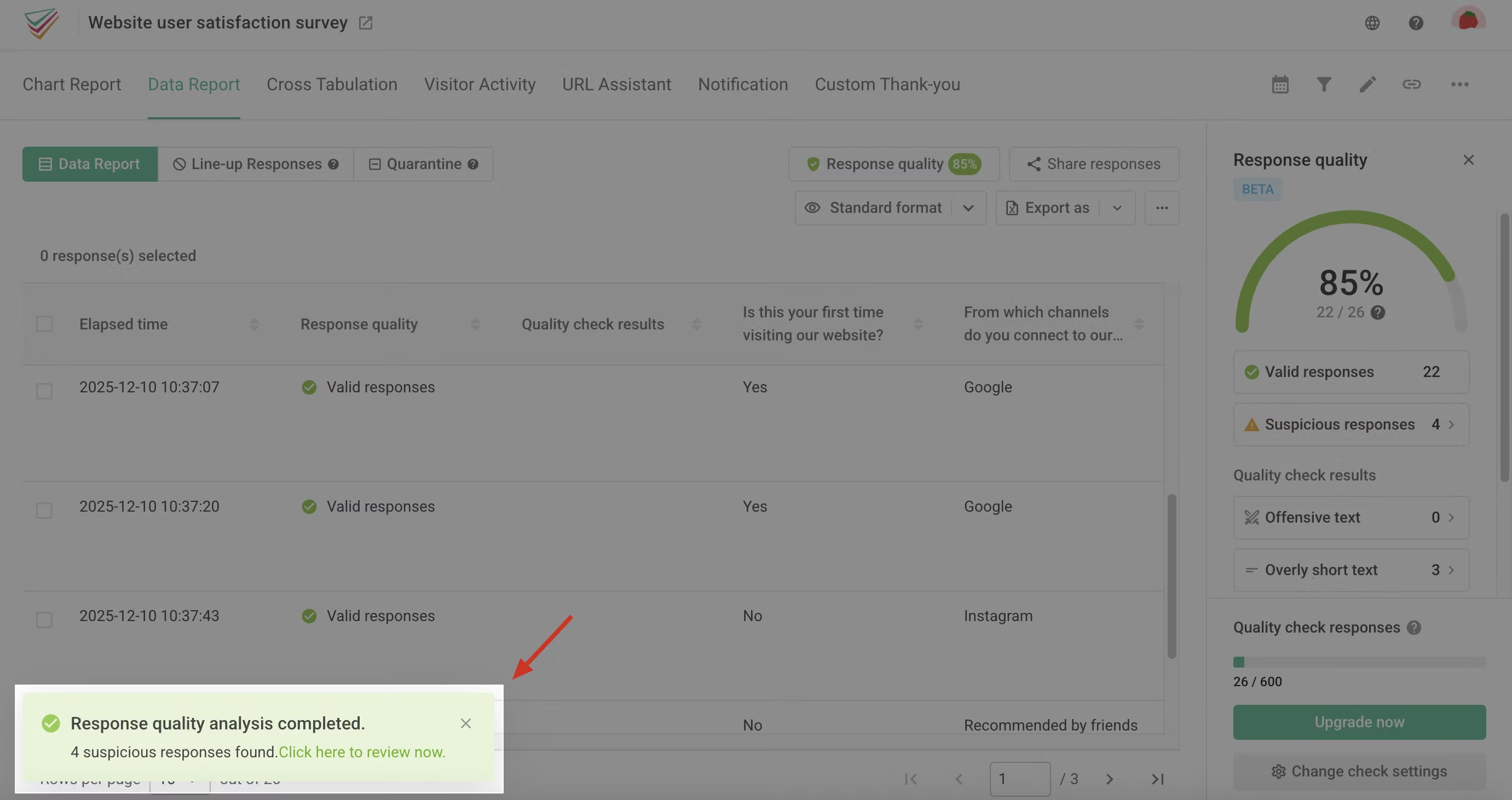
The analysis will take some time. You may leave the page and return later to see whether it has finished. Once complete, a message "Response quality analysis completed." will appear, and the quality check results will be displayed automatically.
If you need to adjust the indicators later, click "Quality check settings" in the Response Quality Check window. Turn indicators on or off as needed, then click "Apply" to save.
When adjusting quality indicators, the system only reclassifies responses and does not perform AI analysis again. Therefore, it will not consume additional quality-check quota.
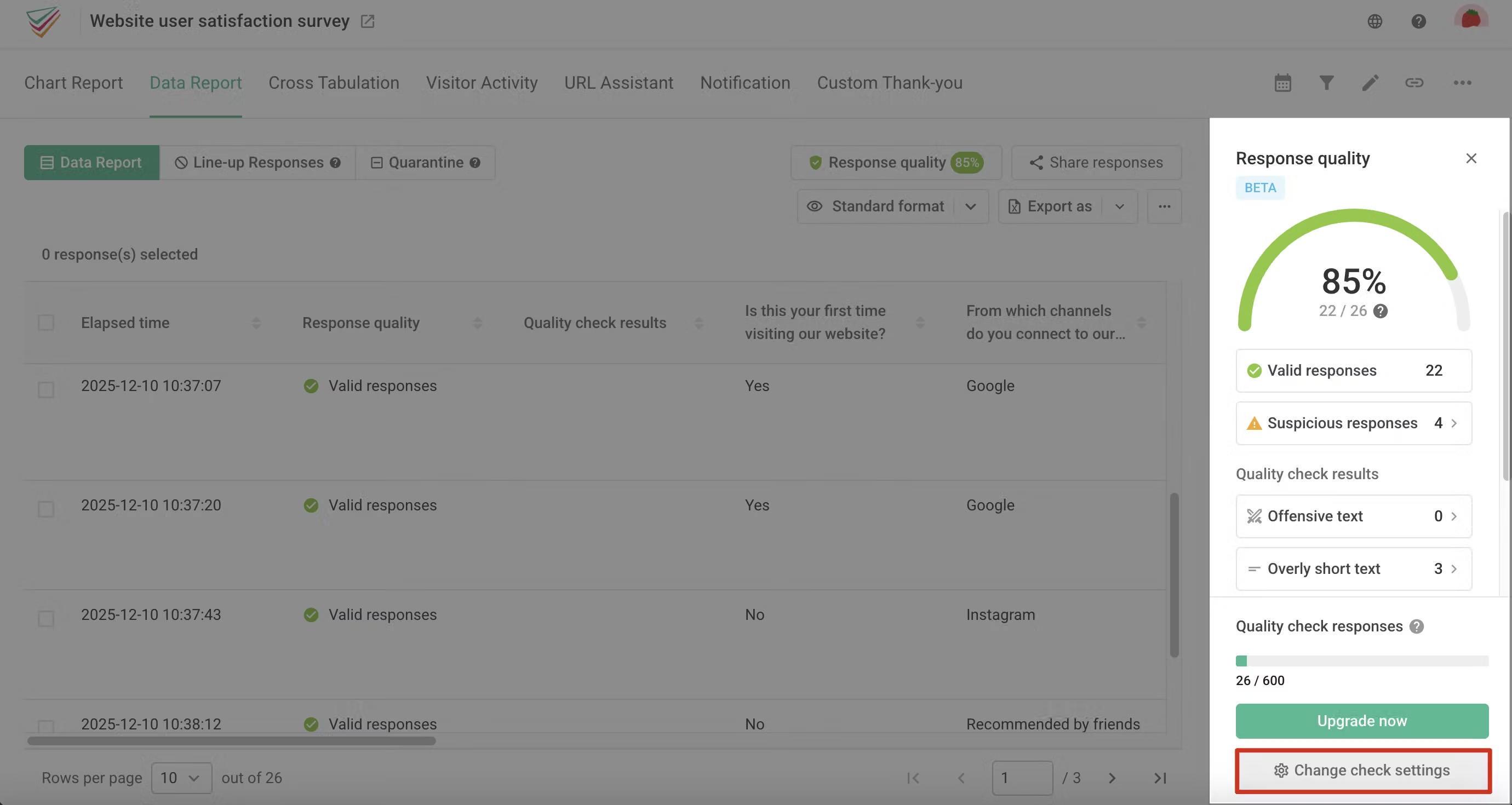
Quality Check Results
After AI analysis, the Response Quality Check sidebar will display:
Once quality checking is enabled, the Data Report will include two additional fields:
-: Not analyzed or no text response provided -: No indicators triggered Quality check failed: Character limit exceeded or AI error 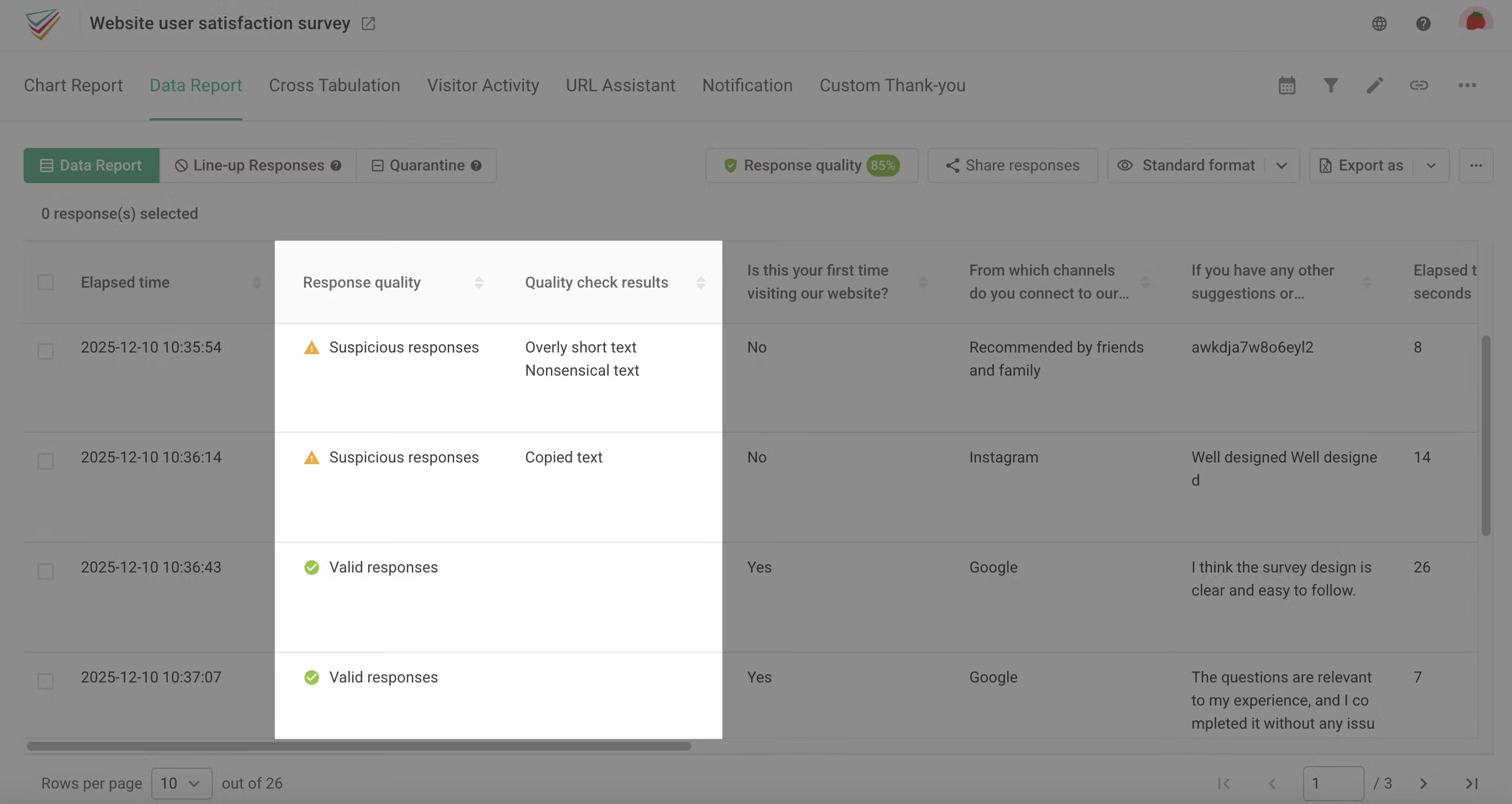
If any responses fail checking because they exceed 20,000 characters or due to AI errors, the Response Quality Check window will show the message: "You have {{response}} responses that failed checking; possible reasons include character limit exceeded or AI errors." Failed responses are not included in the total count. You may adjust quality indicator settings, move problematic responses to the isolation area, disable the feature, and restart checking.
Reviewing Suspicious Responses
After reviewing the overall quality results, you can further examine suspicious responses to support your analysis.
Click "Suspicious responses" or any quality indicator in the sidebar to view flagged responses in the review window.
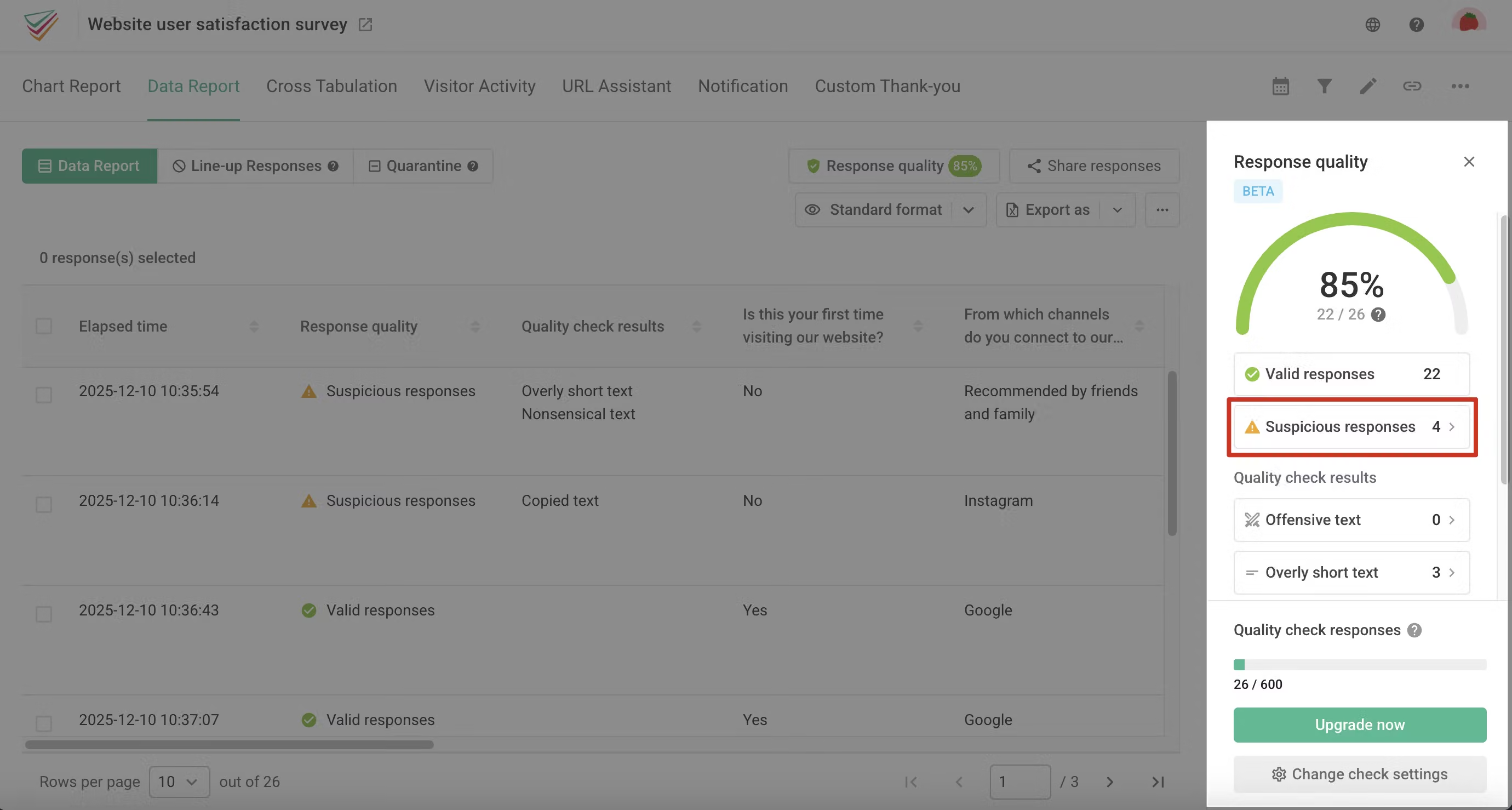
For selected responses, you may perform the following actions:
After review, both the Data Report and Response Quality Check window will update accordingly.
Quality Check Quota
The quality-check quota refers to the "total number of responses analyzed during the month". Responses are counted only after AI analysis completes, and the quota covers all surveys in the account—not per individual survey.
If a response contains no text questions or the respondent left all text questions blank, quality checking cannot be performed. However, such responses still count toward your quota. To avoid wasting quota, we recommend enabling this feature only for surveys with text answers.
When the monthly quota limit is reached:
-After the monthly quota resets or you upgrade to obtain more quota, the sidebar will display:
Downgrade impact:
Notes:
| Plan | Monthly quota (monthly billing) | Monthly quota (annual billing) |
|---|---|---|
| Free | 0 | 0 |
| Pro | 600 / month | 1200 / month |
| Team | 1500 / month | 2500 / month |
| Enterprise | Based on enterprise contract | Based on enterprise contract |
FAQ
Possible reasons include:
Yes, but the system handles this automatically:
Example:
A response was originally flagged for "Offensive text" in Q1 and "Overly short text" in Q2, so it was classified as "Suspicious responses".
Yes. After manually changing a response's classification, if you later enable or disable indicators, the system will recalculate the classification based on the new indicator settings.
Example:
Recommended approach: Finalize your indicator settings before performing manual adjustments to avoid repeated rework.
When the system is analyzing responses, certain features are disabled to prevent data inconsistency. Once analysis completes, all features become available again.
Response Quality Check eliminates the need to manually review every response. By automatically identifying low-quality answers, AI greatly enhances data-cleaning efficiency and allows you to focus on deeper insights from high-quality data!



