The Share Responses button is in the upper right corner of the data report, it can help you to share the full content of the survey responses with your teammates.
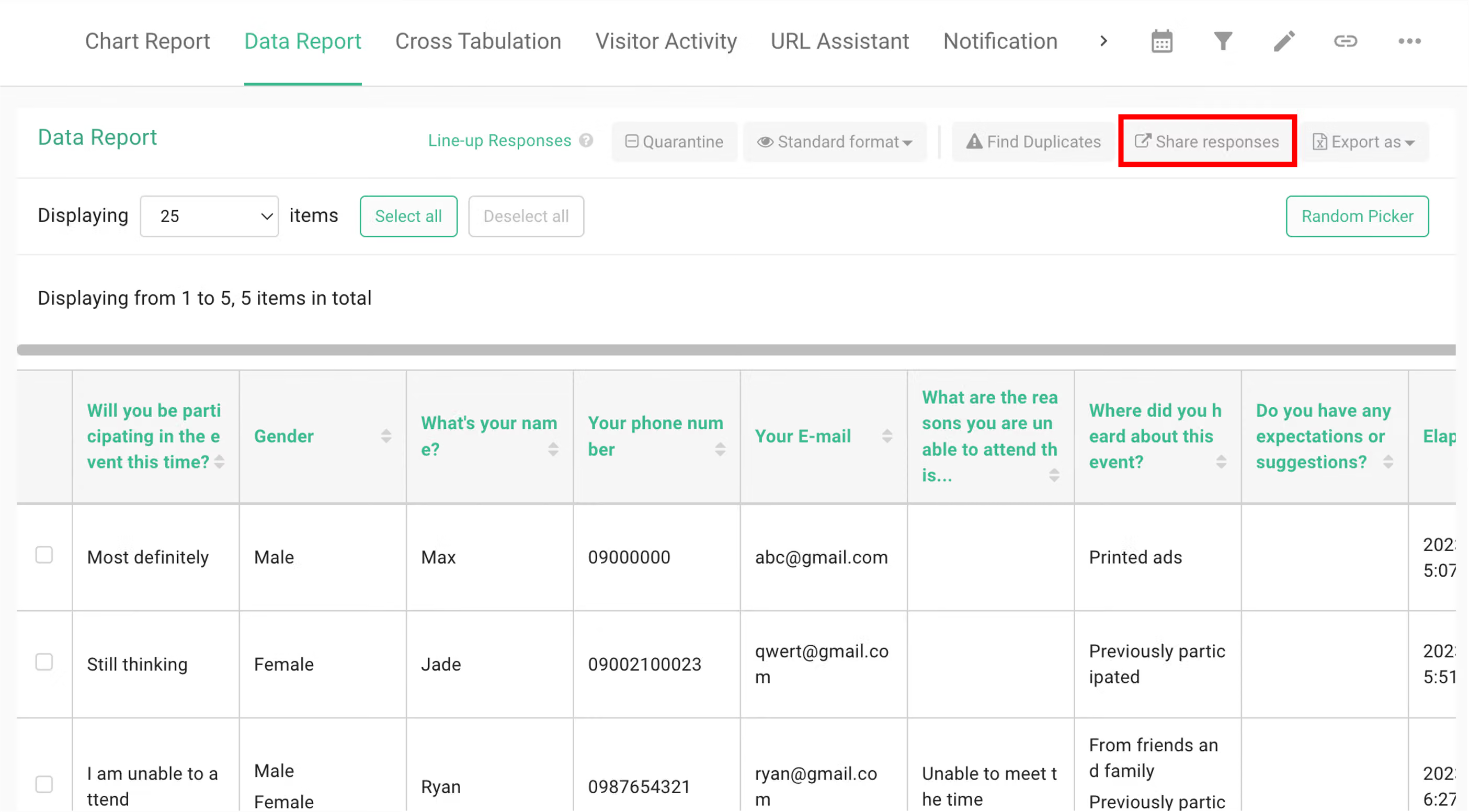
Click the Share Responses button, and switch the button from the system default OFF to ON. Then, copy and share the link below with your teammates. By clicking the link, your teammates can see the full content of the survey responses!
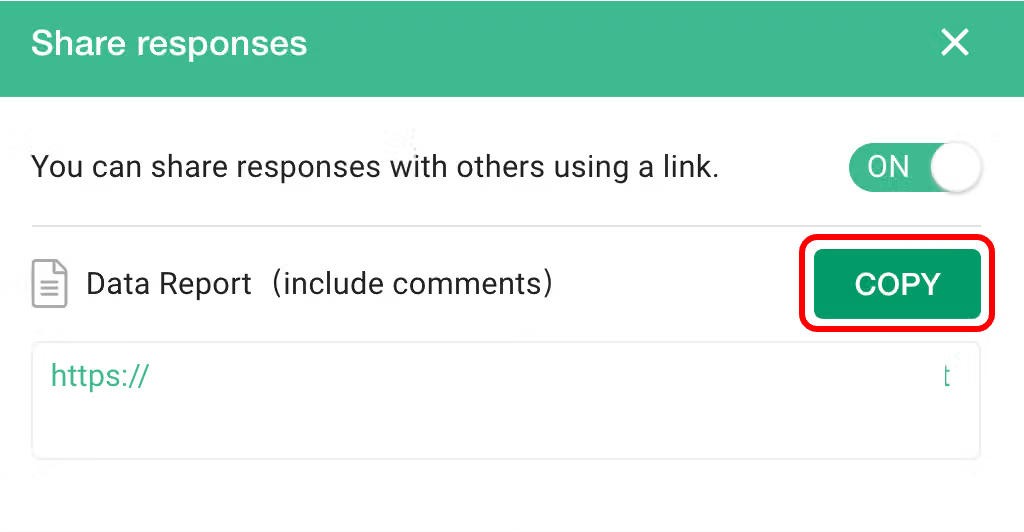
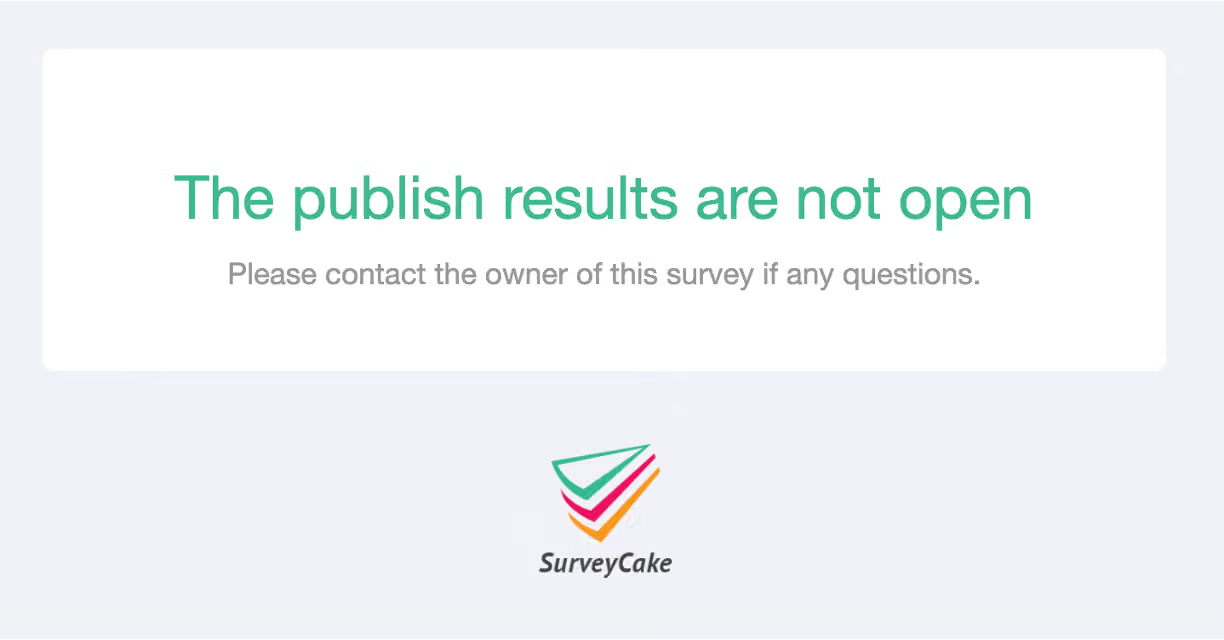
Tips: the status button at the top of the page must be ON. Otherwise, your teammates will only see the notification "the publish results are not open" on the screen after clicking the link!
FAQ
No. Currently, you can share only the full content of your survey responses. If you want to share part of the Survey Responses, you could export the survey responses as excel sheet, then hide the results you don’t want to show to the public in Excel so that you could share the file with others.
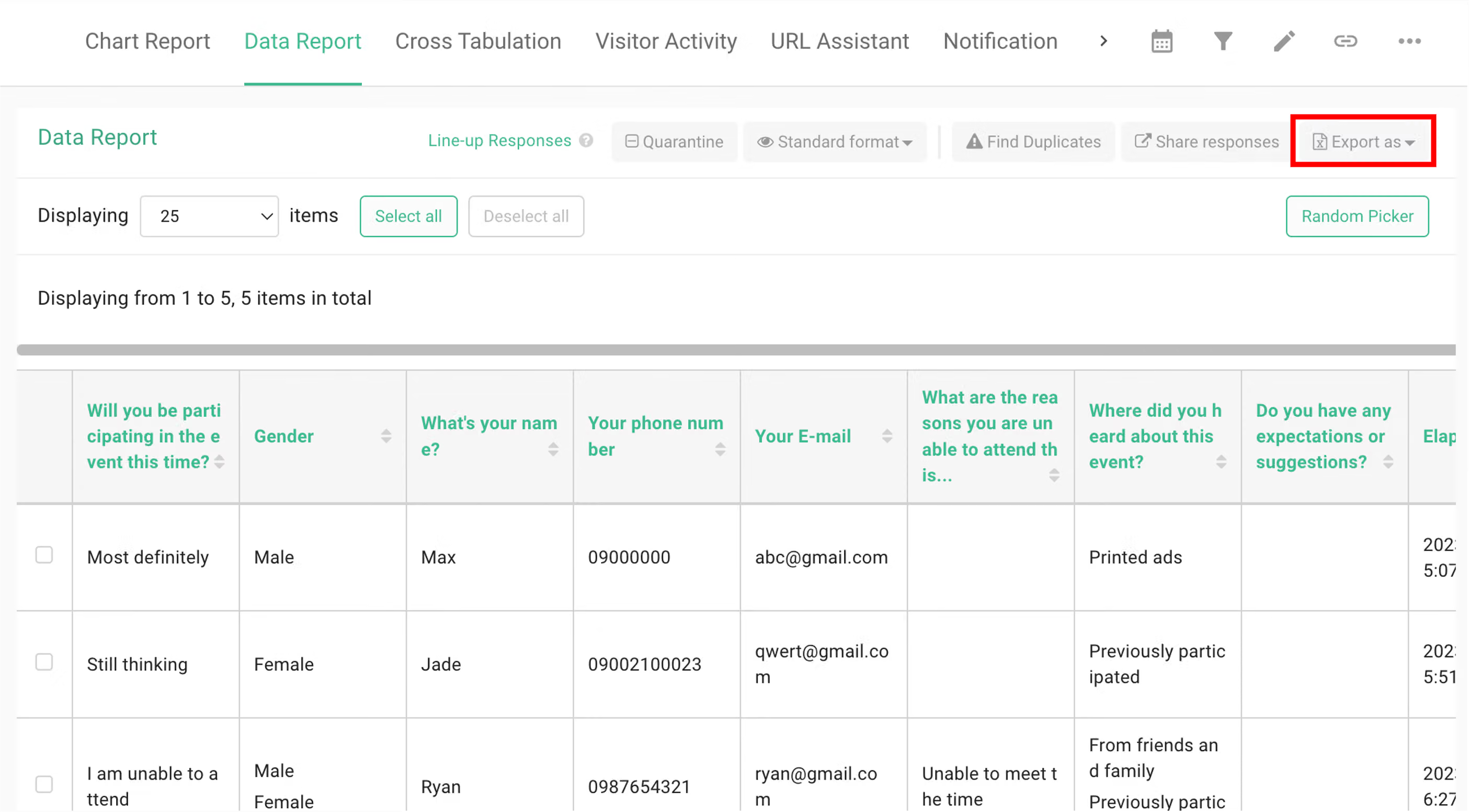
Note: In this way, you will NOT be able to share the latest responses immediately. Instead, you need to export the data and edit it in Excel all over again once the new responses come in.
Switch on the Share Responses, copy and share the designated link with just one click!



