Google Analytics 4 (GA4) tracking code can be added to any of your surveys.
1. Google Analytics 4: Obtain the Measurement ID
(The following steps are based on the GA4 demonstration account provided by Google, the data is for reference only.)
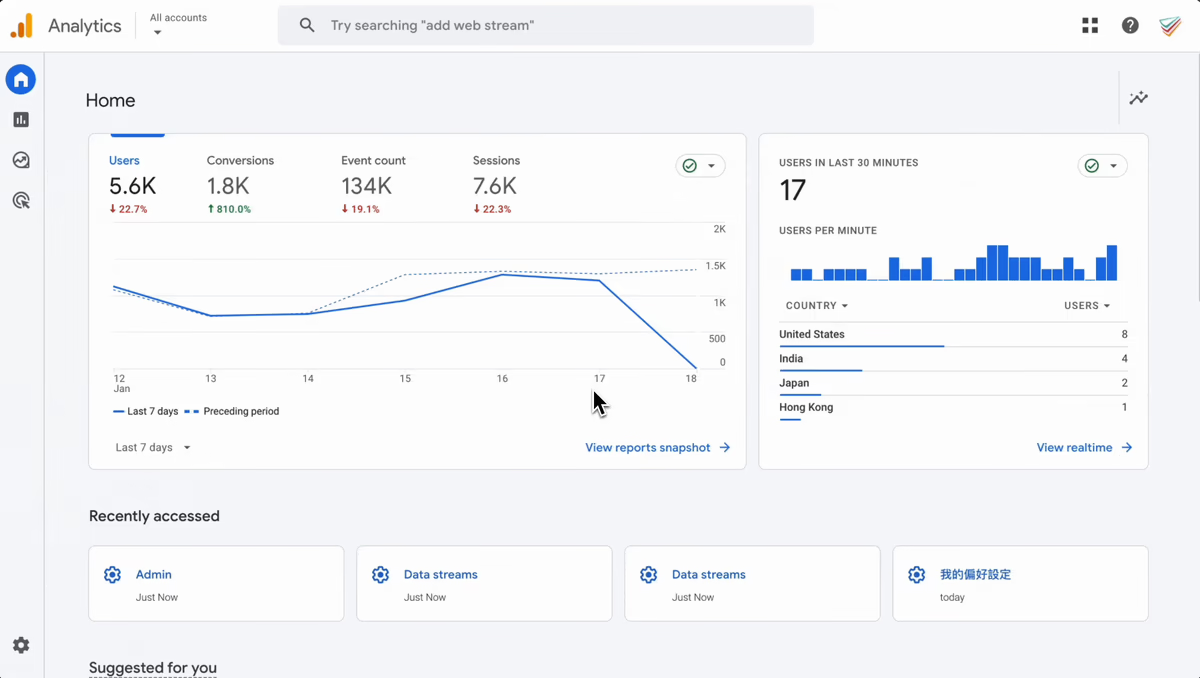
After entering the Google Analytics Admin page, click on Data Streams under Data collection and modification, and click on the resource to be streamed to find the Measurement ID formatted as G-XXXXXXX!
2. Embed the Measurement ID in the survey
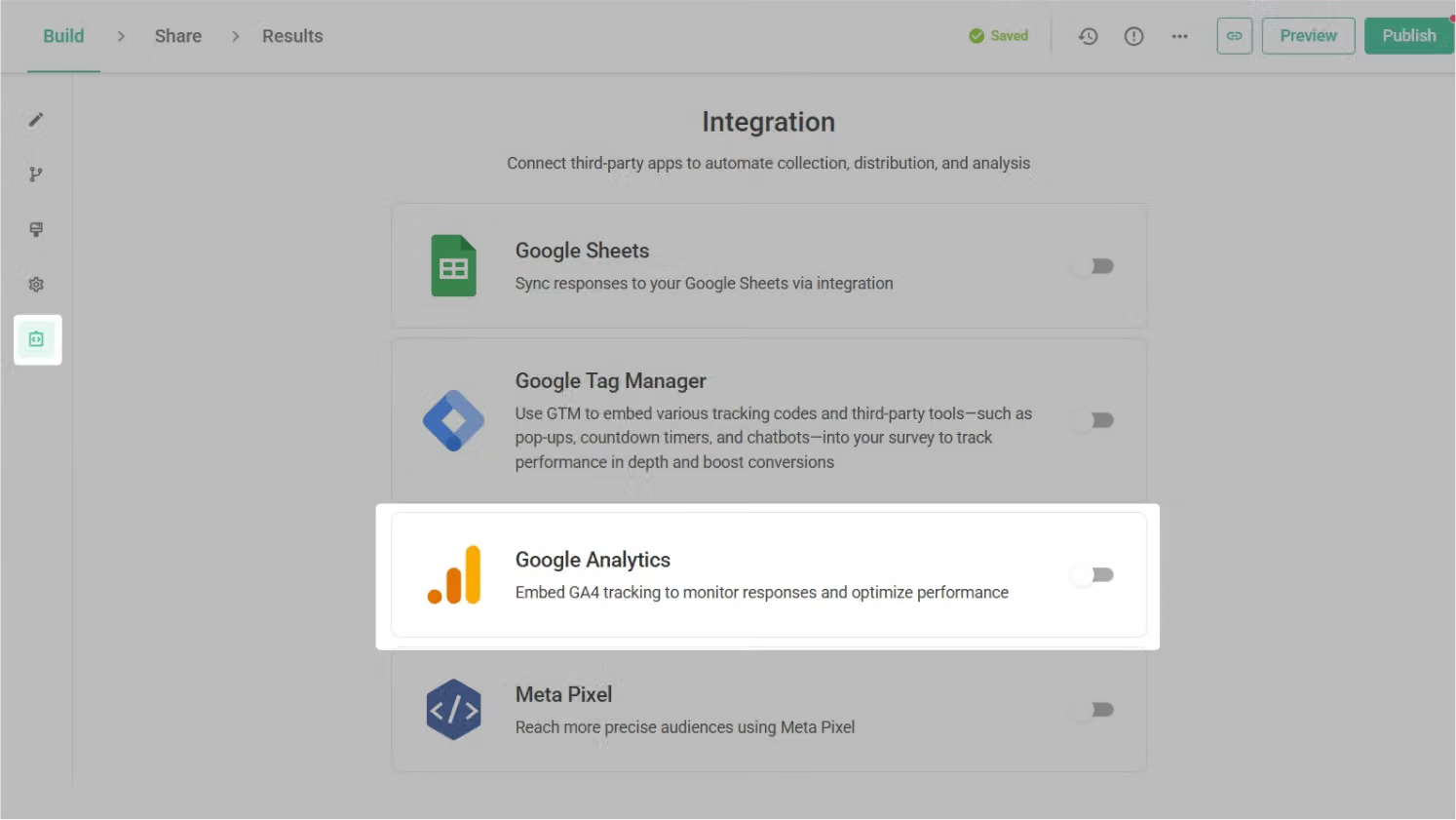
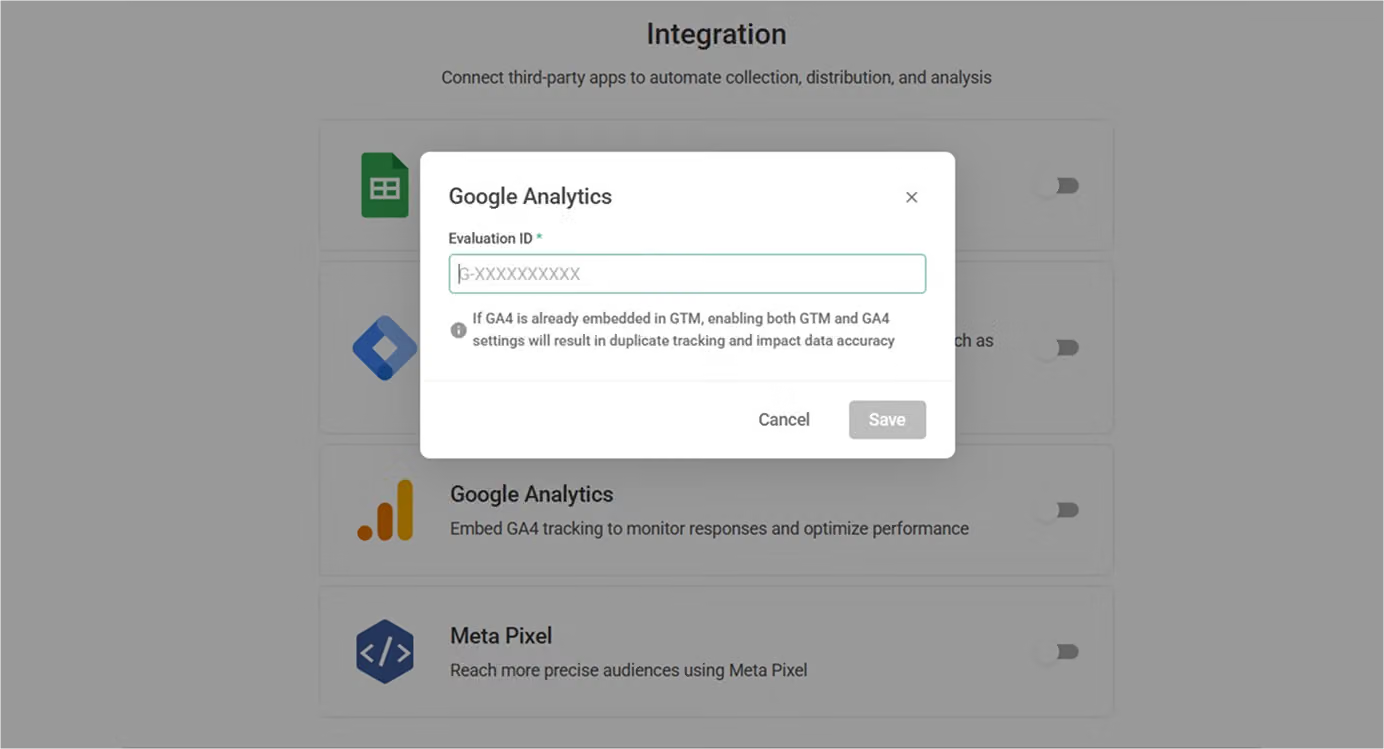
Next, log in to SurveyCake and open the questionnaire where you want to embed the tracking code. On the Build page, click the Integration button at the bottom of the left sidebar to reveal the Google Analytics 4 field. Open this field, enter your Measurement ID, and click Save to complete the setup.
FAQ
Since GA4 data typically takes several hours or up to a day to be reflected in the reporting, the official data won't immediately appear on GA4.
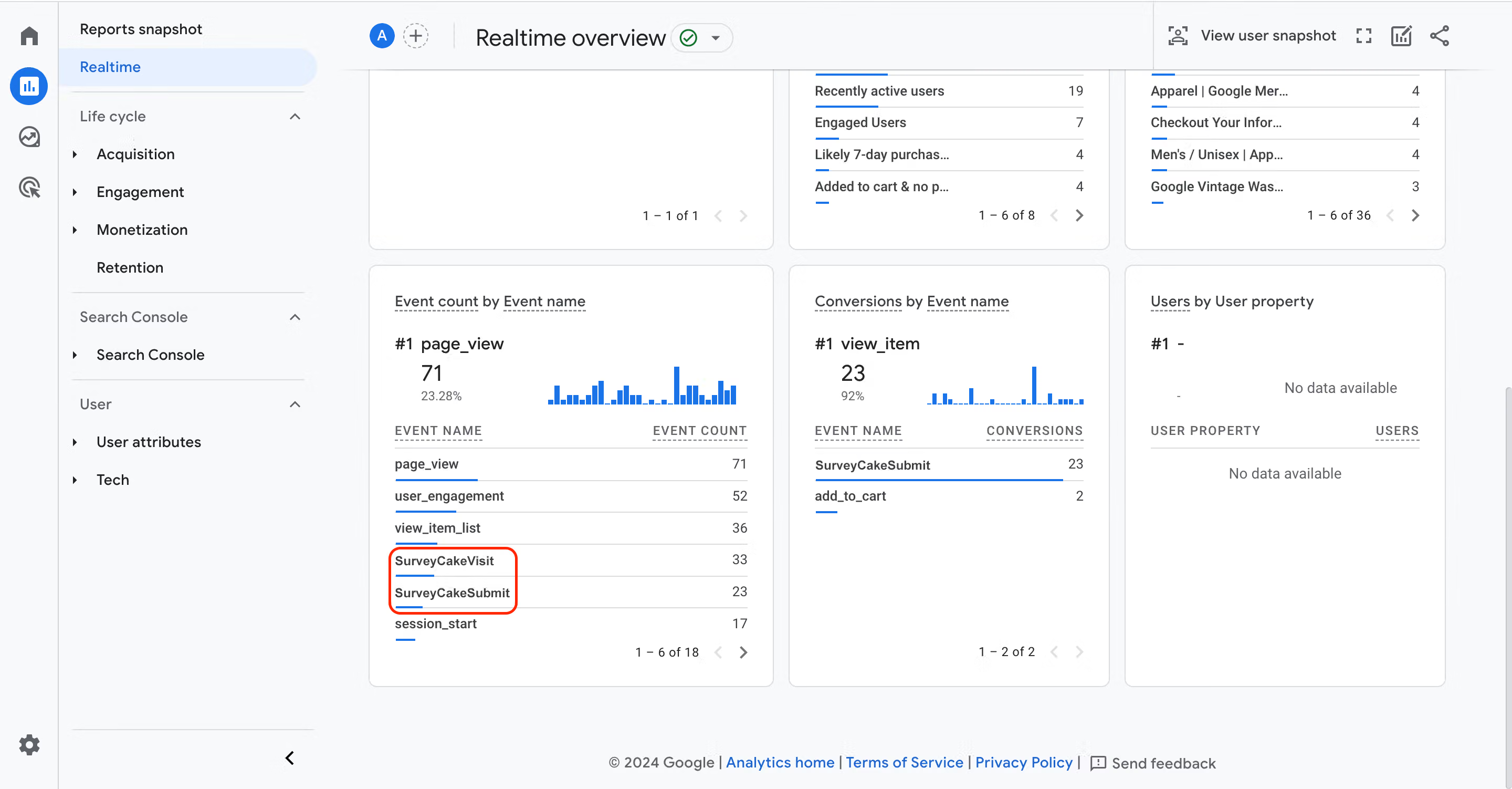
If you want to confirm whether the GA4 Measurement ID is successfully tracking, it is recommended to fill out the survey and submit it. Then, check the "Events" section in the "Realtime" report to see if both SurveyCakeSubmit (Survey Submission) and SurveyCakeVisit (Visit Survey) events are received. If they are, it means the tracking code has been successfully embedded. After waiting for a few hours, this data will also appear in the "Events" section of the "Engagement" report in GA4.
Assuming that you also do not see any data in the "Realtime" report, it could be due to one of the following reasons:
Please confirm the resource you are currently viewing in GA4 and double-check if the Measurement ID for this resource is the same as the tracking code embedded in your survey.
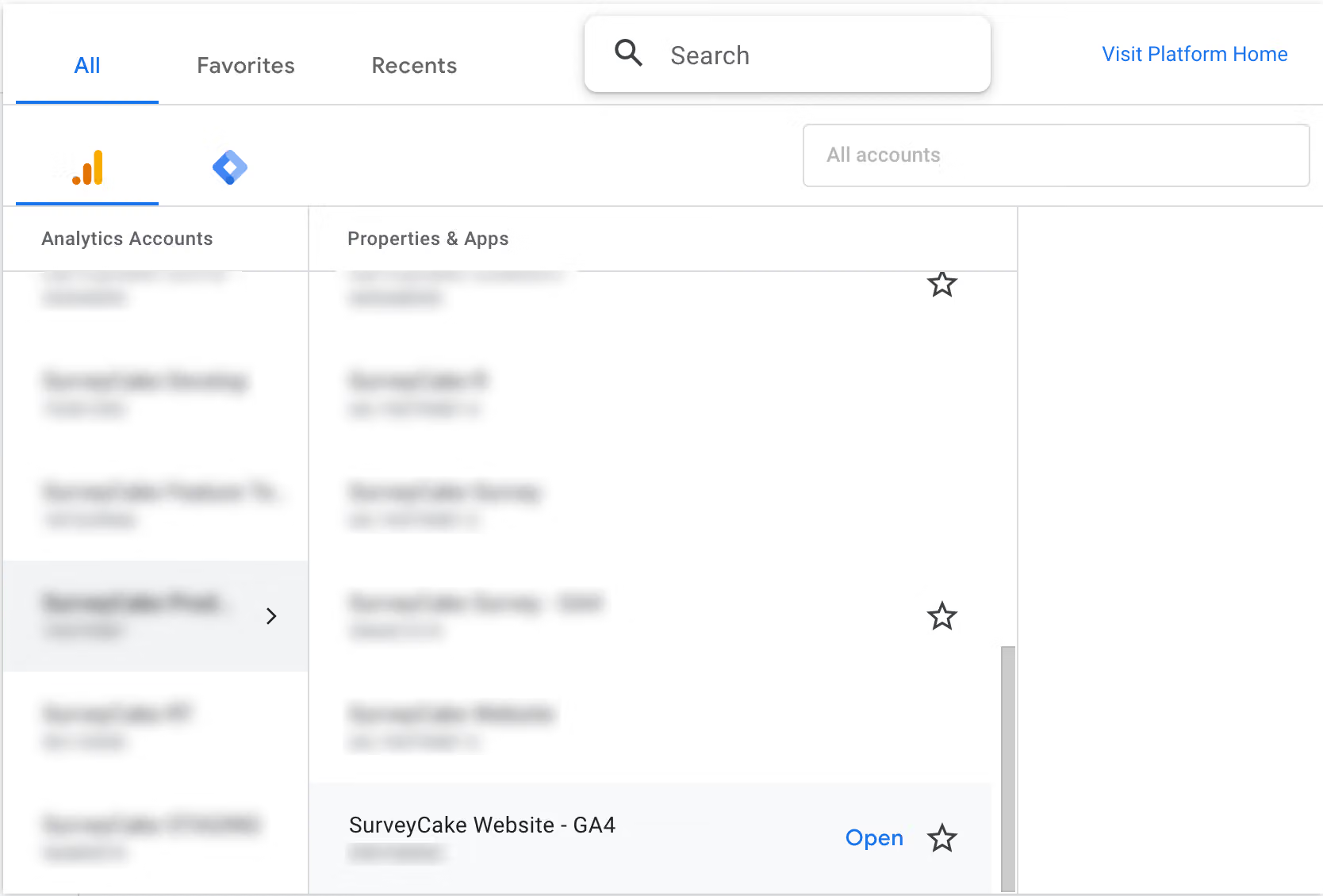
It is recommended to fill out the survey and submit it using an incognito tab (incognito mode by default doesn't enable any plugins). This helps test whether data is received in GA4. If you see data in GA4 after using incognito mode, it indicates that your browser plugins may be affecting the tracking, preventing data from being recorded. In this case, simply disabling the functionality of the plugins should resolve the issue.
-** If I embed the same GA4 tracking code in two different surveys, how can I distinguish the data for the two surveys in GA4?
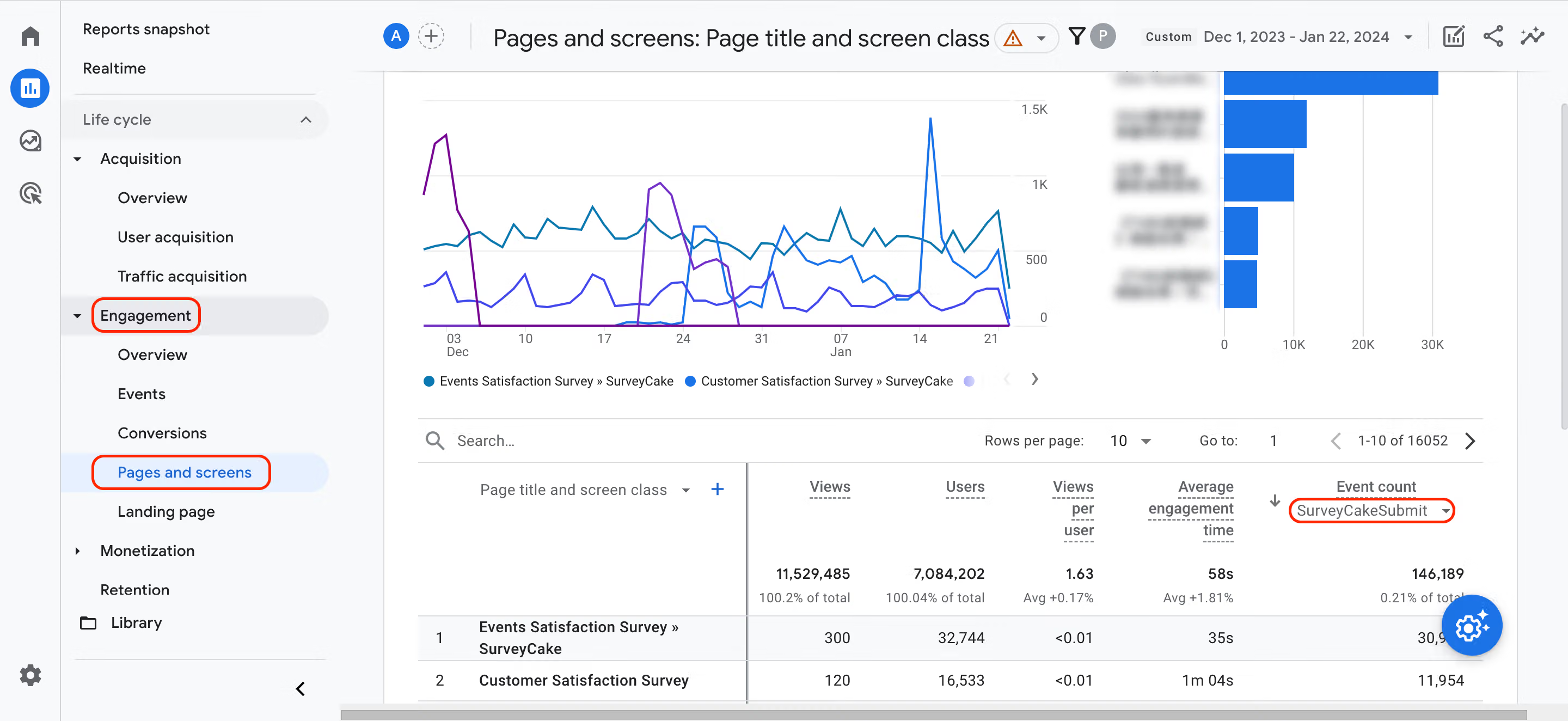
**You can navigate to the "Engagement" report, specifically the "Pages and Screens" page. Differentiate and view the SurveyCakeSubmit and SurveyCakeVisit event counts for different surveys based on the survey titles. This allows you to distinguish and analyze the data for each survey using the same GA4 tracking code.
**It's OK if you don't know anything about tracking code. SurveyCake makes it easy to track surveys!



