The Single Choice Matrix allows you to ask multiple questions using the same set of options. This format is particularly useful when evaluating multiple aspects.
In addition to the common features available across all question types (Required, Notes, Add Media, Indent, Style, and Timer), you can also add images and videos to Matrix question, freely modify the matrix options, or use preset option templates.
Let's say you would like your guests to rate their satisfaction level of the event you hosted.
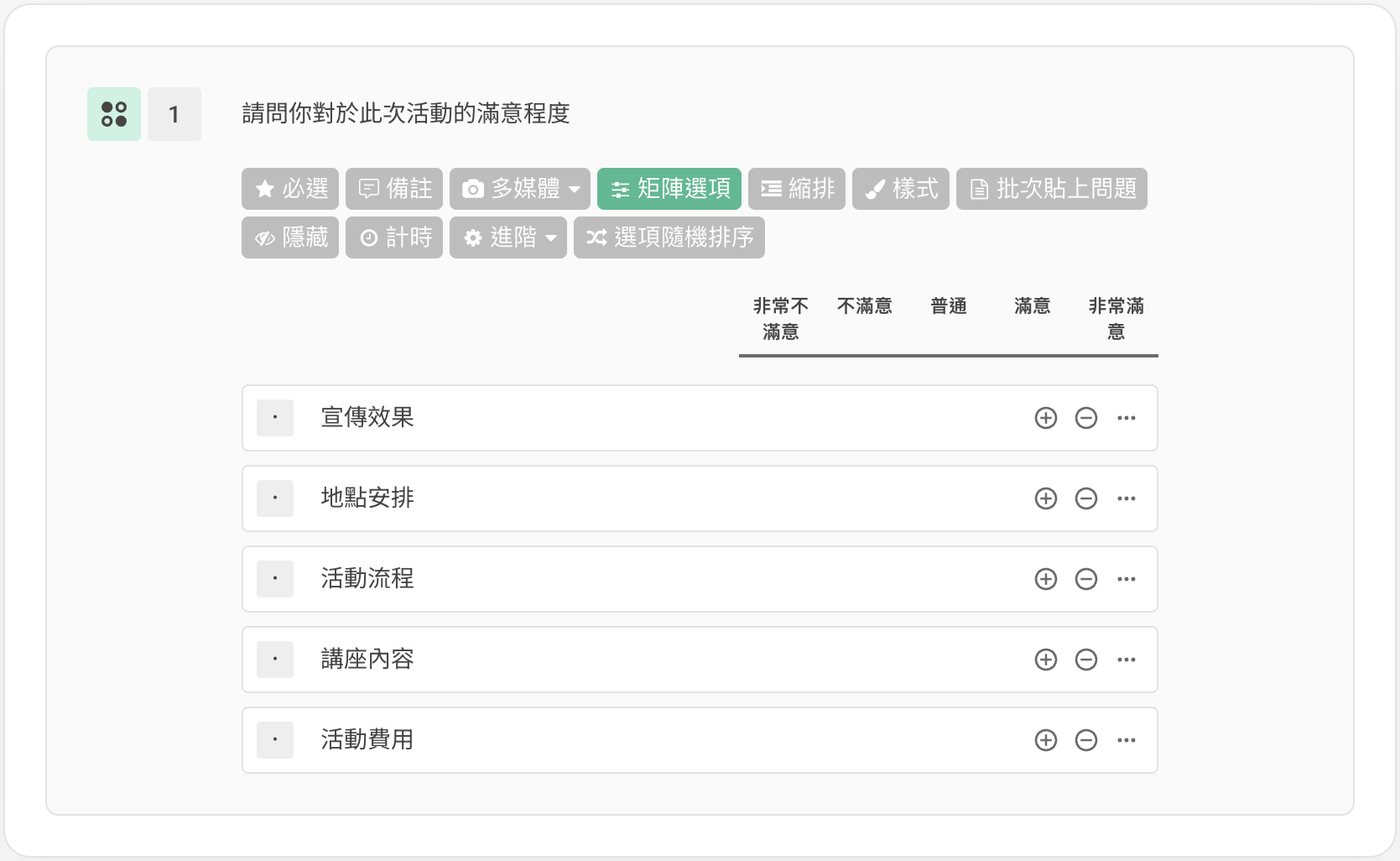
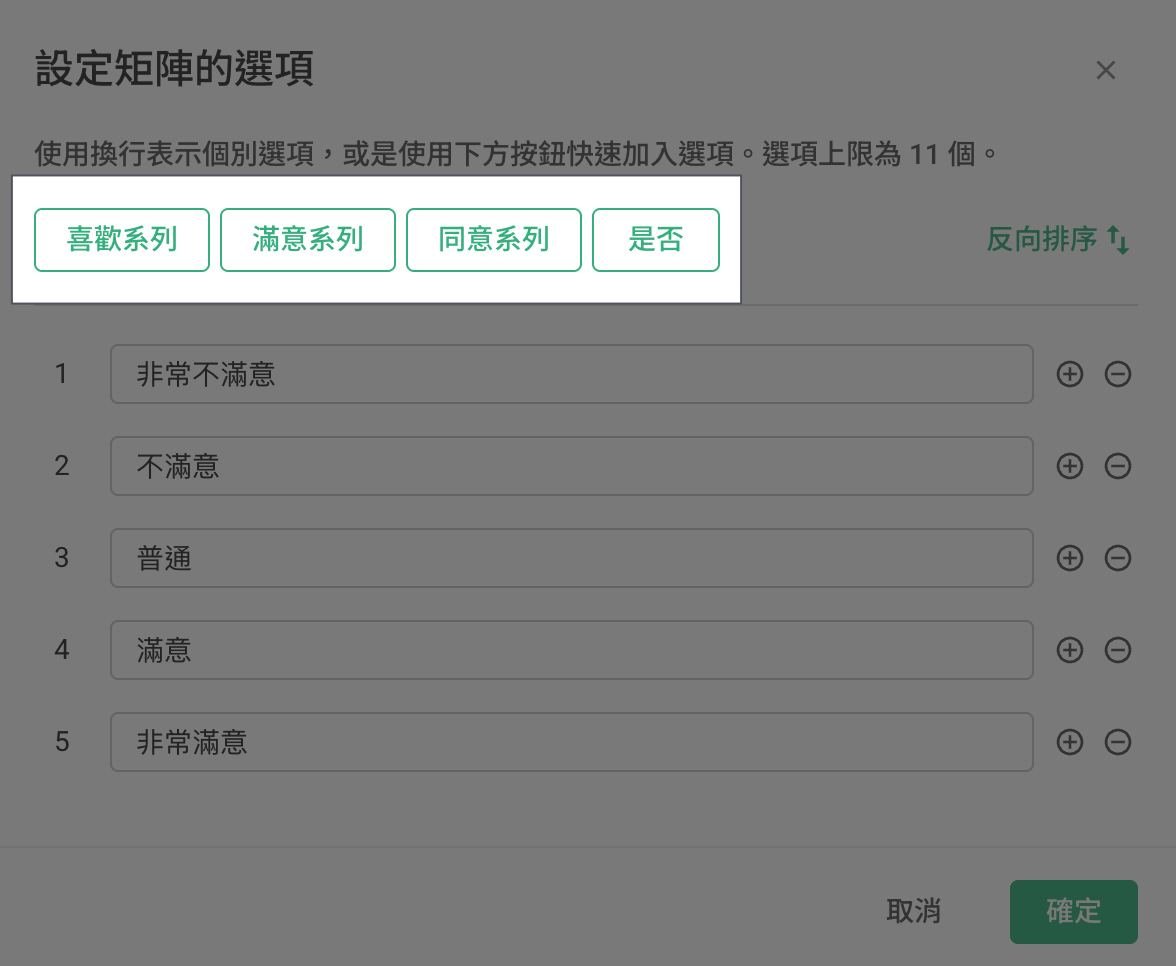
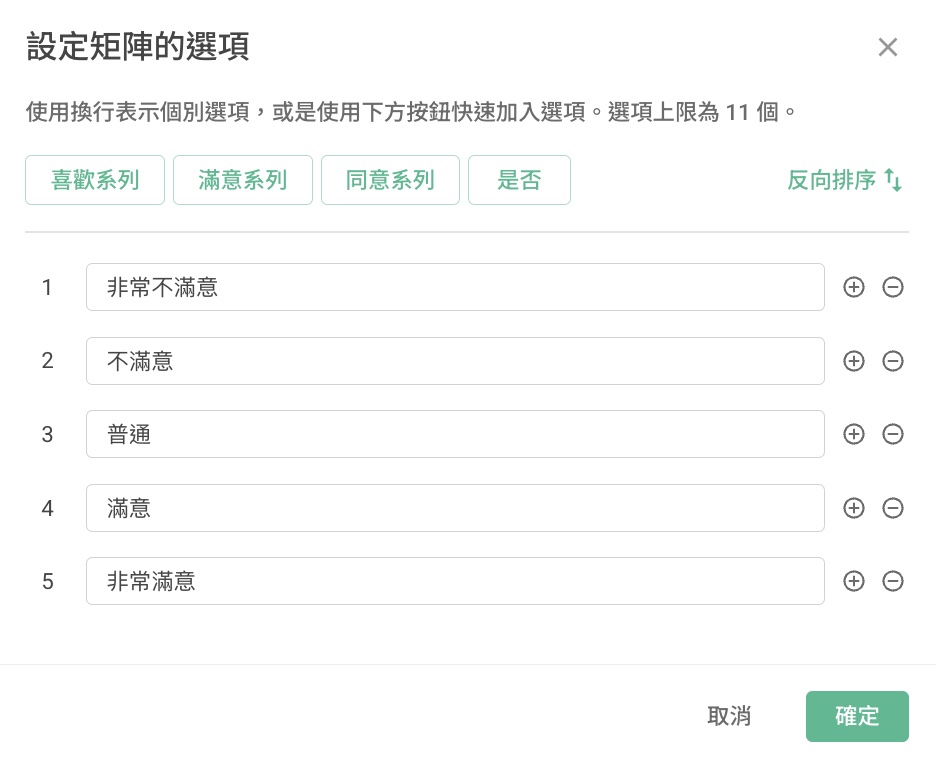
If you feel the default value of the scale 1-5 is too vague to distinguish the degree of opinions, you can change the scale options to the ones you prefer or apply the pre-set options (Ex : Preferences, Satisfactions, Agreement, Yes/No)
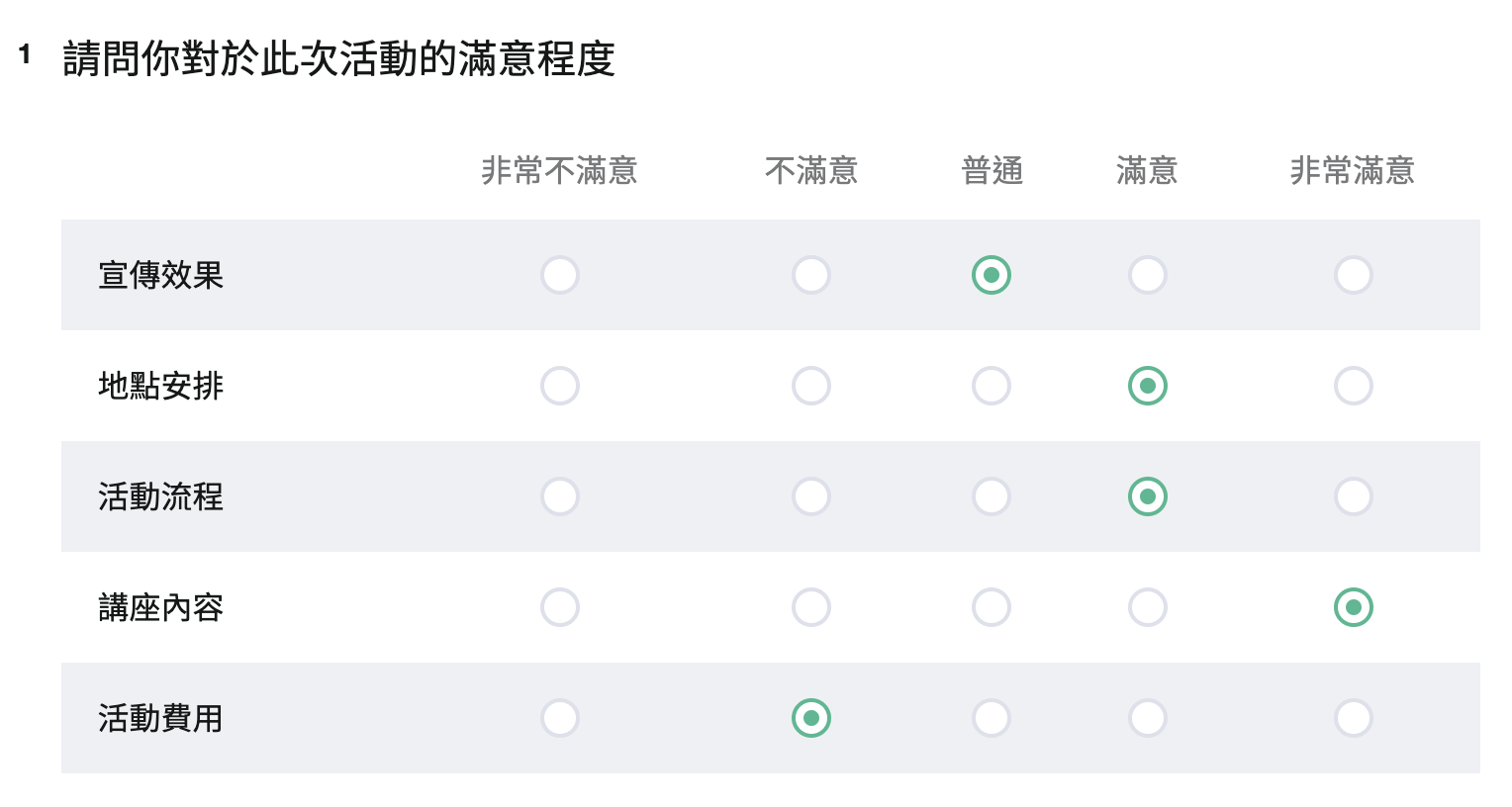
Under the scale options, respondents are able to quickly grasp the type of response that is expected.
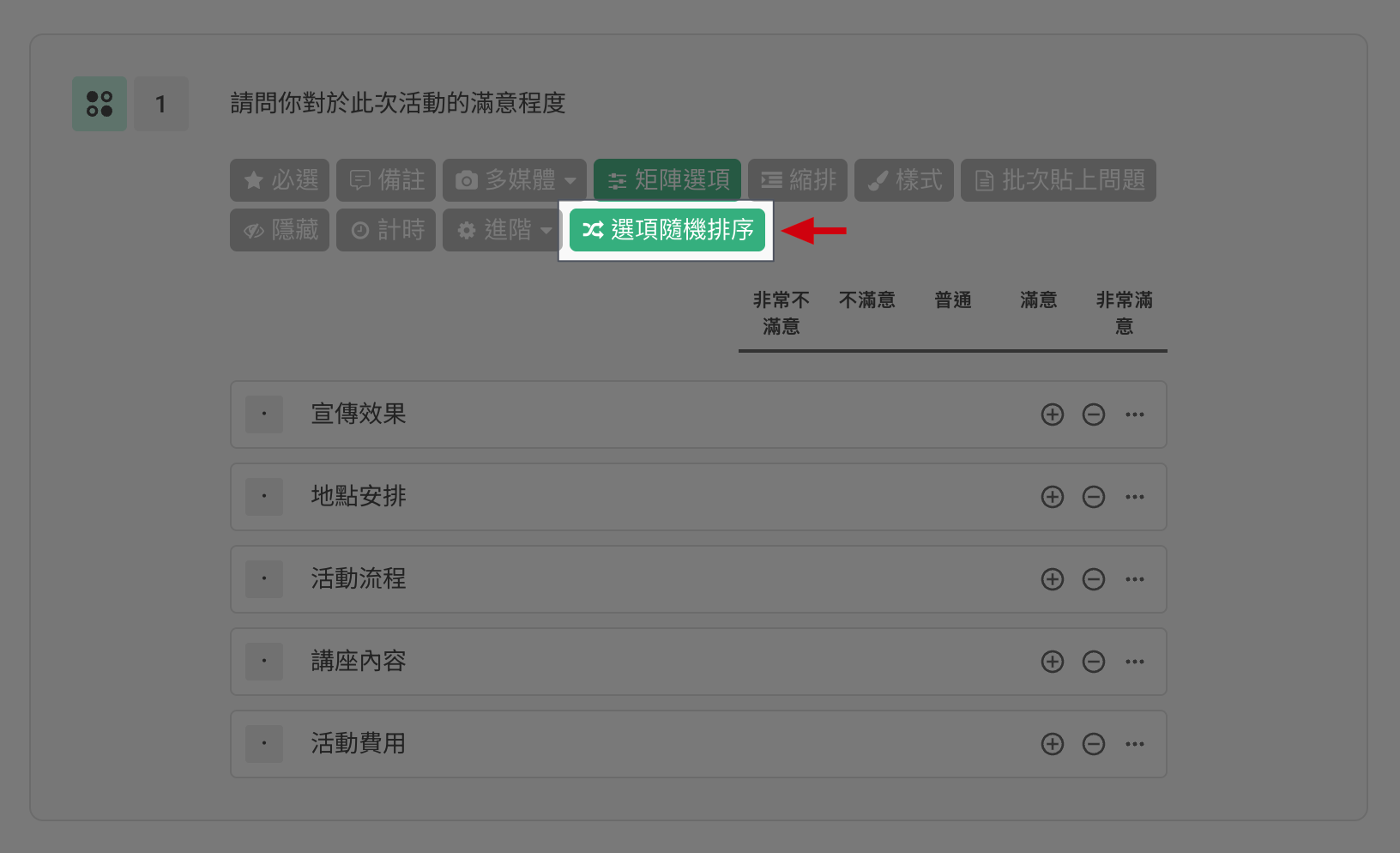
Advanced Features 1: Option Randomization
In addition to avoid response biases, you can enable "Option Randomization" in the Single Choice Matrix type questions. This allows the respondents to see different order of options each time the survey is accessed. By using this feature, the objectivity of your survey will be ensured! Simply click on the "Option Randomization" button to enable this feature. Then, select the questions that you want the option to be randomized.
Advanced Features 2: Reverse Option Order
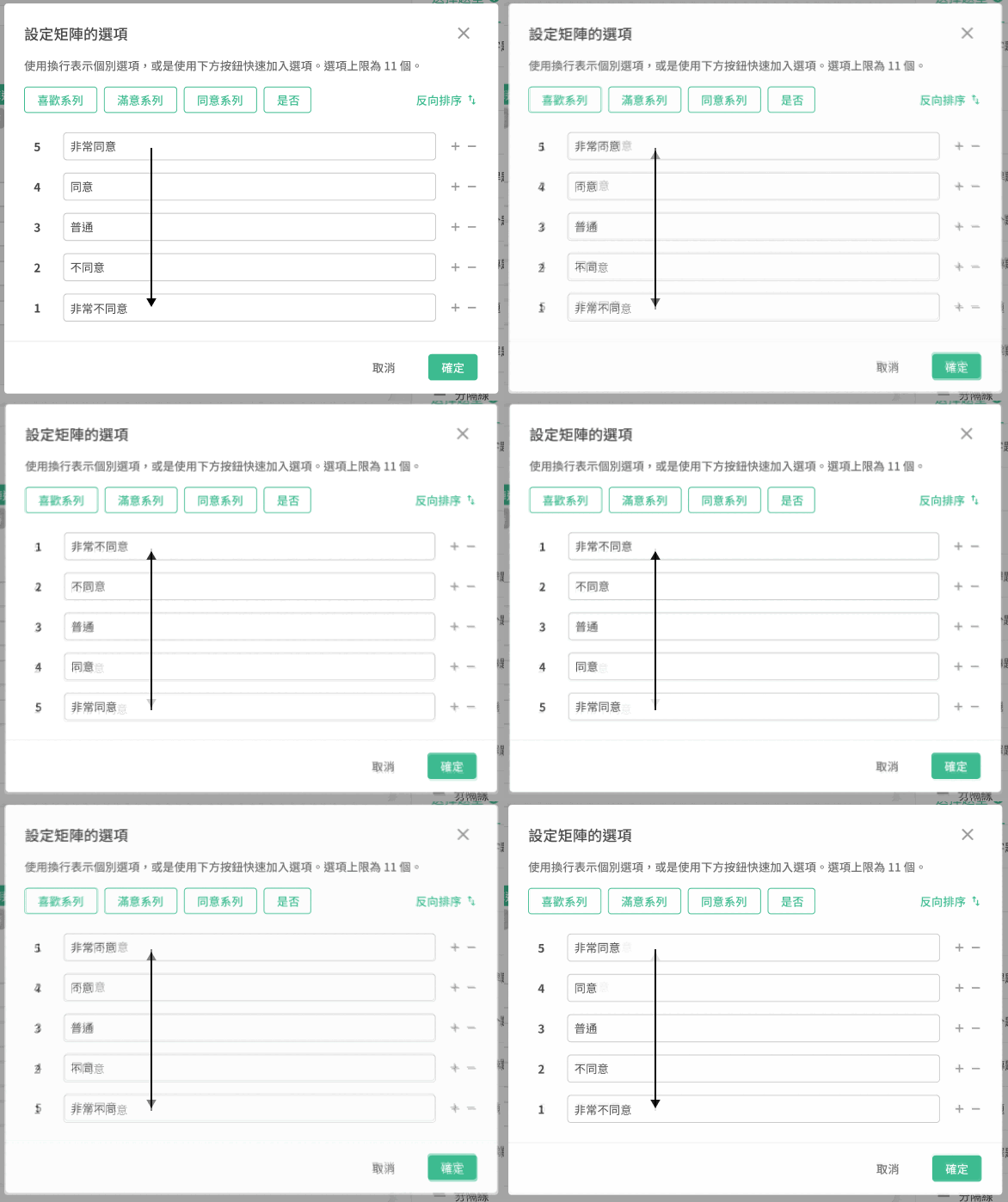
The newly added "Reverse Option Order" feature allows you to easily adjust the reverse order of matrix options without affecting the option weights.
For example, the original options are "Strongly Dislike," "Dislike," "Neutral," "Like," "Strongly Like." After reversing, the options will become "Strongly Like," "Like," "Neutral," "Dislike," "Strongly Dislike," while still maintaining the same option weights.
Advanced Features 3: Subquestion Piping
Next, we would like to introduce an advanced feature relevant to Single Choice Matrix – "Subquestion Piping"
This feature is only available on SurveyCake Enterprise
The "Subquestion Piping" feature automatically generates new Single Choice Matrix questions based on the responses selected by respondents in previous Checkboxes and Multiple Choice questions. This feature saves users time and effort that would otherwise be spent manually configuring survey questions for a second time.
Now, we will guide you through the steps of how to set up "Subquestion Piping":
First, drag and drop the Single Choice Matrix question type to the left. Then, click on the question, and you will find the option for "Subquestion Source" under this question.
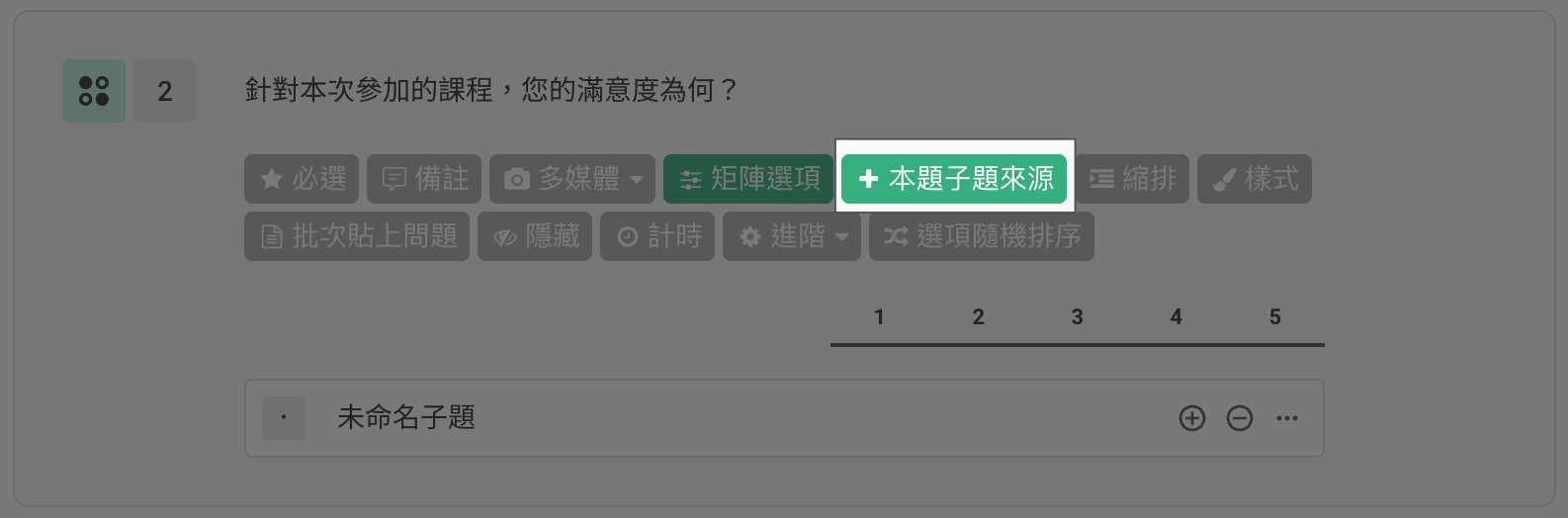
After clicking on "Subquestion Source," you can choose the questions you want to insert selected or unselected options from. Before making this setting, your survey should have the question type of "Multiple Choice" or "Checkboxes." Once you've selected the questions, the subquestion source will become the options for that question.
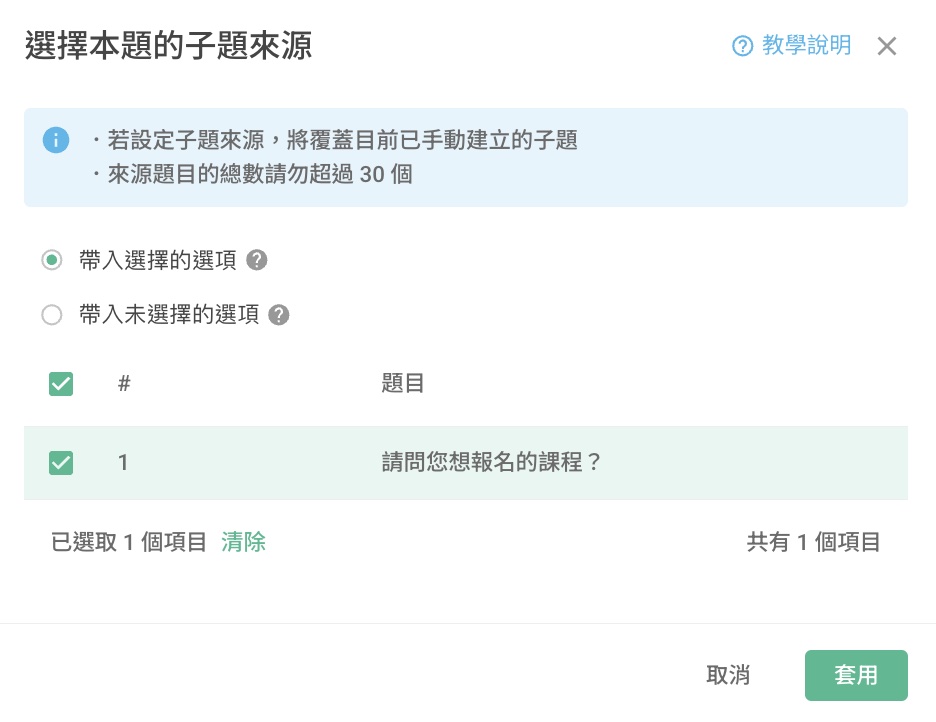
Please note that the total number of source questions should not exceed 30; otherwise, you won't be able to proceed with the configuration. Furthermore, the insertion method can be chosen based on the respondent's answers, either "Insert selected options" or "Insert unselected options" as options for this question. The differences between these two methods are explained quickly in the following videos.
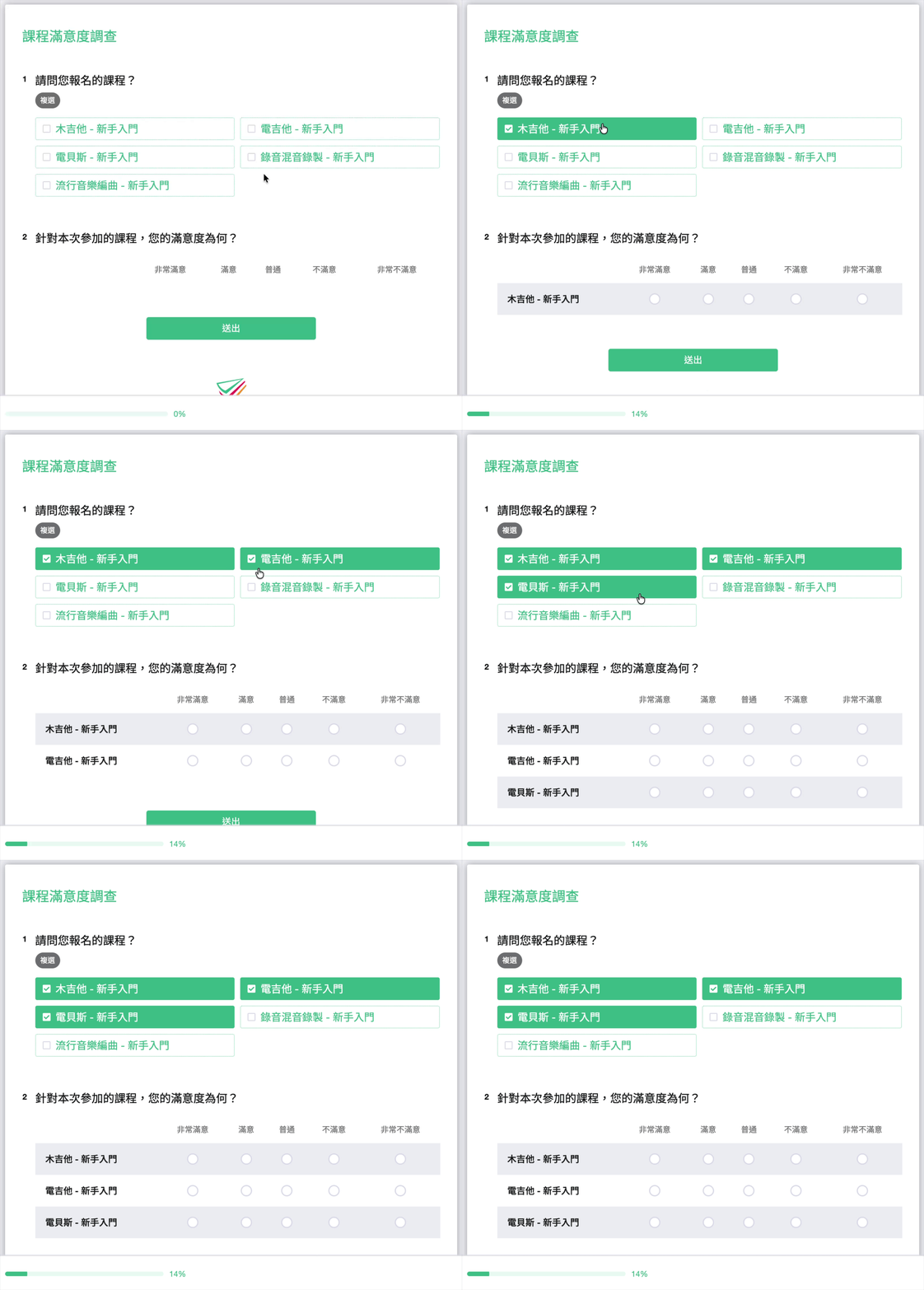
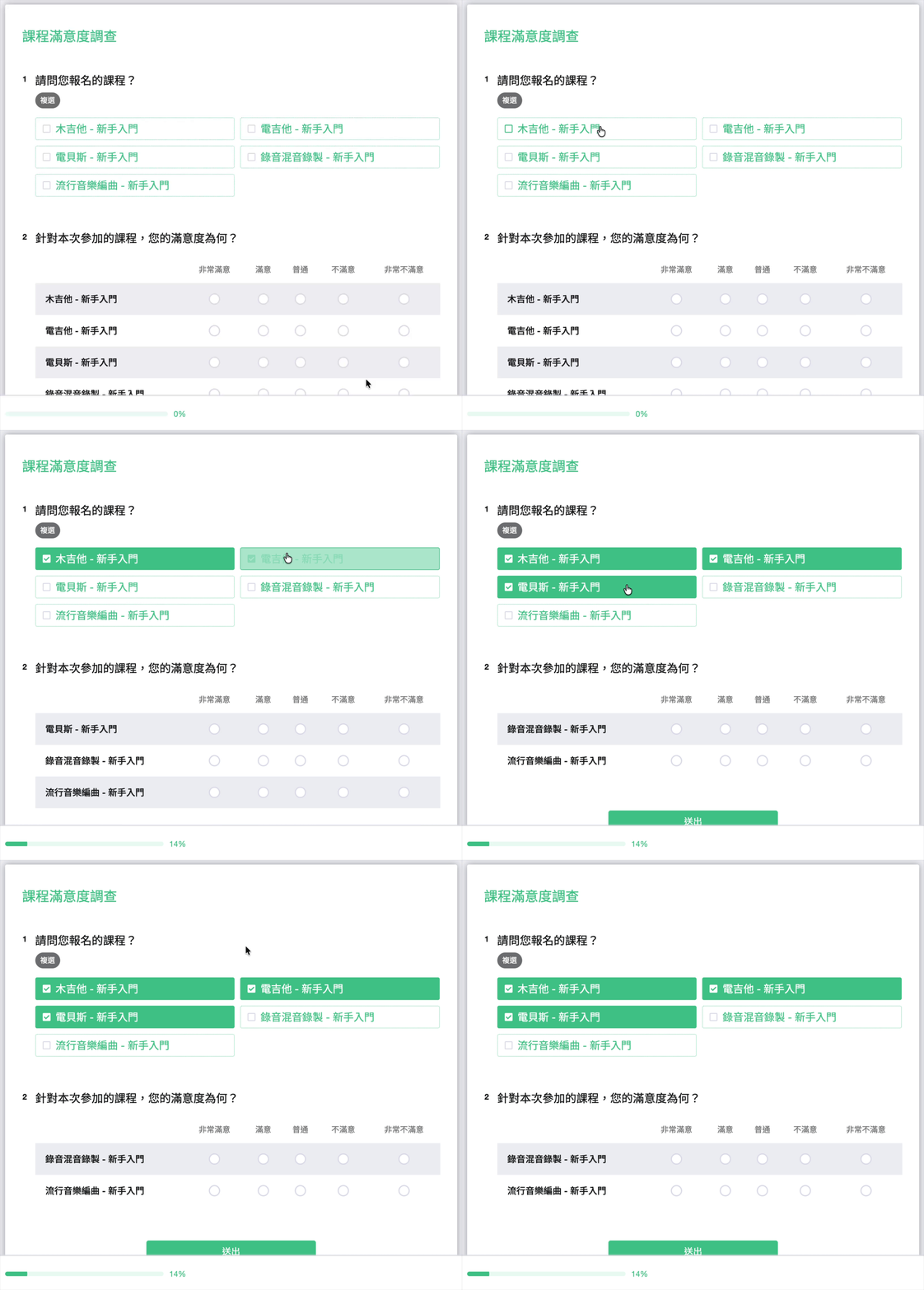
The video above demonstrates the scenario of "Insert selected options"
The video above demonstrates the scenario of "Insert unselected options"
Finally, you can further customize the "Rank Options" to align with the criteria of your question, and with that, you'll have completed the questionnaire!
If you are interested in this feature, please Contact Us for more information.
FAQ
Why is the radar chart in the matrix question displaying low scores that are different from the actual satisfaction results received? (As shown in the figure below: The satisfaction level for "Registration fee" is very high, but the weighted average score on the radar chart is only 1.6)
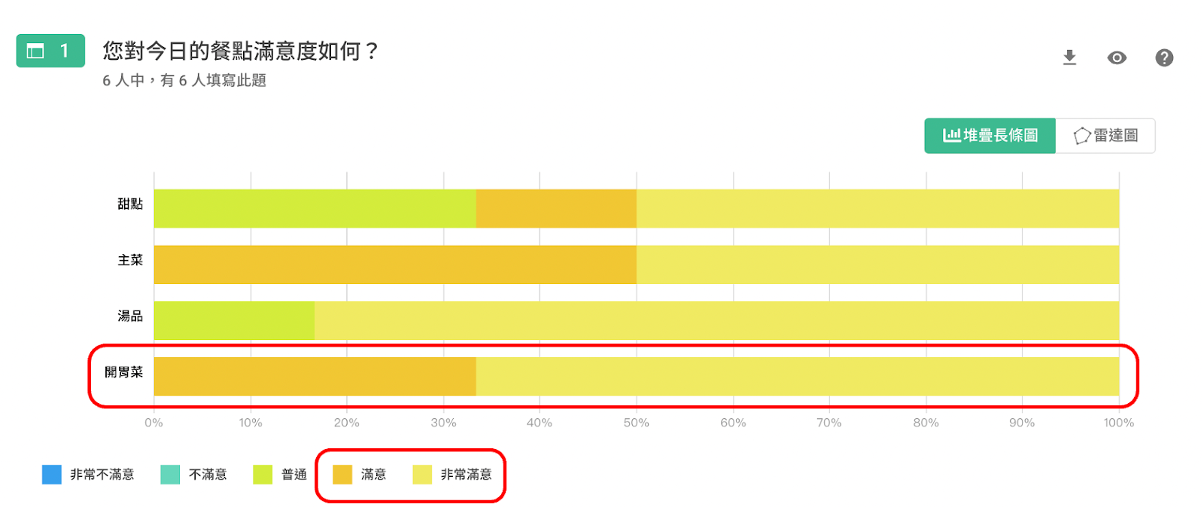
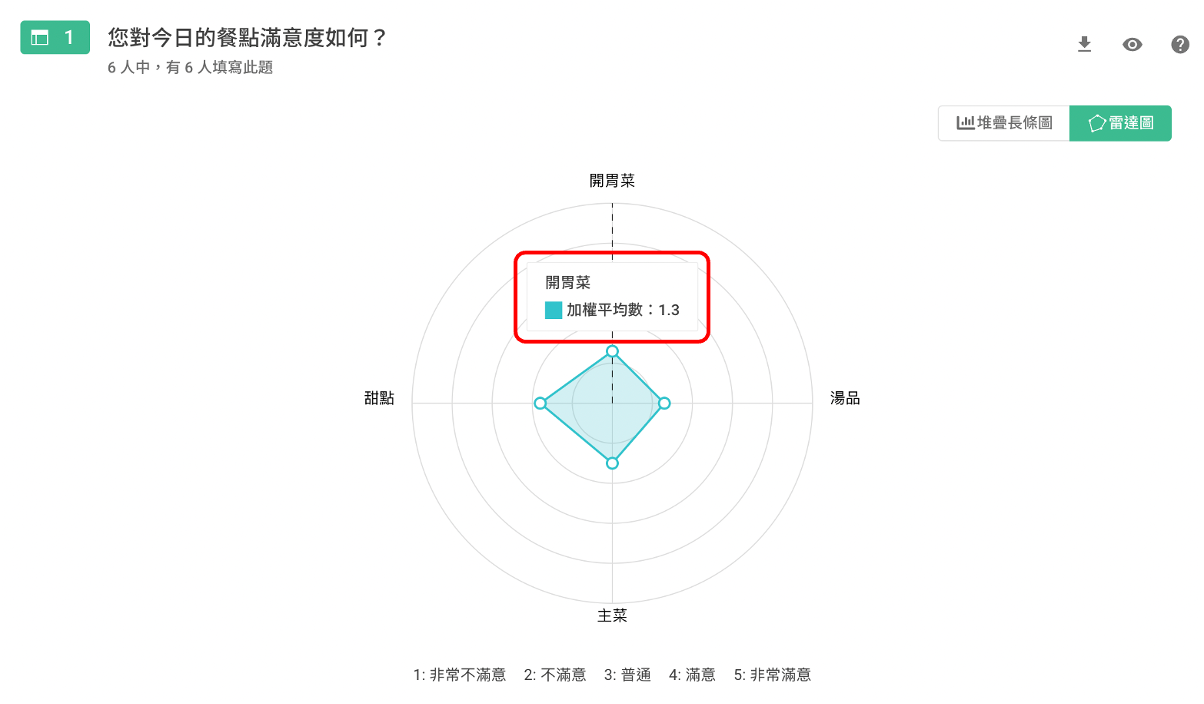
This can happen because you have set the weights for the matrix options in reverse order.
The Radar Chart calculates the weighted average based on "the number of times an option is selected multiple by its weight." Therefore, if the weights are set incorrectly, it will directly result in abnormal weighted average scores.
When setting the weights for matrix options, the more negative the description, the lower the weight should be, starting from 1 as the minimum weight.
For example, in the "Satisfactions" of matrix pre-set options: the weight for "Very Dissatisfied" should be set as the lowest value of 1, "Dissatisfied" should be the second lowest with a weight of 2, "Neutral" should have a weight of 3, and so on.
In the case of the event satisfaction shown in the above figure, even though it's very high, the radar chart displays an extremely low score of 1.3 because the weights for all matrix options were mistakenly set in reverse order (e.g. setting "Very Satisfied" with the lowest weight of 1, and so on).
Continuing the above scenario, how to fix the results if I just found out that the weight settings are wrong after receiving the answer from respondents?
You can go back to the "Design" page and adjust the weight of the Matrix question options by "dragging" them.
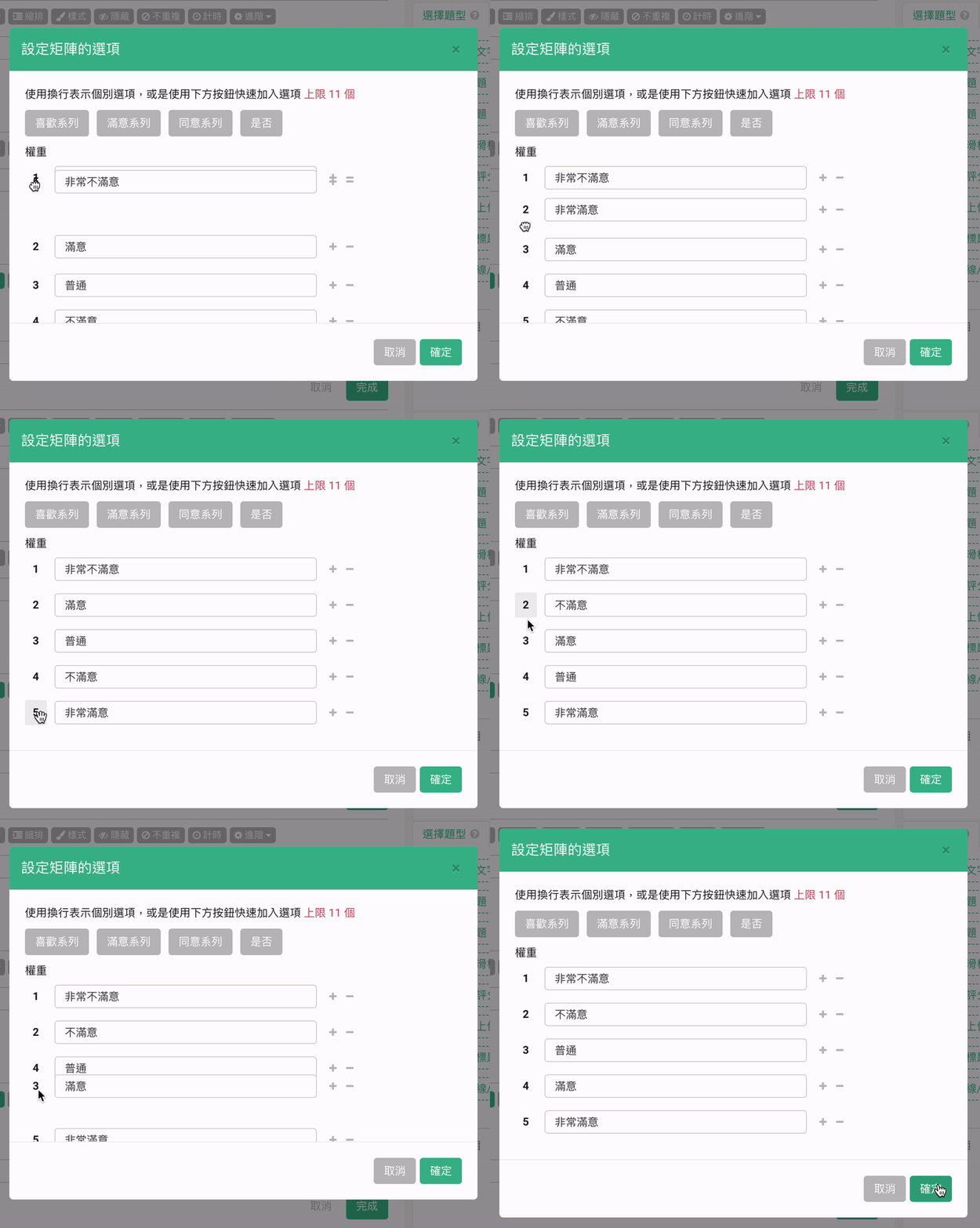
After adjusting, the Radar Chart in the backend data system will simultaneously display the correct weighted average!
Please DO NOT directly delete the matrix option that was originally set wrong, in order not to cause the loss of recovered data!
Can I change the order of matrix options from left to right?
No, you can't. The arrangement of Matrix options from left to right follows a fixed weight order, where options on the right side must have heavier weights, representing more positive descriptions or higher scores.
If you notice that the matrix options' descriptions become more negative towards the right side, it indicates that your weight settings were reversed. In this case, you can refer back to the solution provided in the 1st question to make the necessary corrections.
Can I adjust the text style of the Matrix sub-questions? (For example in the figure below, the text "Event Agenda", "Promotion", etc)
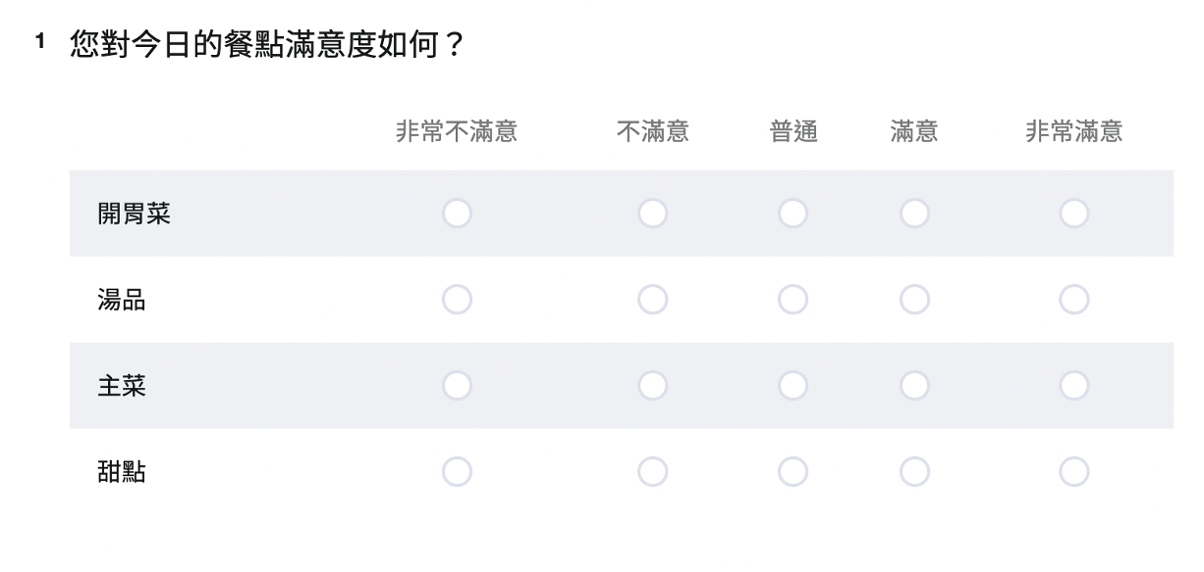
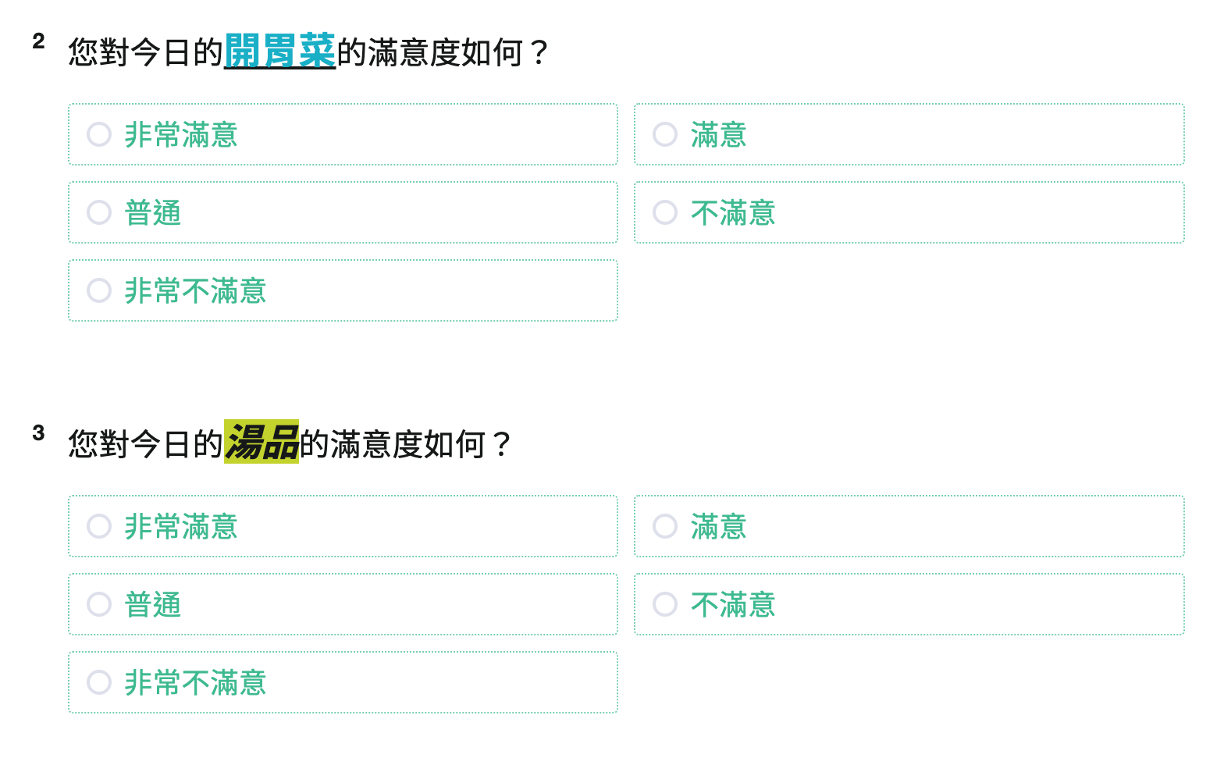
No, you can't. Currently, only the main question in a matrix question can use the text style options to adjust colors, size, or font boldness, etc. If you wish to change the text style of matrix sub-questions, it is recommended to convert each matrix sub-question into a separate Multiple Choice Question and then adjust the question text style accordingly.
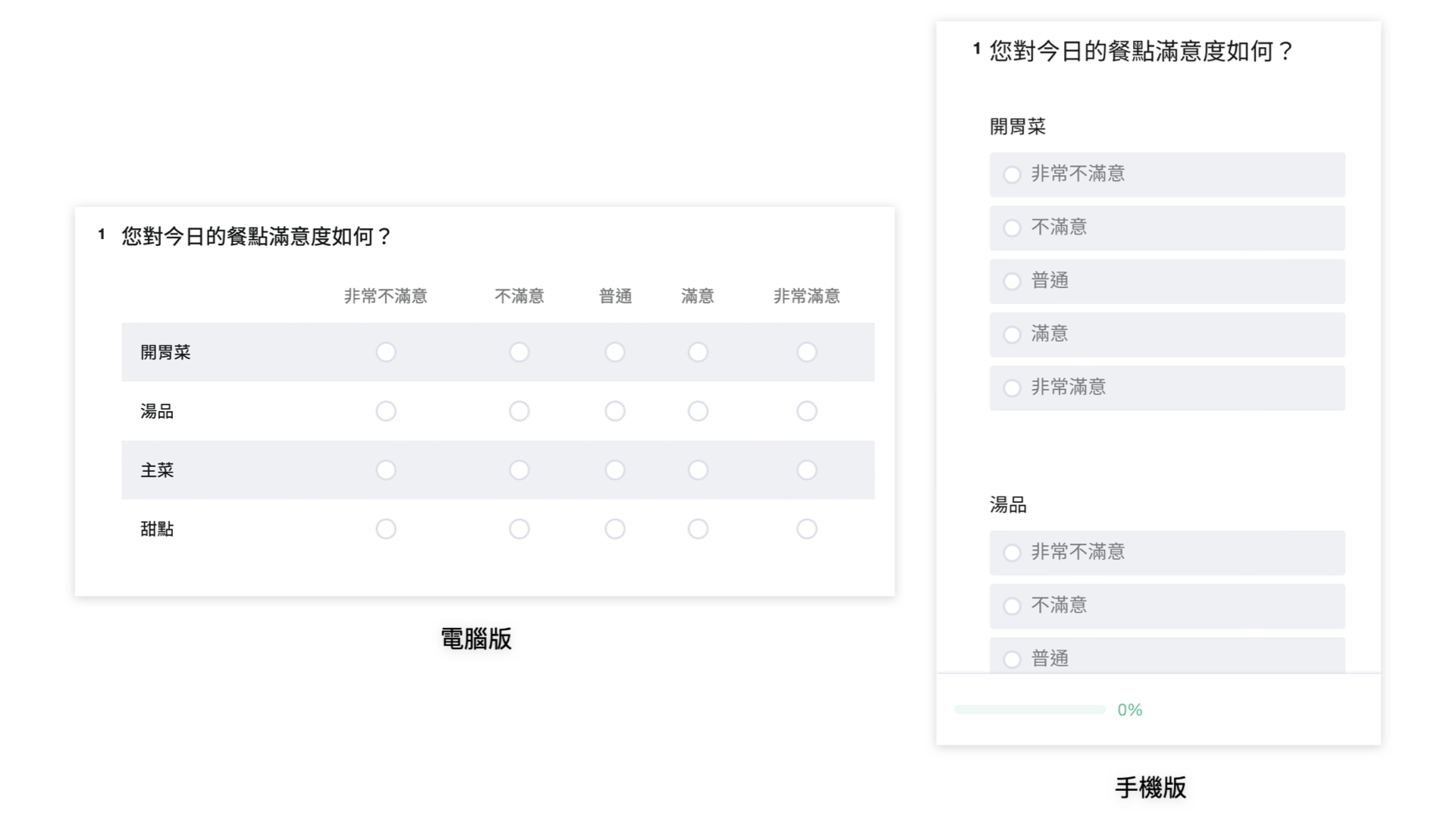
Why are the question types of matrix questions displayed differently on mobile phones and desktop?
This is due to the different screen aspect ratios between mobile phones and desktop. To ensure that respondents using mobile devices can clearly view the matrix sub-questions and options, the matrix question is presented with each sub-question individually on mobile devices. This responsive design optimizes the survey experience for both mobile and desktop users.
Summary
Single Choice Matrix is not only efficient when designing questions of a similar style, but it also enables respondents to answer these types of questions in one go. Matrix is very handy for surveys, don't forget about it when designing yours!