The Conditional Template feature allows you to save multiple conditions in Advanced Logic for future use. This makes it easier to quickly apply them to other logic settings, eliminating the need to repeatedly enter the same conditions. With conditional templates, you can build logic more quickly and consistently.
Conditional Templates only support Advanced Logic. We recommend becoming familiar with Advanced Logic first to better understand the limitations and setup of Conditional Templates.
Open Conditional Template Setup
Go to the survey backend, then on the Build page, find the Logic section in the left sidebar. Click Advanced Logic to open the Conditional Template Setup.
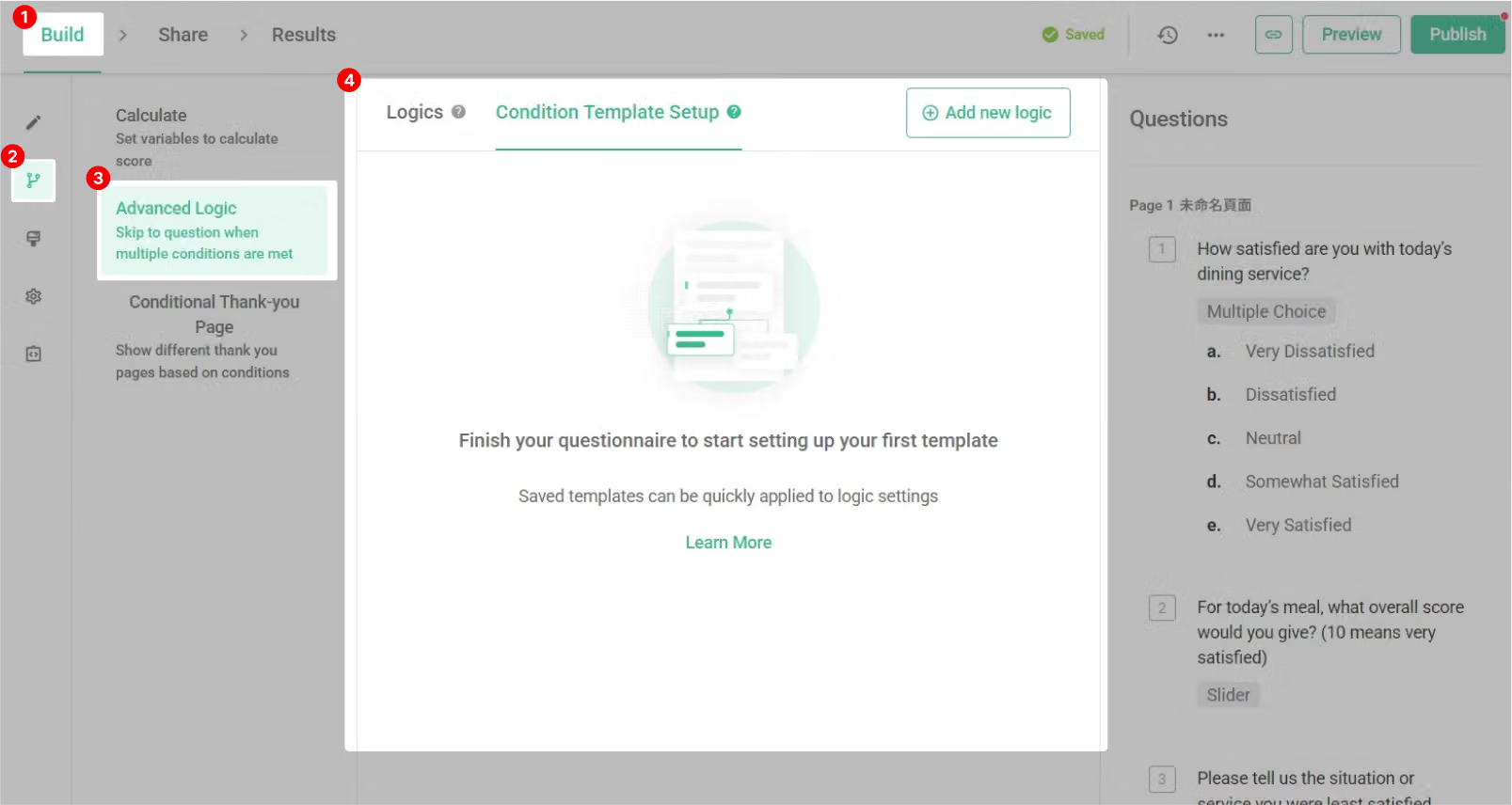
Add a Conditional Template
Click Add new logic at the top right of the Conditional Template Setup window to create a blank conditional template.
You can rename it in the Template name field to make it easier to identify when applying later.
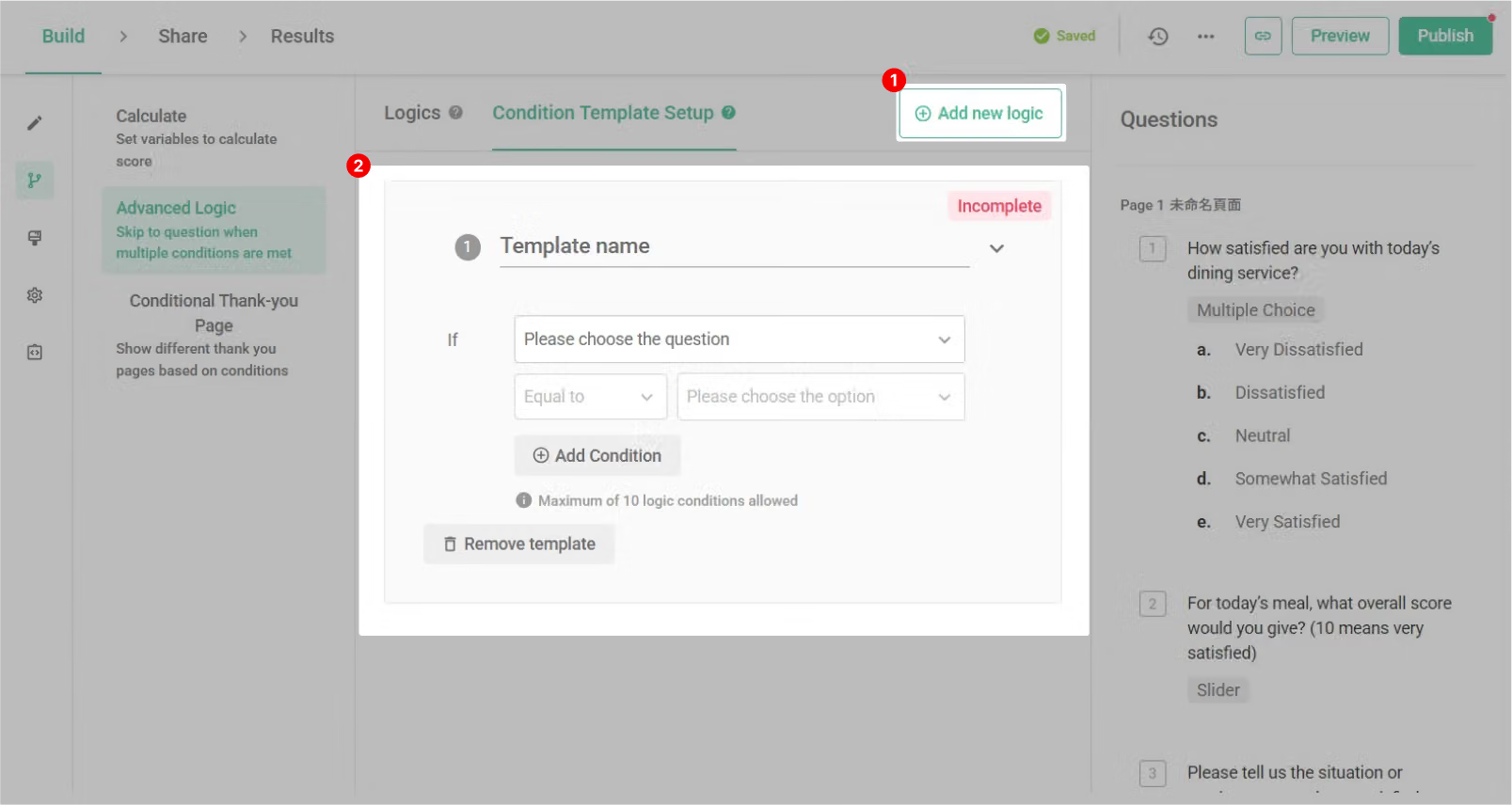
If you want to add multiple conditions to the same template, click Add Condition to include additional question conditions.
Once created, the conditions will be saved automatically. A template must contain at least 1 condition in order to be saved.
Apply a Conditional Template to Your Survey
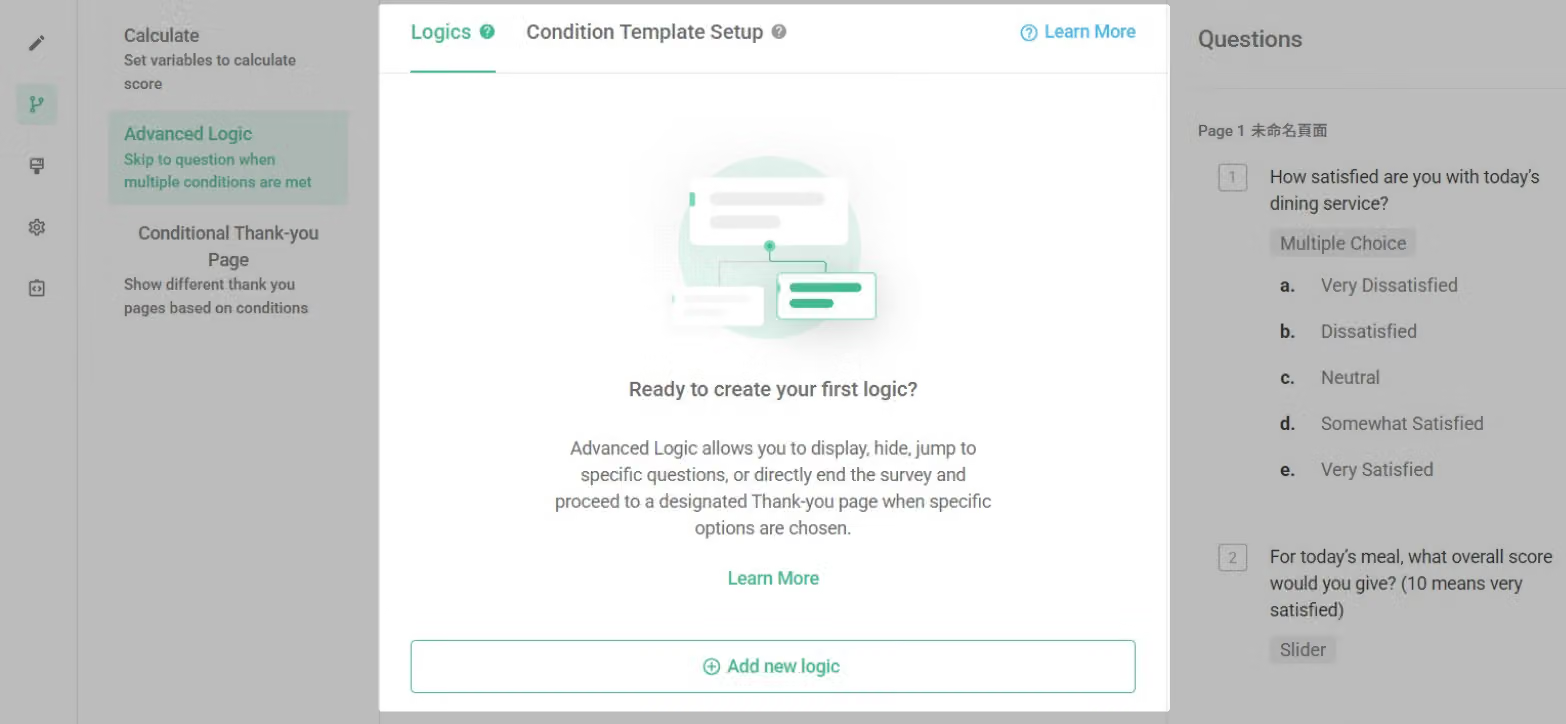
Inside the Advanced Logic → Logic section, click Add new logic or edit an existing logic setting.
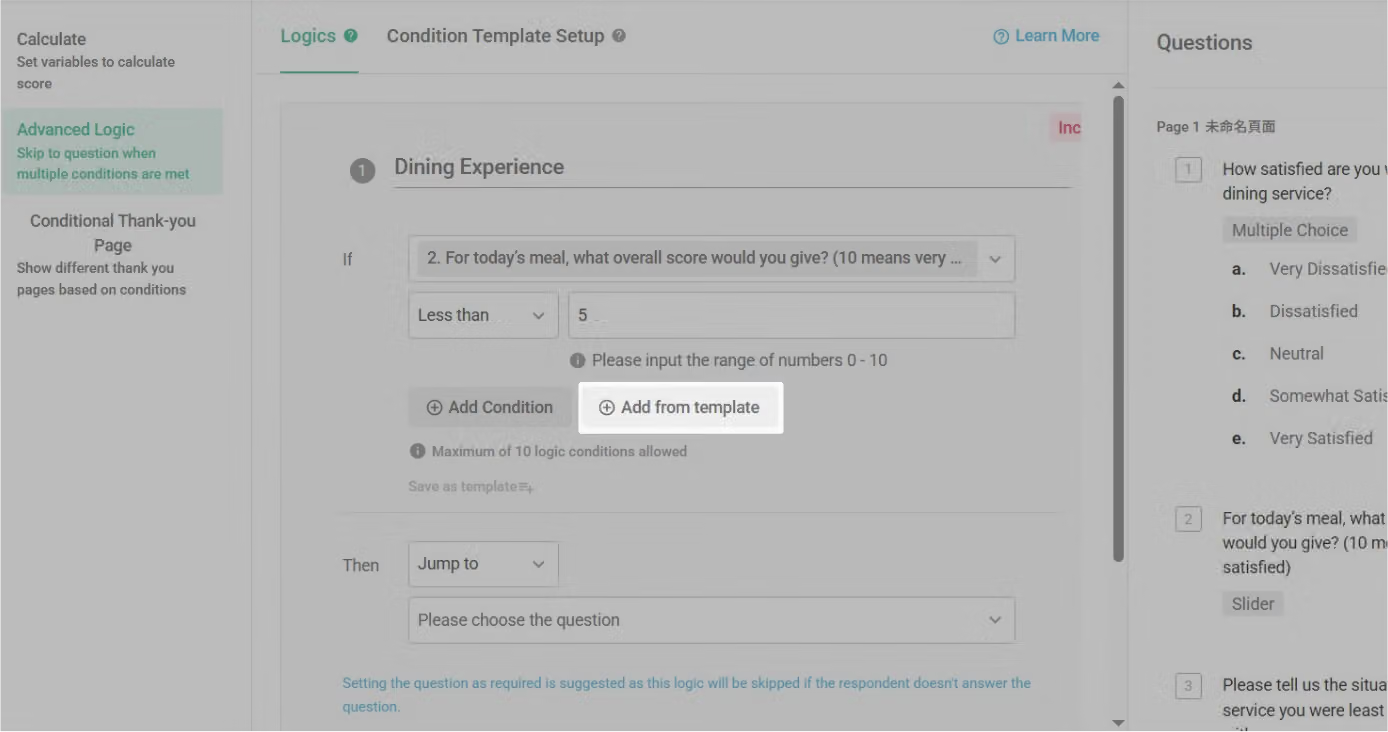
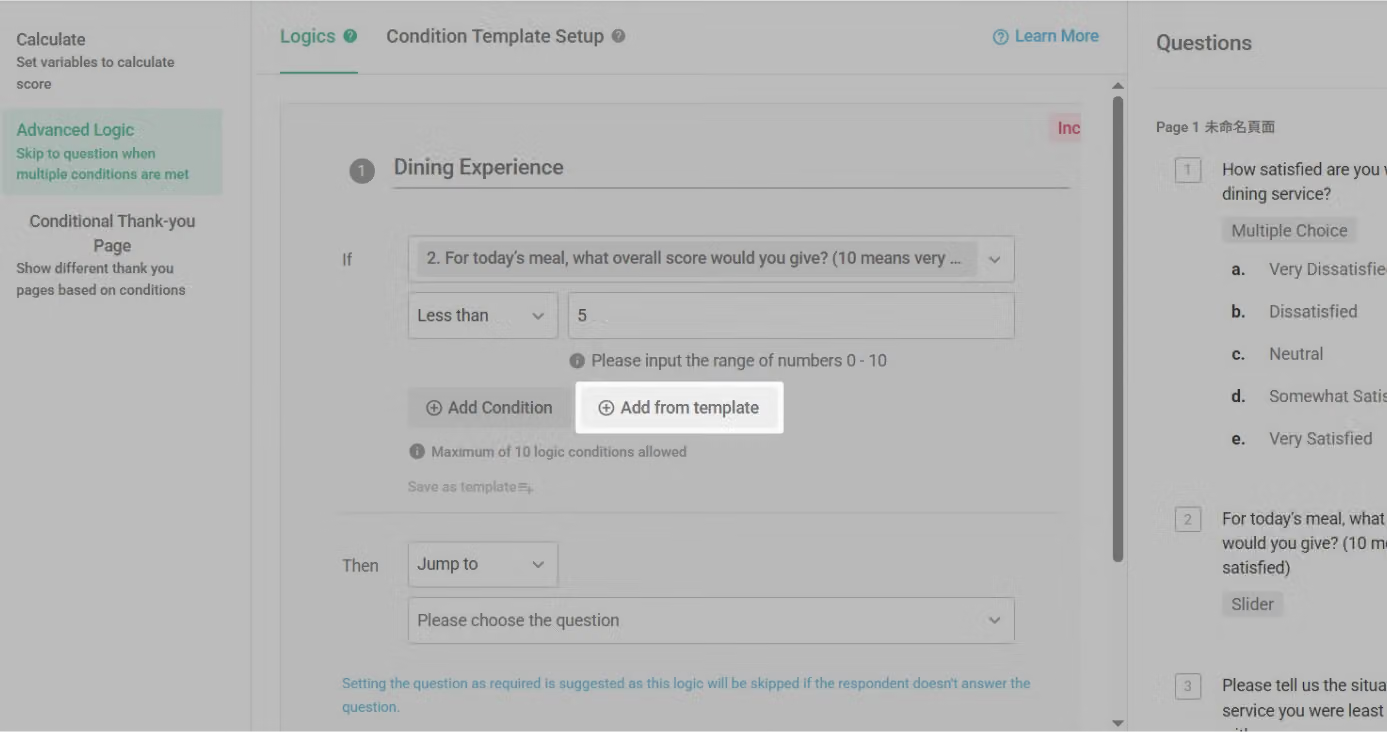
On the logic settings page, select Add from template to open the conditional template selection window.
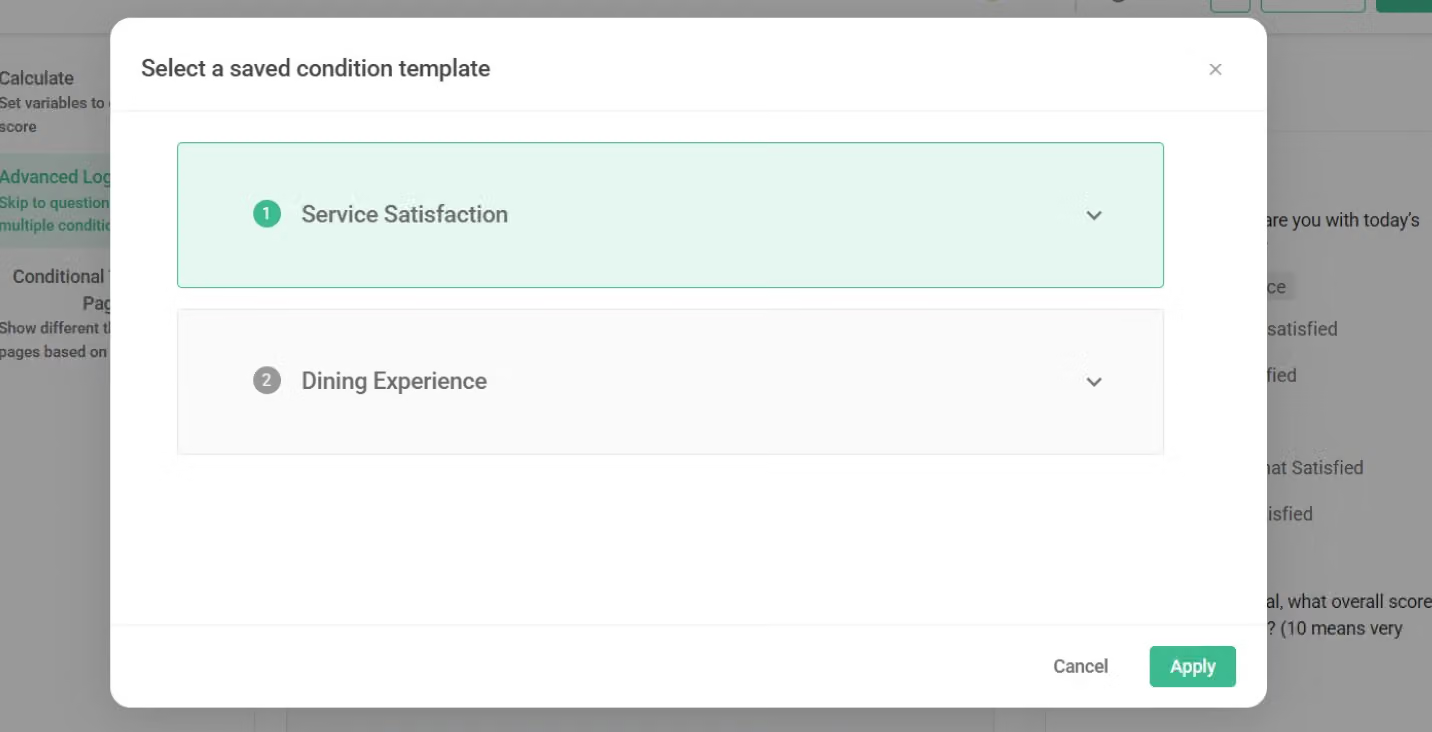
You can view your saved conditional templates and select one template at a time to apply. Click Apply to confirm.
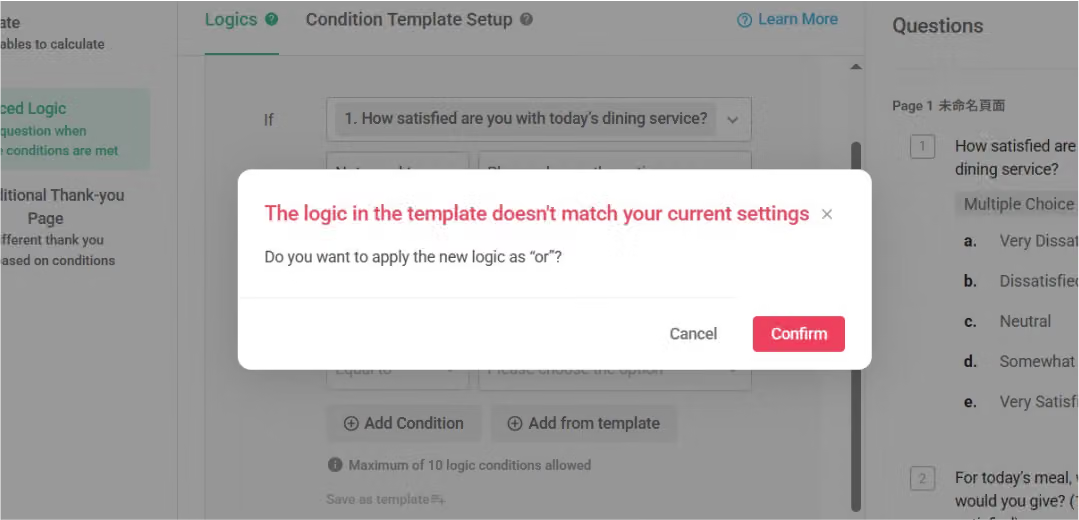
After applying, the system will check the condition logic (and / or) for consistency and duplicates.
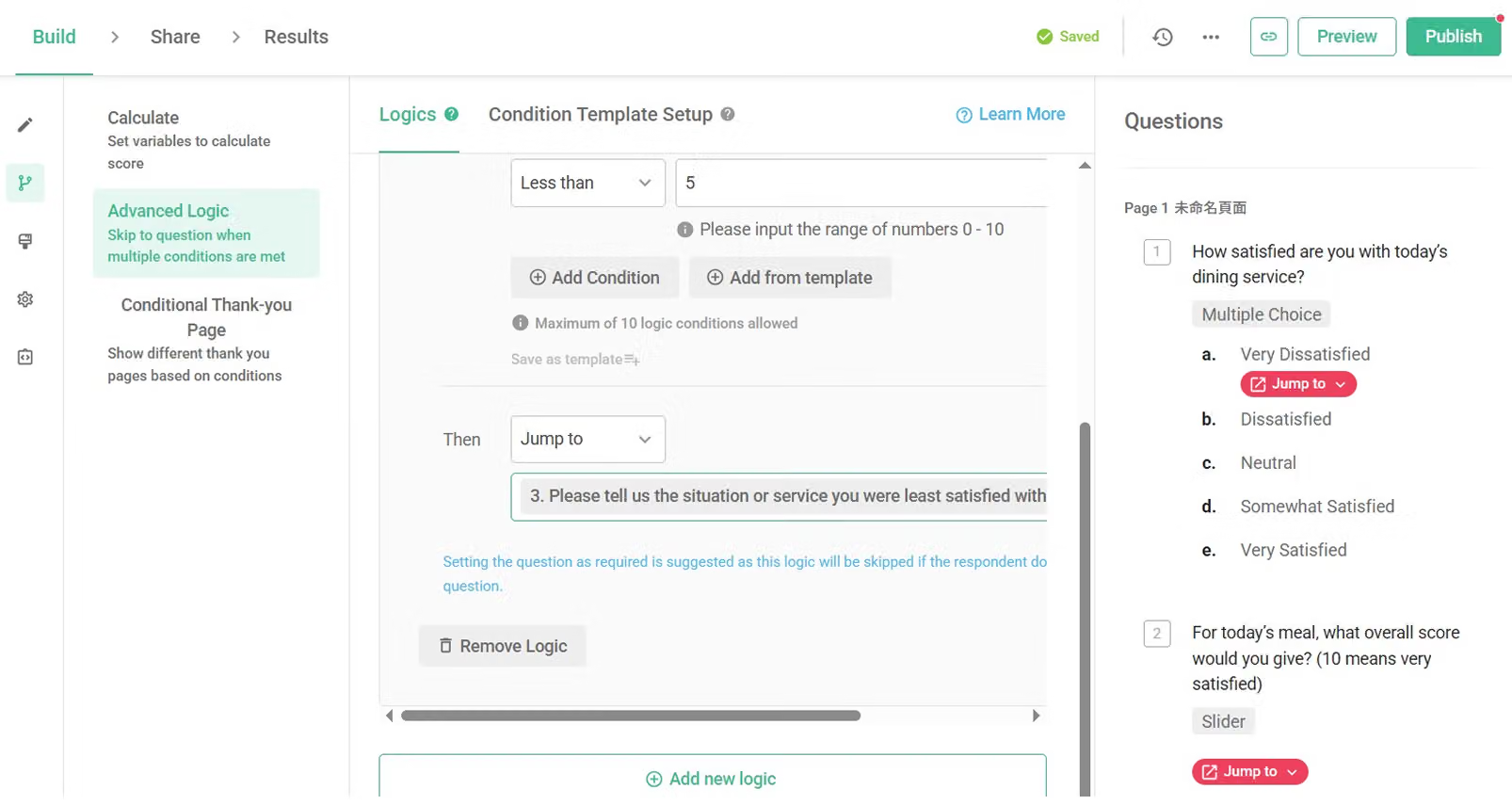
Once confirmed, the conditional template will be applied directly into Advanced Logic.
Save as a Conditional Template
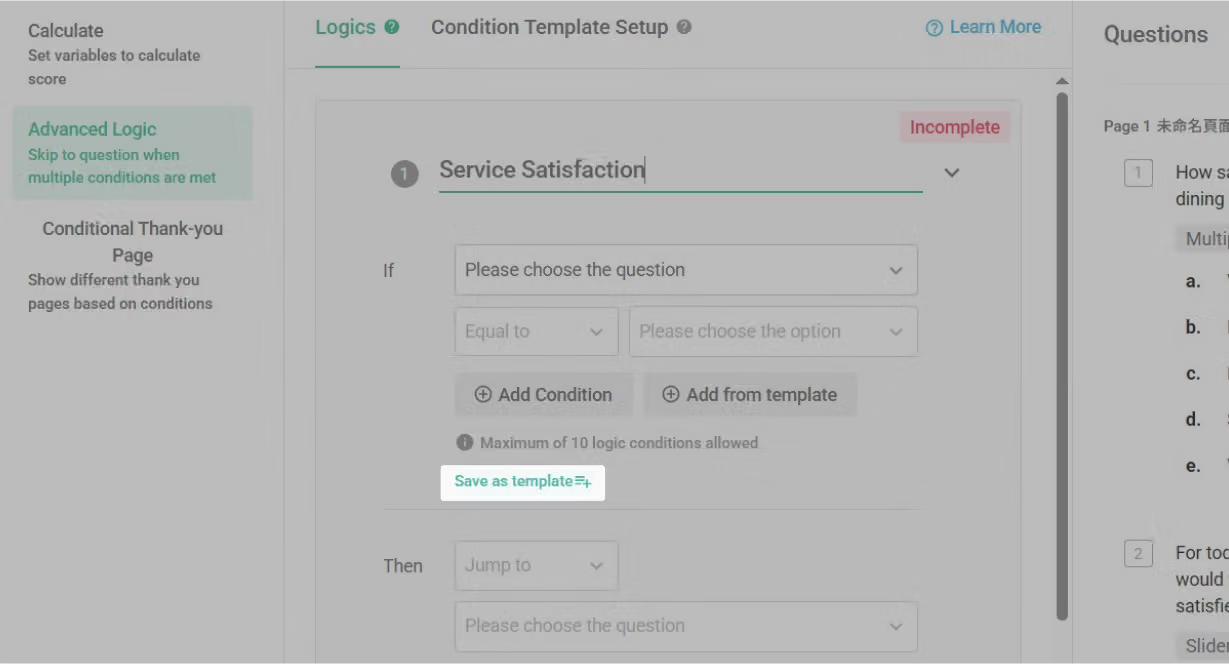
If you want to save an existing logic setting as a new conditional template, click Save as conditional template at the bottom of the logic setting.
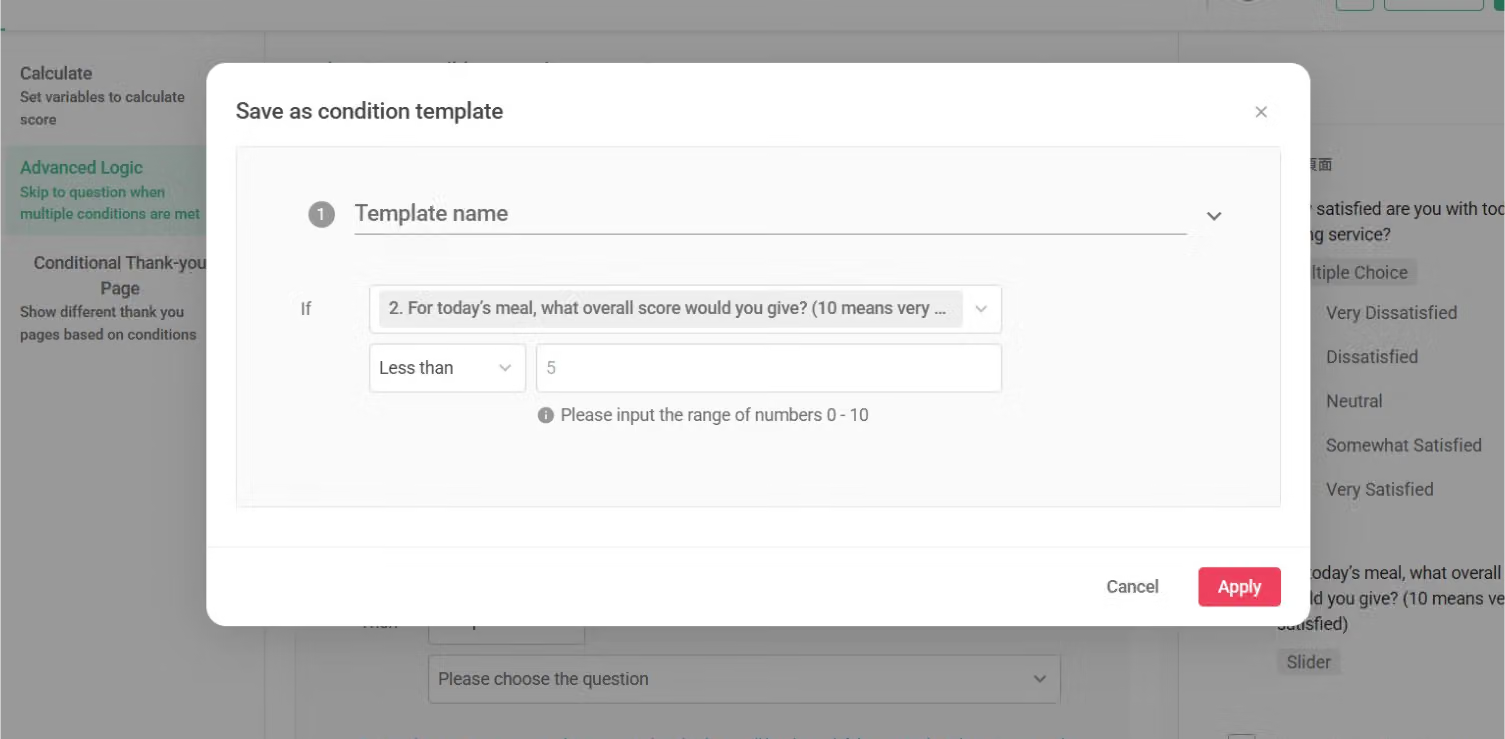
A popup will appear. Click Apply to save the logic as a new conditional template.
Limitations of Conditional Templates
By using Conditional Templates, you can quickly apply frequently used logic conditions, reduce repetitive setup, minimize errors, and make your survey building more efficient and consistent!
截圖問卷題目文字
How satisfied are you with today’s dining service?
For today’s meal, what overall score would you give? (10 means very satisfied)
Please tell us the situation or service you were least satisfied with.
Service Satisfaction
Dining Experience



