Unlike "Skip Logic" and "Conditional Branching," which only support basic logic directing respondents to specific questions upon selecting certain answers, Advanced Logic provides the capability to establish multiple conditions for triggering skips. It introduces logic operators like "not equal to," "contains," and "does not contain." This empowers survey creators to design surveys with greater flexibility, enabling the achievement of diverse goals.
Before starting the setup, please note:
Next, we will use Checkboxes and Multiple Choice questions as examples to illustrate how to proceed with the setup of "advanced logic." The later part of the article will provide further explanations for different question types.
I. Enabling Advanced Logic
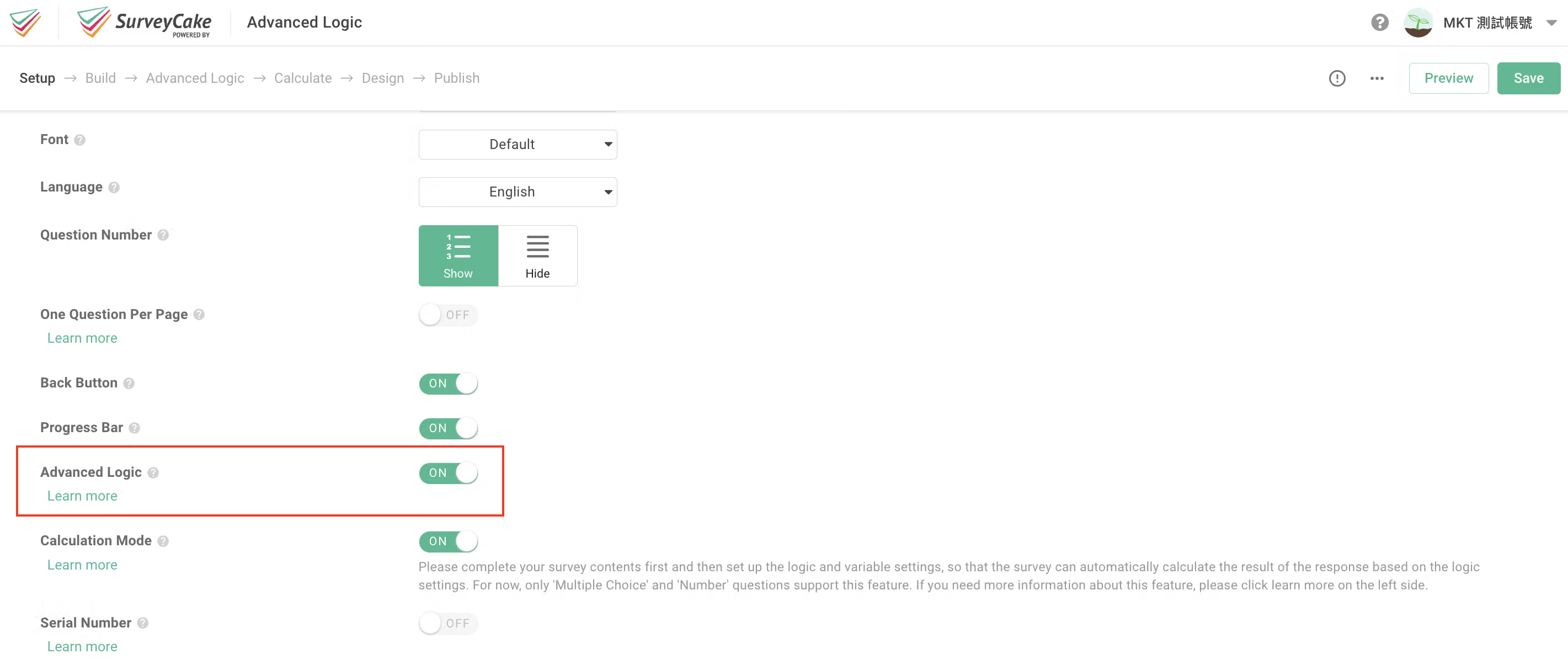
First, go to the "Survey Settings" page within your survey's backend. You will find the toggle switch for "Advanced Logic" under the General Settings. Once you enable the "Advanced Logic" feature and create your questions, you can set up Advanced Logic and specify thank-you pages for questions and answer options!
II. Logic Settings
In Advanced Logic, you can choose between single-condition skip logic and multi-condition skip logic. You can set up a single condition or multiple conditions to trigger specific actions (if... then...). The available actions include showing, hiding, skipping to, and ending the survey.
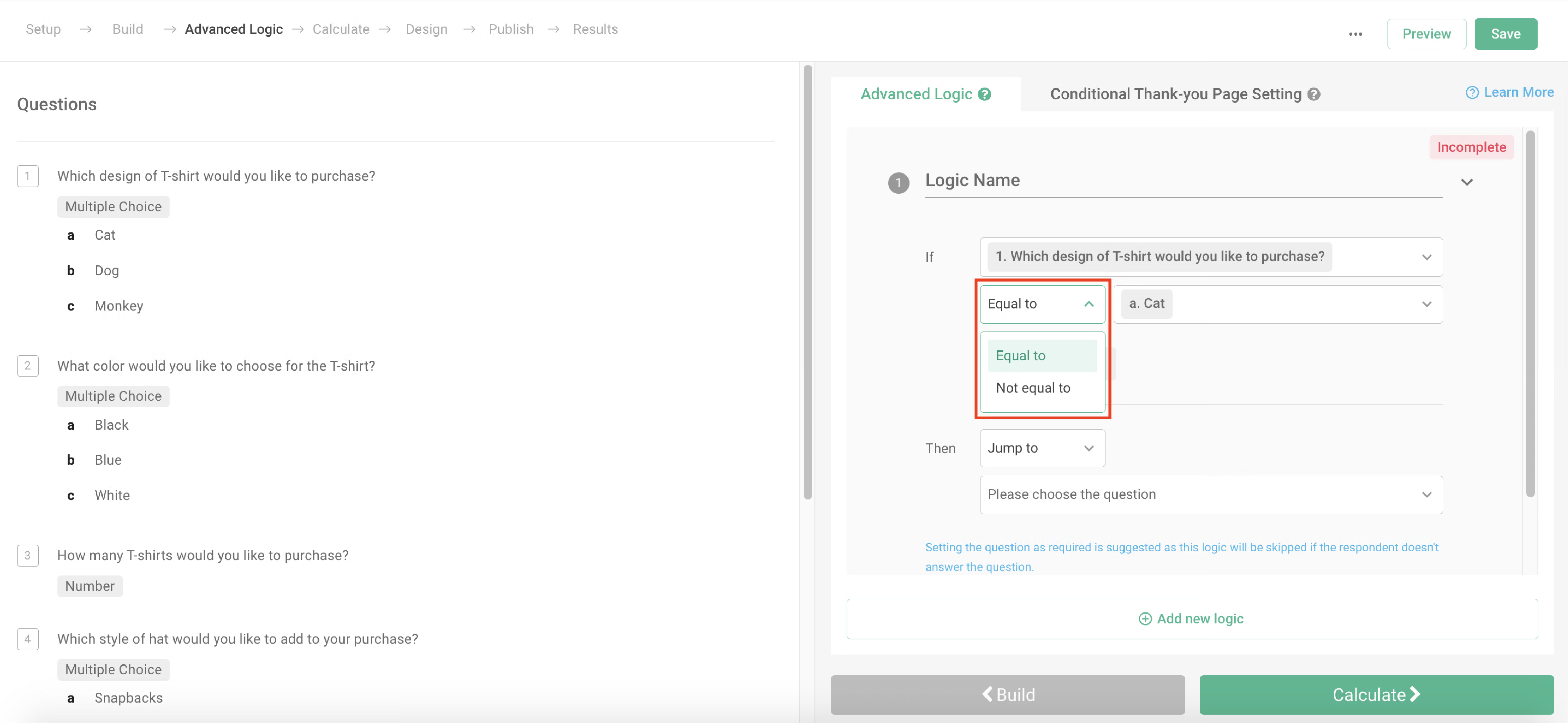
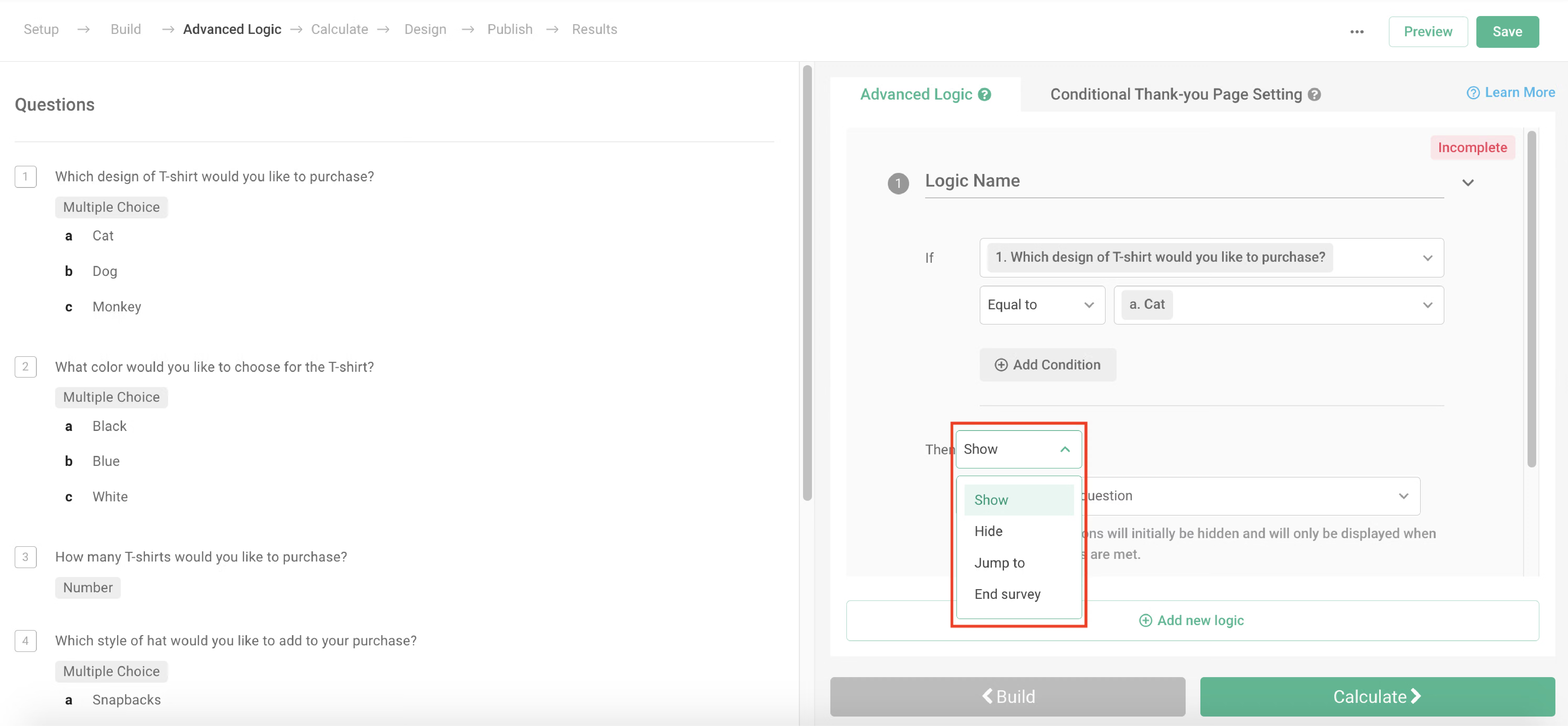
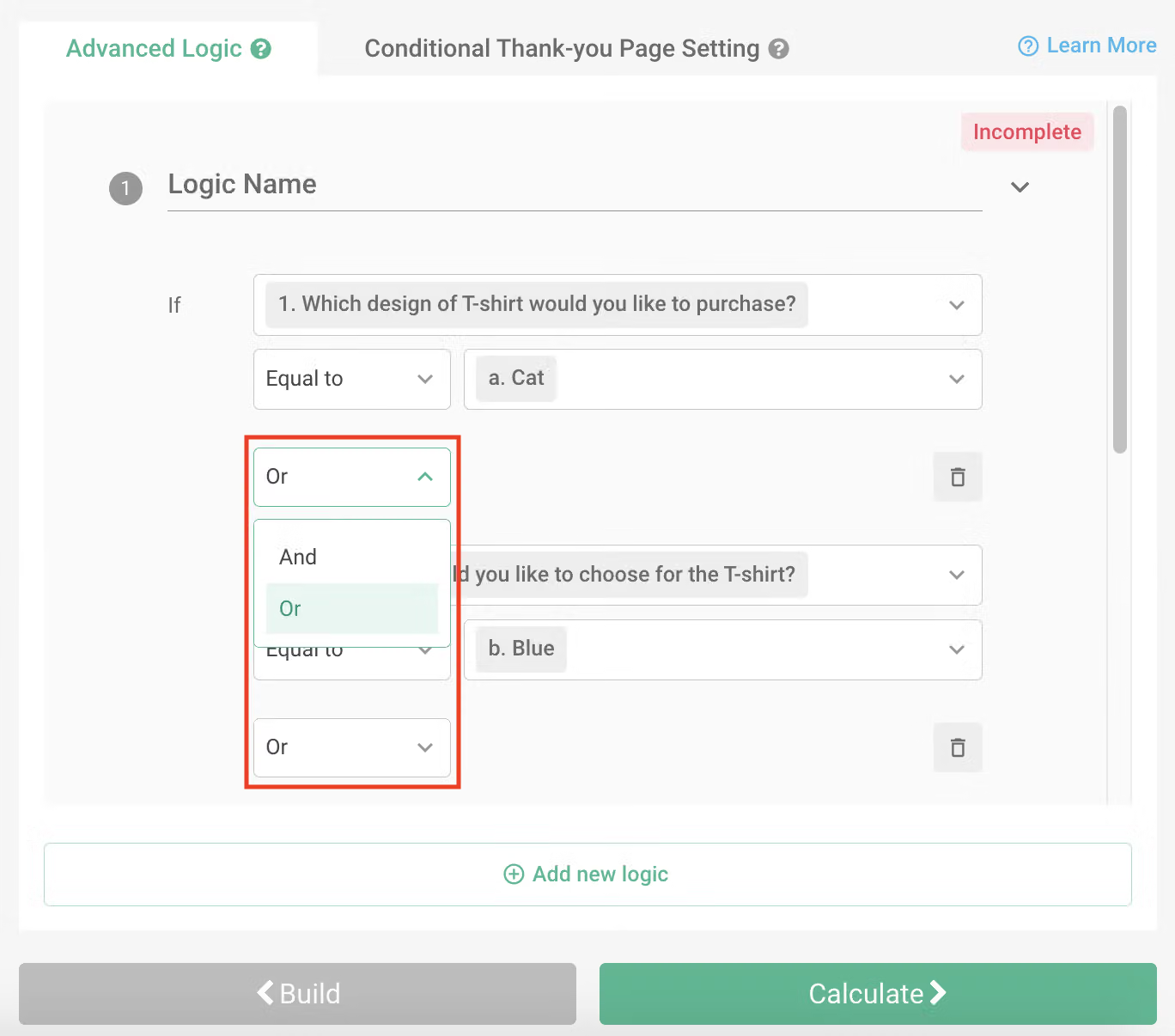
Note: The system will only execute the logic that is fully set up. If you see "Incomplete" in the top right corner, it means you haven't finished setting it up yet.

III. Integrating Conditional Thank-you Page
Advanced logic can be combined with Conditional Thank-you Page. When specific conditions are met, respondents can be directed to designated custom thank-you pages. To set this up, first go to "Conditional Thank-you Page Settings" and add a thank-you page.
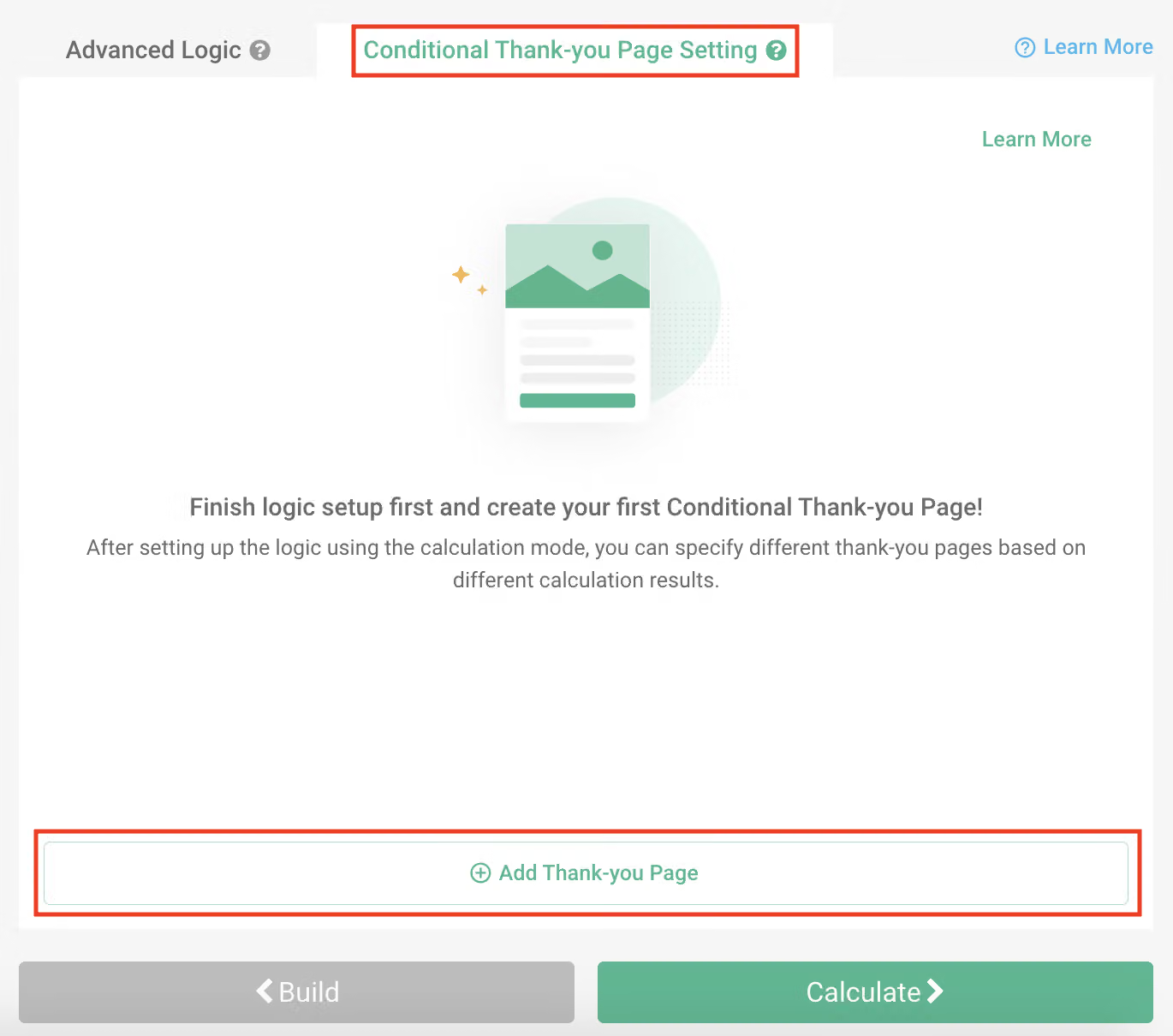
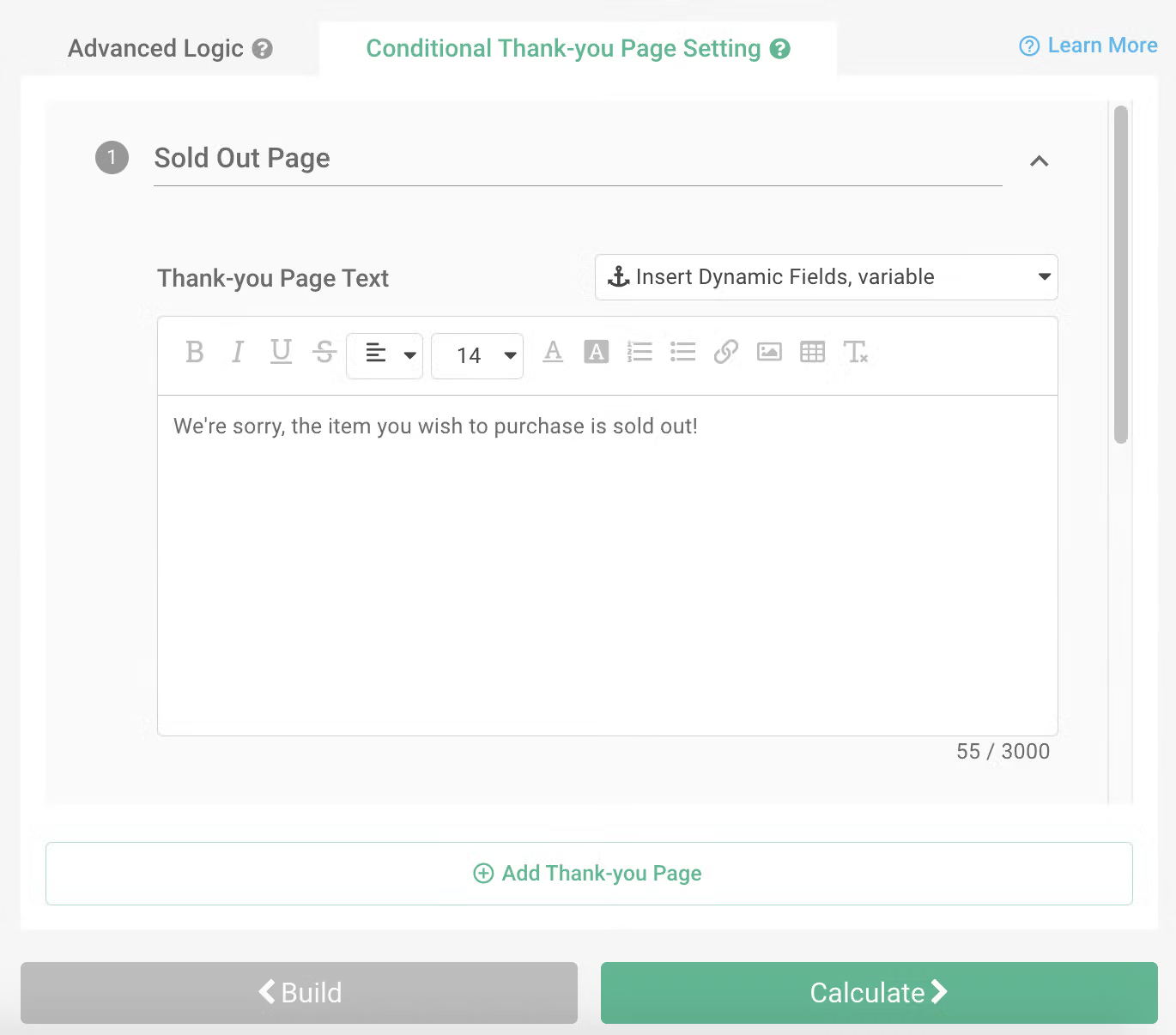
Then, return to "Advanced Logic," complete the condition setup, and select "End Survey" while choosing the custom thank-you page to which you want to direct respondents.
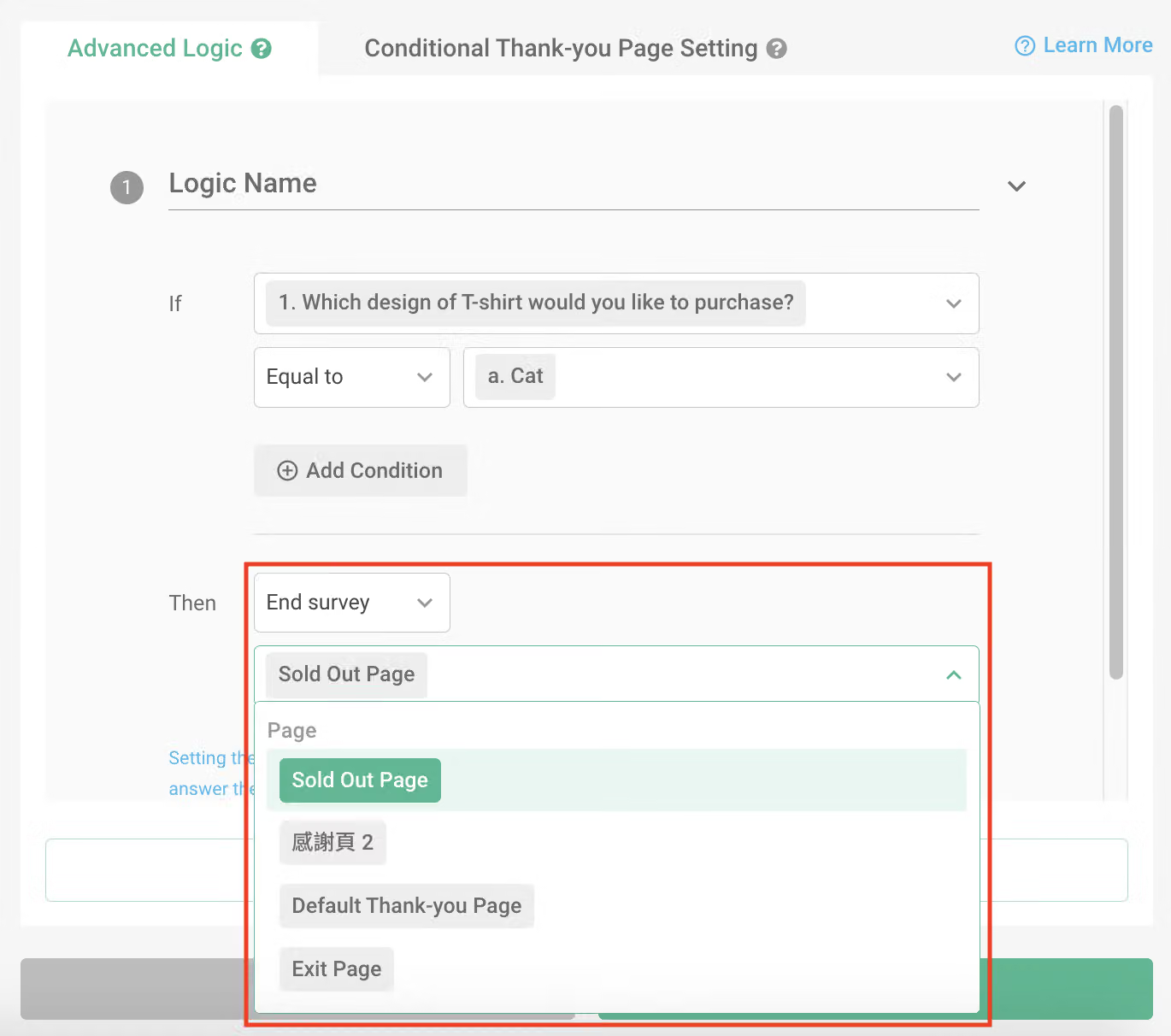
In addition, Advanced Logic and Calculation Mode can be used simultaneously. Simply remember to go to the survey settings and enable the Calculation Mode. It's important to note that Advanced Logic and the Calculation Mode share the same Conditional Thank-you Page settings. If there is a conflict in the settings between Advanced Logic and the Calculation Mode, the system will prioritize the Advanced Logic settings.
Advanced Logic Settings for Each Question Type
Following the steps mentioned earlier to activate the advanced logic switch, you can then choose different question types for advanced logic settings. The concept of logic settings is similar to the aforementioned, and the available trigger actions are also the same. However, the condition objects will vary depending on the question type.
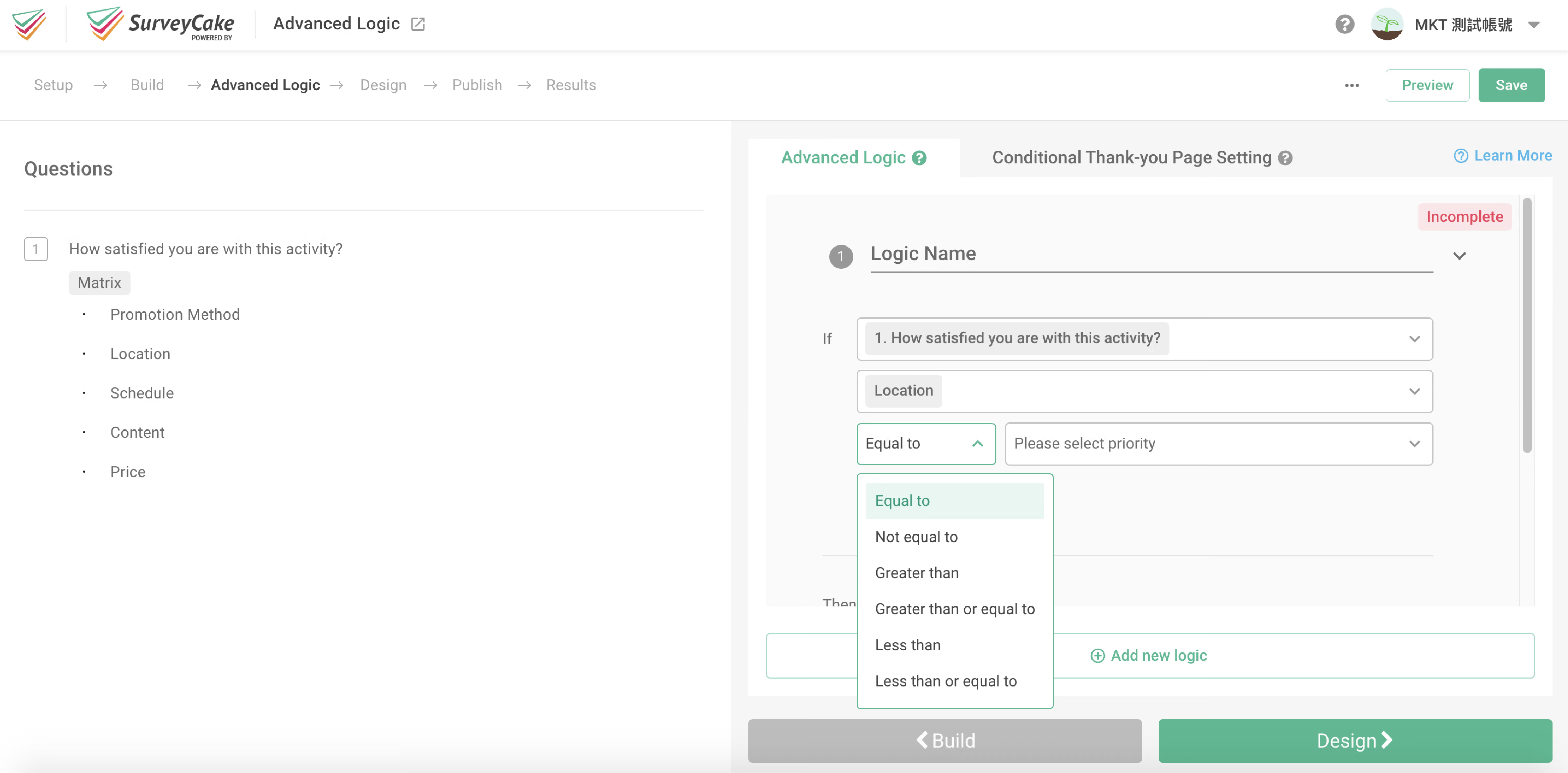
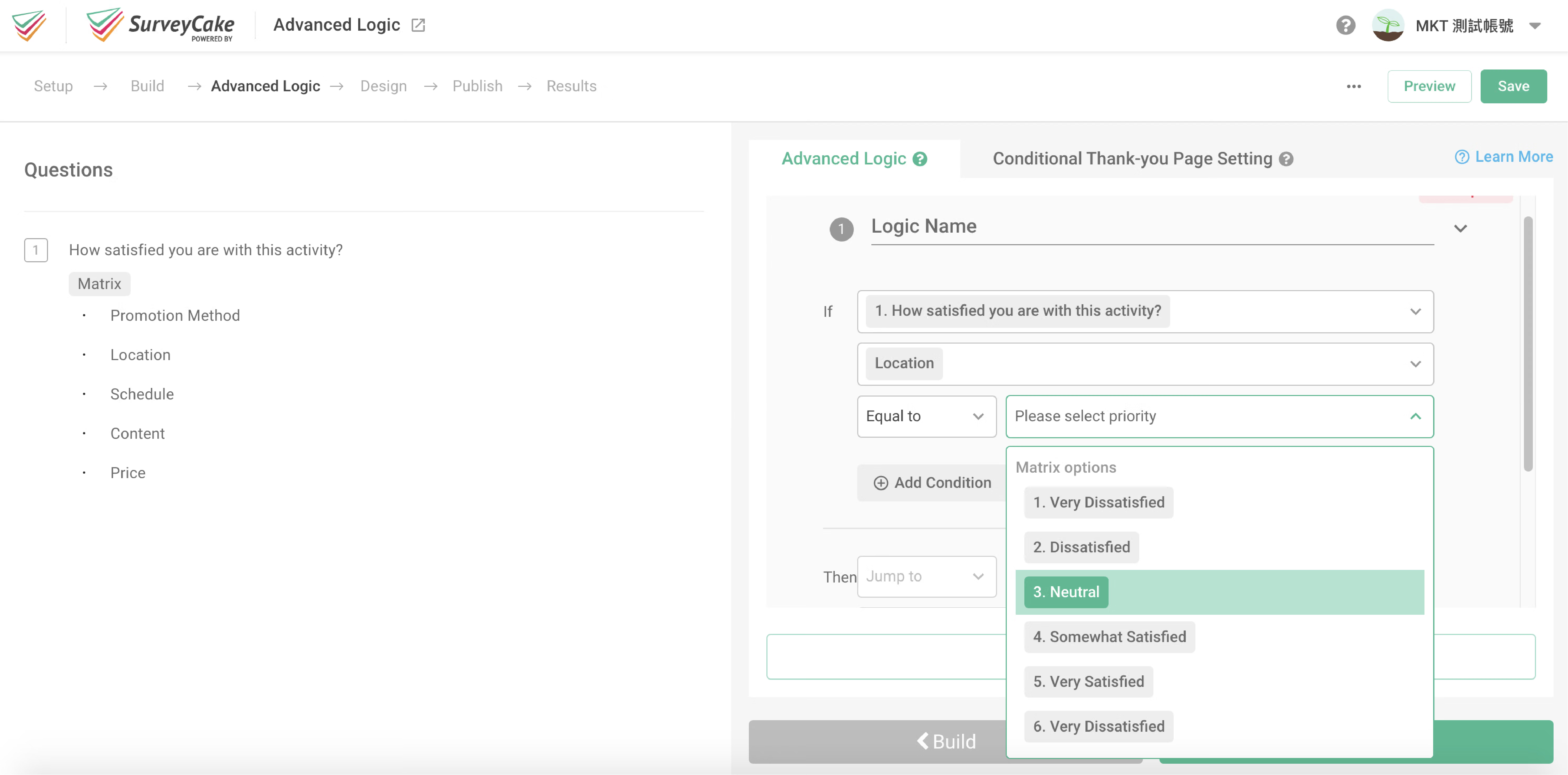
When choosing to use a Single Choice Matrix Question, the matrix sub-questions become the condition objects. When setting logic conditions, you can select "All question(s)," "Random question," or "Any of the questions."
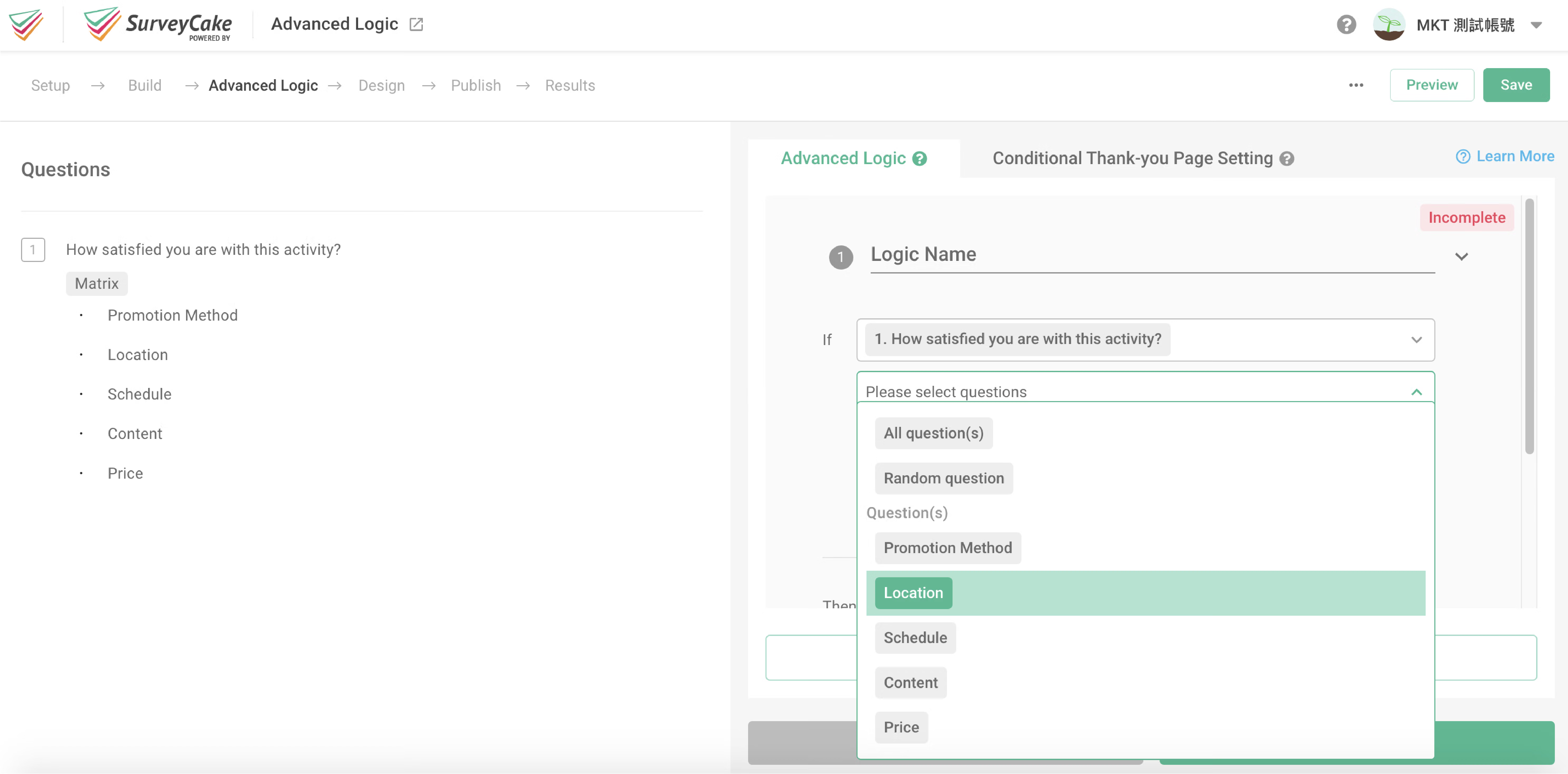
Next, using the Rank option as conditions, then set "Equal to," "Not Equal to," "Greater than," "Greater than or Equal to," "Less than," or "Less than or Equal to" for evaluation.
For example: When the condition is set to "Greater than" Very Dissatisfied, you can imagine the weight number for Very Dissatisfied as 1. In that case, sub-options with weights greater than 1 (including dissatisfied, neutral, satisfied, very satisfied) all meet the condition.
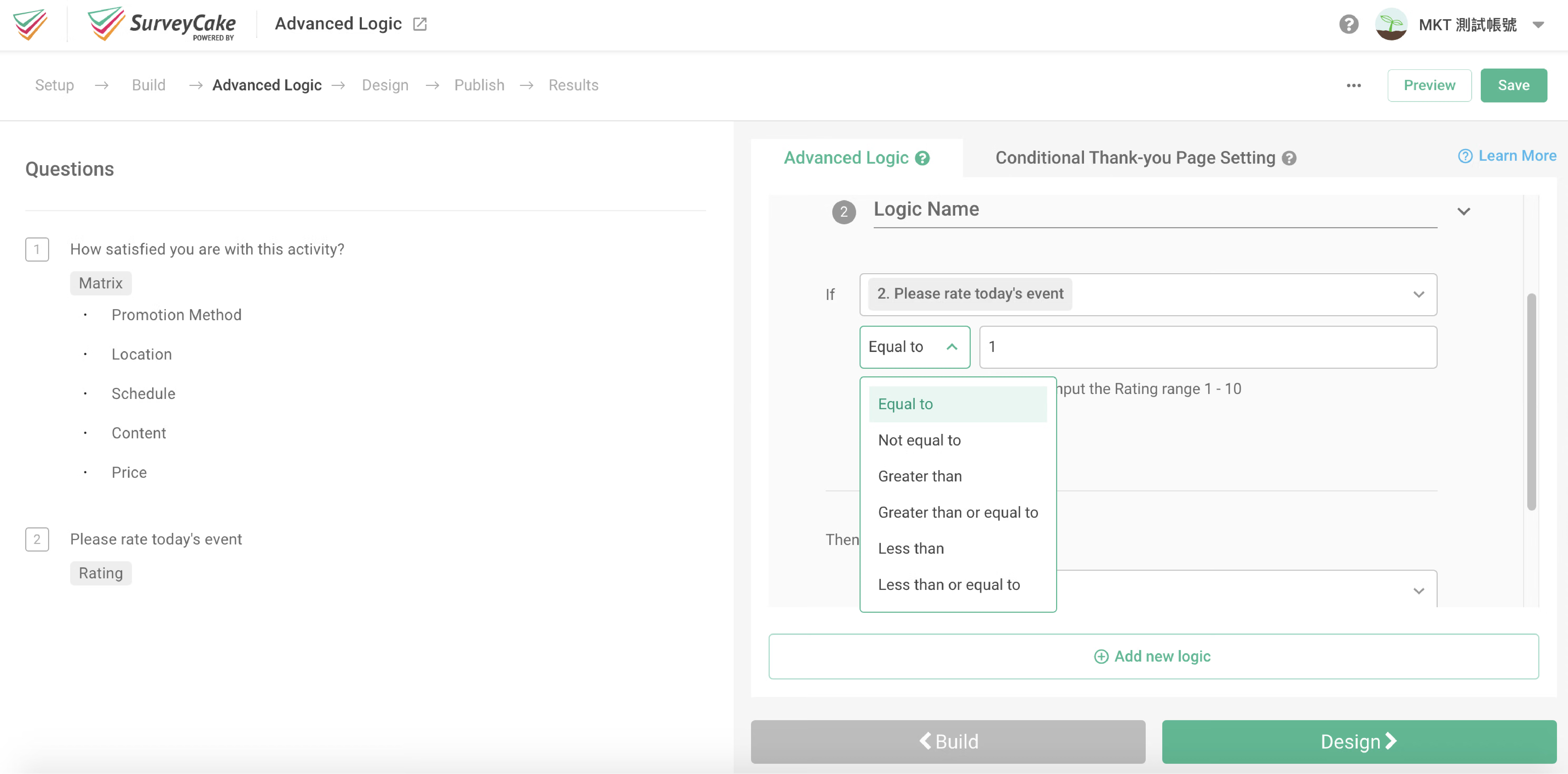
When choosing a Rating Question, the star count serves as the condition, and you can set conditions such as "Equal to," "Not Equal to," "Greater than," "Greater than or Equal to," "Less than," or "Less than or Equal to" for evaluation.
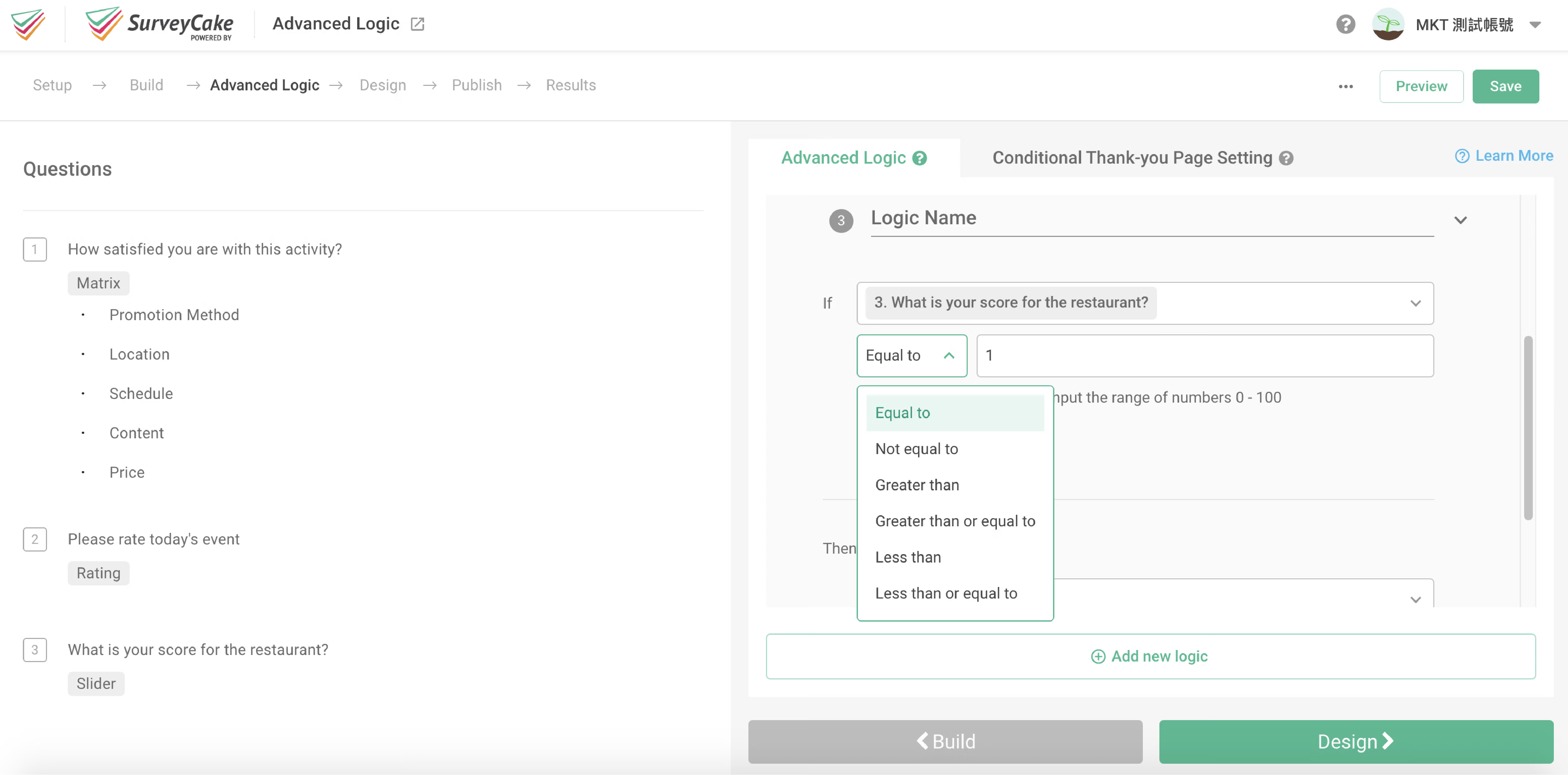
When selecting a Numeric Slider Question, the numeric value serves as the condition, and you can set conditions such as "Equal to," "Not Equal to," "Greater than," "Greater than or Equal to," "Less than," or "Less than or Equal to" for evaluation.
When choosing a Ranking Question, the options become the condition objects. Following that, ranking is used as the condition, and you can set conditions such as "Equal to," "Not Equal to," "Prior to," or "Behind" for evaluation.
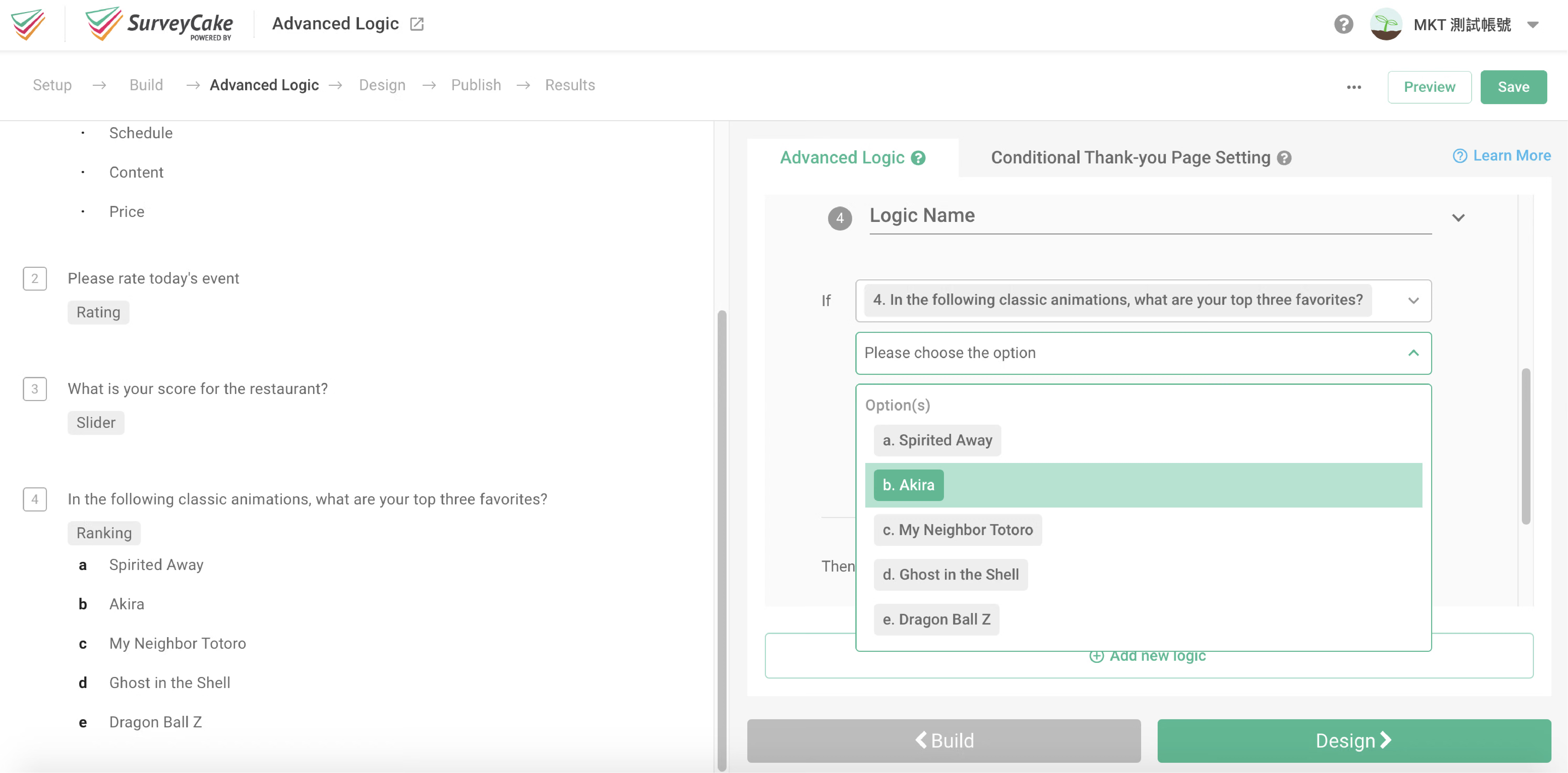
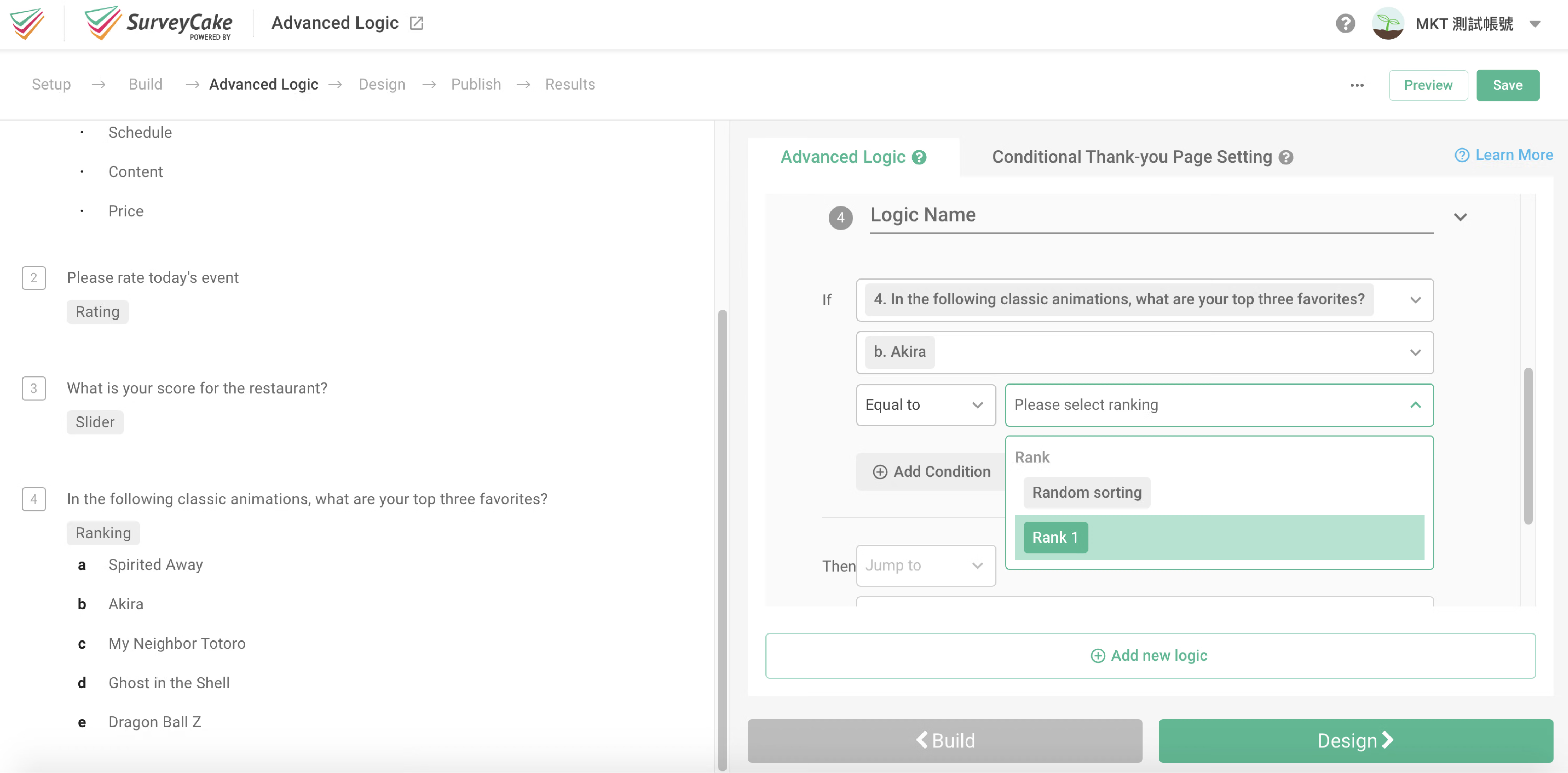
Note: If the ranking condition is set to "Random sorting," it means that the options were ranked during the response. In this case, the conditions "Prior to" or "Behind" cannot be used.
Please note that the Advanced Logic feature is exclusive to the SurveyCake Enterprise version. If you are interested in this feature, feel free to complete the form and get in touch with us.
Utilizing Advanced Logic enables the design of more flexible and effective surveys to adapt to various situations and requirements. Advanced Logic opens up new possibilities for your surveys!



