With Exclusive Options, when respondents select a specific option, it hides other options within the same question or across different questions, preventing illogical responses and providing a more intuitive survey experience for respondents!
Let's take the following question as an example: If a respondent answers "Never been to the US" to the first question, but then answers "New York" to the second question, it would result in an invalid response due to self-conflicting logic! This is where the Exclusive Options can greatly help!
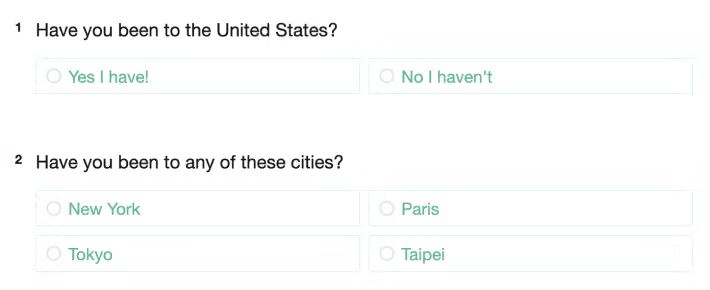
By setting up Exclusive Options, you can control when respondents choose "Never been to US" in the first question, they cannot select "New York" in the second question. They will only be able to choose the remaining options.
Now, let's take a look at how to set up Exclusive Options!
Step 1
Click on the three-dot menu next to the target option, and then click on Exclusive Options.
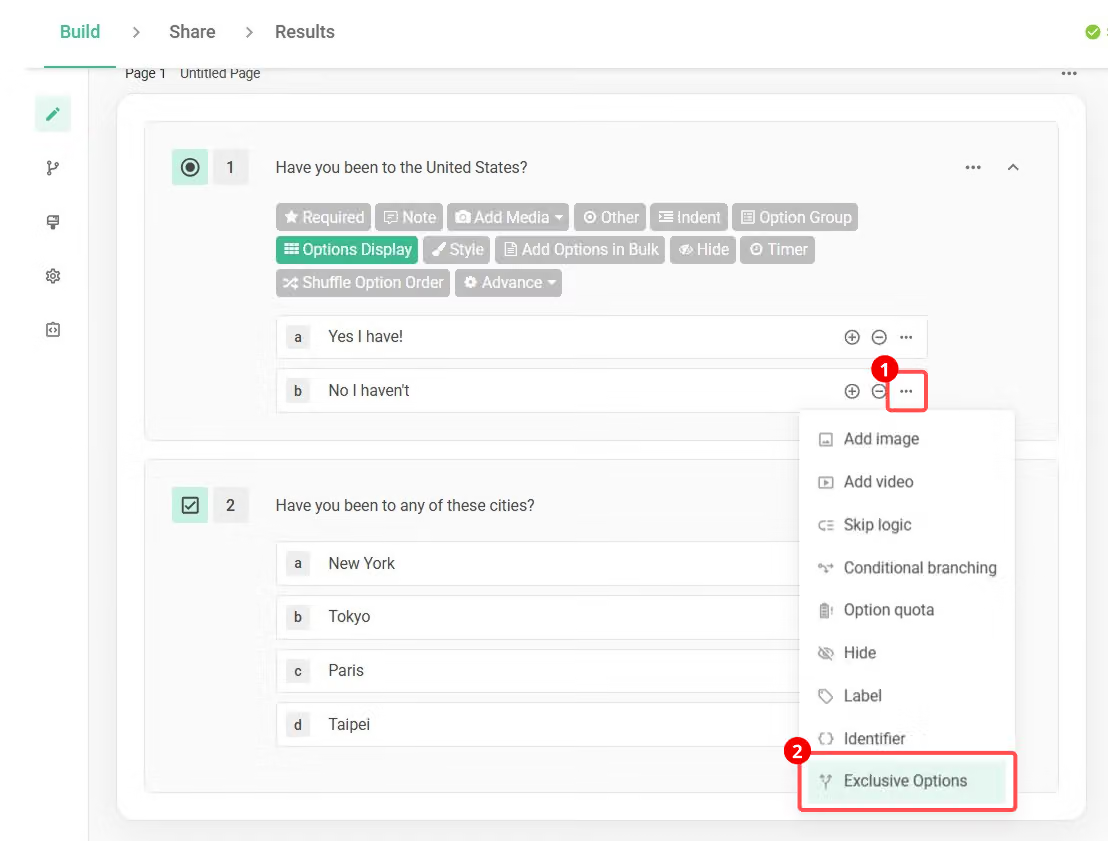
When using the Exclusive Options feature, the system will automatically enable the Calculation Mode. If you manually disable the Calculation Mode later on, the Exclusive Options feature will also be deactivated.
Step 2
Set up the logic. You can choose to make the mutually exclusive options either un-selectable or hidden based on your needs!
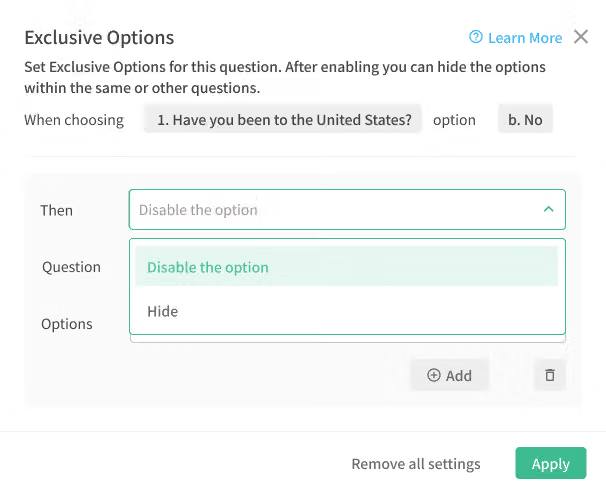
Next, select which options you want to exclude for the specific question.
In this scenario, I want to exclude the options "New York" for the question "2. Have you been to any of these cities?"
If the question has randomization enabled, the exclusive options will not be available.

Step 3
Click on Apply, and you're all set!
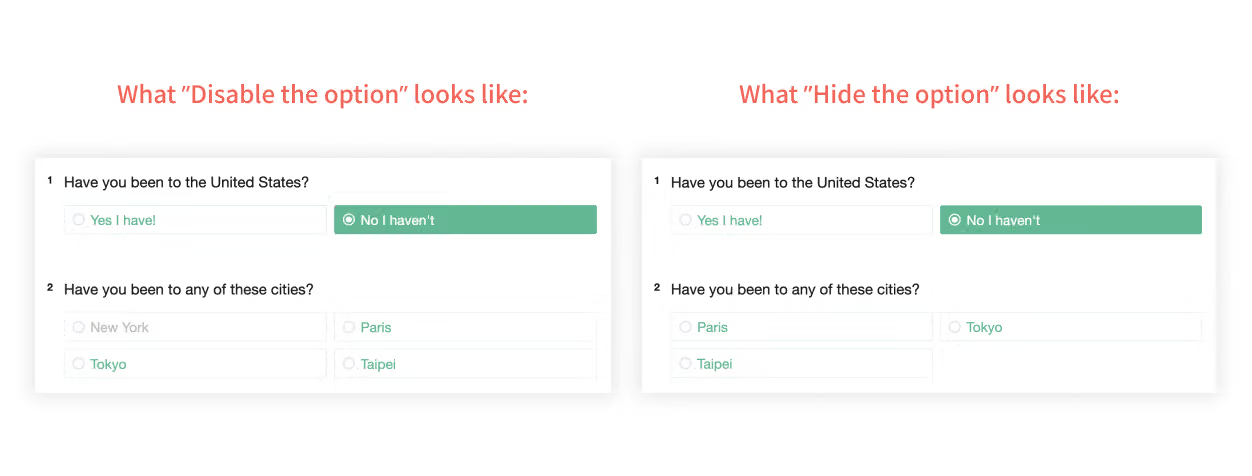
If you choose the "Disable the option" for the Exclusive Options, the result will be as shown in the left image below. The option "New York" will still appear, but respondents won't be able to select it. If you choose the "Hide the option", the result will be as shown in the right image below, where the option "New York" will be hidden.
As a survey creator, you can choose different presentation styles based on the desired respondent experience!
FAQs
Multiple choice questions (aka single-choice) inherently have exclusivity between each option, so there's no need to set Exclusive Options for them!
No, you can't. To maintain a smooth respondent experience, we can only set options to be exclusive with options in the same question or subsequent questions, not in previous questions.
This question has two scenarios:
Scenario 1: If the options you want to make exclusive are within the same question, then the answer is Yes! Using the previous example, the option "Haven't been to US" can be set as exclusive with the options "New York" and "Washington" in the second question.
Scenario 2: If you want to make options exclusive across different questions, then the answer is No! Each option can only have one exclusive condition.
Exclusive Options not only creates a smoother respondent experience but also helps prevent invalid responses, maximizing the effectiveness of your survey data!



