If your survey scenario involves collecting detailed responses, precise management of survey options may be necessary during the design process.
The "Option Group" feature can help you organize survey options more clearly and effectively.
If you're new to surveys, we recommend starting with the Survey Structure Levels, which provides a simple introduction to the definitions and relationships of questions, groups, option group, and pages.
What is an Option Group?
Option Groups allow you to categorize related or specially treated options and further configure settings like Randomization.
Applicable Question Types
Available in Enterprise PlanHow to Create Option Groups
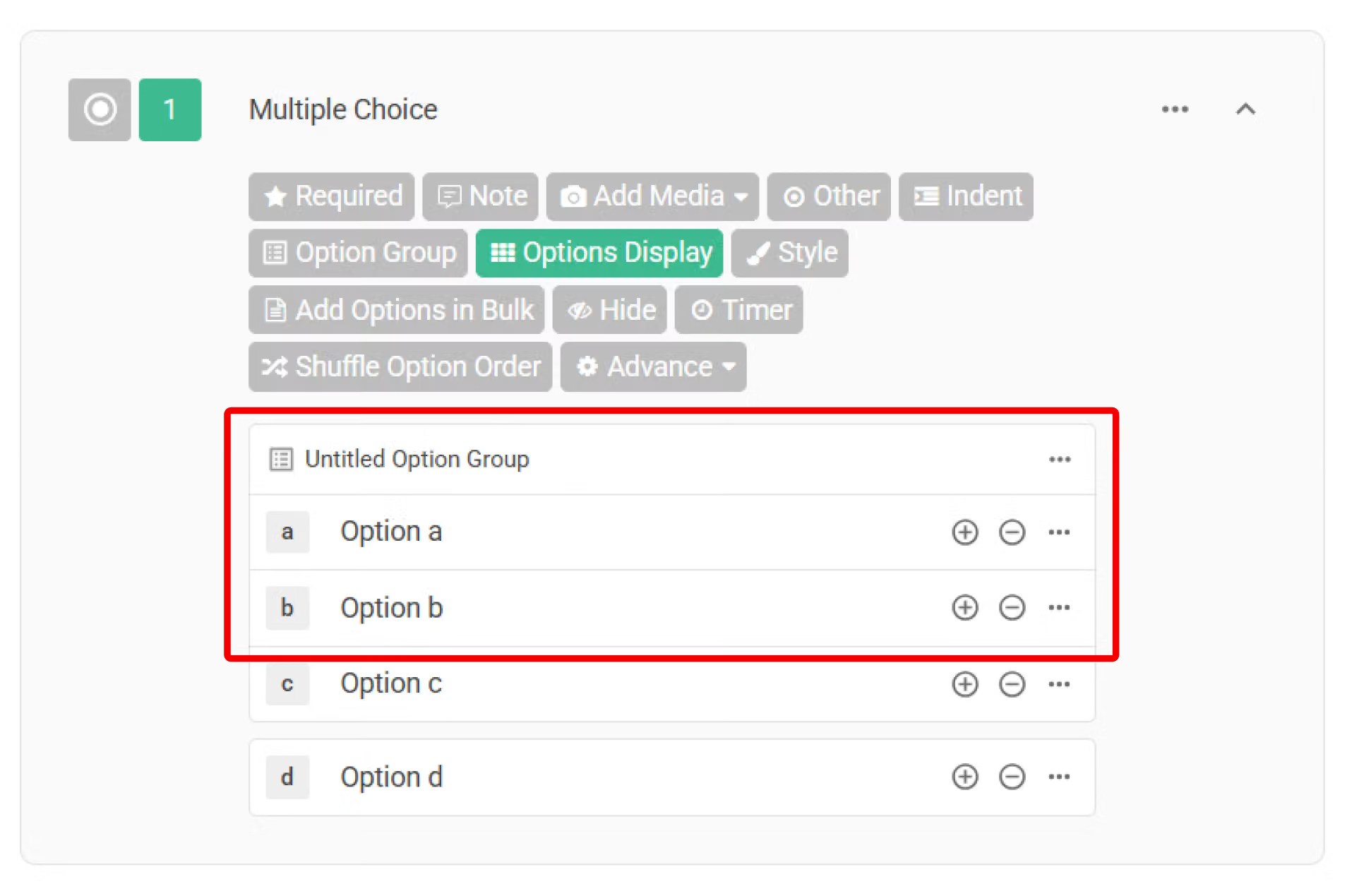
You can create a new Option Group using one of the following methods:
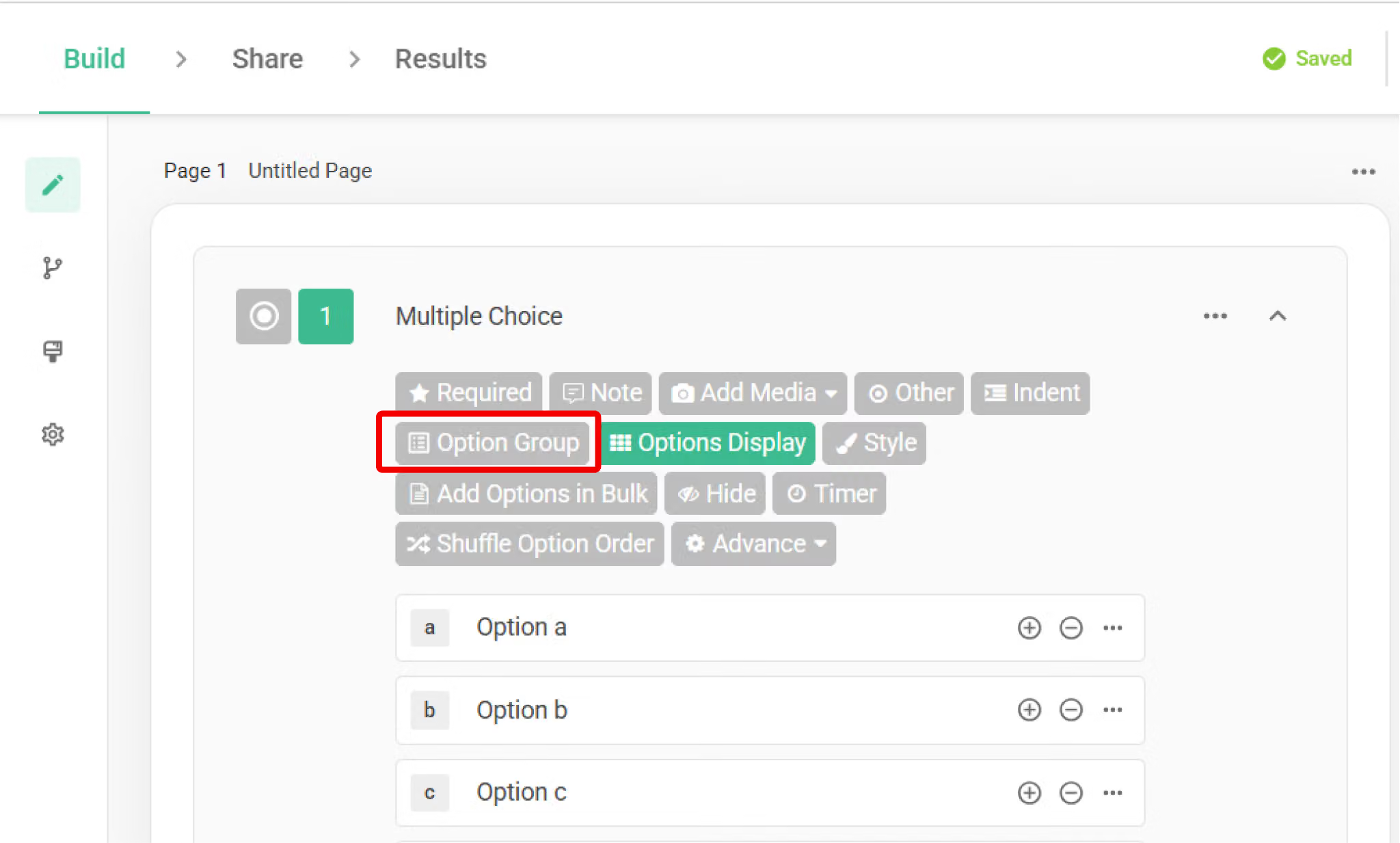
Click the "Option Group" button in the question toolbar.
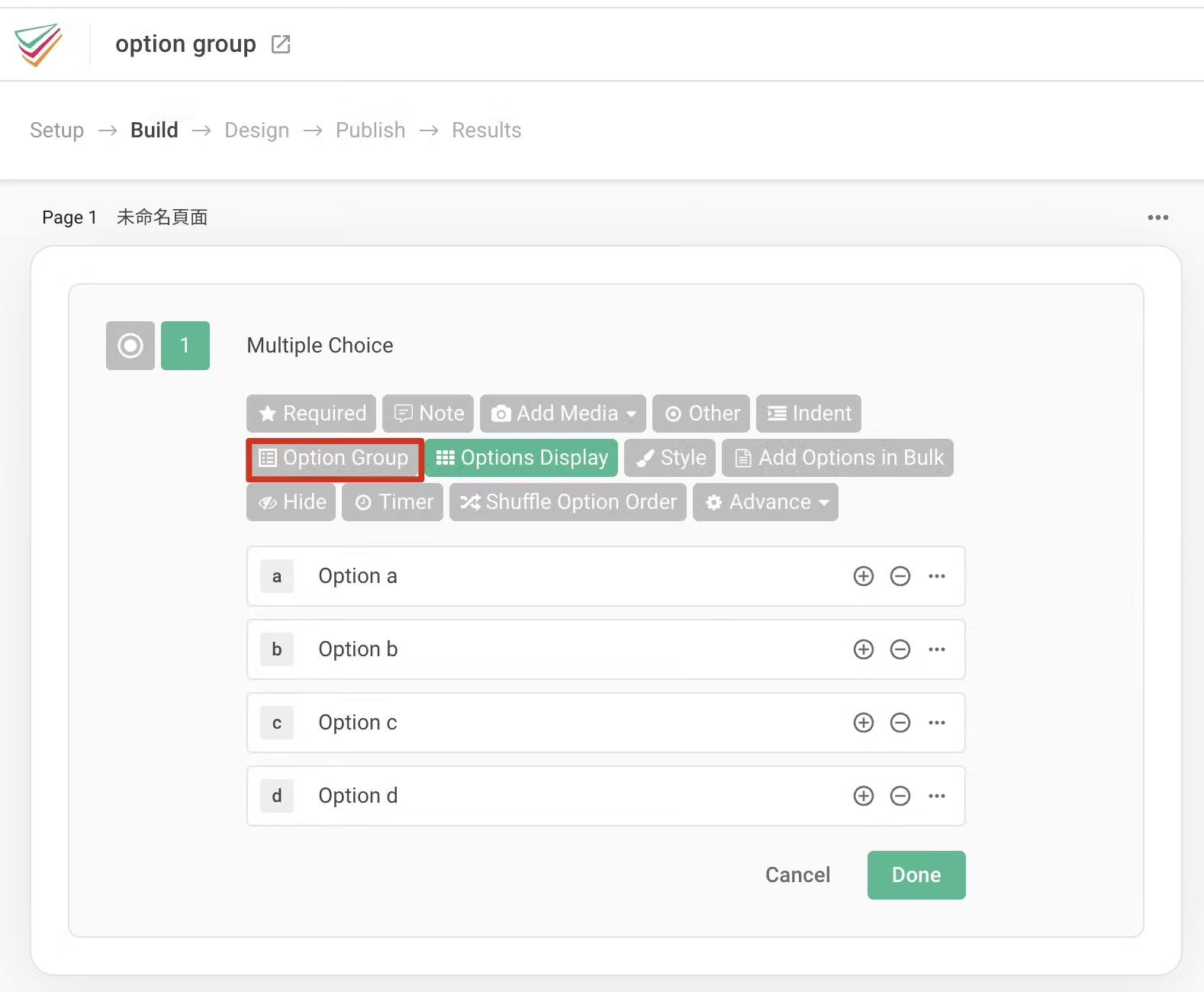
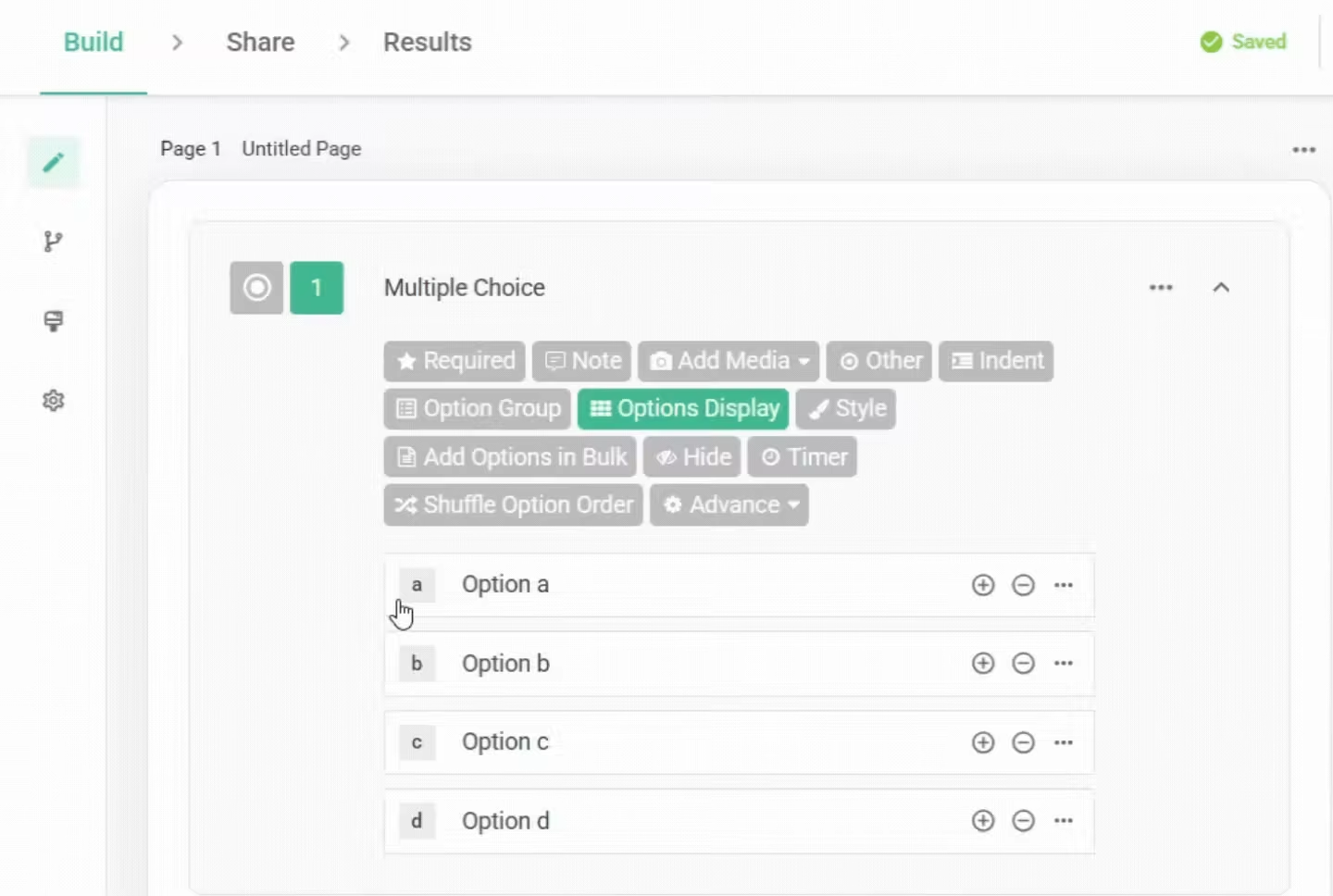
Drag the option icon to another option to create a new Option Group.
Once dragging is complete, the group will automatically be named "Unnamed Option Group."
In the pop-up window, select two or more options.
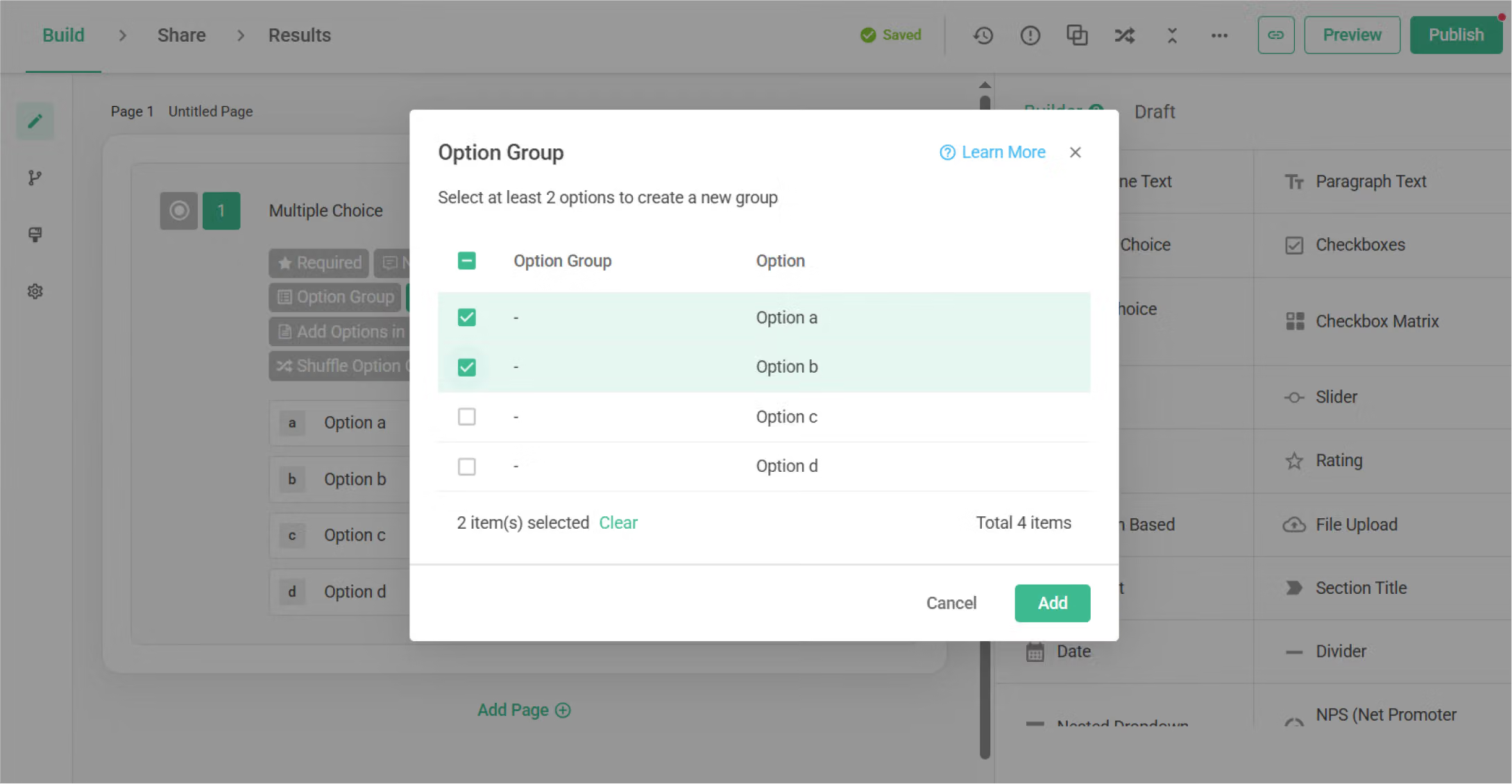
Click "Add," and your Option Group is ready!
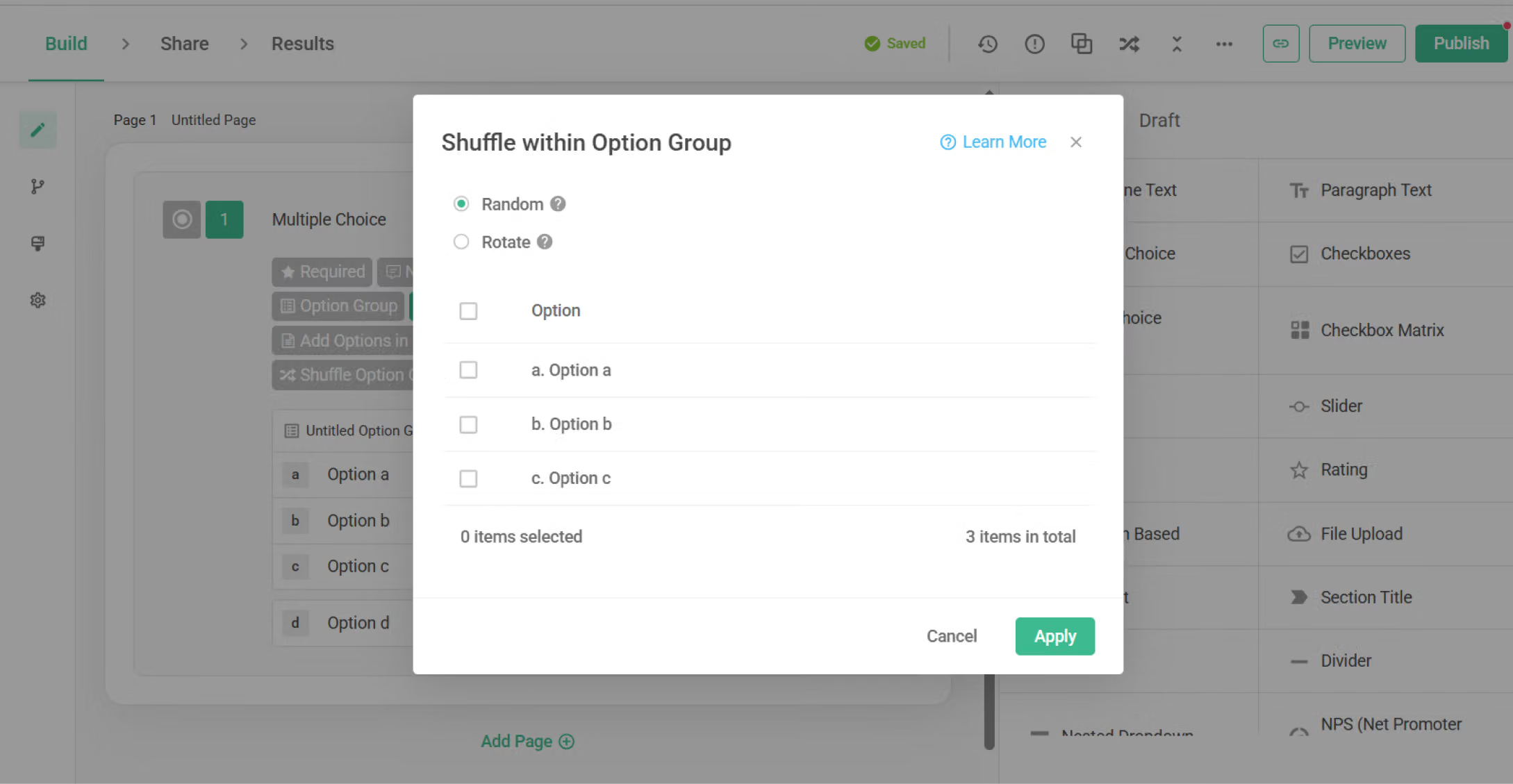
Randomize within Option Group
You can also enable "Random" or "Rotate" within an Option Group.
For more details on"Random" or "Rotate", please refer to the Randomization article.
With "Option Group," you can organize survey options more clearly and streamline your survey design process!



