The new groups and pages feature allows you to more easily create, edit, and manage groups and pages, making your surveys more organized.
Creating a Page
In the survey editor, click the "Add Page" button to add a new page and customize the pagination of your survey.
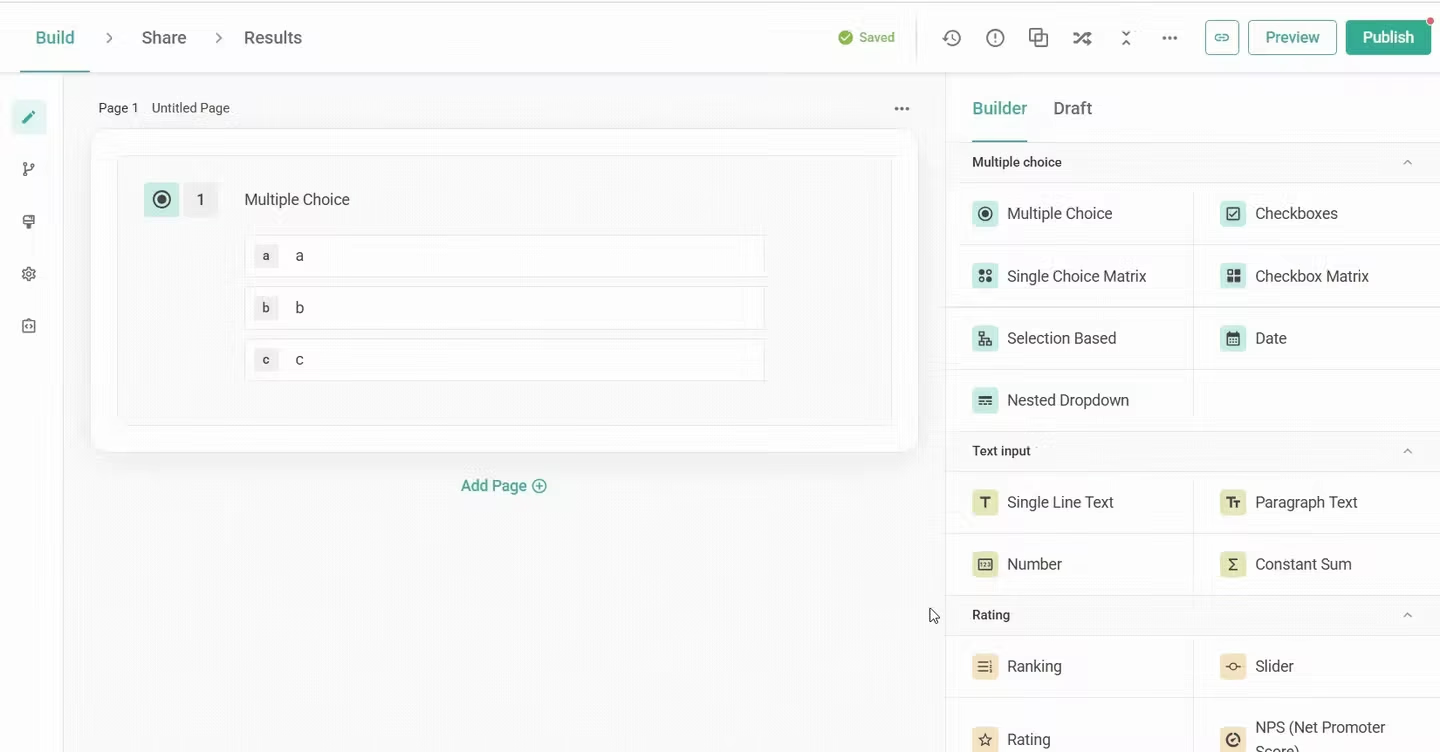
Page Functionalities
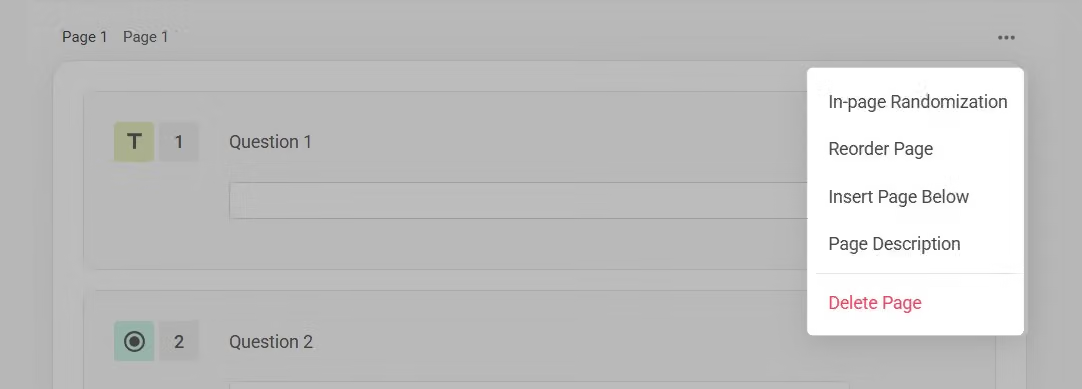
Click "In-page Randomization" and the order of the questions (or groups) on this page will be randomly changed each time the survey is opened. This feature is part of the paid plan. For more settings, refer to this help center article: Randomization.
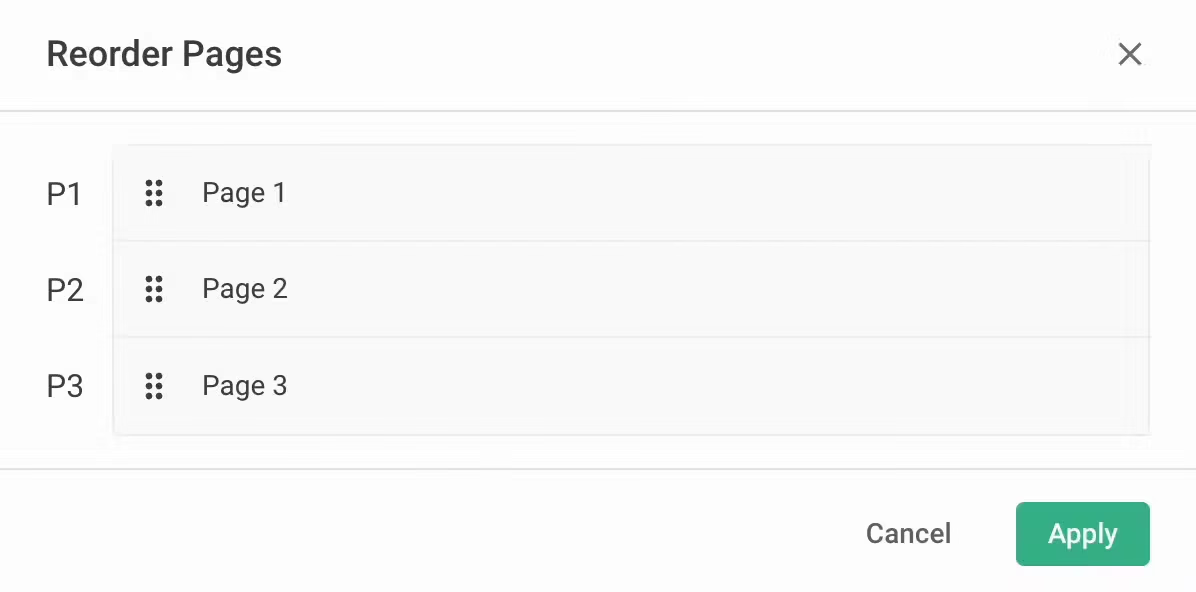
Click and hold the page you want to move, then drag it to the desired location to reorder the pages.
If you need to insert a new page between existing pages, click "Insert Page Below" to add a blank page below the current page.
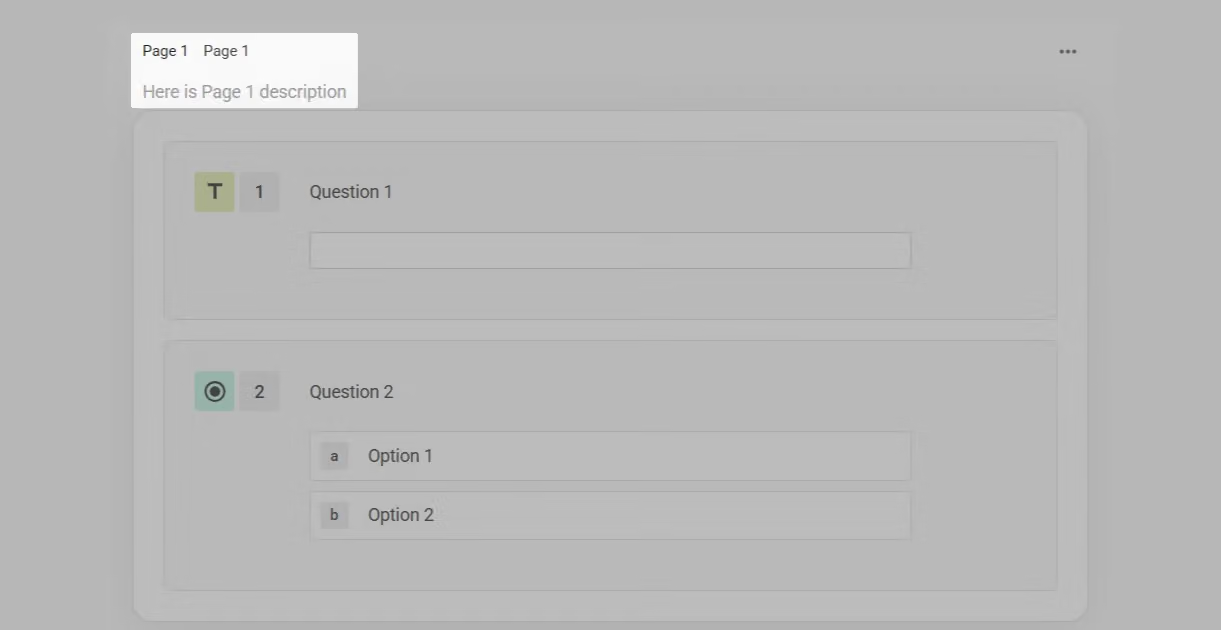
Page names and descriptions help survey editors easily identify and annotate pages, but they will not be displayed in the final survey. You can freely modify the page name as needed. Click the text on the page title to edit the page name, or add annotation notes in the page description.
Click "Delete Page" to permanently delete a page. A confirmation window will appear, and once confirmed, all questions on the page and related settings will be permanently deleted and cannot be restored. Note: If the survey has been sent out and responses have been collected, deleting the page will also delete the response data for that page.
FAQ
If I have cross-page settings such as option source, skip logic, conditional branching, etc., will these functions still work after modifying pages?
Yes, all cross-page functions will continue to work normally without any disruptions.
The Pages feature simplifies the creation, editing, and management of surveys, helping you build a more structured survey framework.



