With Share Charts under the Chart Report tab in tSurveyCake’s admin panel , you can share survey results using links.
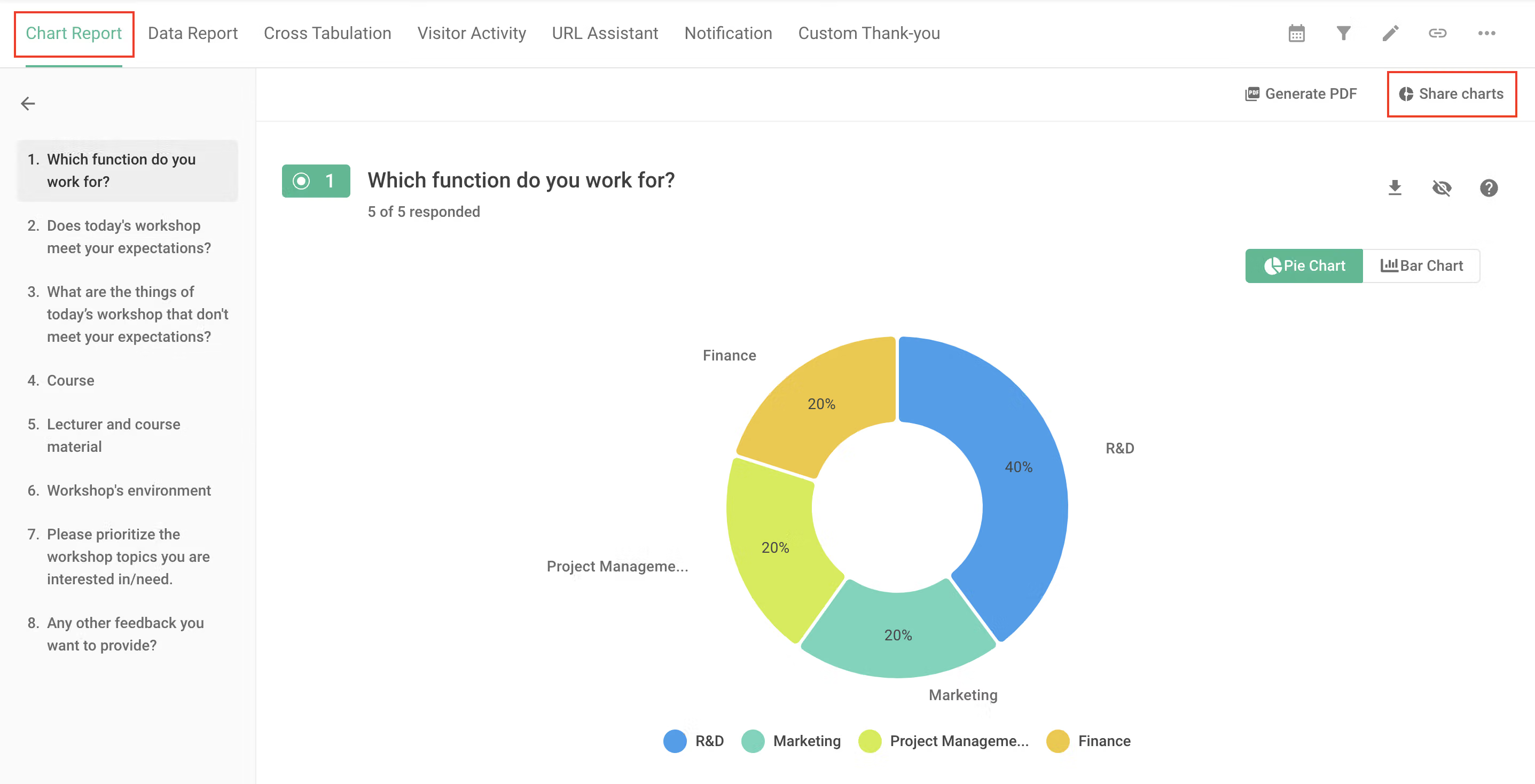
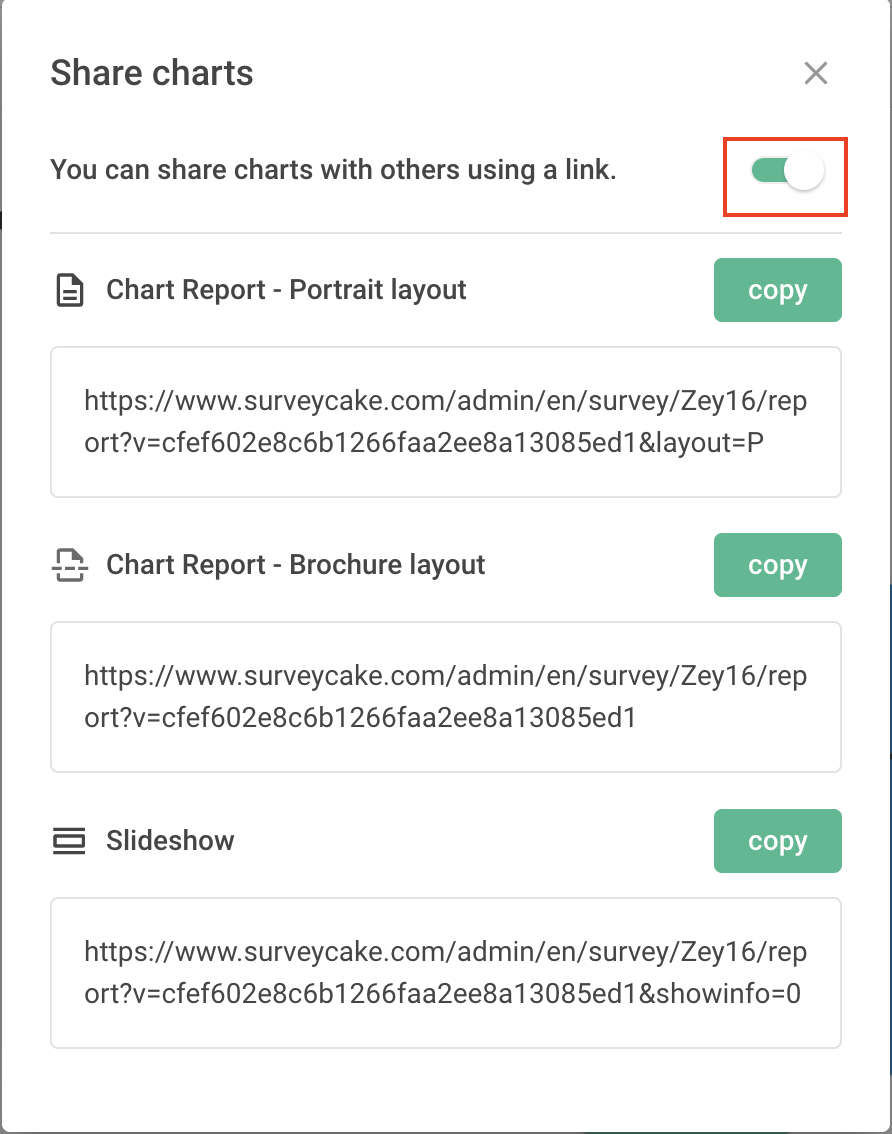
Chart Report comes in 3 Different layouts : Portrait ,Brochure, and Slideshow.Before sharing, remember to toggle the Share Charts’ link ON to make the link works!
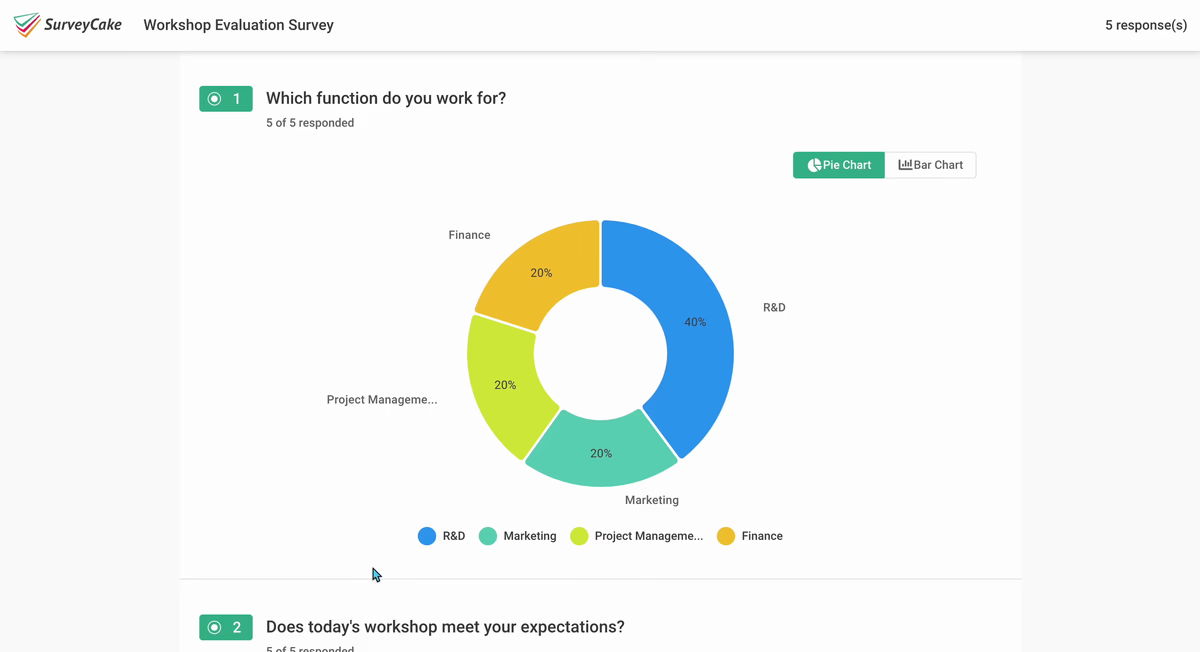
The Portrait layout presents all questions in one single page.
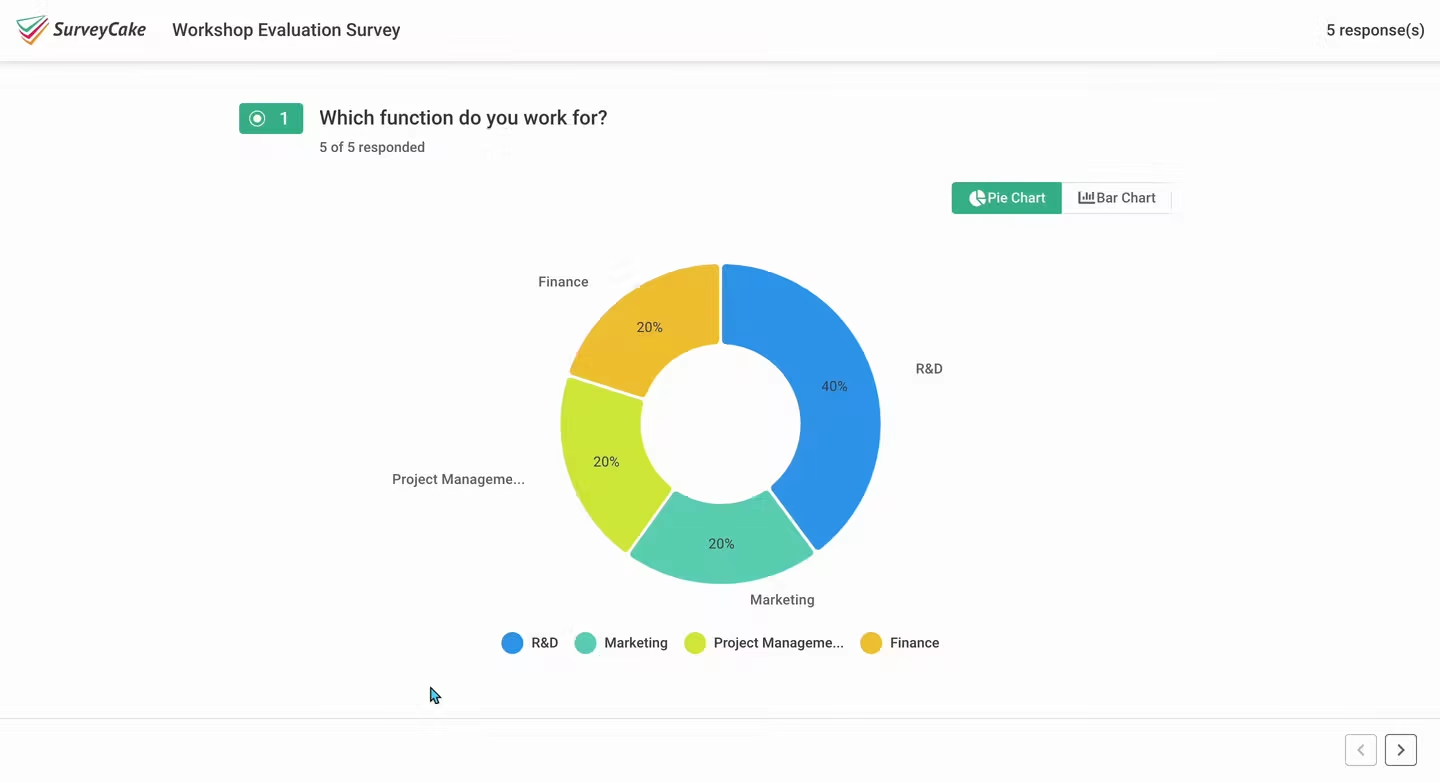
The Brochure layout presents one chart per page.
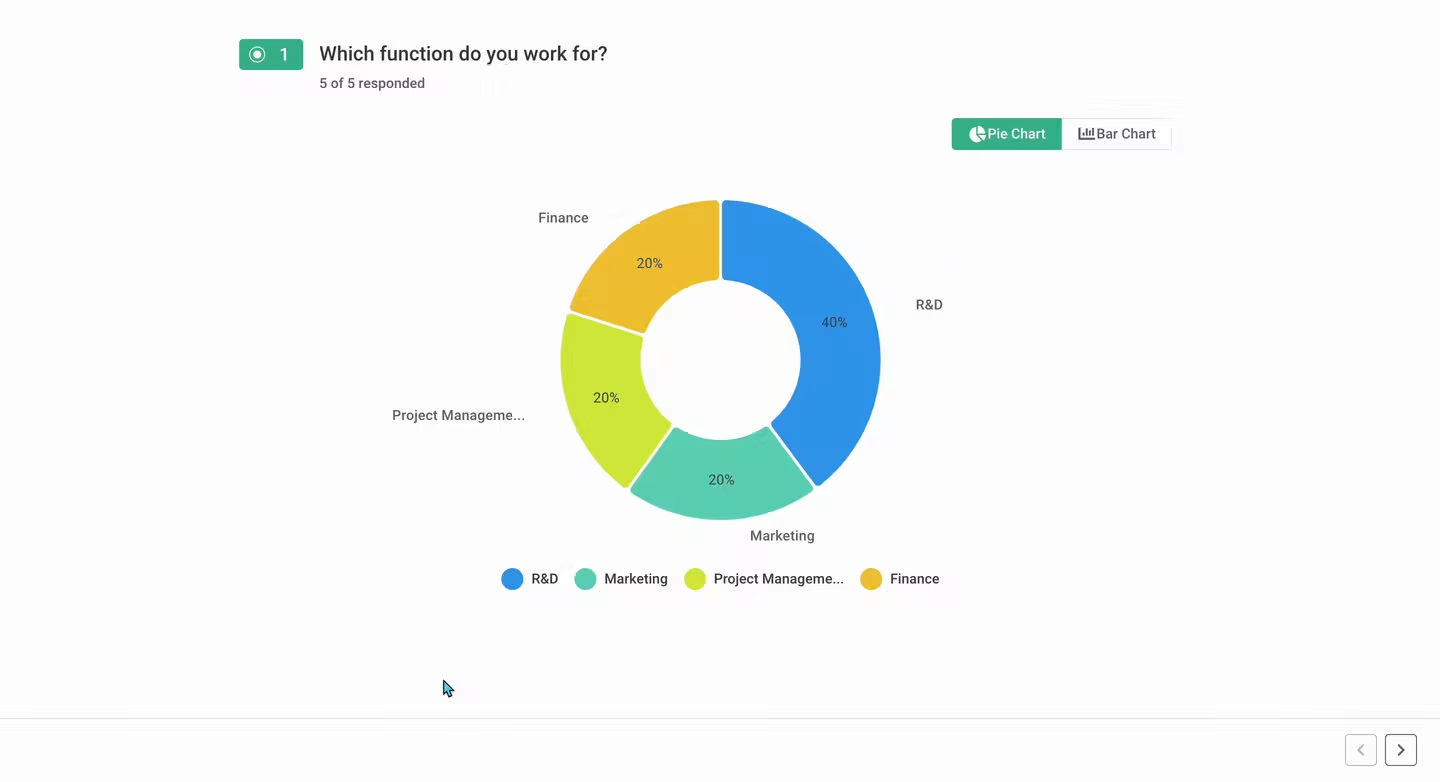
The Slideshow layout allows you to directly project statistical charts of various questions on the full screen. This helps you to make your presentation easier and make your team members grasp your idea immediately!
FAQ
Yes,of course! If you only want to share a specific question's statistical charts, you can go back to the “Build” page and hide the questions you don't want to share. This way, the hidden questions' statistical charts won't appear in the public charts!
For example, if you don't want to display the statistical charts for the name question in the public charts, you can hide that question.
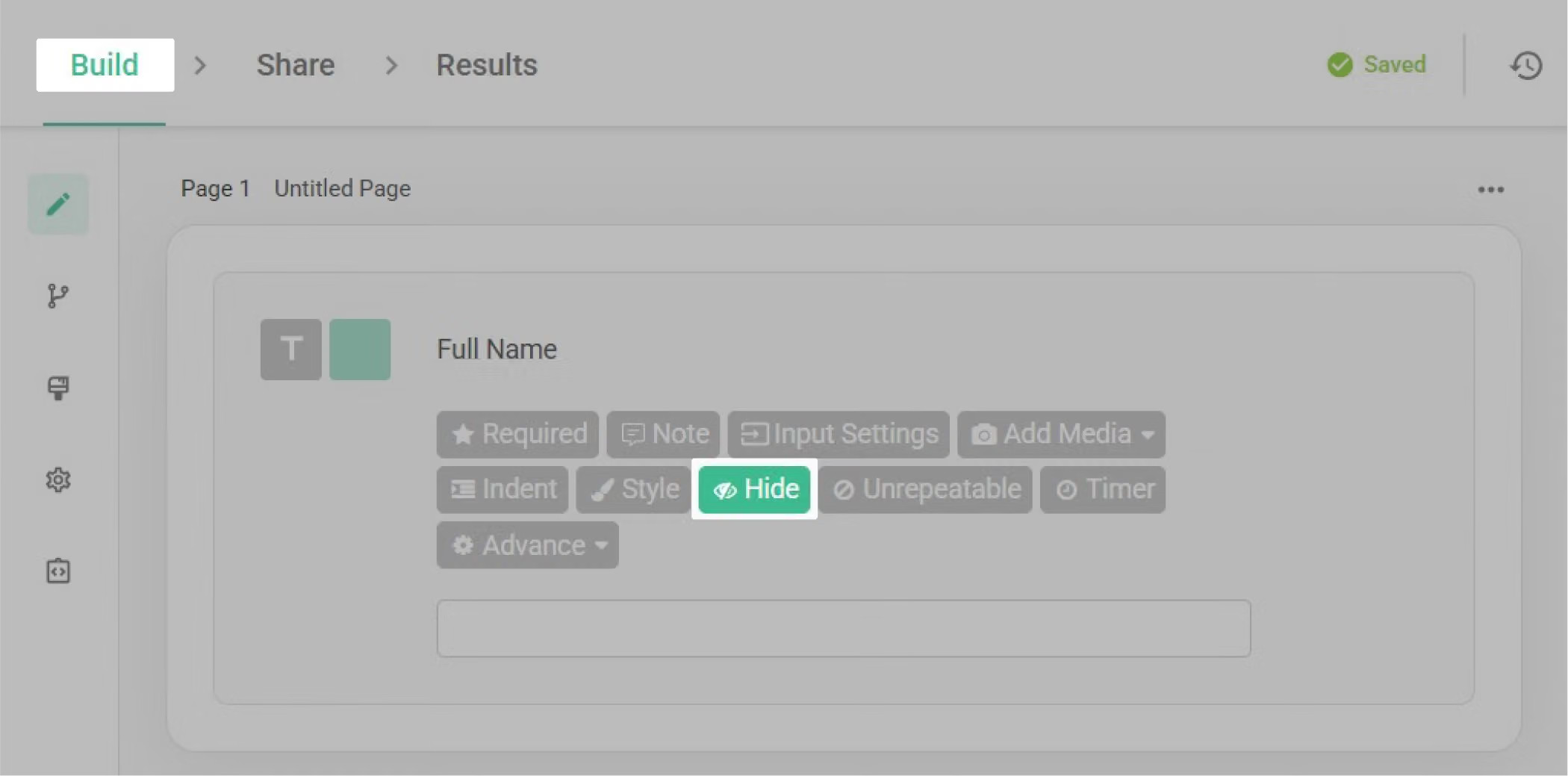
Note : If a question is set to 'Hide,' it won't appear in the survey as well. Therefore, it's recommended to wait until no more responses are expected before hiding questions and sharing the statistical charts.
With Share Charts, stay up-to-date of survey results with anyone you wish!



