Automatically open and close your survey on a specified dateRather than logging into your account at 23:59 on the night before to turn off a survey, you can schedule to open and close your survey on a specified date with Survey Period. None can fill in the survey before the survey period begins or after its expiration.
In this way, time-sensitive surveys such as even sign-ups or job applications can be set to easily reject submissions that come after the survey period.
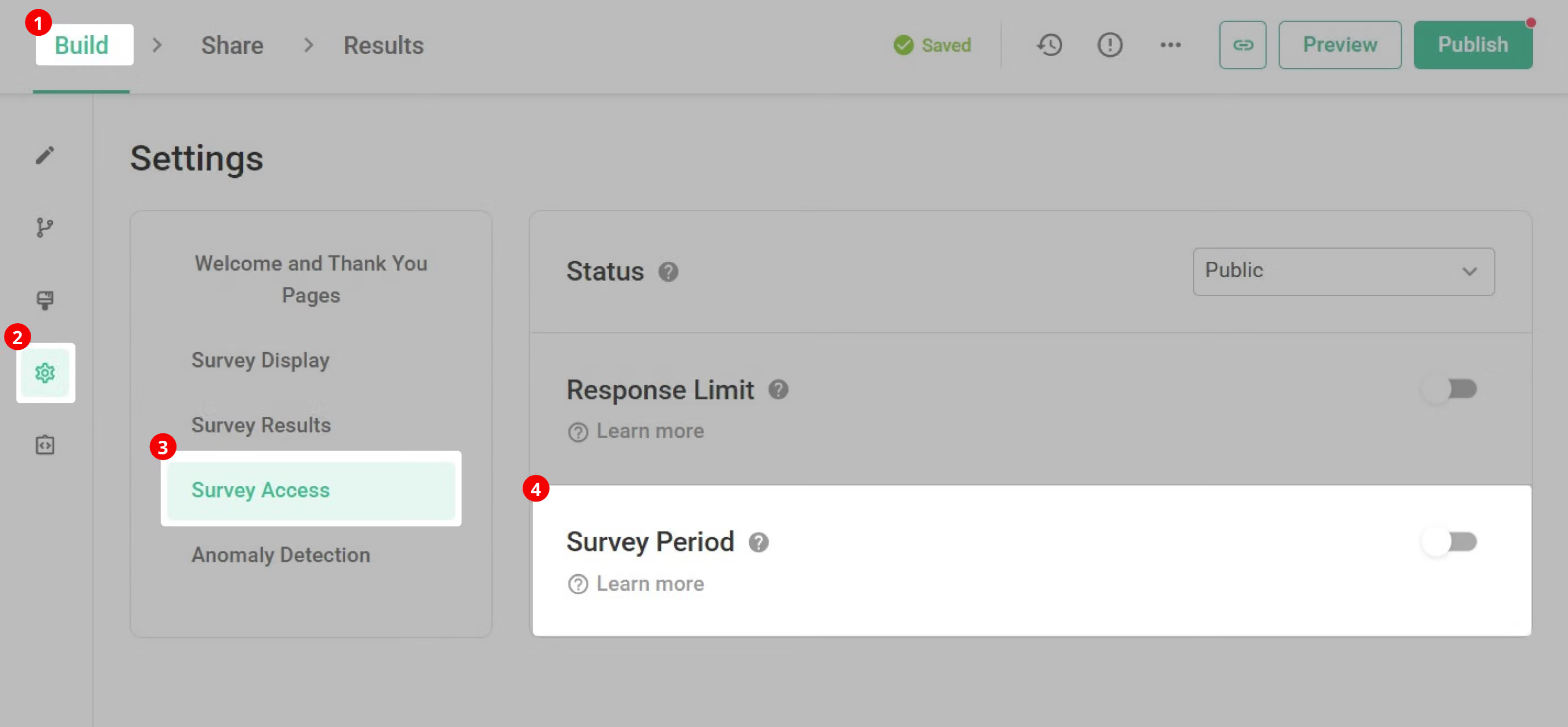
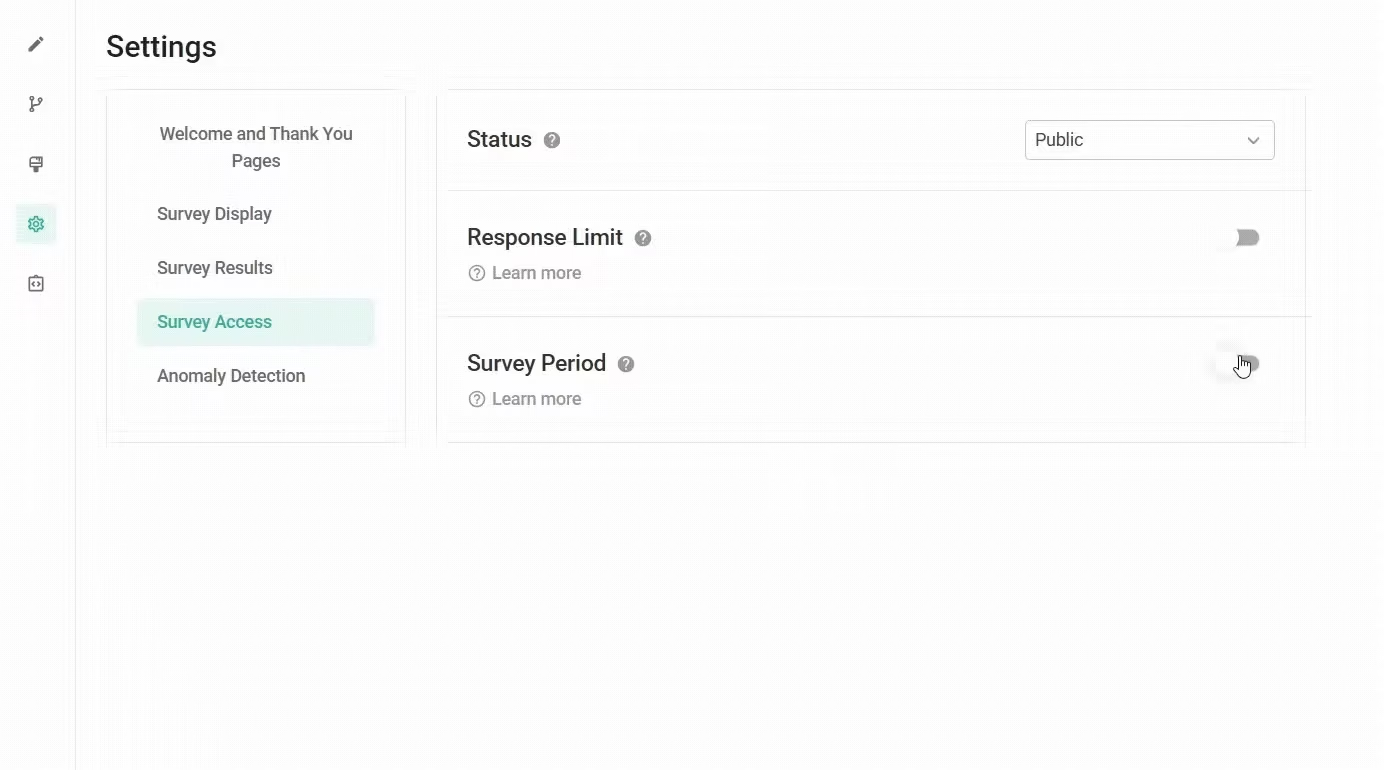
First, click the "Settings" button in the sidebar of the "Build" page, and find the "Survey Period" field on the "Survey Access" page.
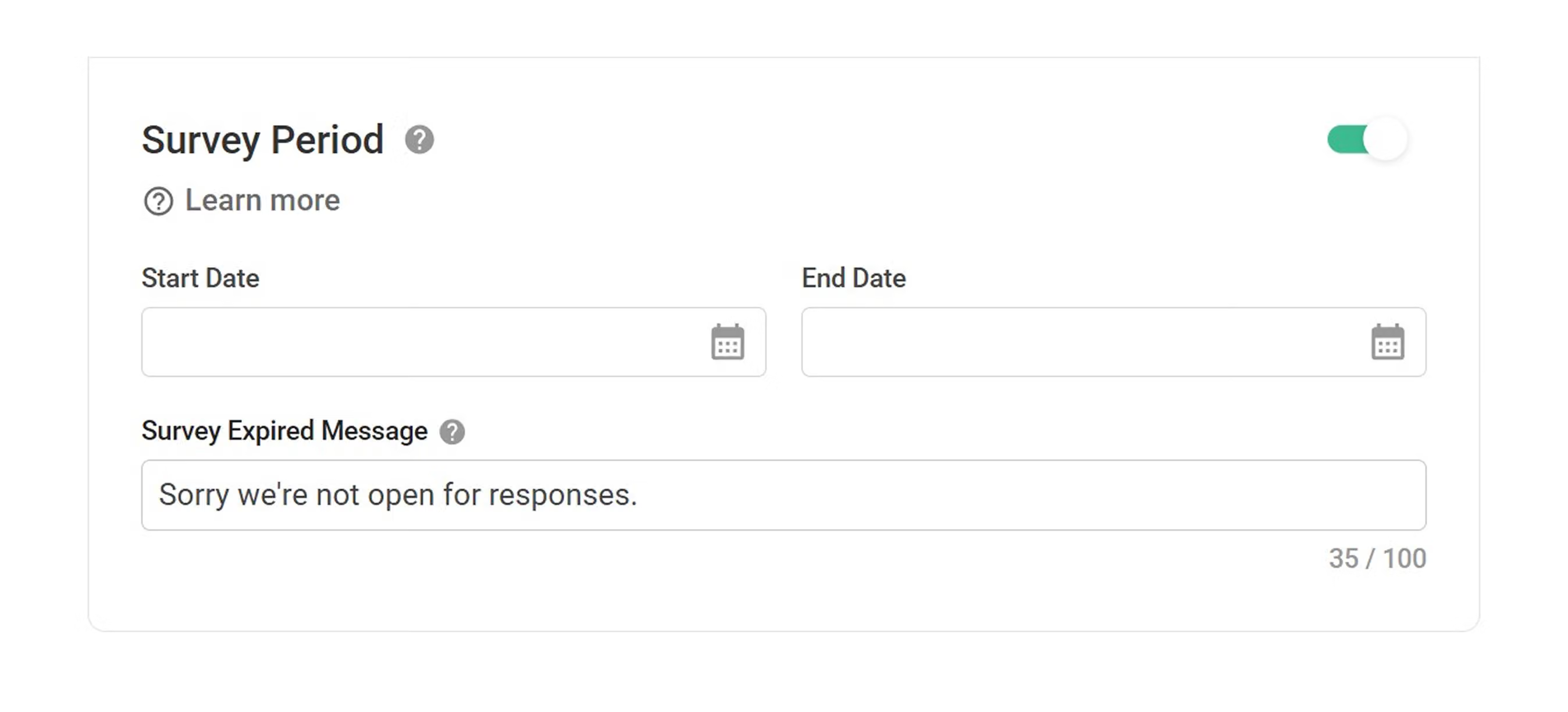
Turn it on and select the start and end time of your survey. In choosing the time period, SurveyCake allows you to select an exact year, month, day, and time, so you can set the most accurate time.
Note : The time period is in 24-hour format and GMT+8 time zone.
In addition, the default survey expired message is "Sorry we're not open for responses.", but you can also adjust it according to your needs. For example, you can let the respondents know the reason why they cannot fill in, or further guide the respondents to fill in within the valid period questionnaire. For more details, you can refer to Edit Survey Closed Message
.
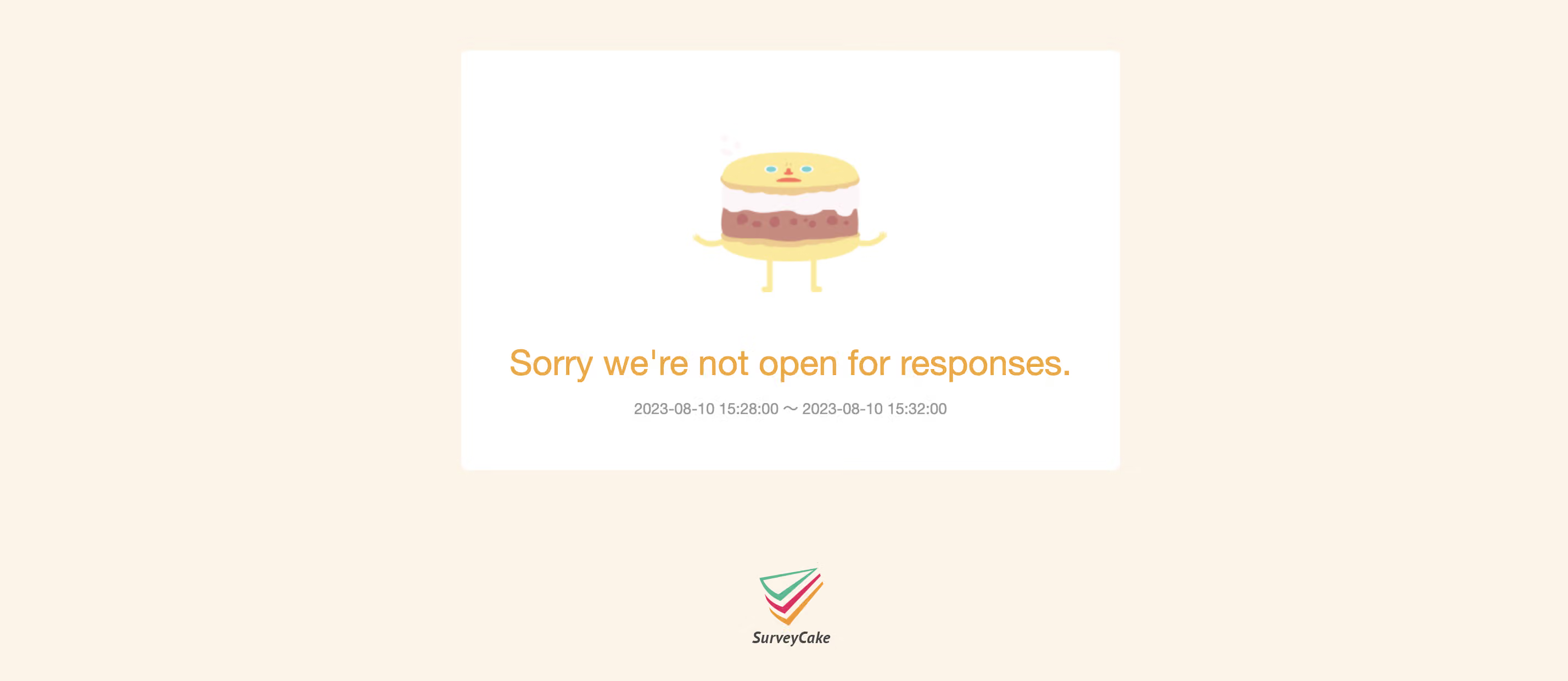
Below is the page that the respondent will see when they try to enter a survey outside of its period. Respondents will not have access to view and fill in the survey. .
Make good use of the Survey Periodfeature to set a survey's period of validity; the survey will automatically close at a certain time to assist you in gathering more accurate responses.



