On the Build Page you can add and edit questions. , Click “Build” on the left side or click “Build” in the survey progress steps above to edit the questions in your survey.
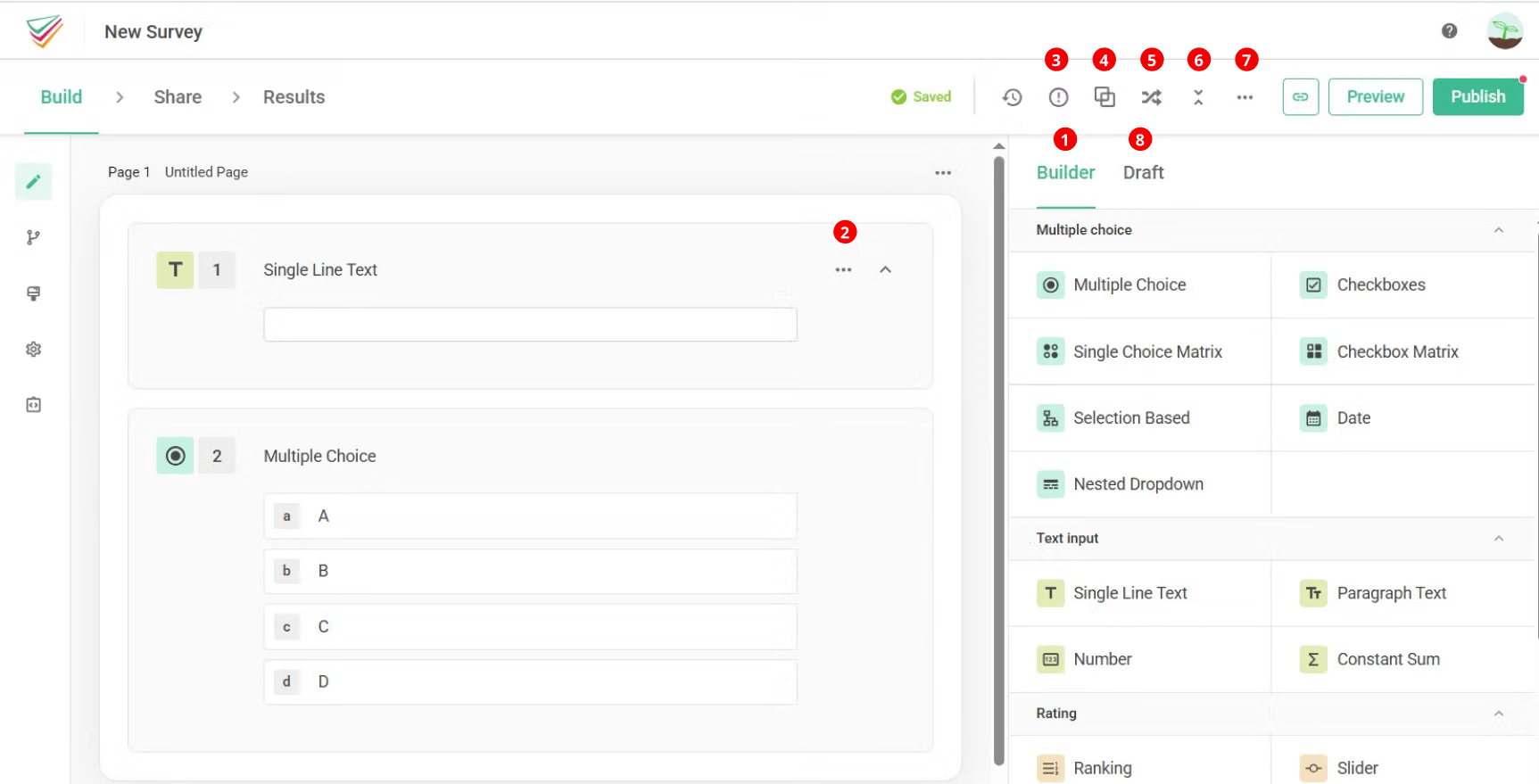
1. Add Questions
You can add a question to your survey in two different ways:
2. Basic Functions
When adding new questions, the basic functions will display around the top right corner.
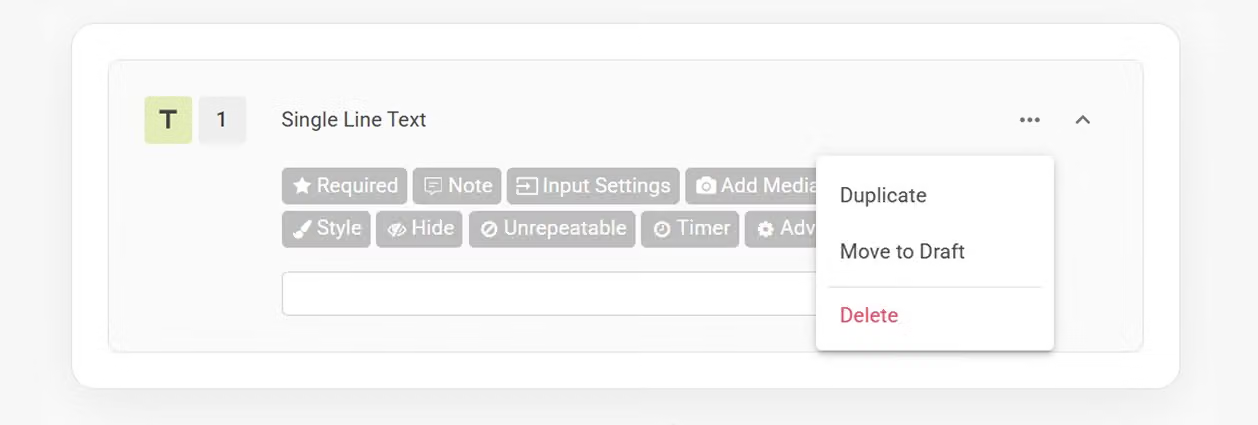
3. Reminder
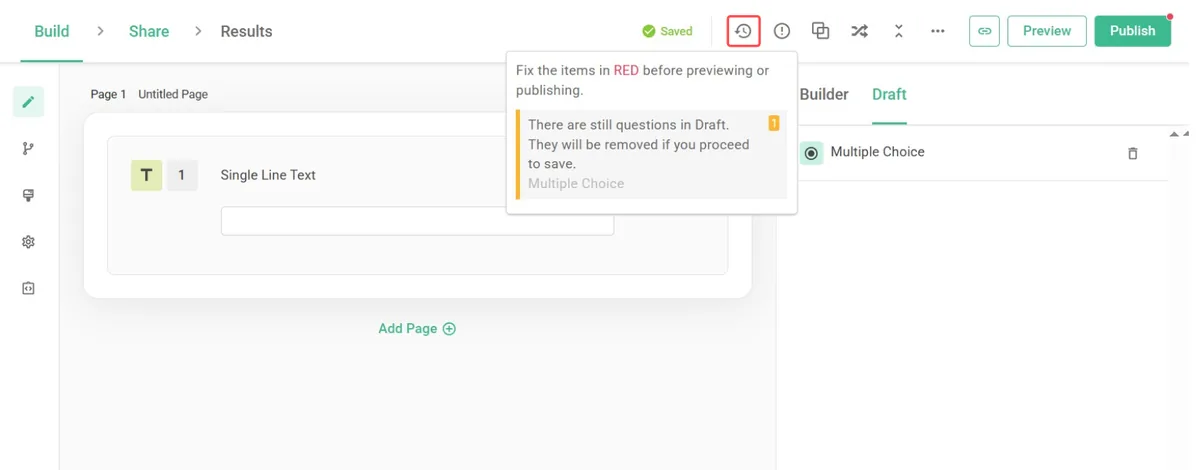
During the question editing process, “Reminder” on top right is used to inspect logic behind the survey. Surveys that have flawed logic, no titles or items, or questions still in the “Draft” will be detected and notified by the “Reminder” while saving. The survey can only be previewed and published after issues in the Reminder are fixed.
4. Create Question Group
Click "Create Question Group" allows you to combine multiple questions into a group. For more detailed instructions on managing question groups, please refer to: Groups.
5. Randomization
Clicking "Randomization" allows you to select questions that need to be randomized. This ensures that each time a respondent opens the survey, the questions appear in a different order.
6. Collapse / Expand Questions
Click Collapse Questions to collapse the question editor on the screen, showing only the title. This will make the screen cleaner when there are many questions in the survey. Click again to restore it back to previous status.
7. More Options
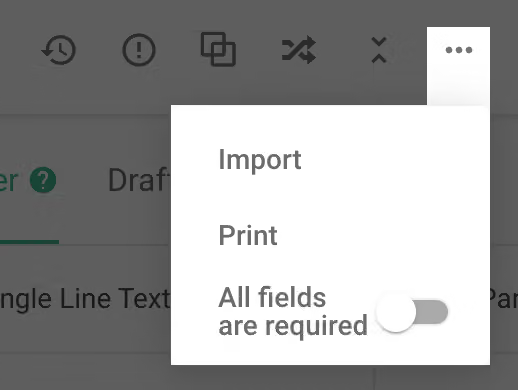
Clicking "More Options" expands the menu to import / print questions or set all questions as required.
8. Draft
When designing the survey, if you are not sure where a question belongs, you can temporarily move it to the Draft Save editing space and help you organize your questions more efficiently.
Note: Once the survey is published, all questions in the Draft area will be automatically deleted!



