How to Set Up
Let's use "Weekend Time Allocation" as an example to explain the setup and usage.
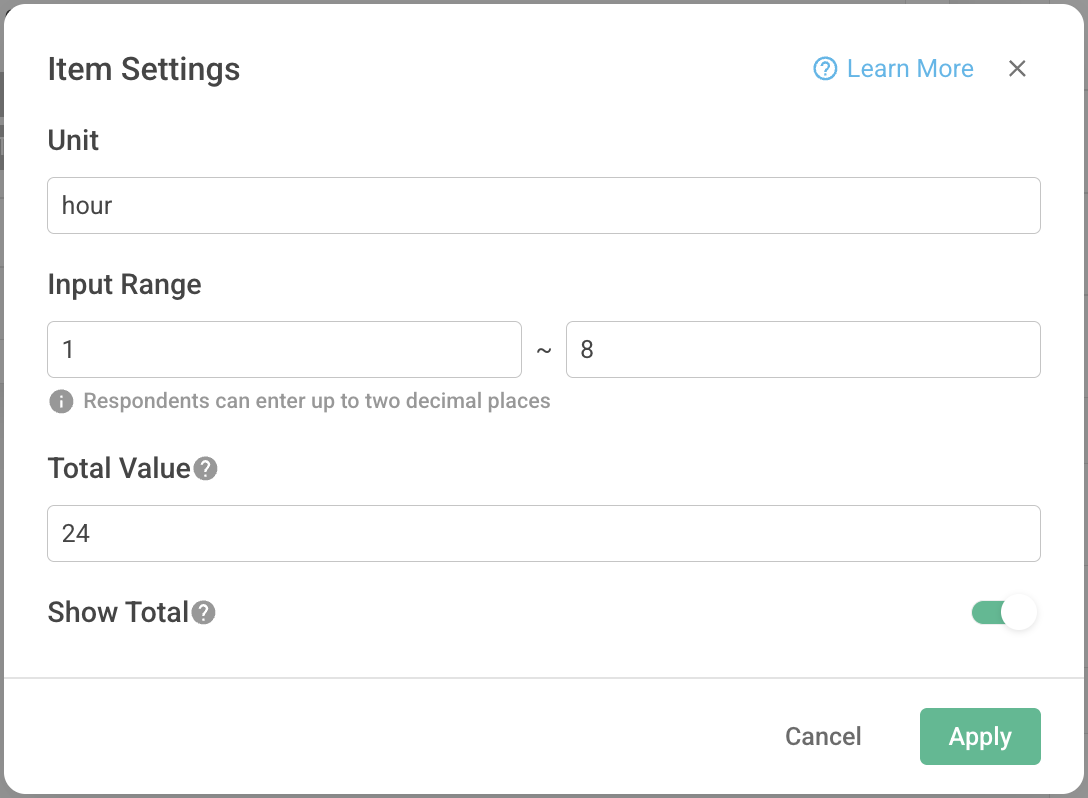
Say you want to understand how respondents allocate their time on Saturdays, with a total of 24 hours.
First, create a "Constant Sum" question with a title like: "How do you typically allocate your time on Saturdays?"Then, click "Item Settings" in the function bar.
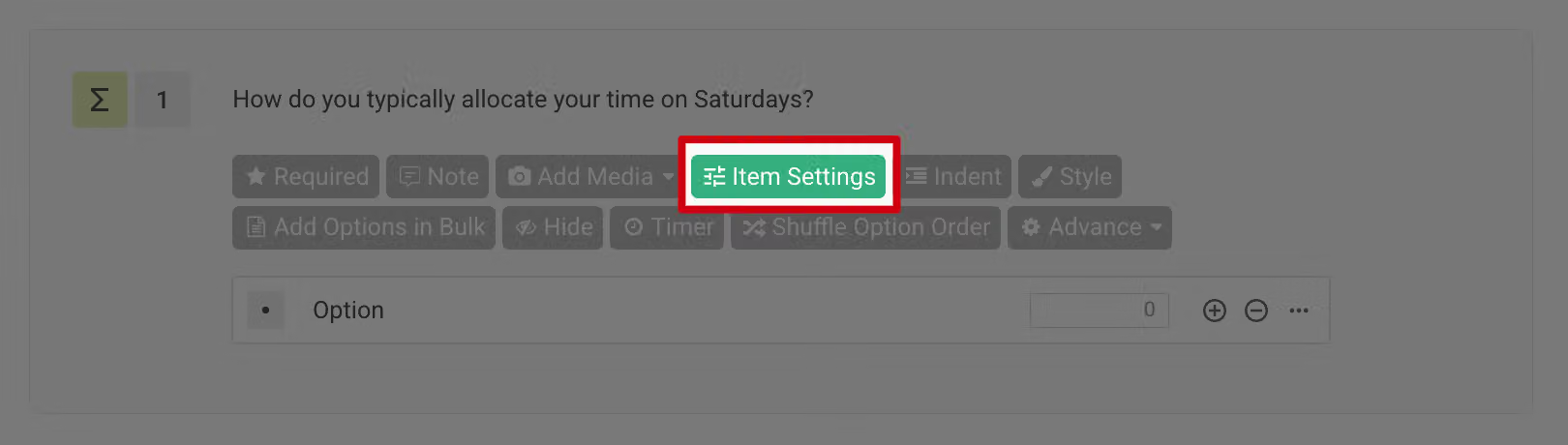
Configure the following settings:
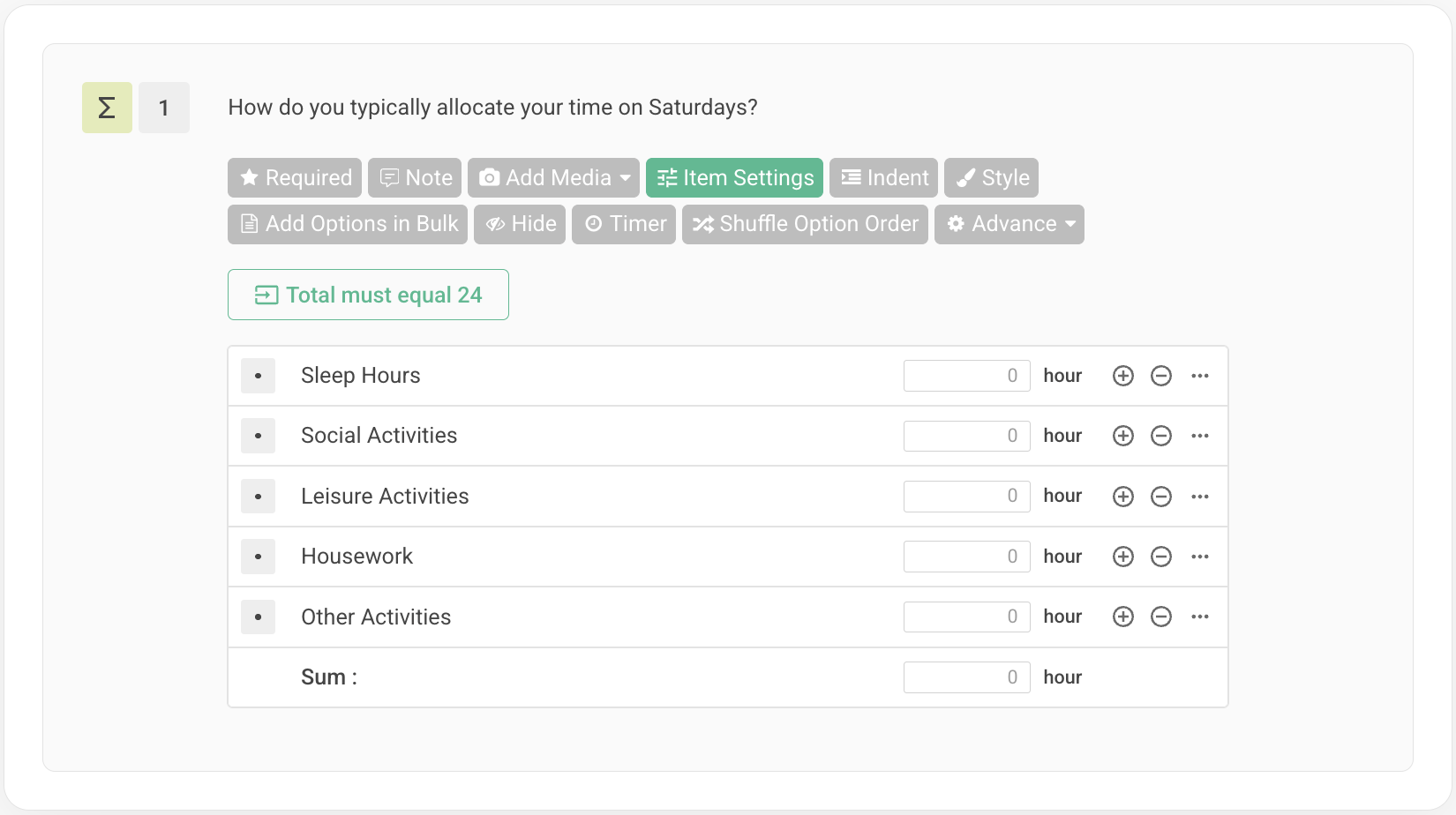
Next, add question options, for example:
Sleep Hours, Social Activities, Leisure Activities, Housework,Other Activities
After completing the setup, the live survey will display as follows:
A reminder appears below the question title: Total must equal 24, each field value must be between 1-8.
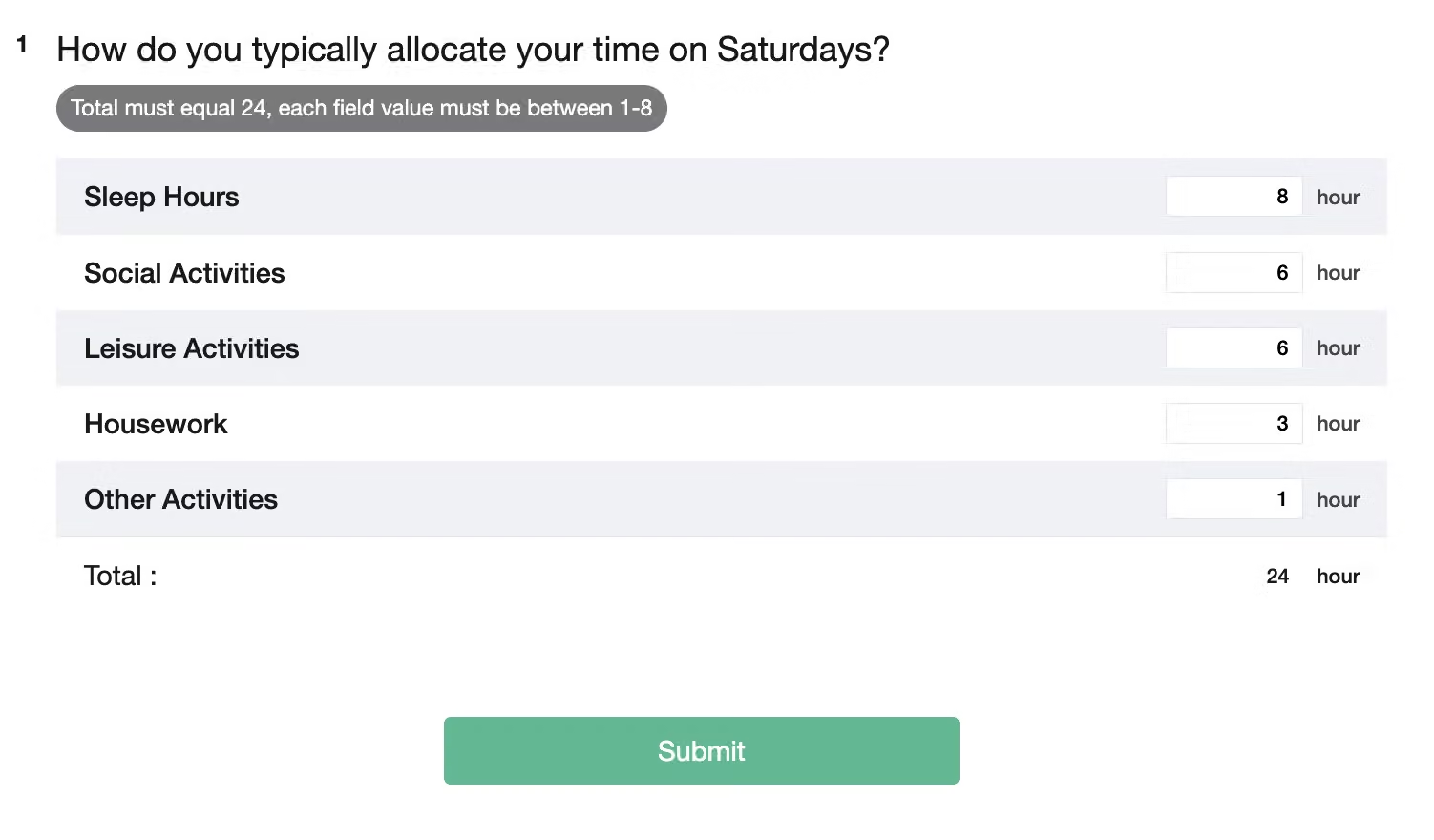
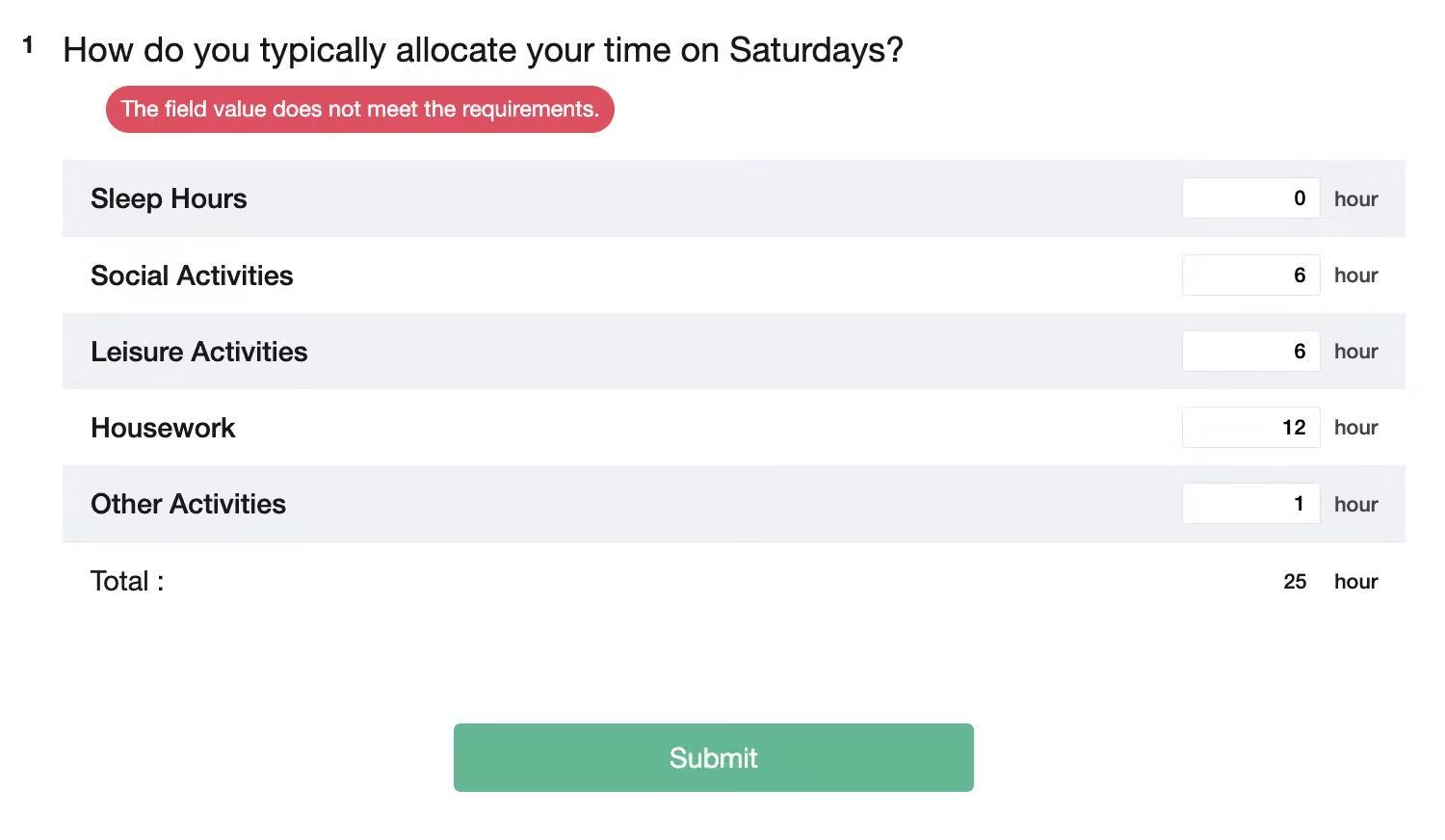
Since each option's input must fall between the minimum and maximum values (1-8 hours), entries like "0 hours for sleep" or "12 hours for household chores" violate the settings.
Additionally, the sum of all entered options must equal the specified total - in this case, 24 hours. A respondent's total of "25 hours" violates this rule, triggering an error message and preventing submission.
FAQ
When the question is optional, respondents can skip all options and submit the survey.
However, if they fill in any option, remaining options automatically default to 0, and the total sum must still equal the specified value.
Constant Sum questions can only be set as result questions in Pro Plan's Conditional Branching /
Skip Logic and Enterprise plan's Advanced Logic. They cannot serve as condition questions.
For example, you can set: When option A is selected in a “Multiple Choice”, branch to the "Constant Sum" question.
However, you cannot set logic to Conditional Branching / Skip Logich from a Constant Sum question to other question types.
Constant Sum questions ensure multiple numeric inputs add up to a specific value, perfect for allocating budgets, time, or weights across different options. With simple configuration, you can easily collect precise distribution data!



