The Checkbox Matrix question type allows you to ask multiple questions using the same set of options, with respondents able to select multiple choices for each sub-question. This format is particularly useful when evaluating multiple aspects where each aspect may have multiple applicable options.
In addition to the common features available across all question types (Required, Notes, Add Media, Indent, Style, and Timer), you can also add images and videos to Matrix question, freely modify the matrix options, or use preset option templates.
Here's an example:
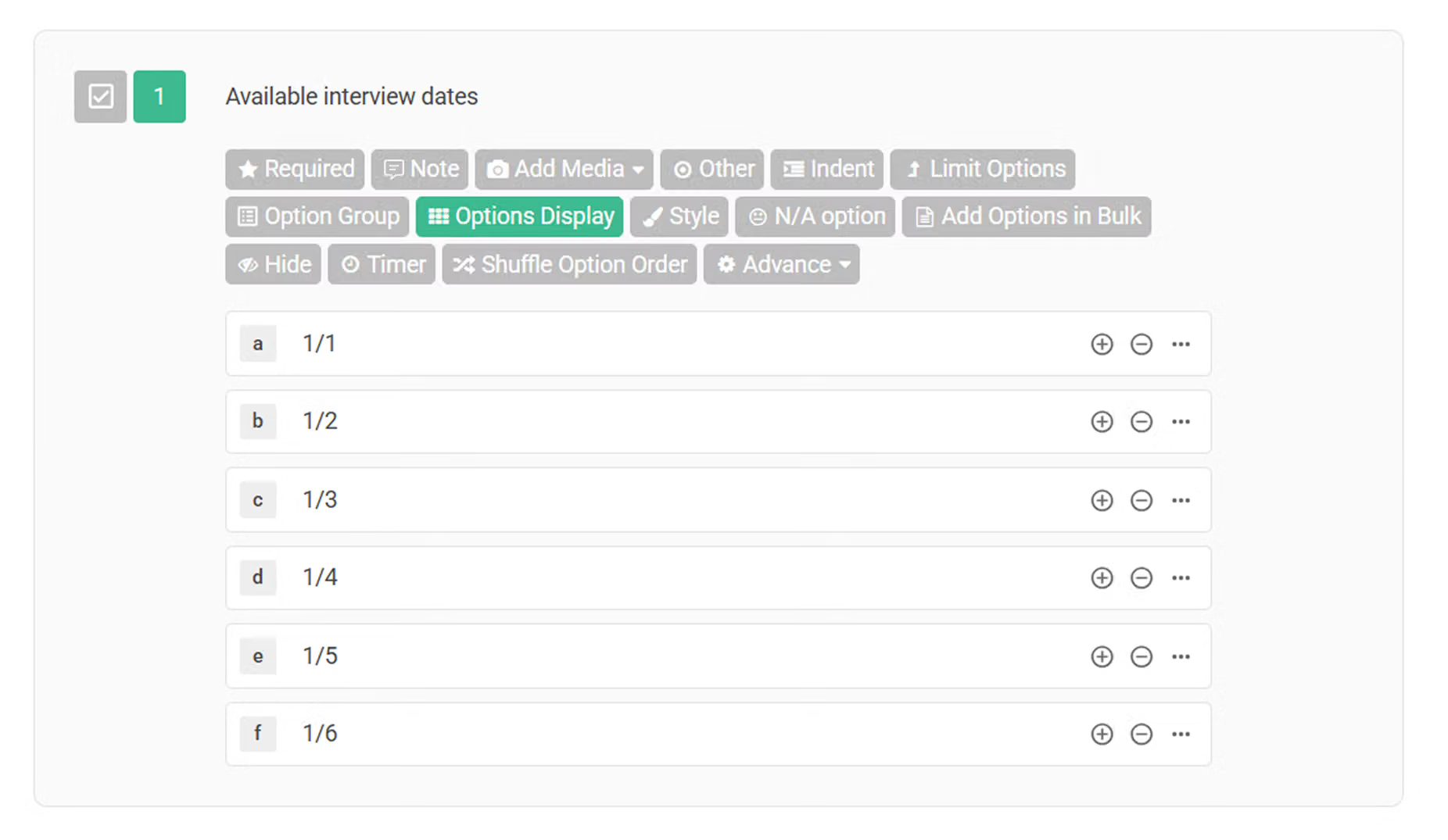
If you're a researcher wanting to create an interview recruitment form where participants can select dates and multiple time slots, follow these steps. First, create a "Checkbox Matrix" and enter the question title and date options. Then click on "Matrix options" in the function bar below the question.
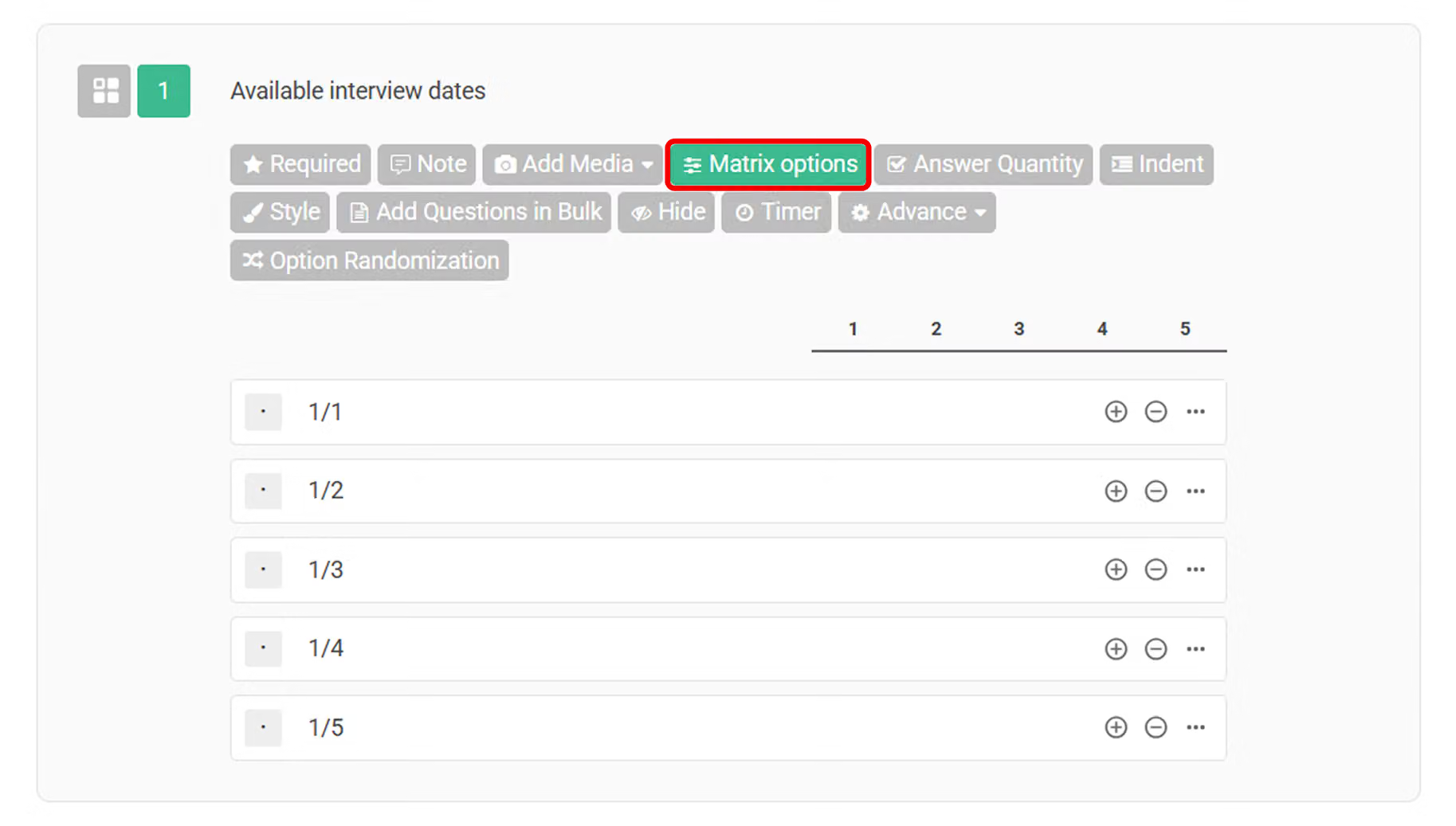
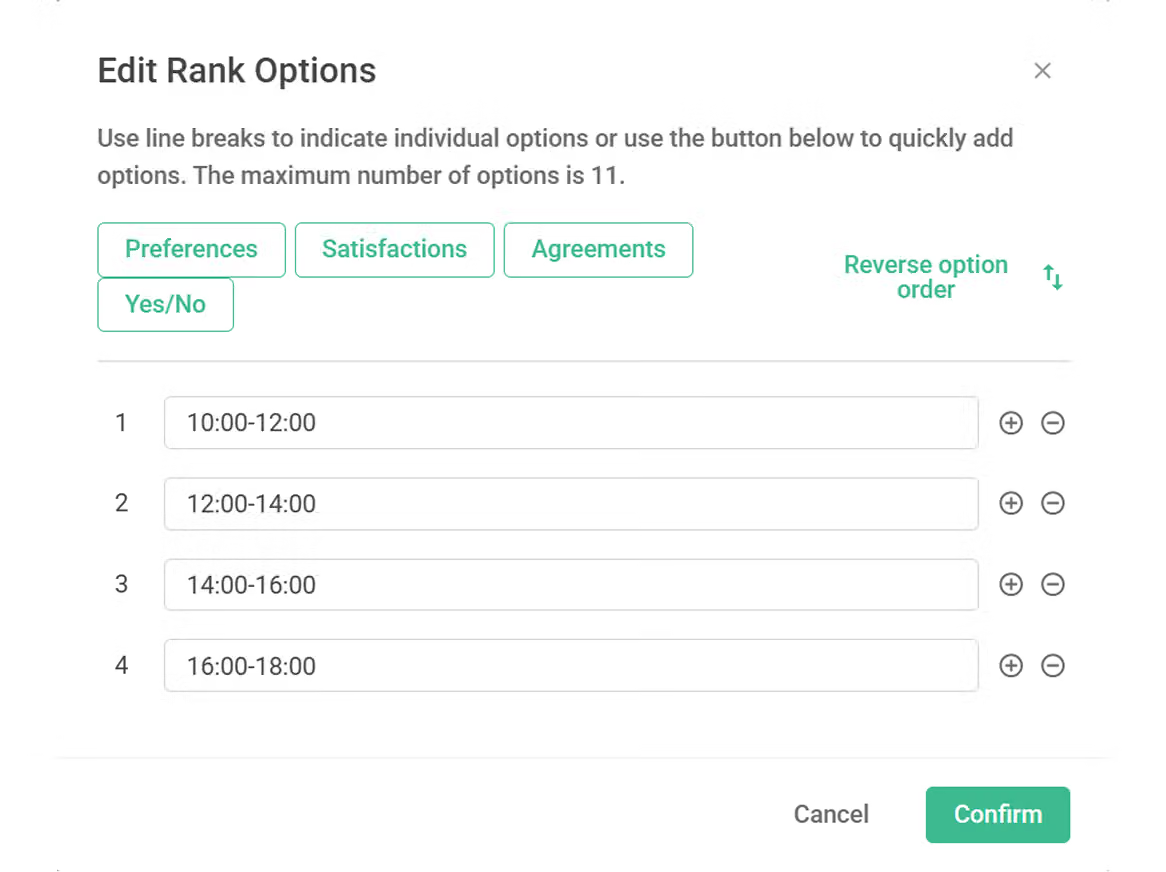
After clicking "Matrix options," enter the interview time slots.
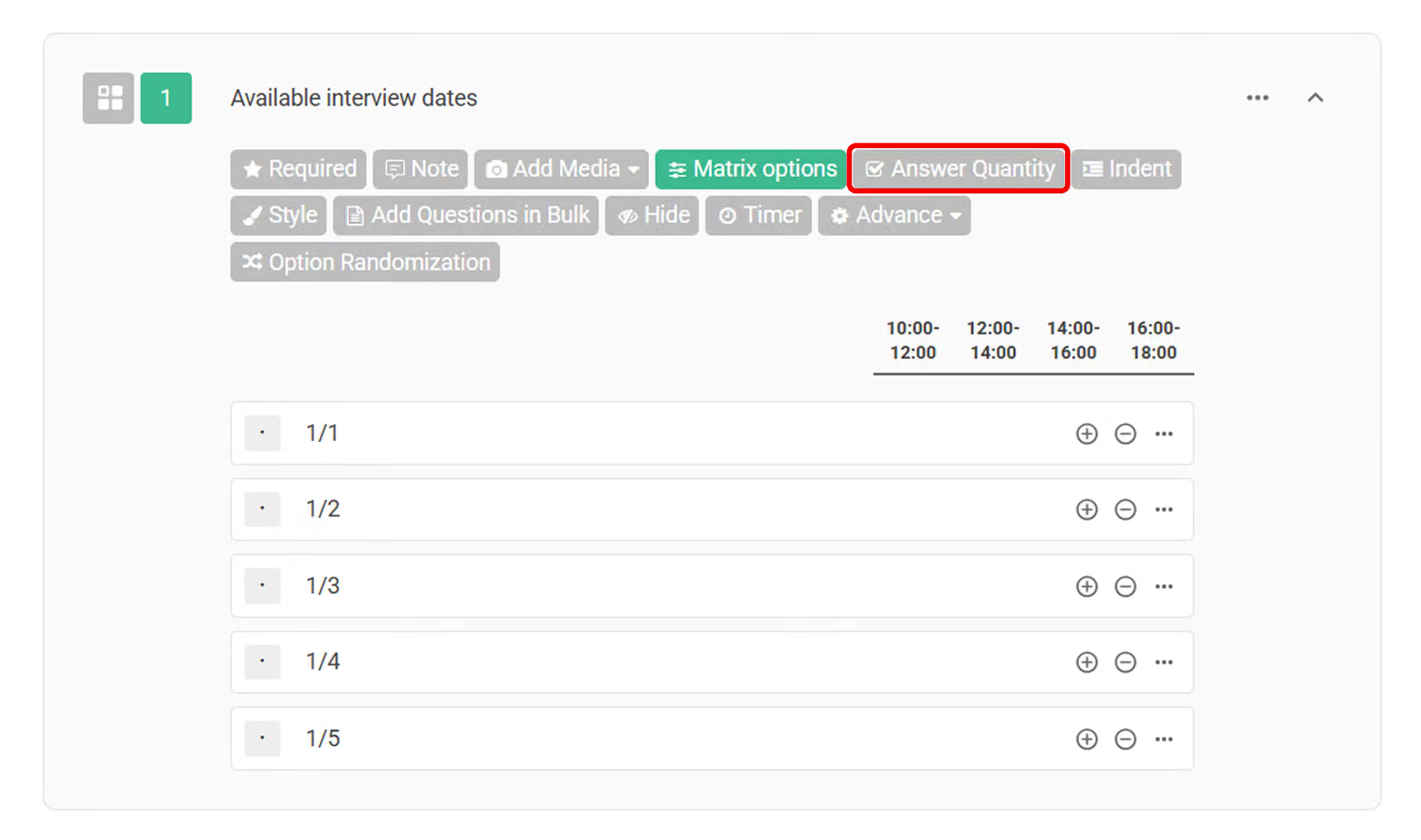
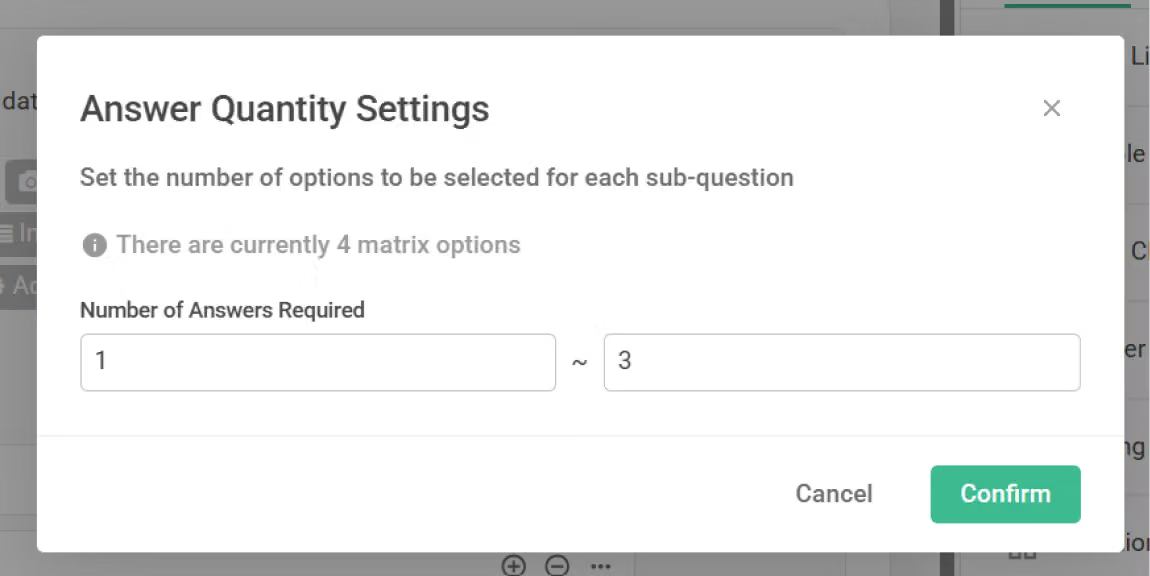
You can also set the number of options that must be checked for each Questions of Matrix. Click on "Answer Quantity" in the question function bar and enter the minimum and maximum number of selections allowed.
For example: Set a minimum of 1 and maximum of 3 options.
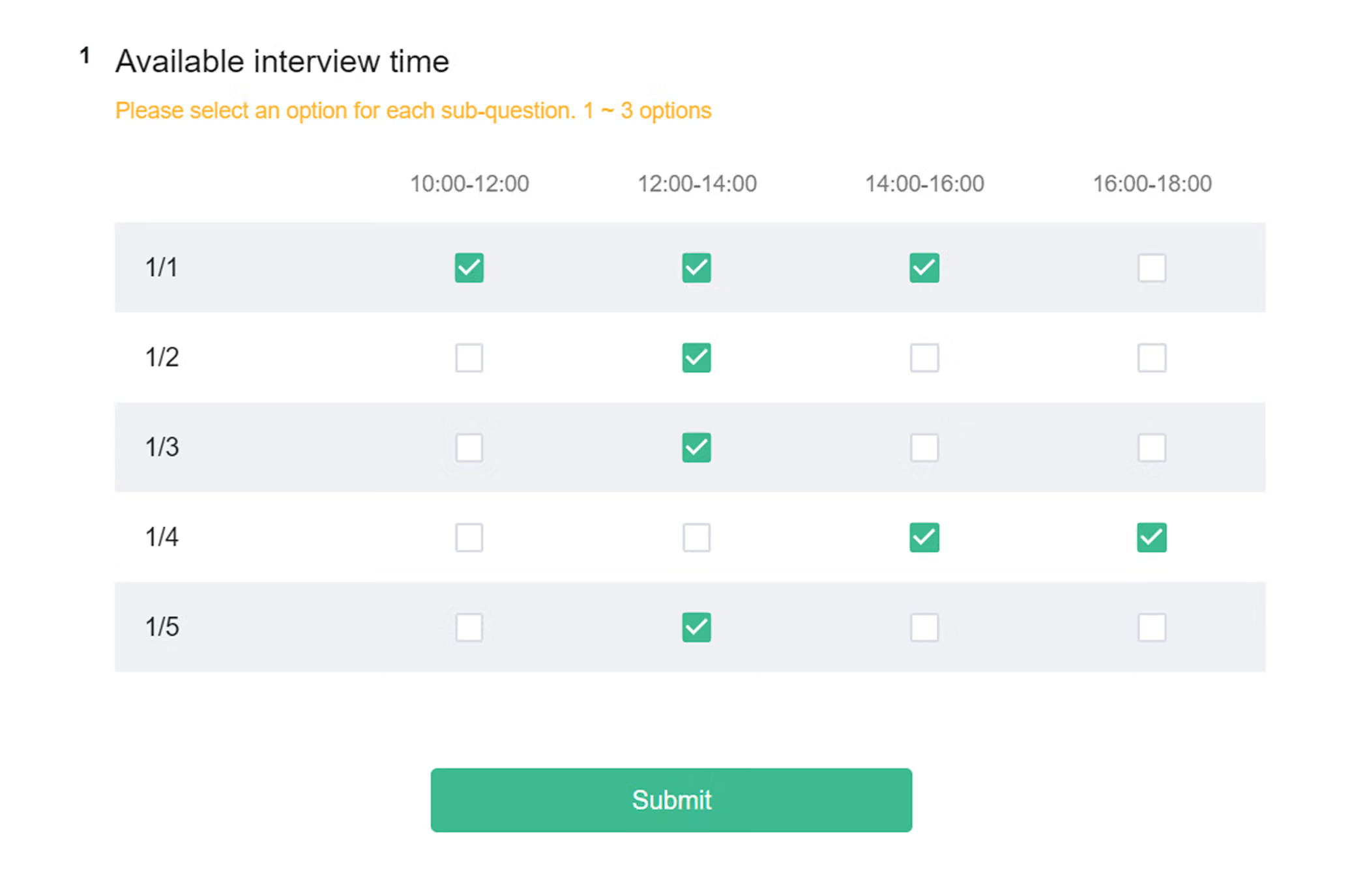
Following the above setup, here's how the live survey will appear:
The survey provides dates from 1/1-1/5 with 4 time slots for respondents to check, with the "Answer Quantity" settings requiring respondents to select 1-3 time slots. This way, after collecting responses, you can confirm the interview time with each respondent based on your schedule planning!
Advanced Settings: Advanced Logic Settings
Advanced Logic Settings is an exclusive feature for SurveyCake Enterprise plan users.
The "Advanced Logic Settings" feature in Checkbox Matrix Questions automatically creates new questions based on respondents' answers to previous Multiple Choice/Checkboxes questions, saving survey designers time and effort from manual question setup.
Setup steps are as follows:
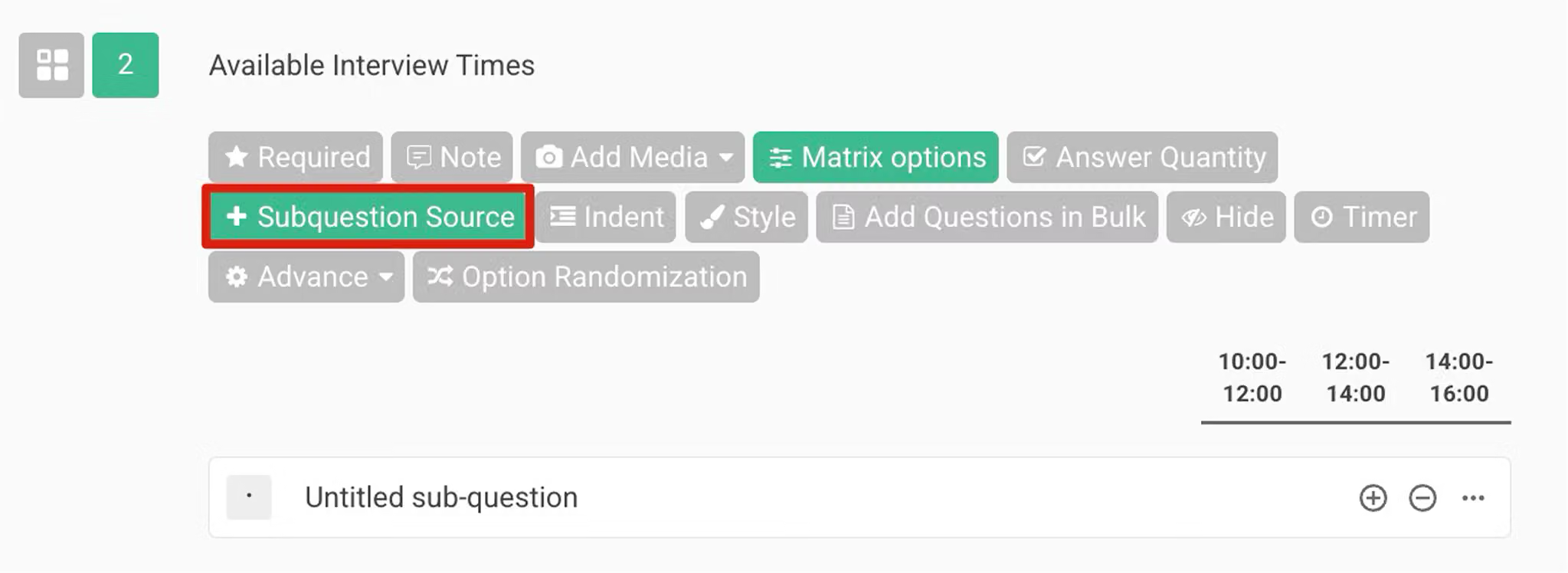
After setting up the question and matrix options, click "Subquestion Source" in the function bar.
After clicking "Subquestion Source," you can select which question's options you want to pipe in.
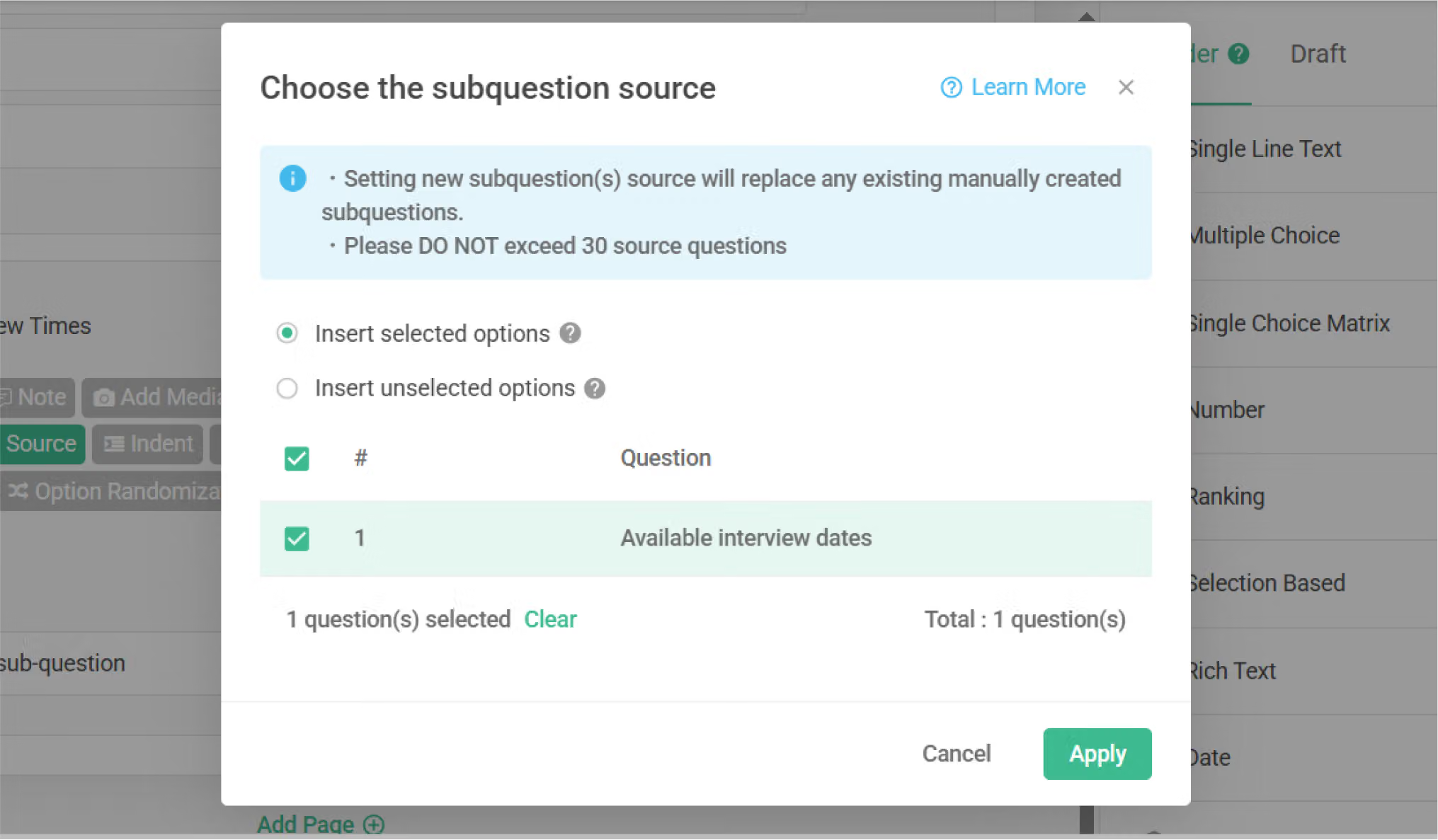
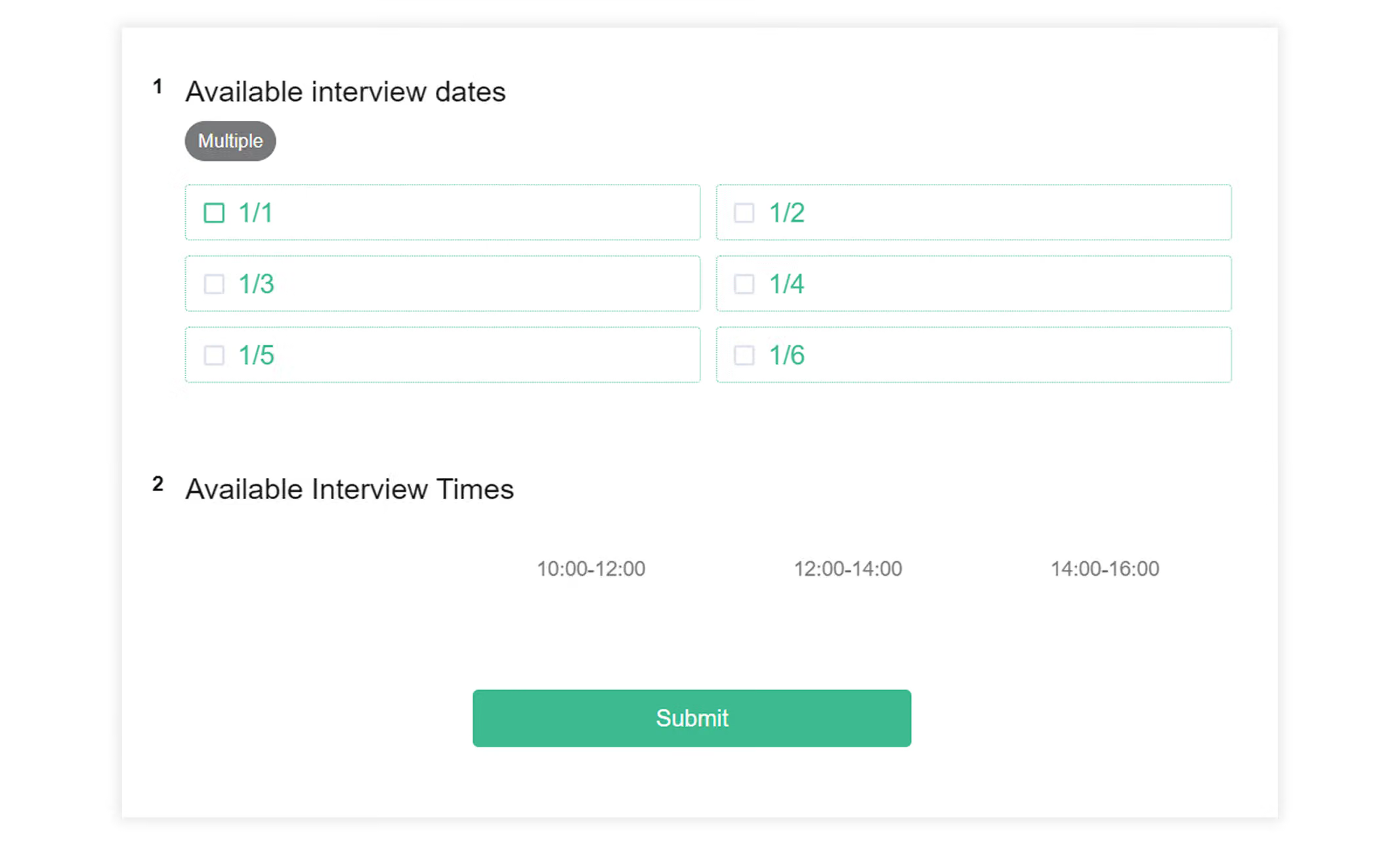
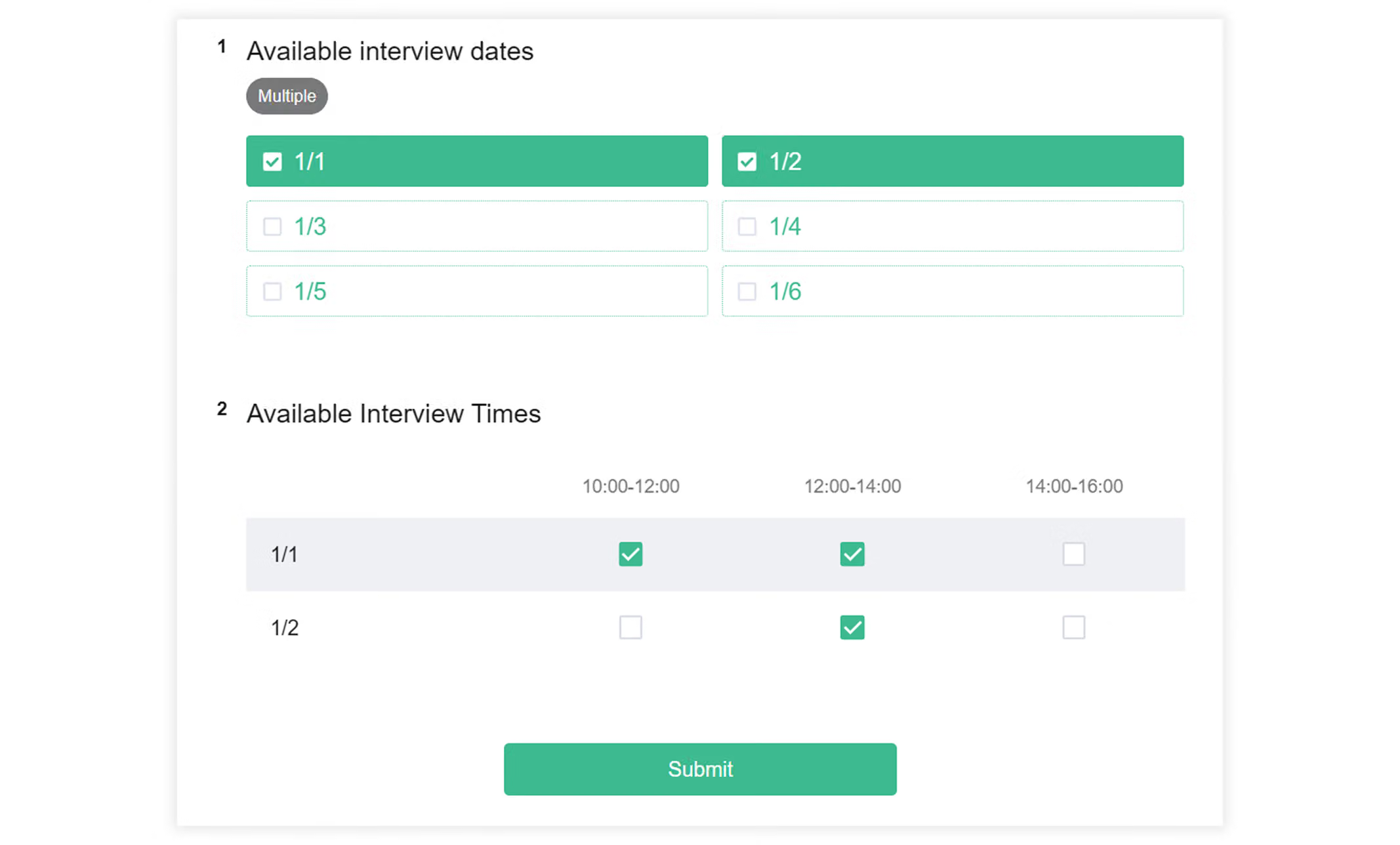
Before this setup, your survey must contain "Multiple Choice" or "Checkboxes" question types. After selecting the question, its options will become the subquestion source. In this example, we'll pipe in options from the first Checkboxes question "Available Interview Dates."
Here's how the live survey will appear after setup (using "Import selected options" as example):
If you're interested in learning more about the "Subquestion Piping" feature, please refer to this article: Subquestion Pipin
FAQ
Since Checkbox Matrix Questions allow multiple selections for each Questions of Matrix, it cannot calculate weighted scores like Single Choice Matrix Questions. Stacked bar charts most clearly show the proportion of each option selected across Questions of Matrix.
Checkboxes Matrix Questions not only allow respondents to select multiple suitable options under the same criteria but also enable survey designers to collect multi-dimensional information at once. Through response quantity limits, you can ensure collected data is both complete and focused, making it the best choice for multi-dimensional assessment!



