SurveyCake has various professional types of questions, and each type of question is described as follows:
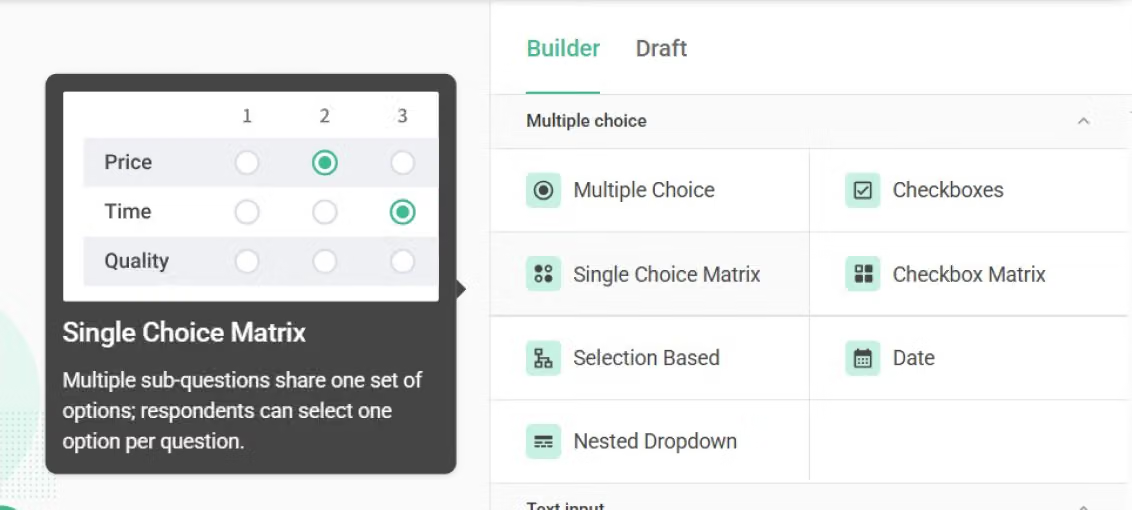
In SurveyCake's Build page, hovering your mouse over survey question types will display introductory images and text hints to help you intuitively select the question types and features you want to use.
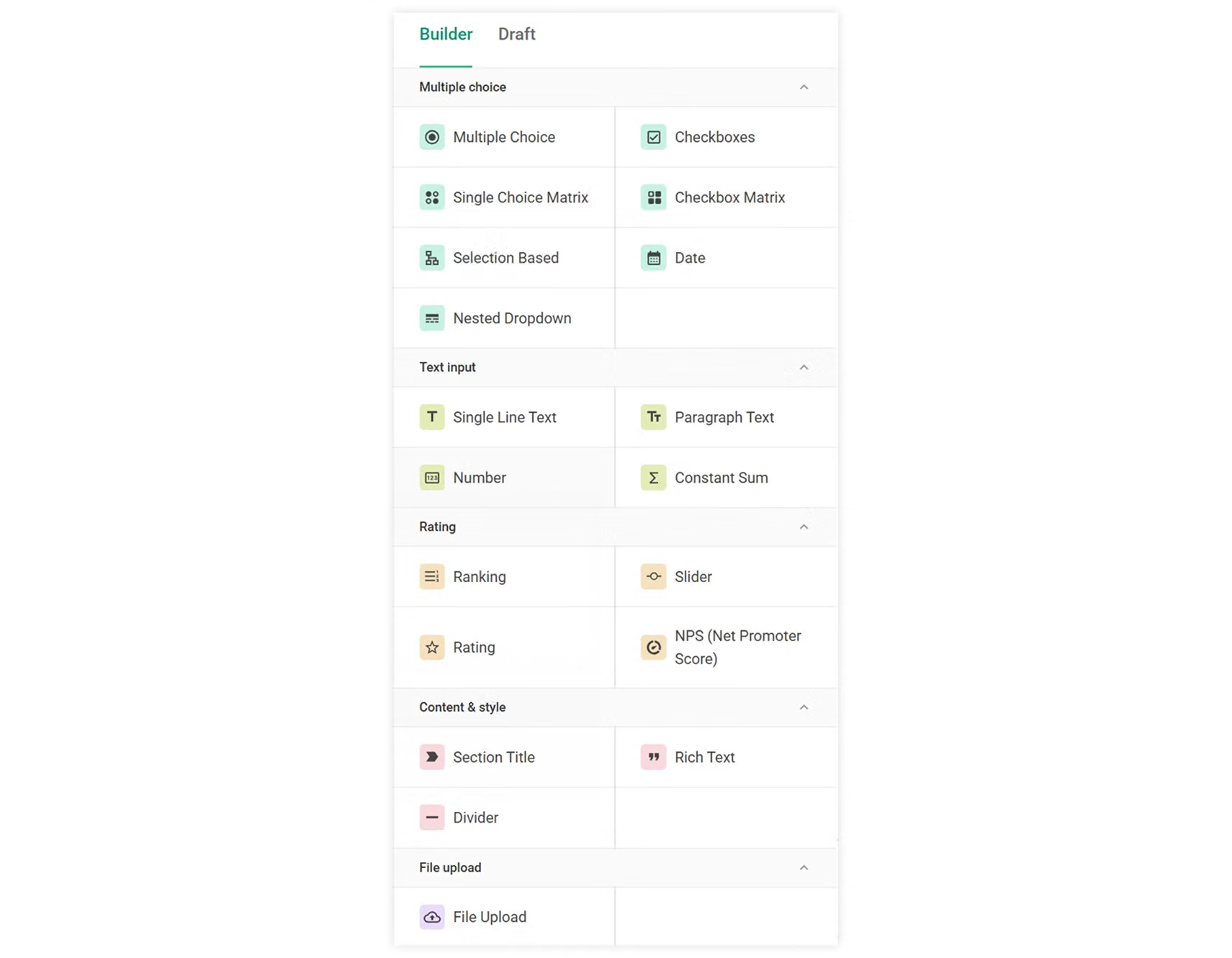
Multiple choice
The respondent can only choose one option in this question.
The respondent can select one or multiple checkboxes in this question.
Ask multiple questions with a set of options (e.g., satisfaction, preference), where respondents can select one answer per question.
Ask multiple questions with a set of options, where respondents can select multiple answers per question.
Use the answers respondents have selected in other multiple-choice/checkboxes questions as options for this question.
Allow respondents to provide date answers using a standard format.
Team Plan FeatureNested DropdownAllow respondents to quickly choose from a long list of options by employing multi-level filtering.
Text input
Create short response questions for information collection and short answers.
Create questions with text-only fields for long or detailed answers.
This question allows only numbers as an answer to collect numerical responses.
Allow your respondents to enter values that add up to a specified total.
Rating
Create multiple options for the respondent to rank, to understand the respondent's priority regarding the options.
Let the respondent move a slider to rank on a numerical scale.
Let the respondent rate in a visual way, such as stars or other shapes.
Team Plan FeatureNPS (Net Promoter Score)Uses a 0-10 scale to measure and help you understand important indicators of respondent loyalty or satisfaction.
Content & style
Add a section title for the following questions to make your survey much clearer (this type of question does not need to be answered).
Add a message, image, or video with Rich Text to make the respondent understand the following questions (this type of question does not need to be answered).
Create a dividing line for your one-page survey or set the pagination position of a multi-page Survey.
File upload
Allow the respondent to upload files to the survey, and the files collected will be stored in the Cloud Drive, which you authorized.
ENTERPRISE-only
Protect respondents' personal information by encrypting results at Data Report, only "Super Admin" and authorized accounts have the access to view.
Use custom options as well as options from other choice questions as options for the current question.
To learn how to create questions and basic functions of survey builder, please refer to Add / Edit Questions.



