Single Line Text is the most basic type of question, seen in every survey. Works best for obtaining respondents' information such as names, E-mail addresses and telephone numbers.
SurveyCake's Single Line Text question type offers not only the common features found in all question types, such as Required, Note, Add Media, Indent, Style, Hide, and Timer, but also Input Settings including 5 types of Text Validation and Custom Placeholder Text. These features guide respondents in providing answers that adhere to the specified format. If an answer does not meet the validation format, the system will display a corresponding warning reminder and prevent the submission of incorrect data. Text Validation not only ensures data accuracy but also enhances convenience for respondents when filling in their answers.
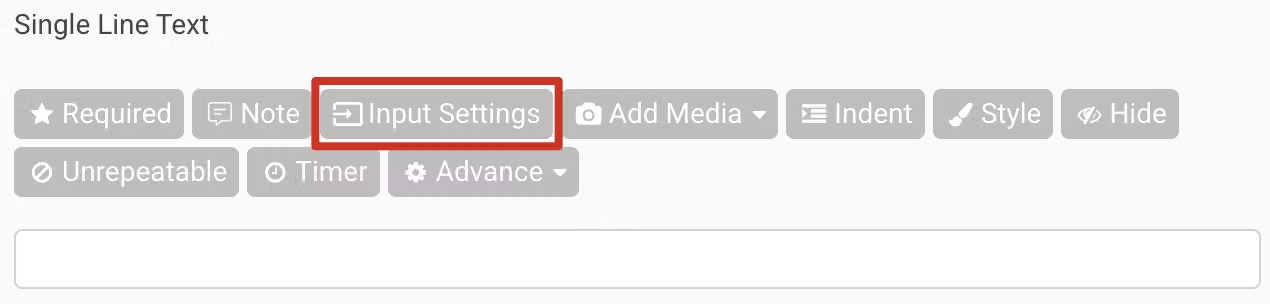
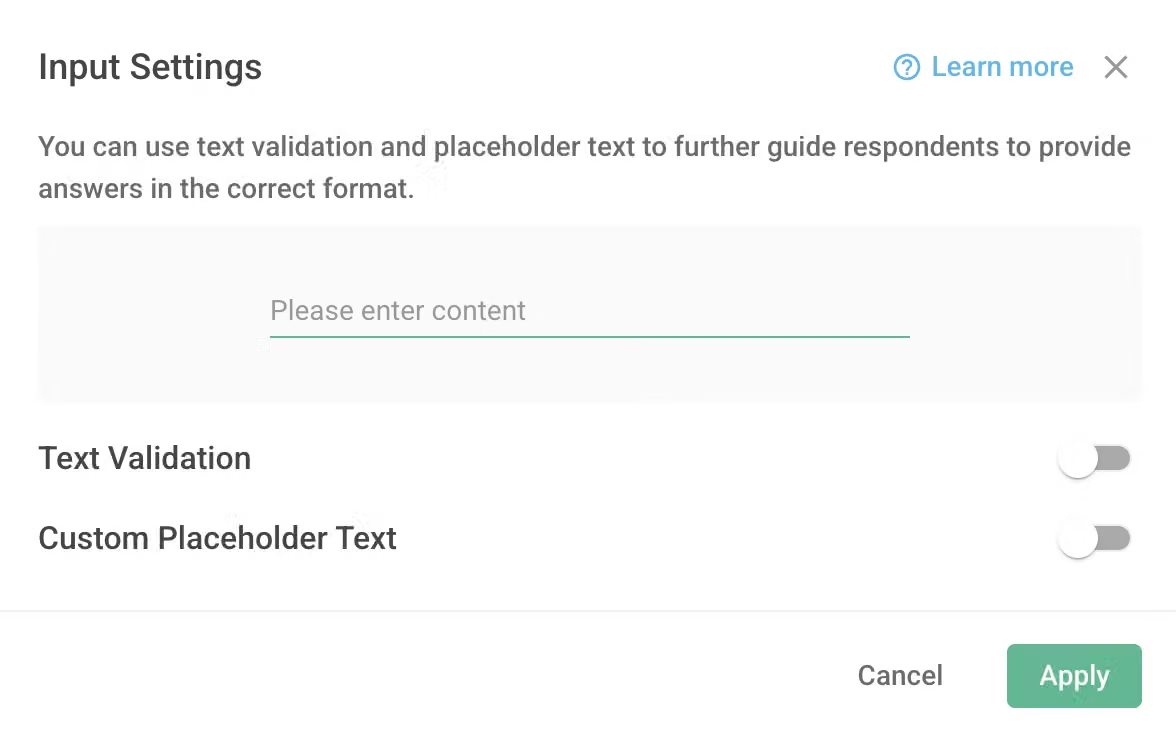
Currently, Text Validation supports validation for 5 types of input formats: text, email, phone number, URL, and API. They will be introduced in order below.
1. Text
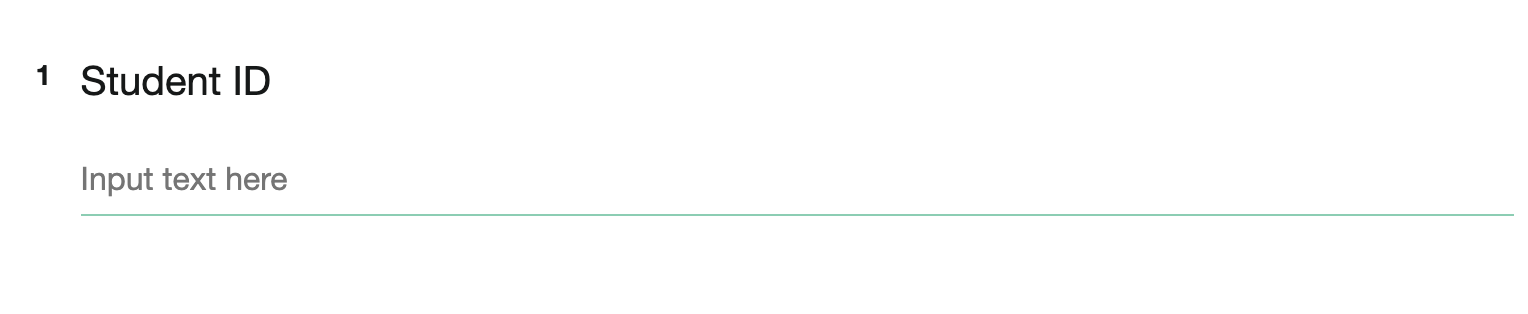
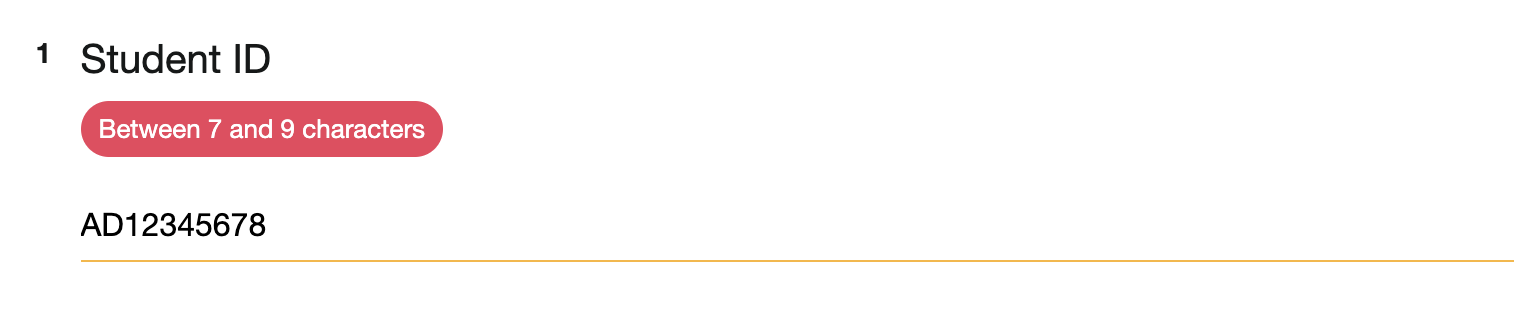
If you would like to collect answers consisting of text only or a combination of "text and numbers" (e.g. a student ID consisting of 7-9 alphanumeric characters), you can enable the general text validation and set the required number of characters within a specific range. In this way, before answering, the question will display a default guiding message "Input text here" and it can also block all answers that do not meet the specified conditions. The number of characters can be limited within a specific range.
2. Phone Number
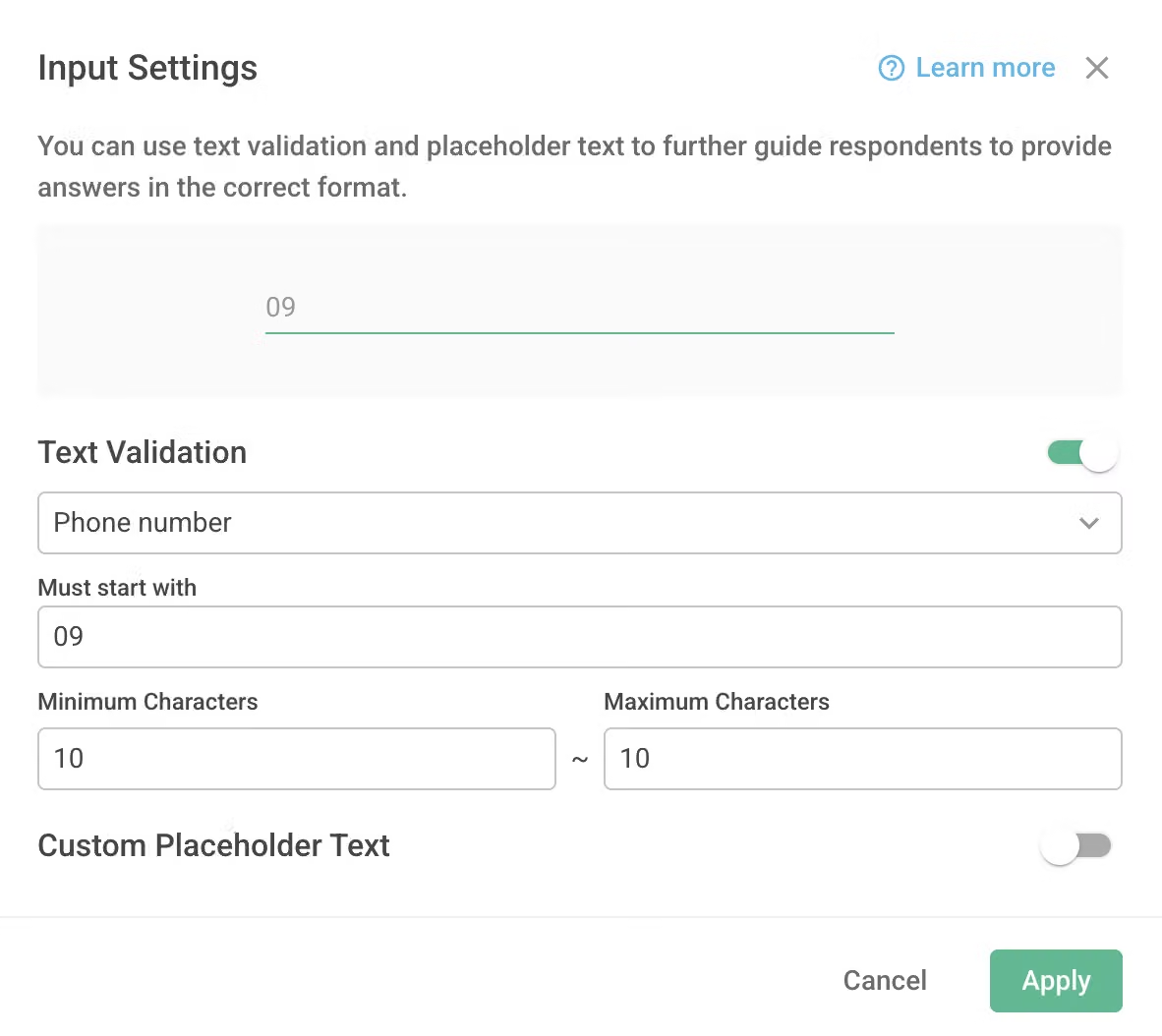
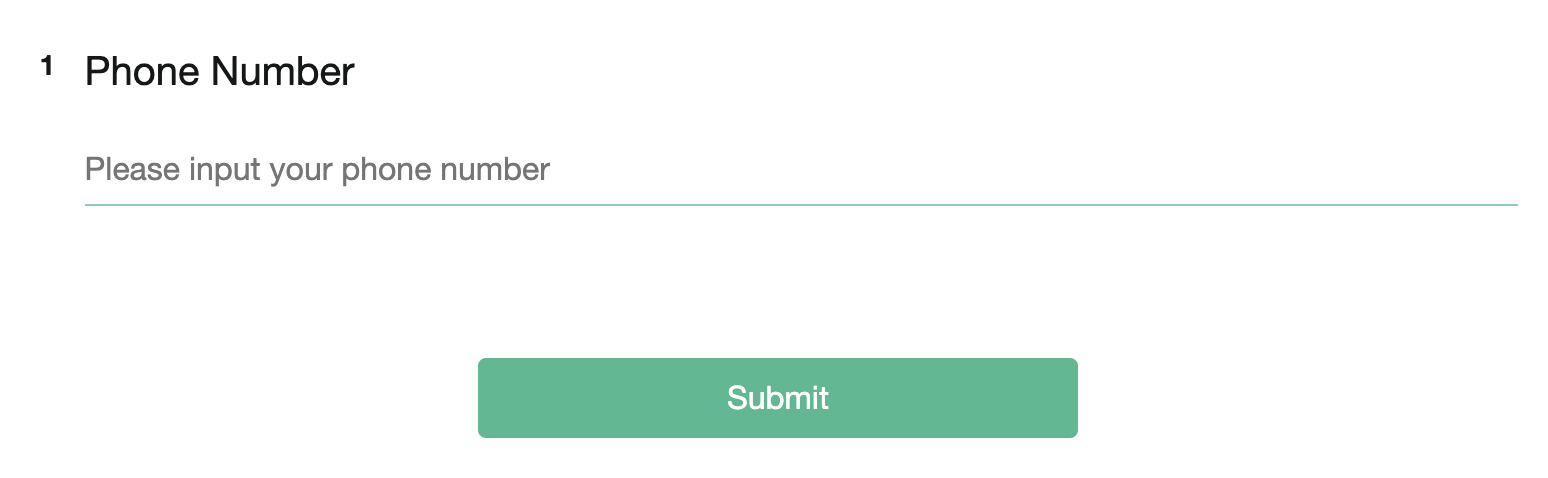
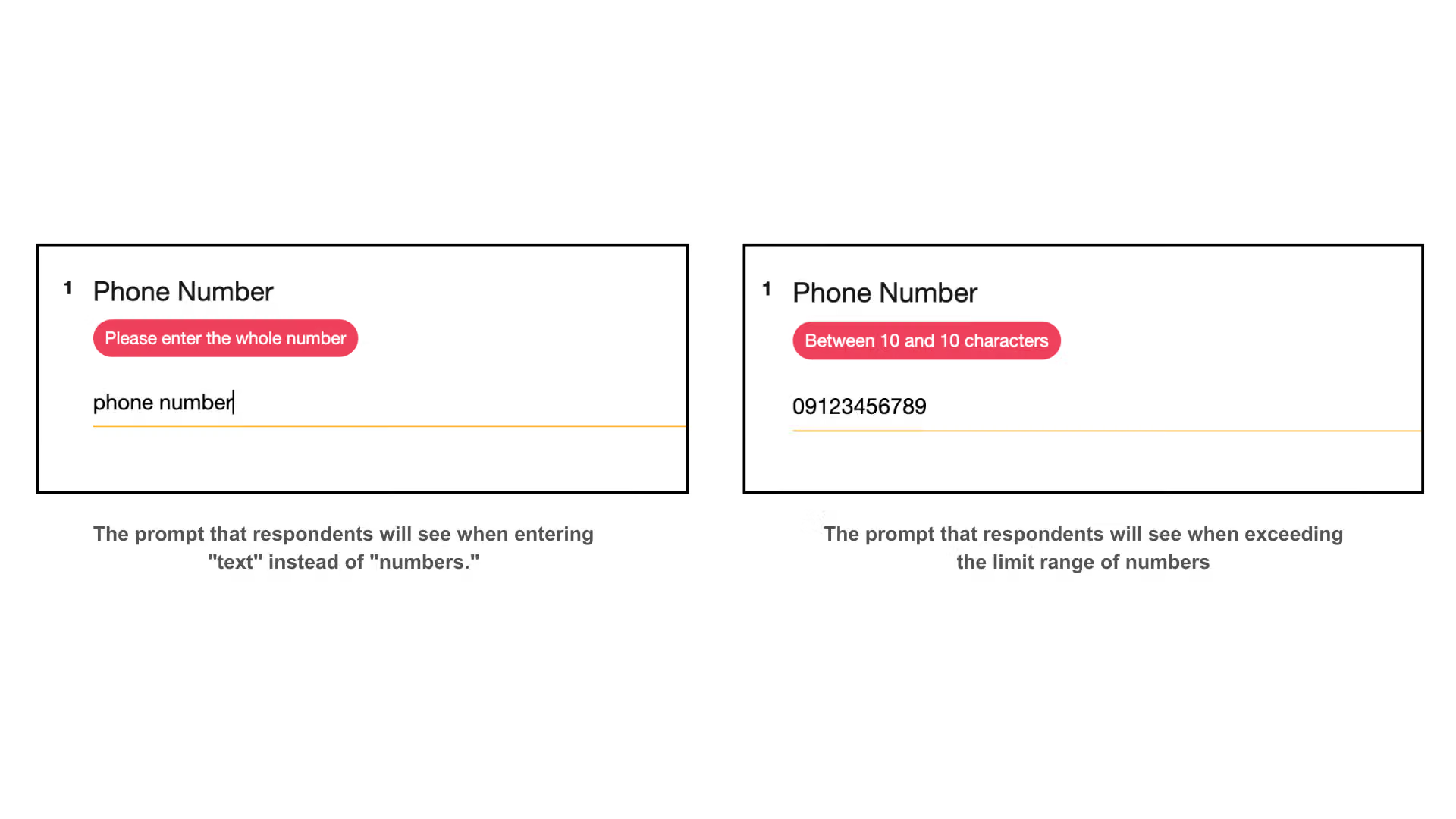
If you would like to collect respondents' phone numbers, you can set the validation to phone number so that only answers in a numeric format can pass the validation.
Furthermore, you can specify the answer to start with 09, and the length of the answer to be between 10 and 10 characters, for example, as phone numbers typically have a fixed format.

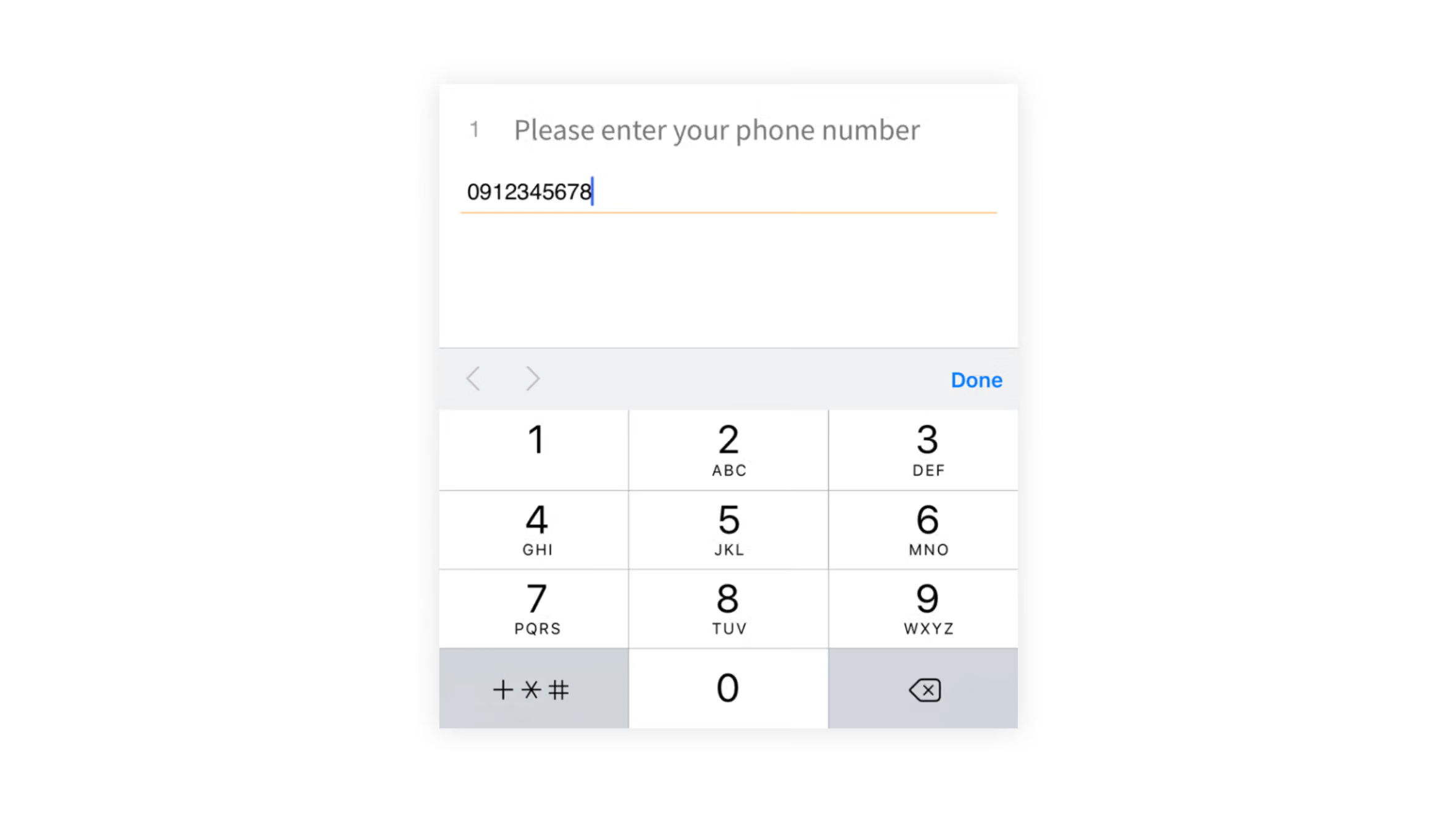
The numeric keypad will automatically appear on the mobile devices when the text validation is set as Phone Number.
3 & 4. Email & URL
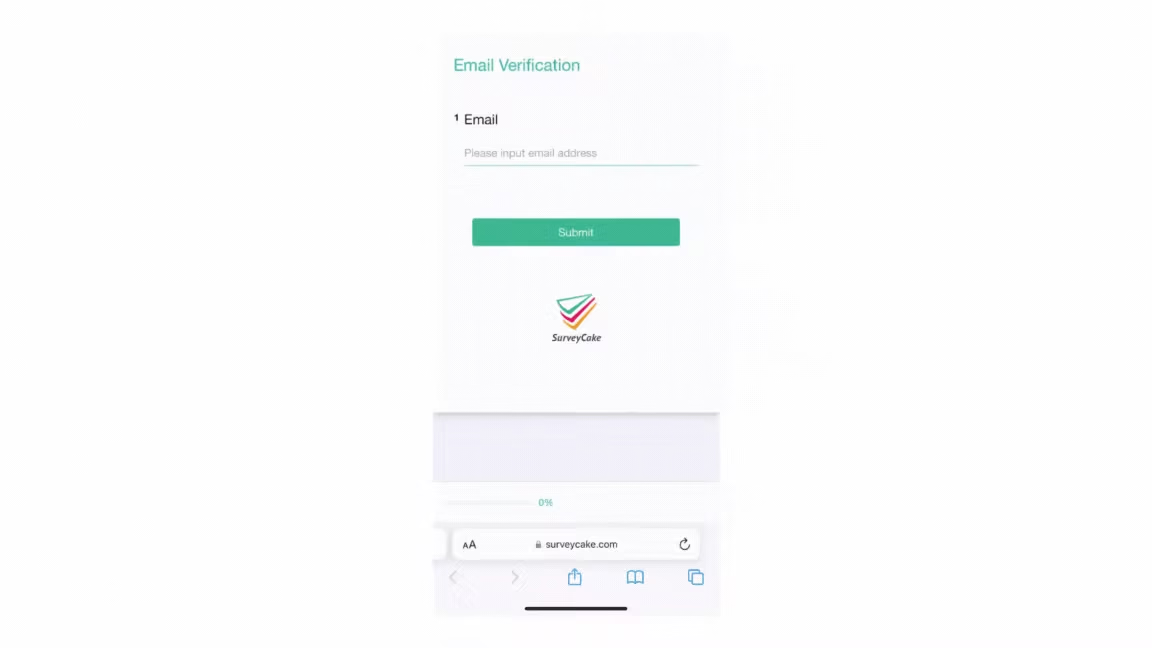
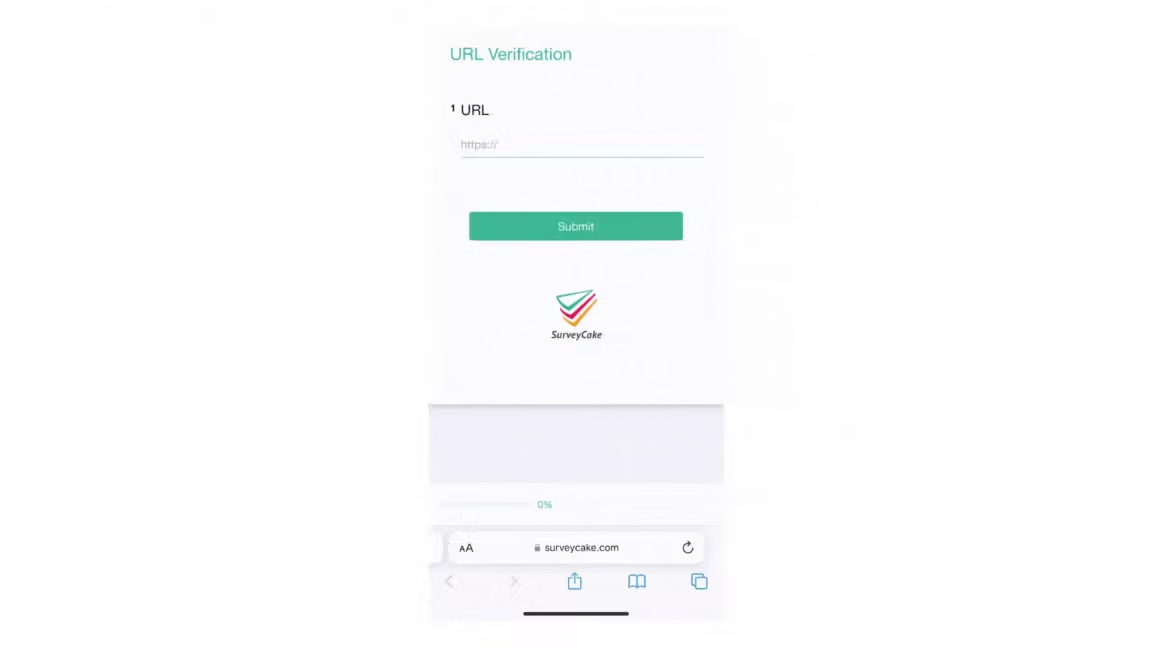
To collect answers such as email or website addresses, you can utilize the Text Validation feature by setting it to "email" or "URL". This will display relevant default guidance text and ensure that only valid email addresses or website URLs are accepted.
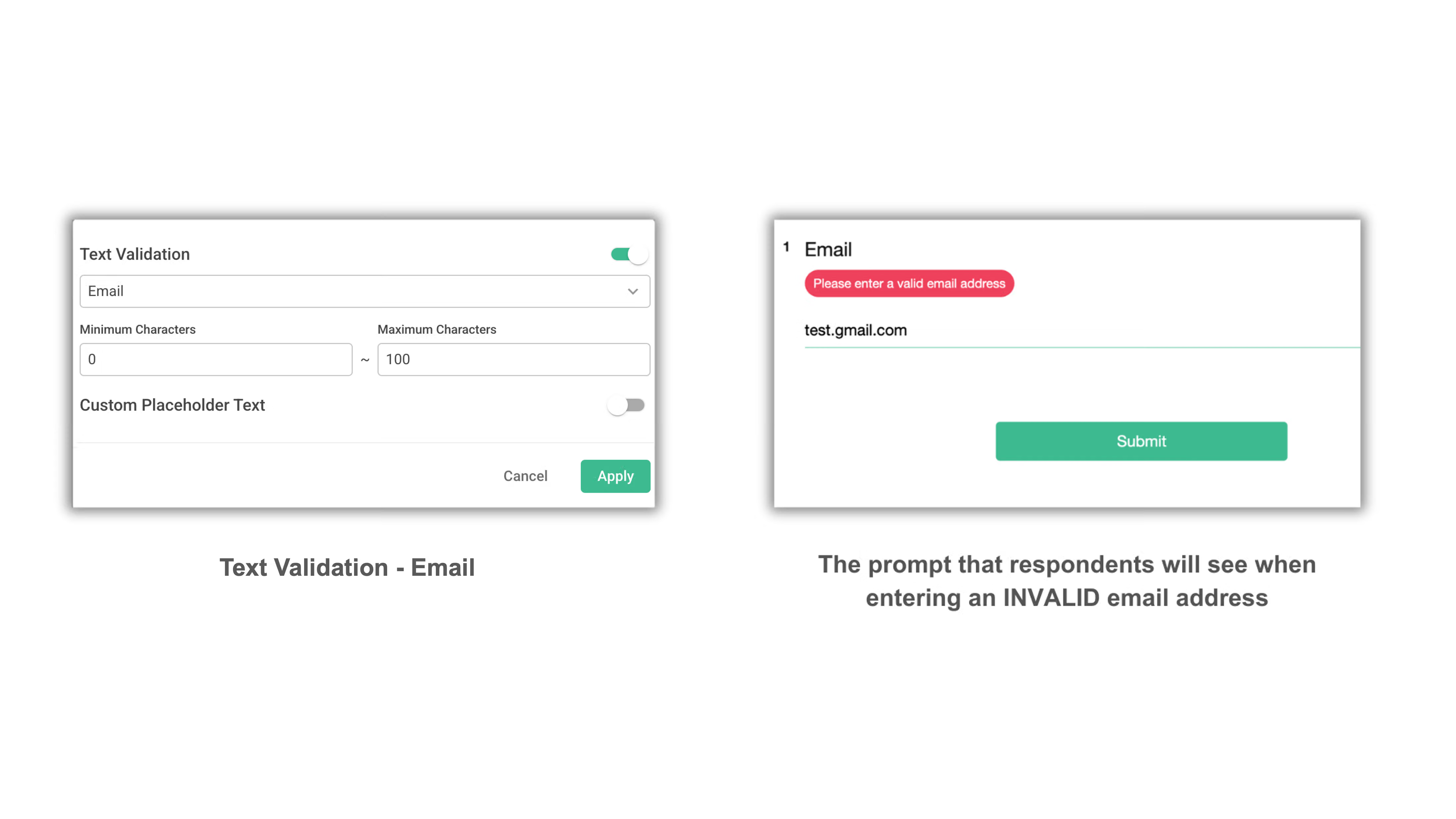
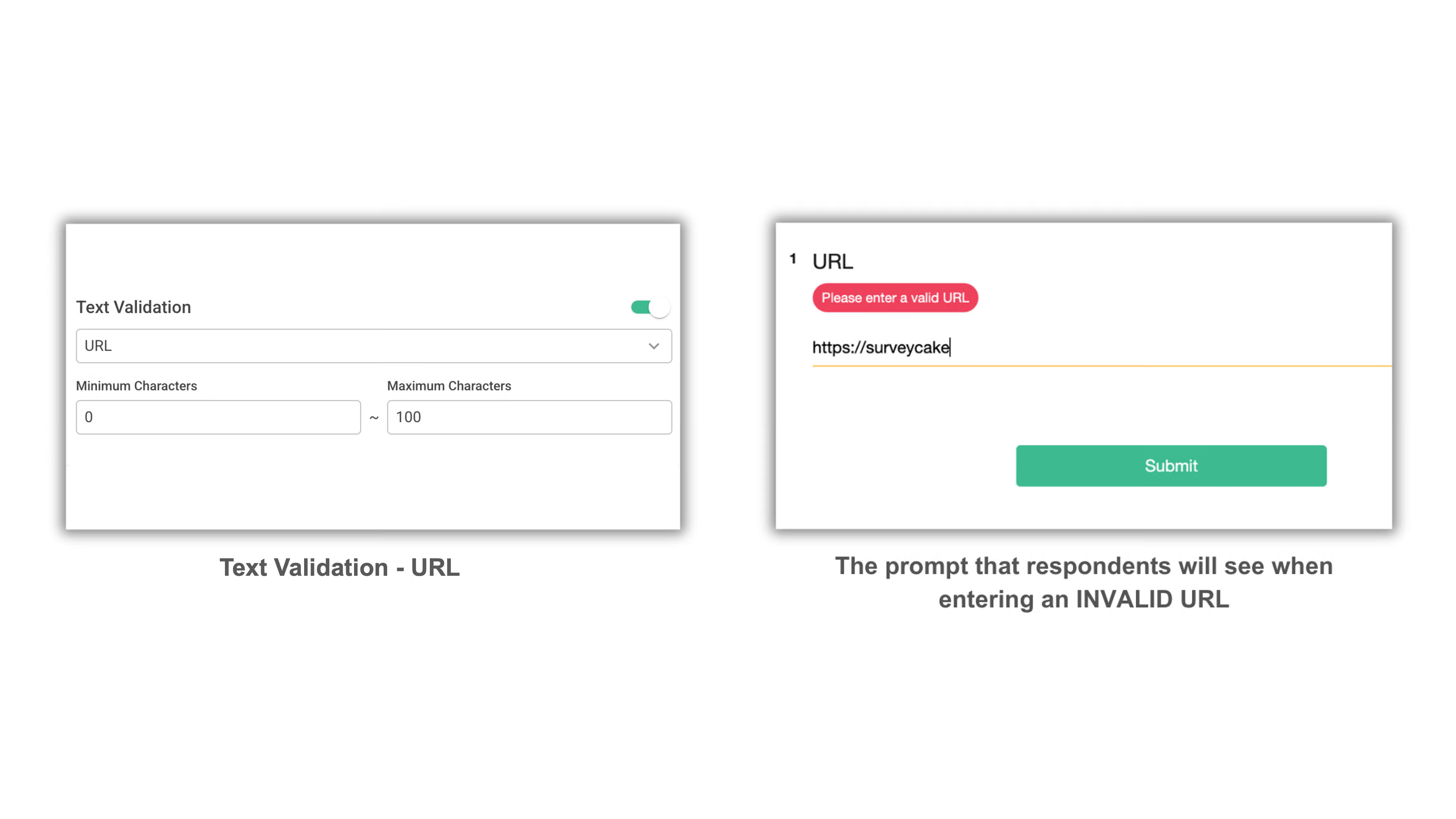
The corresponding keypad will automatically appear on the mobile devices when the text validation is set as Email or URL.
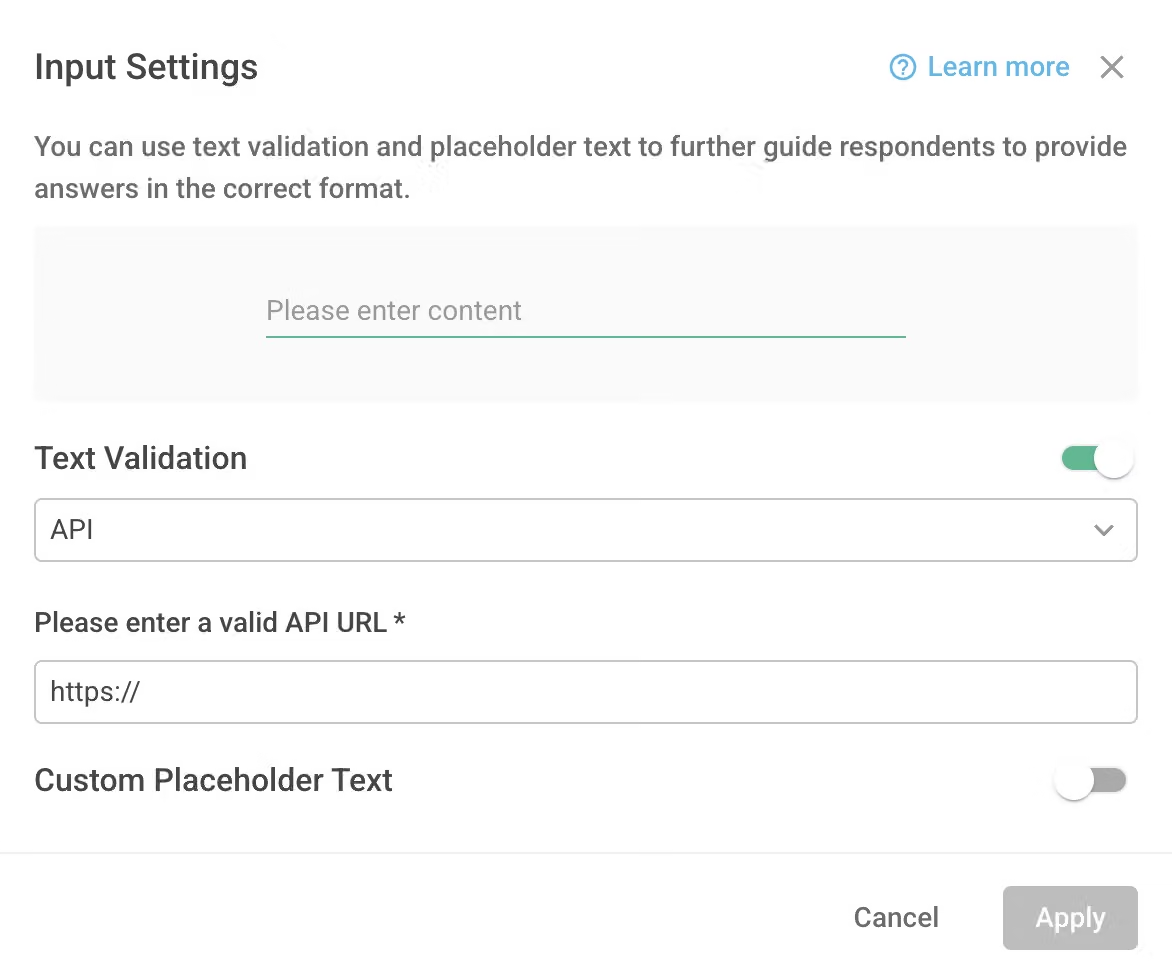
5. API
You also have the option to integrate your custom API into the survey, and the real-time response from the API will be displayed on the page. Additionally, you can utilize the API results to determine whether the question validation has passed. For more detailed information, please refer to the API.
FAQ
No, currently Skip Logic and Conditional Branching only can be applied to Multiple Choice and Checkboxes and other question types are not available yet.
Facilitate the experience of filling out surveys by setting Text Validation in Single Line Text. Keep this tip in mind when designing your next survey!